1
264
Chapter 11 – A Detailed Example
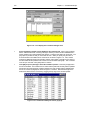
Double click on the new directory or folder to open it. You can then type the name of the required output
file in the File name text box. For this example, use a filename ‘Chap11.out’ or another of your choice.
When you click on the [Open] command button, the file dialogue box closes and a message is displayed.
Typically, if a new file has been specified, MIDUSS 98 will ask you to confirm that you want to create this
file. If you select an existing file as the output file, the message will warn you that if you continue, the
existing contents of the file will be lost. Close the message box by clicking either [Yes] or [No]. If you
press [No] the Open file dialogue box is re-opened until an acceptable output filename has been selected
or defined.
The name of the output file will be displayed at the right-hand end of the status bar. If you want this
display to include the full path of the file, you can do this by selecting the Options/Other Options item
from the menu and click on the item Include Path on Status Bar. If you have used the suggested name,
you should see the path ‘C:\MyJobs\Chap11.out’ at the right end of the status bar..
Define the Time Parameters
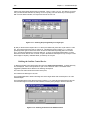
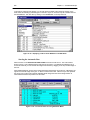
The third required step is to define the time parameters. Click on the Hydrology item in the main menu.
Only the Time parameters item is enabled at this stage. Click on the command to open the Time
Parameters dialogue box. The three items to be defined and their default values are:
Time Step
5
minutes
Maximum Storm length
180
minutes
Maximum Hydrograph
1500
minutes
These are acceptable for the current example although you may prefer to reduce the hydrograph length
to (say) 1000 minutes. However, too short a hydrograph length may result in truncation of a long outflow
hydrograph from a detention pond that will result in continuity errors in hydrograph volume. For other
projects you can change these default values easily by clicking on a value to highlight it and then type in
the desired value.
Specifying the Design Storm
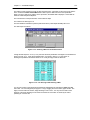
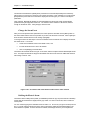
In the Hydrology menu the Hydrology/Storm item is enabled only after the time parameters have been
defined and accepted. On accepting the time parameters you may see a prompt that you can now define
a storm and on closing the message box the Storm command is opened automatically and the mouse
pointer is moved over it.
These two prompting features can be toggled off or on in the Options/Other Options menu. If you open
this menu you can see whether or not the options Show Prompt messages after each step and
Show Next logical menu item are checked. For the first few design sessions, you may find it useful to
use both options. After some experience with the program you may decide to omit the Prompt
messages.
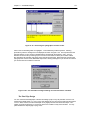
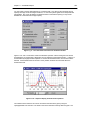
Click the Storm command to open the Storm window. Using the Chicago tab of the form, enter the
parameters given in equation [11.1] above and press [Display]. The hyetograph is displayed in graphical
and tabular form.