1
•
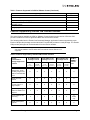
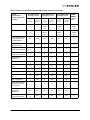
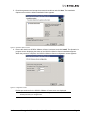
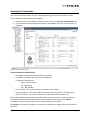
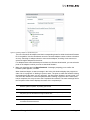
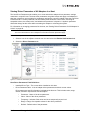
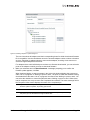
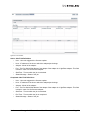
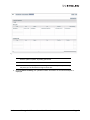
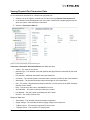
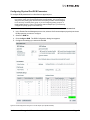
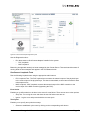
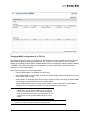
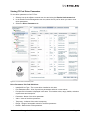
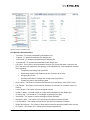
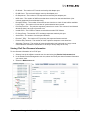
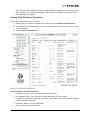
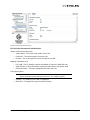
Priority Membership - The configured priority membership grouping.
•
Bandwidth % - The configured value of bandwidth for the different Priority Groups.
Configure DCB Dialog Box Buttons
•
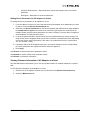
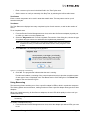
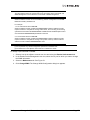
Defaults - Click to return parameters to default FCoE DCB settings.
•
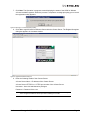
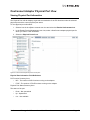
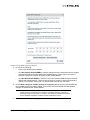
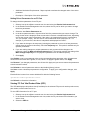
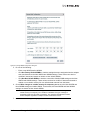
Configuration Rules - Click to display the FCoE Priority window that lists the rules for configuring
FCoE priorities. You must observe the following rules when configuring ETS Priority Groups for
FCoE adapter ports:
1
One and only one priority is configured for the FCoE priority.
2. Only one PFC priority must be selected and it must match the FCoE priority.
3. The FCoE priority is assigned alone to any of the priority groups.
4. All other priorities must be assigned to one and only one other priority group.
5. Bandwidths of all the priority groups must add up to 100%.
•
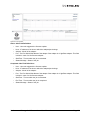
OK - Click to apply and save your changes.
•
Cancel - Click to discard any changes you made.
Running Diagnostic Tests on Physical Ports
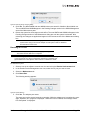
Note: When running port diagnostic tests on OCM for VMware vCenter, ensure the following:
(1) Do not perform any active management operations on the ESX host.
(2) The ESX host on the vSphere client must be in maintenance mode.
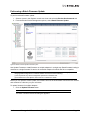
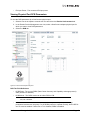
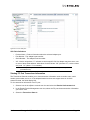
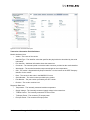
To run a diagnostic test on OneConnect adapter ports:
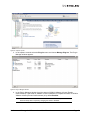
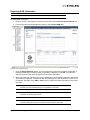
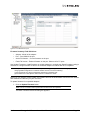
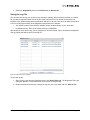
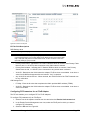
1. Select a host in the vSphere console tree view and select the Emulex OneCommand tab.
2. In the Emulex Device Management tree view, select the OneConnect adapter on which you want
to run the diagnostic test.
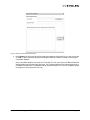
3. Select the Diagnostics tab.
OneCommand Manager for VMware vCenter User Manual
Page 47