1
iNodeConfig iC User Manual
•
•
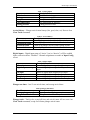
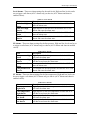
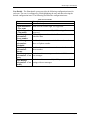
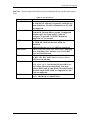
Line Temperature
Tubing Pressure
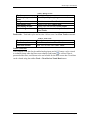
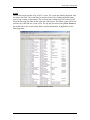
Setting Alarms
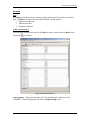
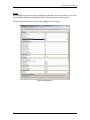
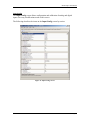
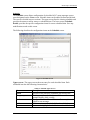
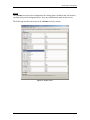
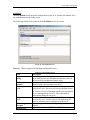
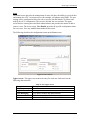
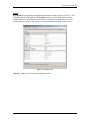
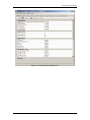
1. Select the Alarms screen.
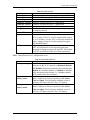
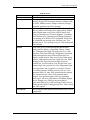
2. Each alarm value can be either “Disabled” or set to a specific trigger value. The
alarm must first be enabled to change the value. Click the value and open the drop
down menu that appears. Check or uncheck the Enable as desired.
3. If enabled, change the value as desired.
4. Save the values.
Saving and importing configurations
iNodeConfig iC provides the ability to export (save) or import (load) a configuration. An
exported configuration is a file that contains the complete configuration of the ACiC at
the time the configuration is saved. The exported configuration may be imported into any
ACiC. The configuration file may be exported to or imported from a PC, or an SD card
inserted into the ACiC.
Exporting and importing with a PC
1. Export the configuration
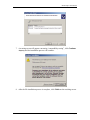
a. Select File, then Export Configuration, from the iNodeConfig iC toolbar.
The PC’s File Explorer will open.
b. Using File Explorer, find or create a directory into which to save the
configuration.
c. Name the file in File Name and click Save. The file is saved.
2. Import a configuration
a. Select File, then Import Configuration, from the iNodeConfig iC
toolbar. The PC’s File Explorer will open.
b. Using File Explorer, find the directory where the configuration file is
saved.
c. Click on the desired file. The file name will be entered into the File name
box. Click Open. The configuration will be loaded into the ACiC.
Exporting and importing with the SD card.
1. Export the configuration
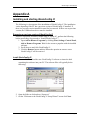
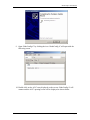
a. Select File, then Device SD card, then Save Configuration As…, from
the iNodeConfig iC toolbar. The Save As window will open.
b. Using Save As, name the file in File Name and click OK. The file is
saved. Note the file name is limited to 8 characters using A-Z and 0-9
only.
2. Import a configuration
a. Select File, then Import Configuration, from the iNodeConfig iC
toolbar. The Load File From SD Card window will open.
b. Click on the desired file and click OK. The configuration will be loaded
into the ACiC
9/15/2008
Version 1.0.0
Page 21