1
Elemec3 Console – User Manual – Version 2.0
Pub. 42004-498A
Page 18 of 73
User Flags
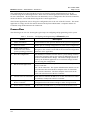
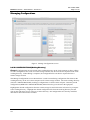
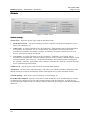
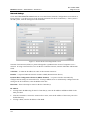
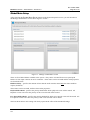
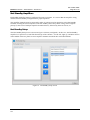
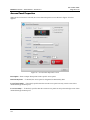
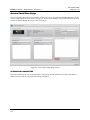
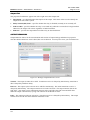
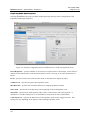
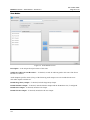
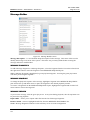
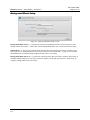
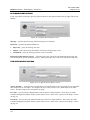
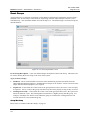
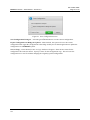
After selecting the USER FLAGS button on the System Properties screen, you will be taken to the Manage
User Flags screen shown below. User Flags (also referred to as “logic flags”) are created and associated
with an event to identify when a particular system event is active. User Flags can be used to trigger other
actions in the system such as lighting an LED on an access panel, activating a relay output or activating
another event.
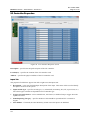
Figure 11. Manage User Flags screen
User Flags are essentially used in the same manner as relay outputs, but are internal state indicators. The
most likely use is for specifying when a particular event is active, and for setting up an LED Trigger for
access panel buttons. They are created automatically when messages are being created.
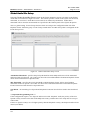
To create a User Flag manually, enter the Description and select the green ADD FLAG button.
Description – Enter a unique description for a User Flag.
followAudio – specifies whether or not the flag is asserted only when the event is active and the event’s
audio is being broadcast.
System Flags
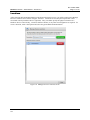
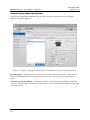
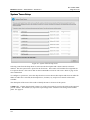
After selecting the SYSTEM FLAGS button on the System Properties screen, you will be taken to the
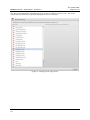
Manage System Flags screen shown in Figure 12. System flags are managed by the system to specify
different conditions in the system at any given time. They can be checked by the system as part of Event
Chaining. Any system flag can activate relay outputs. System flags are pre-defined, and cannot be
changed or deleted.
f:\standard ioms - current release\42004 instr. manuals\42004-498a.docx
08/15