1
Administrator Tasks
Photo ID Express 2.4
information for a specific visitor and export the visitor profile data
from the customized report. From the Visitor Detail screen, an
administrator or attendant can modify the badge record detail (such
as first name, last name, etc.), deactivate or re-print badge, change
the expiration date of the badge and force a scan in or out.
Procedure
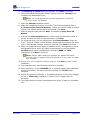
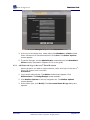
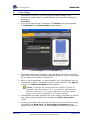
1. Log-in as an administrator. The Station mode screen appears. Click
Administrator. The Badge Designs screen appears.
2. Click Reports on the top navigation bar. The Reports screen appears.
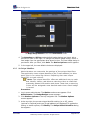
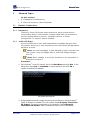
3. In the Search Digital Log, run a customized report so that search results
are displayed on the right.
4. Double-click on the name of the visitor to be viewed.
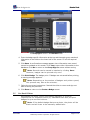
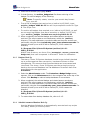
5. The Search Detail screen for that visitor appears.
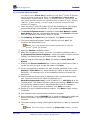
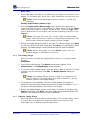
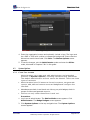
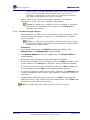
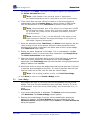
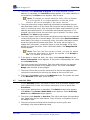
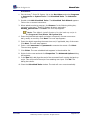
Badge Record Detail
•
This section displays all the information the visitor has been asked to
provide as well as enable the administrator or attendant to do not
permit, deactivate or re-print the badge.
•
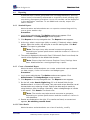
Do Not Permit – By checking this box, this visitor is prohibited from
entering the facility and creating a badge. Once this feature is
activated, it cannot be changed.
•
Deactivate Badge – By checking this box, the badge previously
created is deactivated. If the visitor does return, he/she will have to
create a new badge. Once this feature is activated, it cannot be
changed.
•
Re-Print Badge – To reprint a badge with the same bar code as the
original, click on button and a duplicate of original badge will be reprinted.
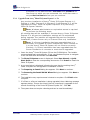
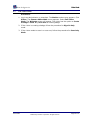
Changing Expiration Date
•
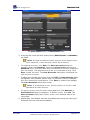
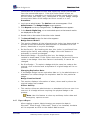
If the badge design has an expiration date on it, the administrator or
attendant can chose change the expiration date for this particular
badge.
Badge Creation Detail
•
This section displays information of when, where and by whom the
original badge was created.
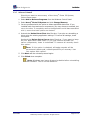
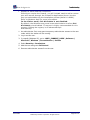
Visitor Activity
•
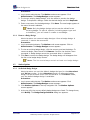
This section allows an administrator or attendant to force a scan in or
scan out of a badge without requiring the physical badge to be
present.
Note: Use this feature to clean up and keep visitor data and
emergency reports current.
4.4.3
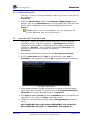
Export a Report
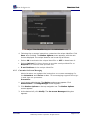
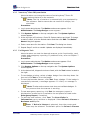
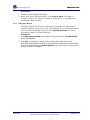
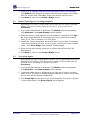
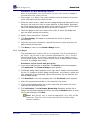
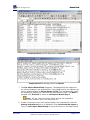
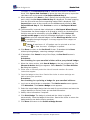
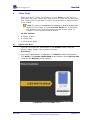
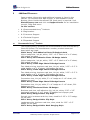
After creating a report, Administrators can export the data in
Microsoft ® Excel format. If Microsoft ® Excel is not installed, the data
will be exported as HTML to the default Web browser.
User Guide
©2009 Avery Dennison Corporation. All rights reserved.
Page 34 of 82