1
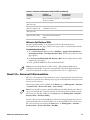
Resource Kits also include ReadMe files with late-breaking information and user’s
guides with API reference material. Shortcuts to the ReadMe file for each Resource
Kit can be found in your desktop PC Start menu, in All Programs > Intermec >
Resource Kits > Resource Kit Name > ReadMe.
Developing .NET Applications
This section includes general information on using the Resource Kits to develop
applications.
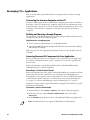
Connecting the Intermec Computer to Your PC
To deploy applications to the Intermec computer, establish an ActiveSync
connection between the computer and your PC. For information about using
ActiveSync on the Intermec computer, see the user’s manual for your computer.
Building and Running a Sample Program
An easy way to verify that the Resource Kits are properly installed and functional is
to build and run one of the sample programs.
To build and run a sample program
1 Choose a Resource Kit and browse to its Examples folder.
2 Open the ReadMe file for the example and follow the instructions for building
and running the example.
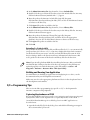
When you deploy a .NET application from Visual Studio, you need to select the
appropriate device platform.
Accessing Resource Kit Components in Your Application
This section describes how to access Resource Kit components in your application.
For reference information about specific components, see the user’s guide for the
Resource Kit.
When you install the Resource Kits, the Intermec .NET assemblies are installed such
that Visual Studio finds them and they can be easily added as references.
Many Intermec assemblies are installed into the Visual Studio Toolbox when you
install the Resource Kits. Simply drag-and-drop from the Toolbox to add them to
your project, and a reference is added to your project automatically.
Note: Because of certain installation issues, Intermec components may not appear
in the Visual Studio toolbox after you install Resource Kits. To add components to
the toolbox manually, right-click the toolbox and select Choose Items, and then
browse to the assemblies.
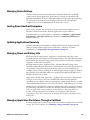
To add Intermec assemblies not found in the Toolbox to your project
1 In Visual Studio, open the Solution Explorer.
2 Right-click the References folder and choose Add Reference from the pop-up
menu. The Add Reference dialog box appears. In the .NET tab, the available
assemblies for Intermec computers are grouped together with names starting
with Intermec.
IDL Resource Kit Developer’s Guide
11