1
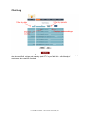
Audio Alerts:
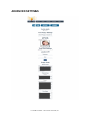
Here you can turn audio alerts OFF for operators. This is recommended if operators are
sat by the PC or mobile. BUT if the operator is away from the PC or mobile, they'll need to
be alerted when a customer needs help, in which case they can turn audio alerts on.
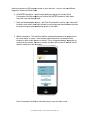
Timed Popups:
This is a really important part of your live chat operation. If you check from
from your analytics
that customers typically leave a page on your site after , say, 8 seconds – you could set
the timed pop-up
up to come after 7 seconds and thereby keep the customer and invite
help/support.
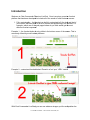
PopUp Image:
You can use any image for the timed popup.
popup. We have set a maximum size to 320x480
pixels to ensure that it will work well on mobile devices. You can use a .jpg OR .png. A .png
works well with a transparent background.
Timed Zone Settings
You can set the time zone for your live chat here.
Location API
If you want to know what city your customers are in when they launch the live chat, you
can do so here. You will need to go to the following URL ro register (FREE):
http://www.locatorhq.com/ip2location
com/ip2location-api
Once registered, you'll receive a Username and an API key. Insert those in the fields here
and click update. Now your operators will be able to see which cities the customers are in
BEFORE the operators open the chats.
PopUp Windows:
LiveChat User Manual © 2014 Search Commander, Inc.