1
DS NVR & DS NVs
User Manual
February 2006
Information in this document is subject to change without notice.
© Copyright 2006, Integral Technologies. All rights reserved.
DigitalSENTRY and Integral Technologies are trademarks of Integral Technologies. Other trademarks
and trade names may be used in this document to refer to either the entities claiming the marks or
names or their products. Integral Technologies disclaims any proprietary interest in trademarks and
trade names other than its own.
Integral Technologies makes no warranty of any kind with regard to this material, including, but not
limited to, the implied warranties of merchantability and fitness for a particular purpose. Integral
Technologies shall not be liable for errors contained herein or for incidental or consequential damages
in connection with the furnishing, performance, or use of this manual.
Integral Technologies
9855 Crosspoint Blvd., Suite 126
Indianapolis, Indiana 46256 U.S.A.
#3000-40150
TABLE OF CONTENTS
Introduction......................................................................................... 1
DS NVR and DS NVs Basics.................................................................................... 2
DS NVs Minimum Requiremnts................................................................................ 3
DSAdmin ............................................................................................. 5
DSAdmin Overview................................................................................................... 6
The DSAdmin Directory Tree................................................................................ 7
Adding and Configuring Servers............................................................................... 8
Adding and Configuring VAUs.................................................................................. 9
Configuring Serial Ports ...................................................................................... 10
Configuring Storage Locations............................................................................ 13
Configuring IP Cameras...................................................................................... 14
Network Storage ..................................................................................................... 16
Storage Options...................................................................................................... 18
Manage Storage ................................................................................................. 19
Adding and Configuring Cameras .......................................................................... 20
General ............................................................................................................... 21
Motion ................................................................................................................. 23
On Screen Display .............................................................................................. 28
Time-lapse Storage............................................................................................. 29
Motion Storage.................................................................................................... 31
PTZ ..................................................................................................................... 32
User Administration ................................................................................................ 34
Creating Users .................................................................................................... 34
Assigning Permissions........................................................................................ 35
Available Permissions......................................................................................... 36
Assigning Camera Permissions .......................................................................... 38
Managing Users Across Multiple Systems ......................................................... 40
Camera Groups ...................................................................................................... 42
Adding and Configuring Zones ............................................................................... 43
Configuring Zones............................................................................................... 45
The Cameras Directory .......................................................................................... 50
Configuration Parameters....................................................................................... 50
Throttle Exempt Addresses .................................................................................... 53
Email Notification .................................................................................................... 54
(continued)
Client Application ............................................................................. 55
Running DigitalSENTRY......................................................................................... 56
Video Window Configuration .................................................................................. 57
Recording Mode Indicators ................................................................................. 58
Quick Review ...................................................................................................... 58
Zooming Into Video............................................................................................. 59
Creating Local Groups ........................................................................................ 59
Camera Sequencing ........................................................................................... 60
Copying Local Configuration Information to Other Computers........................... 60
Video Controls Tab ................................................................................................. 61
Manual Recording ............................................................................................... 62
Cameras Tab .......................................................................................................... 63
Print/Export Tab...................................................................................................... 64
Exporting a Video Clip ........................................................................................ 64
Image Details Tab................................................................................................... 66
Event History Page ................................................................................................. 67
Searching for Logged Events.............................................................................. 69
Playing Back a Logged Event ............................................................................. 70
Recorded Video Page ............................................................................................ 71
Searching for Recorded Video............................................................................ 72
Playing Back Recorded Video ............................................................................ 74
Search Tab.......................................................................................................... 76
Client Manager ....................................................................................................... 77
Changing Passwords .......................................................................................... 78
Viewing the Message Log................................................................................... 79
Viewing Reports .................................................................................................. 80
Client Startup Options......................................................................................... 80
Viewing Messages.................................................................................................. 81
Alarm Assessment.................................................................................................. 83
Playing Back Current Alarms .............................................................................. 84
Acknowledging Alarms........................................................................................ 85
PTZ Control ............................................................................................................ 86
IPIX Solid-State PTZ........................................................................................... 87
CoVi PTZ............................................................................................................. 87
Technical Support and Certifications ............................................. 89
DS NVR & DS NVs
Intr
oduction
Introduction
DS NVR and DS NVs Basics
DS NVR and DS NVs are network video recorders that use DigitalSENTRY as
the video monitoring and management software. DS NVR is an all-inclusive,
standalone video recorder; DS NVs is a software-only solution that can be
installed on an existing server, as described in the following section.
For information on installing DS NVR, see the DS Hardware Installation &
Field Service Manual.
2
DS NVs Minimum Requirements
DS NVs can be installed on a computer that meets the following minimum
requirements:
•
Industry-Standard, Intel Platform, Server-Grade Motherboard
•
Dual Xeon Processors (32-input system) or Intel P4 3.2GHz Processor
(16-input system or smaller)
•
1GB RAM
•
Dual Gigabit Network Interface Cards (NICs)
•
Microsoft Windows XPe, XP Pro, 2003 Server Operating System
•
7200rpm Hard Drive (minimum of one); can be SCSI or SATA*
•
Drive Controller Card**
•
CD-RW
•
Standalone systems: 20GB available storage for operating system
and applications
•
Distributed systems: 160GB available storage for operating system,
applications, and video storage
*If all video will be stored on the DS NVs server, you must add the appropriate
quantity, speed, and size of drives required to meet the storage requirement. If
the video will be stored on an external storage subsystem, you must also install
a suitable SCSI Card.
**The transmission I/O rate of the Drive Controller Card is important. For best
performance, select a system that has a robust controller card, especially if you
have a high camera count (20–32 IP cameras) or when using high-throughput
cameras (such as iPIX).
3
TCP/IP Addresses
The DS NVs server must have two network interface cards (NICs)—one to
communicate with the IP camera network, and the other to communicate with
other computers, such as clients computers used to remotely monitor the
system. Each NIC has a unique TCP/IP address, and the DSAdmin software
must recognize the address of the NIC used to communicate with other
computers.
When you first run DSAdmin (which is described in greater detail in the
following chapter), check the TCP/IP address that is assigned to the VAU. If
the TCP/IP address displayed is applicable to the IP camera network, switch the
network cables plugged in to each NIC and restart the system. Then run
DSAdmin again and ensure that the TCP/IP address assigned to the computer
network is displayed.
DS NVR & DS NVs
DSAdmin
This chapter describes DSAdmin, the application that configures
DigitalSENTRY software and the DS NVR/NVs hardware. In this chapter
the following topics are discussed:
•
•
•
•
•
Overview of DSAdmin and its directory tree
Adding and configuring servers, VAUs, and cameras
User administration
Creating camera groups
Enabling email notification
Also in this chapter is a list of special configuration parameters, and much
more.
DSAdmin Overview
DSAdmin is the administration program that configures a DS NVR/NVs for
daily use. DSAdmin is used to configure DS NVR/NVs servers, video acquisition units (VAUs), and cameras, along with recording rates, video settings,
recording schedules, and much more. DSAdmin also allows you to set up
zones, serial input devices, and other important elements of the DS NVR/NVs
system.
To run the DSAdmin program, select it from the Start menu and enter your
login information (see Note). When DSAdmin first runs, the name of the client
computer is displayed in the gray title bar and the Folder Items area. The
Server List field contains a path to a local .INI file containing a list of servers
that the client is allowed to connect to.
Note
6
If the login information entered during DSAdmin startup does not
match the login information for the available systems, you are also
asked to enter login information for those systems. See the
“Adding Systems” section of this chapter for a discussion on
system login information.
DS NV
s
NVs
The DSAdmin Directory Tree
A DS NVR/NVs system is a collection of servers, VAUs, and cameras, which
the DSAdmin program organizes into a directory tree. This tree illustrates the
relationship between all the parts and allows you to add, subtract, or modify
any of them.
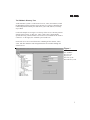
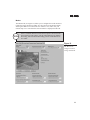
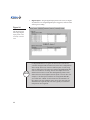
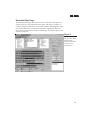
Look at the sample tree in Figure 1. At the top of the tree is a directory named
after the client system—in this case, 17PC. Under 17PC is the Available
Systems directory, which contains a list of all servers available for the client to
connect to—in the figure, the available system is DS NVs.
Under each server are several directories containing all the cameras, VAUs,
zones, and other hardware and configurations that are available through the
selected server.
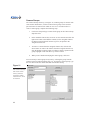
Figure 1
The DSAdmin
directory tree
displays the
hierarchy of the
DS NVR/NVs system.
7
Adding and Configuring Servers
To make a DS server available to your client computer, complete the following
steps:
8
1.
Click on the client directory at the top of the tree to display the
Available Systems directory.
2.
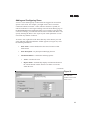
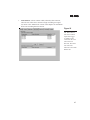
Right-click on Available Systems and choose Add System. This opens
the Add System window (see Figure 2).
3.
In the System Name field, enter a name for the DS server you want to
make available.
4.
Enter the static IP address of the DS server. If the server will not be
connected to a network during operation, enter 127.0.0.1 for the IP
address.
5.
Enter a reconnect interval. If the client becomes disconnected from the
server, it will try to reconnect after the amount of time (in seconds)
indicated by the reconnect interval.
6.
If you want the client to automatically connect to the server whenever
the DigitalSENTRY client application is started, click Auto Connect.
7.
Click Save to add the server to the Available Systems list.
DS NV
s
NVs
To configure a server that you have made available to the client, click on the
server in the directory tree. This displays the server configuration information,
which allows you to view or change the name, IP address, and reconnect
interval for the server. If you do not select AutoConnect, you can click Connect
to connect to the server. You can refresh a connection to a server at any time by
right-clicking on the server name in the directory tree and selecting Refresh.
Figure 2
The Add System
window makes a
DS NVR/NVs server
available for access
from the client.
9
Adding and Configuring VAUs
To add a VAU to a server, right-click on the VAUs directory under the appropriate server in the directory tree and select Add VAU. This opens the Add
VAU window, which asks for the following information:
•
•
•
VAU computer name
Static IP address
VideoServer port
Enter this information for each VAU connected to the DS server and click
Save. On a server/VAU combination system, this information is the same as the
system configuration information, and it might already be entered in the VAUs
directory.
To configure a VAU, click on its name in the directory tree to display the
following tabs:
•
VAU Info—unused with DS NVR/NVs
•
Serial Ports—configures PTZ cameras and other devices connected to
each COM port
•
Storage Locations—configures the local and remote storage locations
connected to the DS system
•
Audio Channels—unused with DS NVR/NVs
•
IP Cameras—configures the IP cameras connected to the VAU
•
Delete VAU—deletes a VAU from the system
These tabs are described in more detail in the following sections.
Caution
10
The Delete VAU function removes all data for that VAU, including
all recorded video, unless it is the only VAU added to the server. If
only one VAU is added, its data must be deleted manually. By
default, the permission to delete a VAU is not granted to users.
DS NV
s
NVs
Configuring Serial Ports
To configure serial ports on a VAU, click on the VAU in the directory tree and
select the Serial Ports tab. To activate a COM port, highlight it and click Add.
Then highlight it in the assigned ports list and enter serial input information on
the following five tabs:
•
General. This tab (see Figure 3) requires the following information:
•
Interface Type—either Monitor, Card Reader, or PTZ.
•
PTZ Type—the make and model of the PTZ camera connected to
the selected port (if PTZ is selected for the Interface Type). Select
the type from the drop-down list; only one PTZ type can be
selected per COM port. To update the drop-down list, click Get
Types every time you want to configure the PTZ type.
•
Maximum Line Size—the maximum size of a string coming
from a device. A string longer than this many characters usually
indicates an error.
•
End of Line Characters—a character, such as a carriage return,
that indicates a line is complete.
•
Description—a description of the COM port.
•
Active—activates the COM port.
Figure 3
The General tab
under Serial Ports
contains basic
information about
the serial input
device.
11
Figure 4
The Port Settings tab
contains connection
information for the
serial input device.
Figure 5
The Reset Text tab
contains the text the
alarm panel sends to
indicate that an
alarm is reset. The
Required Text, Alarm
Text, and Normal
Text tabs look
identical to the Reset
Text tab.
12
•
Port Settings. Enter the device’s settings here, including the COM
port it is connected to, its baud rate, parity, and stop bits (see Figure
4).
•
Reset Text. Enter all text string segments that the device sends to
indicate a reset (see Figure 5). After you enter each segment, click
Add.
•
Required Text. Enter text string segments that must be present to
cause DigitalSENTRY to recognize an command. If the device sends
multiple similar strings for the same command, only the string with
one of these segments is recognized. After you enter the text, click
Add.
•
Alarm Text. Enter all text string segments that the device sends to
indicate that an alarm is occurring. The instance of one of these
segments in a string is recognized as an alarm. These segments are
used to trigger recording in certain zones that you will configure (see
the “Adding and Configuring Zones” section of this chapter). After
you enter the text, click Add.
•
Normal Text. Similar to Alarm Text, but video does not automatically
appear for these alarms even if automatic alarm viewing is configured.
DS NV
s
NVs
Configuring Storage Locations
The Storage Locations tab (see Figure 6) displays local hard drives on the VAU
and all activated network storage locations. Local hard drives available for
storage of video files are listed under Local Storage, along with their total size,
unused space, and minimum free space maintained (in MB). To assign a drive
for local storage of video, select the drive and then Activate Storage Location.
To make sure a drive is detected and available, select it and look for the word
Online or Offline below the list (DSAdmin searches for the drives each time a
connection is created or refreshed).
Activated network storage locations appear on the right side of the Storage
Locations tab. To archive video stored on the VAU to the network storage
locations every 15 minutes, select Copy To Network Storage Location. You can
view information about each network storage location by selecting it in the list.
The network storage locations are configured on the Network Storage page, as
described in the following section.
Figure 6
The Storage Locations tab allows you
to select local and
network drives for
archiving.
13
Configuring IP Cameras
The IP Cameras tab (see Figure 7) allows you to configure IP cameras connected to the VAU through the TCP/IP network port. To configure an IP
camera, click Add IP Camera and then select the camera model from the dropdown list. This opens the IP Camera window (see Figure 8), which contains the
following configuration information and options:
•
The top of the window displays the location of the camera input
automatically selected for the IP camera.
•
The Camera Name field allows you to enter the desired name of the IP
camera that will appear in video windows, searches, lists, and so on.
•
Consult the camera manufacturer’s documentation for information on
Frame Rate, Resolution, and Quality information. This can vary
between camera manufacturer’s and models.
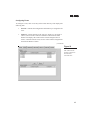
Figure 7
The IP Cameras
tab contains a list
of IP cameras
connected to the
VAU and licensing
information.
Note
14
To activate the IP camera, you must select the Active checkbox in
the IP Camera window.
DS NV
s
NVs
•
In the IP Configuration section, enter the TCP/IP Address and other
information configured for the camera on your network. Some IP
cameras use a TCP or UDP notification for motion events; the event
port number is the TCP or UDP port used for that notification and
must be a different number for each camera. To view information
about the camera using a web page generated by the manufacturer,
click the IP Camera Configuration Web Page button (Internet Explorer
must be the default browser for this to work).
•
When configuring IPIX CommandView Dome cameras, the window
contains an IPIX Settings button, which allows you to configure the
geometry settings of the camera (consult the camera manufacturer’s
documentation for information). Also, the Resolution settings in the IP
Camera window must be less than the maximum settings combined
with the offsets that are selected in the manufacturer-provided settings
page.
•
When the configuration is complete, click OK.
To configure an existing IP camera, click Edit IP Camera. To delete an existing
IP camera from the VAU, click Delete IP Camera.
Figure 8
The IP Camera
window allows you
to configure IP
cameras connected
to the VAU through
the TCP/IP network
port.
15
Network Storage
DigitalSENTRY video files can be saved on storage devices available over a
network connection. If you archive video over a network, video files remain on
the local hard drives until they are complete, and then they are copied to the
network device. Video files are complete at the end of a 15-minute segment.
The Network Storage page (see Figure 9) allows you to configure network
storage locations. To add a network storage location, complete the following
steps:
Figure 9
The Network Storage
page allows you to
configure drives for
network archiving.
16
1.
Click Add Storage Location Not In List. This opens the Add an
Archive Storage Location window.
2.
Enter a UNC share name for the storage location. A valid UNC share
name begins with two backward slashes and contains the network
name of the storage unit in which it is installed.
DS NV
s
NVs
3.
Enter a minimum amount of free space (in MB) that you want the
storage location to maintain.
4.
If you want to enable caching, select Use Caching. Caching is typically used to increase performance on storage devices that employ
RAID arrays.
5.
Click Save. The storage location is then included in the list of locations assigned to the selected computer. To begin saving video to the
location, select Activate Storage Location.
After a network storage location is activated, it appears on the Storage Locations tab of each VAU. You can then select all activated network storage
locations for the VAU to copy files to.
To edit the UNC share name for a network storage location, select it and click
Edit UNC Path for Storage Location. To completely remove a network storage
location, select it and click Delete a Storage Location.
17
Storage Options
The Storage Options directory (see Figure 10) allows you to configure the
length of time that video is stored on a DS system before it is automatically
deleted.
The Video Storage Options section configures the storage options available for
each camera. The value you select for the First Storage Option and Second
Storage Option will appear in the drop-down lists on the camera configuration
pages. For example, if you keep the default storage options (10 and 30 days),
the Retain Video drop-down list on the Motion Storage tab for all cameras will
contain options to store video as long as possible, for 10 days, or for 30 days.
The Video Storage Options section also allows you to configure how long
alarm video is saved before it is automatically deleted. If you select 0 days, the
alarm video will be saved for the same amount of time you select for motion
video on the Motion Storage tab. Otherwise, the alarm video will be saved for
the number of days you select in the Video Storage Options section.
Alternatively, you can select the Force Video to be Deleted option in the Video
Storage Options section. To do this, select the checkbox and enter the number
of days. This option overrides the other video storage options.
You can also enter an Expected Number of Days. If video is deleted (because
of lack of space) before this number of days, a warning message is displayed.
Note
18
Activating or modifying the Force Video to be Deleted option
affects only the video recorded after you make the change. Any
video recorded before you modify this option follows the setting
configured at the time the video was recorded.
DS NV
s
NVs
Figure 10
The Storage Options
directory allows
you to configure how
long certain types of
video are stored
before they are
automatically
deleted.
Manage Storage
The Manage Storage section of the Storage Options page allows you to
determine the portion of the total storage space that is reserved for continuous
recording (all captured frames) and the portion reserved for time-lapse or
motion recording. Simply adjust the slider bar right or left to configure this
setting. Note the number of hours displayed below the slider bar; video
recorded at the maximum possible frame rate is always stored for that approximate period of time. However, after that time period expires, the video segment
is saved at the appropriate frame rate for the recording type (motion or timelapse) and the continuous frames are deleted. Thus, you have a limited amount
of time to view continuous video recorded at the fastest possible frame rate
before the video clip is reduced to only the motion and time-lapse video.
This section allows you to analyze video storage locally on each VAU. Select a
VAU from the drop-down list to view the amount of continuous and motion
video stored locally on that computer. The amount of video is displayed in
duration (days, hours, minutes), total file size, and percentage of hard drive
space filled.
19
Adding and Configuring Cameras
After you add cameras to a system, you can configure them by clicking on their
names under any of the Cameras directories in which they are shown. Camera
configuration consists of six tabs, as described in the following sections.
Tip
If you click on a Cameras directory, any configuration changes you
implement are applied to all cameras in that directory. After you
make the changes, click Apply To All Cameras in Folder. This
feature is not available on the Motion tab (it is unlikely that a user
would want the identical motion mask on multiple cameras).
20
DS NV
s
NVs
General
The General tab (see Figure 11) contains the following configuration information:
•
Image Quality—the size of image files recorded by the selected
camera. The larger the file is, the higher the quality of recorded video.
There are four predefined image quality settings: low, medium, high,
and extra high.
•
Frame Rate—the number of images recorded per second and per
minute by the selected camera. This field on the General tab does not
actually set the frame rate—it only establishes the Fast, Medium, and
Slow settings used on the scheduling tabs. Select the frame rate per
minute for each speed setting (the rate per second is automatically
updated).
•
Associated Audio Channel—unused with DS NVR/NVs.
•
Covert Camera—marks this camera as covert when assigning camera
permissions in the User Administration procedure.
(continued)
Figure 11
The General tab
under Cameras
allows you to
configure image
size, frame rate,
and more.
21
•
Maximum Video Buffer—the maximum amount of time (in seconds)
you can save video for pre-motion recording. If the camera begins
recording a motion event, you may want to record a certain amount of
time before the event. The Maximum Video Buffer value limits the
amount of video that can be appended to the beginning of any recorded event. This value is limited by the amount of RAM available in
the VAU. See the Motion tab description in this section for information about setting pre -motion recording values for individual cameras.
•
Motion Detection—enables settings on the Motion tab (as described
later in this section) if Use Integral Motion Detection is selected.
Alternatively, you can select Use Motion Detection in IP Camera to
enable the motion detection settings that are configured directly on the
IP camera.
•
Camera Port Name—the default name of the camera input. You
cannot change this name.
•
Camera Name—the name of the camera as it appears in the client
application. You can change this name as desired.
•
Description—the camera’s location or other identifying information.
•
VAU—the VAU that the camera is connected to.
•
Input Device Name and Input #—unused with DS NVR/NVs.
Changes on the General tab are implemented at the next of either zero, 15, 30,
or 45 minutes after the hour.
22
Note
You can change a camera name at any time. However, searching
for video using the new name finds only the video recorded after
the name change. Any video recorded before the name change
must be searched for using the name of the camera when the video
was recorded.
Note
When an IP camera is selected, the General tab includes two extra
buttons: Edit IP Camera Settings and IP Camera Configuration
Web Page. These buttons are also on the IP Camera tab and
described in the “Configuring IP Cameras” section of this chapter.
DS NV
s
NVs
Motion
The Motion tab (see Figure 12) allows you to configure how much motion is
required to trigger motion recording. It is also used to create motion masks,
which ignore motion in certain areas of a camera’s view, and to test your
motion setup. Live video from the selected camera is displayed on this tab.
Note
If the Use Motion Detection in IP Camera option is selected on the
General tab for an IP camera, only the Alarm Settings, Pre-Motion
Recording, and Post-Motion Recording portions of the Motion tab
are visible.
Figure 12
The Motion tab
configures motion
settings and masks.
23
To adjust how much motion is required to trigger motion recording, adjust the
values for the following parameters:
24
•
Sensitivity—the change in a pixel required for that portion of the
image to be considered changed. The Sensitivity value is expressed as
a percentage times 100. For example, a value of 100 indicates a 1
percent change, 5000 indicates 50 percent, and so on. A brightness
change from black to white would be a change of 10000, or 100
percent. This comparison is performed for all pixels in each image.
•
Unmasked Area % for Motion—the percentage of an image that
must change as compared to the reference image for motion recording
to be triggered. For example, a value of 10 percent means that one
tenth of the pixels in the image must change enough as compared to
the reference image for motion to be detected.
•
Reference Count—how often the reference image is updated. A
setting of 100, for example, means that every 100th image becomes
the new reference. The 99th image would be compared to the first
image, whereas the 101st image would be compared to the 100th
image.
DS NV
s
NVs
Motion masks allow even greater control of the motion detection. Suppose you
have a camera at a front entrance that happens to capture the receptionist’s
desk; you might not want to record all of the receptionist’s movements if they
didn’t present a security risk because the images would consume valuable disk
space for storage. Thus, you could mask the portion of the camera’s view that
includes the receptionist’s desk so that motion that occurred there wouldn’t be
detected. You can create a motion mask as large or as small as you want and in
a virtually unlimited number of patterns.
To create a motion mask, complete the following steps:
1.
On the live video window, click and drag to draw a rectangle that
covers all or part of the area you want to mask. Repeat until the entire
area you want to mask is covered.
2.
To eliminate a portion of the mask you created, click and drag on the
mask to draw a rectangle over the area you want to clear. To eliminate
the entire mask, click Clear Mask.
3.
To change the color of the mask, click on a color square above the live
video window.
Tip
If there is only one small area where motion events need to be
detected, you can instead mask that area and then click the Invert
Mask button. This masks all unmasked portions of the video and
clears all masked portions.
25
To test the mask you created to see if motion recording will perform as desired,
click the Save and Test Mask button. Then view the following parameters:
•
Max Consecutive—the highest number of consecutive images that
exhibited motion during the current test (when motion occurs, a
colored border appears around the video window).
•
Consecutive Frames—the current number of consecutive images that
differed enough from the previous image for motion to be recognized.
This resets to zero when a change is not recognized in an image.
•
Total—the total number of images that exhibited motion during the
test, whether consecutive or non-consecutive.
•
Total Non-Motion Frames—the number of images during the test
that did not exhibit motion.
•
Total Frames—the total number of images displayed and compared
during the test.
After the test, assess whether too much or too little of the image is masked and
whether the sensitivity is too high or low. Also assess the consecutive images
setting; for example, if a person can walk across the entire camera view while
only five images are recorded, the consecutive images setting should be less
than five so that such activity isn’t ignored.
Any changes made on this page for individual cameras are applied when you
click Test Mask, even while recording. You cannot change motion settings for
more than one camera at a time.
26
DS NV
s
NVs
The Motion tab also contains settings that control the triggering of alarms
based on motion events. You can configure a zone of camera inputs to begin
recording when motion occurs on specific cameras (see “Adding and Configuring Zones” in this chapter for more information). The settings that control
when this recording occurs are found in the Alarm Settings area of the Motion
tab. This section contains the following settings:
•
Consecutive Motion Frames to Trigger Alarm—the number of
consecutive motion images that must occur on the selected camera
input to activate recording on all cameras in the zone.
•
Consecutive Non-Motion Frames for Reset—the number of consecutive non-motion images that must occur to end alarm recording
(or to begin post-motion recording, if configured).
You can also configure pre- and post-motion recording on the Motion tab. The
Pre-Motion Recording and Post-Motion Recording sections of the Motion tab
contain the following settings:
•
Consecutive Motion Frames to Trigger Pre-Motion Recording—
the minimum number of consecutive motion images that must occur
on the selected camera input for the pre-motion video to be appended
to the recorded motion event.
•
Pre-Recording Seconds—the amount of video appended to the
beginning of the recorded motion event when the minimum number of
consecutive motion images occur. The images included in the premotion segment is determined by counting backward from the final
consecutive motion image. The maximum possible Pre-Recording
Seconds value is equal to the Maximum Video Buffer setting on the
General tab.
•
Consecutive Non-Motion Frames to Start Post Motion Recording—the minimum number of consecutive non-motion images that
will end the motion event and start a post-motion recording period.
The first image included in the post-motion recording period is the
first image after the final consecutive non-motion image.
•
Post-Recording Seconds—the amount of video recorded in the postmotion recording period. This video is appended to the end of the
recorded motion event. If the minimum number of consecutive motion
images reoccurs during the post-recording period, the post-recording
period restarts beginning with the image following the final consecutive motion image.
27
On Screen Display
The On Screen Display tab (see Figure 13) allows you to set the location for
date, time, and camera name text in live and recorded video windows. You can
also set the location for the word Motion that appears on video displayed over
an analog output when motion events occur (these words do not appear in the
DigitalSENTRY client application). Live video from the currently selected
camera is displayed on the tab so that you can see what your setting would look
like if you were to activate the OSD for the camera in the DigitalSENTRY
client application.
To display date, time, and camera name information on the test video window,
select the appropriate boxes in the Display column. Then adjust the X and Y
values to change the location of the first character of text for each displayed
item onscreen.
Each video window is divided into a grid 28 units wide by 11 units high. The X
(horizontal) value can be 0–27, with 0 indicating the left column units and 27
indicating the right column of units. The Y (vertical) value can be 0–10, with 0
indicating the top row of units and 10 indicating the bottom row of units.
Be sure to leave enough room for the rest of the text. For example, do not place
the time text in column 27, because the rest of the text would extend past the
right edge of the video window. The live video window allows you to immediately test your OSD configuration.
If the DigitalSENTRY client application is running when you make changes on
the On Screen Display tab, you must refresh the system in Client Manager for
the changes to be implemented.
Figure 13
The On Screen
Display tab configures the text that
appears in video
windows.
28
DS NV
s
NVs
Time-lapse Storage
The Time-lapse Storage tab (see Figure 14) allows you to schedule time-lapse
recording for the currently selected camera. The screen contains a timeline,
organized by day and time, that visually represents the schedule for each day of
the week. The schedule is color-coded to represent the recording rate scheduled
for the camera.
To create a schedule for a day of the week, complete the following steps:
1.
Select the rate (Slow, Medium, or Fast, as defined on the General tab)
at which you want video to be recorded on that day of the week.
2.
Click on the day’s row under the time of day you want to start timelapse recording, and drag the edge of the box that appears to the right
until you reach the time of day you want to stop time-lapse recording.
(continued)
Figure 14
The Time-lapse
Storage tab uses a
timeline to schedule
continuous recording at various image
capture rates.
29
3.
If you want to record at a different rates at a different times on that
day of the week, select a recording rate and draw another schedule
box on that day’s row.
4.
To clear a section of the schedule, select Clear and drag over the
schedule boxes that you want to erase. To completely clear the
schedule to start over, click Clear Schedule.
5.
Repeat this procedure for each day.
Changes saved on the Time-lapse Storage tab are implemented at the next of
either zero, 15, 30, or 45 minutes after the hour.
Tip
To quickly configure the camera or cameras to record at the preset
slow rate, simply click on Full Week Slow. This button is available
on both the Time-Lapse Storage and Motion Storage tabs.
30
DS NV
s
NVs
Motion Storage
The Motion Storage tab (see Figure 15) is similar to the Time-lapse Storage
tab, except that it allows you to schedule recording only during motion events
that occur in the selected camera’s view. While a motion event is occurring,
this schedule and its recording rate override the time-lapse recording schedule.
For example, suppose you have scheduled time-lapse recording at the Slow rate
all day on Sunday and motion recording at the Fast rate from 2 to 4 a.m. on
Sunday. If no motion is occurring at 2 a.m., video is recorded at the Slow rate.
Whenever motion occurs from 2 to 4 a.m., video is recorded at the Fast rate.
When motion is occurring, the motion schedule overrides the time-lapse
storage schedule. The exception is at times when motion recording is not
scheduled at all. If motion occurs during a time unscheduled on the Motion
Storage page, the time-lapse storage schedule and recording rate still apply.
The Motion Storage tab also includes a drop-down list that allows you to
configure how long motion video recorded from this camera is saved. The
options in this list are created on the Storage Options page. See the “Storage
Options” section of this chapter for more information.
Changes saved on the Motion Storage tab are implemented at the next of either
zero, 15, 30, or 45 minutes after the hour.
Figure 15
The Motion Storage
tab uses schedules
motion recording
and image capture
rates.
31
PTZ
The PTZ tab (see Figure 16) allows you to configure PTZ cameras for use in
the DigitalSENTRY client application. The video window on the tab allows
you to test the PTZ functionality for the camera.
PTZ is controlled in DigitalSENTRY using a heads-up display (HUD). The
HUD is a set of boxes that you click to control the various PTZ functions. The
largest box controls the pan and tilt functions; simply click and drag in the
direction you want the camera lens to point. The small box in the center
controls the zoom function; left-clicking the box zooms in and right-clicking
zooms out. You can also control zoom using a mouse wheel.
Figure 16
The PTZ tab allows
you to configure
presets, tours, and
more.
32
DS NV
s
NVs
To configure a preset camera position, point the camera as desired and click Set
Preset. To select a different preset number to set, click the right or left arrows
below the button before clicking Set Preset. To view a preset, click Go To
Preset; to select a different preset number to view, click the right or left arrows
below the button before clicking Go To Preset. You can configure up to 10
presets.
To configure a tour of presets for the camera, click the Add PTZ Tour button in
the PTZ Tour Configuration section. Enter a name for the tour and a Dwell
Time (the amount of time the camera will go to each preset in the tour) and
then click Save. To select the presets in the tour, click Add a Tour Stop and
select a preset from the drop-down list; repeat until all presets are added to the
tour. You can reorder a preset by selecting it and then clicking Move Up or
Move Down. Select Run PTZ Tour to test the tour. You can delete a preset from
the tour by clicking Delete Tour Stop. You can delete an entire tour by selecting
Delete Tour, or you can change the tour name by clicking Change Tour.
Note
IPIX IP cameras allow you to control PTZ functions in both live
and recorded video. However, with IPIX IP cameras, the iris and
focus boxes in the HUD are unused. See the “PTZ Control”
section of the “Client Application” chapter for more details on
IPIX IP cameras.
33
User Administration
The User Administration directory is used to manage users and assign permissions. Clicking on the directory opens the Camera Assignments tab, which
allows you to select which cameras each user is allowed to view video from.
Other tabs allow you to add and delete users and assign permissions to perform
specific functions.
Creating Users
To add users from the list of those who can access a system, complete the
following steps:
1.
Click Add User. This displays the Add User window.
2.
Enter a login name and password and click Create.
Note
3.
Login names can include letters, numbers, and the following
symbols: period (.), hyphen (-), and underscore (_)
Repeat these steps for each user.
Now when these users open the DSAdmin or DigitalSENTRY client application, they must enter this login name and password to be able to access the
system you are currently connected to.
34
DS NV
s
NVs
Assigning Permissions
To assign permissions to a user, complete the following steps:
1.
Select the User Rights tab (see Figure 17).
2.
Select the user’s name in the Users area.
3.
Select one or more permissions in the left list and click the right arrow
button to place the permissions in the right list. To assign all permissions, click the double right arrow button.
4.
To retract a permission, highlight it in the right list and click the left
arrow button. To retract all permissions, click the double left arrow
button.
5.
When you are finished assigning permissions for the user, click Save.
Figure 17
The User Rights tab
assigns each user
permissions to
perform specific
functions.
35
Available Permissions
The following permissions can be assigned to any user in any combination:
Note
36
•
Alarm Activity. The user is notified of alarm events. (Notifications
are displayed on the system only if configured using DSAdmin.)
•
Alarm Clearer. The user can acknowledge and clear alarms via check
buttons.
•
Analog Output User. The user can control the cameras displayed
through the analog outputs.
•
Audio Monitor. Unused with DS NVR/NVs.
•
Change Colors. The user can change the default color coding
Recorded Video and Event History pages.
•
Change Password. The user can change his or her password in Client
Manager.
•
Configuration Manager. The user can access DSAdmin and change
its data.
•
Configuration Viewer. The user can access DSAdmin but cannot
change its data.
A user must have either Configuration Viewer or Configuration
Manager rights to be able to run DSAdmin. Thus, a user with User
Administrator rights must also have Configuration Viewer rights to
view the User Rights tab or Configuration Manager rights to
change information on the User Rights tab (and perform other
User Administrator functions).
DS NV
s
NVs
•
Critical Messages. The user can view messages labeled as “Critical.”
•
Delete Computer. The user can access the Delete VAU tab.
•
Disable Event Monitor. In Client Manager, the user can change the
Notify On Event parameter for the system.
•
Disable System Messages. In Client Manager, the user can disable the
display of Critical Messages, Warning Messages, and Informational
Messages.
•
Event Viewer. The user can access the Event History page.
•
Export User. The user can export data from DigitalSENTRY.
•
Informational Messages. The user can view messages labeled as
“Informational.”
•
Live Video. The user can view live video.
•
Manual Record. The user can activate manual recording.
•
Print User. The user can print data.
•
PTZ User. The user can control pan/tilt/zoom functions of cameras.
•
Recorded Video Viewer. The user can view the Recorded Video page.
•
Reports in Client. The user can view the onscreen reports available in
the DigitalSENTRY client application.
•
User Administration. The user can access the User Rights tab, add
and delete users, and change passwords.
•
Warning Messages. The user can view messages labeled as “Warning.”
•
Zone Administrator. The user can modify information on the tabs
located in the Zones directory.
37
Assigning Camera Permissions
To assign or change camera permissions for a user, complete the following
steps:
1.
Select the Camera Assignments tab (see Figure 18).
2.
Select the user name in the Users list.
3.
Choose the permission from the Groups area. The following permissions are available:
•
Figure 18
The Camera
Assignments tab
assigns camera
permissions to users.
38
All Cameras—grants access to all cameras available on the
selected system (as listed in the Available Cameras list at the
bottom of the tab). If you select this option, click Save and skip
step 4.
DS NV
s
NVs
4.
•
All Non-Covert Cameras—grants access to all cameras not
designated as Covert Camera on the individual camera configuration pages. If you select this option, click Save and skip step 4.
•
By Assignment—grants access to cameras individually selected
from the bottom of the Camera Assign. tab. If you select this
option, proceed to step 4.
If you select By Assignment, select the cameras in the Available
Cameras list that the user has permission to monitor and then click the
right arrow button to move them to the Assigned Cameras list (or click
the double right arrow button to assign all cameras). Repeat until all
cameras are properly assigned. To remove a camera from the Assigned
Camera list, select it and click the left-arrow button (or click the
double left arrow button to remove all cameras). When all cameras are
properly assigned, click Save.
39
Managing Users Across Multiple Systems
The Multiple Systems tab (see Figure 19) allows you to create new user
accounts based on existing accounts, add a new user or copy an existing user to
multiple systems, and change a user’s password on multiple systems. All
systems added in DSAdmin are available for multiple-system user administration, and you must have User Administration permissions on each system.
To copy an existing user to other systems, select the user in the list box and
click the Copy a User With Changes or the Copy a User With No Changes
button:
1.
If you selected Copy a User With Changes: In the Specify User
Details window (see Figure 20), modify the user name, camera access,
and user rights as desired.
2.
If you selected either button: Enter the user’s password; if you want
this password to replace the password for this user on systems where
the user is already configured, select this option.
3.
Click Continue.
4.
Select the systems where you want to copy the user.
5.
Click Continue.
6.
Click Apply.
7.
Watch the Status and Systems windows for messages. To save a log
file containing these information messages, click the disk icon.
Following are other administration procedures that you can perform on the
Multiple Systems tab:
40
•
To copy multiple users with the same password to other systems,
click the Copy Multiple Users button and begin with step 2 of the
preceding procedure.
•
To create a new user on multiple systems, click the Create New User
on One or More Systems button and begin with step 1 of the preceding procedure.
DS NV
s
NVs
Figure 19
The Multiple
Systems tab allows
you to manage a
user across several
systems simultaneously.
•
To delete an existing user from multiple systems, click the Delete a
User On One Or More Systems button, enter the user name, select the
systems, and click Continue. Click Apply and watch for messages.
•
To change the password for a user on multiple systems, click the
Change a Password for a User On One Or More Systems button, enter
the user name, enter the new password, select the systems, and click
Continue. Click Apply and watch for messages.
Figure 20
This window allows
you to change the
password and
permissions for a
user.
41
Camera Groups
The Camera Groups directory (see Figure 21) contains groups of cameras with
some similar characteristic, such as location. These groups can be used for
quick selection of cameras from which to view live or recorded video. To
create a camera group, complete the following steps:
1.
Click New Group and type a name for the group in the Camera Group
drop-down box.
2.
In the Available Cameras list, select one or more cameras and click the
right arrow button. This adds the camera(s) to the Assigned Cameras
list. Repeat until all desired cameras (up to 16) are placed in the
Assigned Cameras list.
3.
To remove a camera from the Assigned Cameras list, click the left
arrow button. To remove all cameras from the Assigned Cameras list,
click the double left arrow button. To adjust a camera’s position in the
group, highlight it and click Move Up or Move Down.
4.
When you are finished modifying the camera group, click Save.
You can modify a camera group at any time by selecting the group from the
Camera Group list and performing steps 2–4. To rename a selected group, type
the new name in the New Name field and click Rename Group.
Figure 21
The Camera Groups
tab creates collections of cameras
with some similar
characteristic, such
as location.
42
DS NV
s
NVs
Adding and Configuring Zones
A zone is a user-defined group of cameras that are triggered to record when
specific events occur. For example, you might create a Door 3 zone that
contains all cameras near Door 3. Then, whenever the door is opened, all
cameras in the Door 3 zone begin recording video. The Event History page in
the DigitalSENTRY client application allows you to search by zone for alarm
events. For example, you could search for all video recorded when Door 3 was
open by choosing the Door 3 zone as part of your search parameters. A zone
can contain any number of cameras.
To create a zone, right-click on the Zones directory in the directory tree and
select Add Zone. When the Add Zone window appears (see Figure 22), enter
the following information:
•
Zone Name—a name that describes the zone’s location or other
characteristic
•
Zone Description—any description identifying the zone
•
Alarm Information—contains the following options:
•
Active—activates the zone.
•
Report Alarm—automatically displays an alarm notification in
the Current Alarms window whenever an alarm event occurs
within the zone.
(continued)
Figure 22
The Add Zone
window creates and
names zones.
43
•
•
Record Until RESET Received—changes the beginning of the
postalarm recording period. If you select this option, postalarm
recording does not begin until the alarm is reset to its normal
state. Otherwise, the postalarm recording period begins when the
alarm is triggered.
•
Priority—determines how alarms from this zone are sorted in the
Current Alarms window. Alarms notifications from zones with
Priority 1 are listed at the top of the Current Alarms window.
Alarm Time in Seconds—contains the following options:
•
Prealarm—indicates how much of the video captured before the
alarm occurs is appended to the beginning of a video segment of
an alarm event within this zone.
•
Postalarm—indicates how much of the video captured after the
alarm occurs is appended to end of a video segment of an alarm
event within this zone.
•
Realarm—indicates how long after an alarm occurs that ensuing
alarms are ignored. For example, if you enter 5 seconds, alarms
that occur less than 5 seconds after an initial alarm event do not
trigger recording.
After you enter this information, click Save to add the zone to the Zones
directory in the directory tree. The next section describes how to assign
cameras to the zone and configure which events trigger the zone to record.
Note
44
When creating a zone for the recording of video loss events, be
sure to include an additional three seconds to account for the
maximum lag between the loss of video and the triggering of the
alarm (the system monitors for video loss every 1.5 seconds). For
example, if you want to record five seconds of prealarm video on
the zone, set the prealarm time to eight seconds.
DS NV
s
NVs
Configuring Zones
To configure a zone, click on its entry in the Zones directory. This displays the
following tabs:
•
General—contains the configuration information you assigned to the
zone.
•
Cameras—assigns cameras to the zone (see Figure 23). To assign a
camera, select it in the Cameras Available List and click the Add
button. This displays the camera in the Cameras Assigned list. To
remove a camera from the zone, select it in the Cameras Assigned list
and click the Remove button.
(continued)
Figure 23
The Cameras tab
assigns cameras to
the currently
selected zone.
45
•
Digital Inputs—assigns digital input points to the zone (see Figure
24). Whenever an assigned digital input is triggered, cameras in the
zone begin recording.
Figure 24
The Digital Inputs
tab assigns digital
input points to the
currently selected
zone.
Note
46
For DigitalSENTRY to recognize an alarm from a serial device,
you must configure both an Alarm Text (in the VAU configuration)
and a Unique Zone Text, which are different parts of a text string
from an alarm panel. The Alarm Text notifies DigitalSENTRY that
some sort of alarm is occurring, whereas the Unique Zone Text
indicates the location or some other distinguishing feature of the
alarm and causes the designated camera inputs to record video. For
example, if an alarm panel sends the text string OPEN DOOR3,
you would enter “OPEN” for the Alarm Text and “DOOR3” for
the Unique Zone Text. Multiple zones can use the same com port
and Alarm Text segments, but each zone typically uses different
Unique Zone Text segments.
DS NV
s
NVs
•
Video Motion—selects cameras which, when they detect motion,
cause the rest of the zone’s cameras to begin recording (see Figure
25). Refer to the “Motion Tab” section of this chapter for information
about zone recording based on motion.
Figure 25
The Video Motion
tab selects camera
inputs that trigger
recording on all
cameras in the zone
when motion is
detected. The Video
Loss tab looks
identical to the Video
Motion tab.
47
Figure 26
The Serial Input tab
contains alarm panel
text strings that will
trigger recording on
cameras in the zone.
48
•
Video Loss—selects cameras whose loss of video cause the rest of the
zone’s cameras to begin recording.
•
Serial Input—looks for certain text in strings sent by alarm panels, as
entered during the Computer Configuration (see Figure 26). Select a
COM port on the server, enter text that the alarm panel will send
during a particular alarm, and click Add. Whenever the alarm panel
sends this text through the designated COM port, the zone’s cameras
begin recording.
DS NV
s
NVs
•
Schedule—assigns recording times for the configuration you selected
in the other tabs. Draw schedule boxes on the timeline to indicate the
days and times this zone’s configuration information should be
activated.
•
Email Configuration—allows you to select email addresses that
receive messages whenever an alarm event happens in a zone. To
identify and test the mail server, see the “Email Notification” section
of this chapter. To select email addresses, click Add Email Account to
open the window shown in Figure 27. Add email addresses as desired
and then select cameras from the zone. For each selected camera, a
JPEG image of the alarm event will be attached to the email messages;
you can adjust the image resolution and quality using the slider bars
under JPEG Image Properties.
Changes to a zone configuration are applied when you save them.
Figure 27
The Add Email
Account(s) window
allows you to select
email addresses that
will receive messages if an alarm
occurs in the zone.
49
The Cameras Directory
The Cameras directory under a DS server in the directory tree contains a list of
all cameras configured on all VAUs in the tree. See the “Adding and Configuring Cameras” section of this chapter for more information.
Configuration Parameters
The Configuration Parameters directory contains several miscellaneous
parameters that you can set for a DS system. Clicking this directory opens the
Configuration Parameters box (see Figure 28). To change a parameter, select it
in the list and enter a value allowed in the Description field. The value can be
either a quantity, such as number of MB, or a code number.
Figure 28
The Configuration
Parameters
screen allows you
to configure
miscellaneous
DigitalSENTRY
settings.
50
DS NV
s
NVs
The parameters list contains the following settings (applicable code numbers in
parentheses):
•
Interface/EventImageDisplay—automatically displays event images
when the event occurs. Choose 1 to automatically display event
images or choose 0 not to automatically display event images.
•
Services/DebugFlag—limits the type of data written to the log file:
none (0), basic information (1), or all information (2).
•
Services/LogFileSizeKB—limits the size, in KB, of the VideoServer
log file. When the log file reaches this size, it replaces the oldest data
with the newest data.
•
Services/MaxAlarmDuration—limits the amount of time an alarm
event is recorded if not reset by an alarm panel.
•
Services/PacketDelayMS—sets a delay, in milliseconds, between
packets sent.
•
Services/PacketSize—limits the size, in bytes, of packets sent to the
client.
•
Services/PTZUserTimeout—the number of seconds before a PTZ
camera resumes a tour after a user has stopped controlling PTZ
functions.
•
Services/SerialDelimiter—a character or string that separates each
field in a message from a card reader. A hexadecimal character must
be preceded by “0x.”
•
Services/SerialFieldCount—limits the number of fields saved from a
message from a card reader.
•
Services/SerialLog—creates a log of all data read on the COM port.
You can choose not to create a log (0), to create a log in ASCII
characters (1), or to create a log in hexadecimal format (2).
•
System/ActiveAlert—activates the optional Integral ActiveAlert
software, if properly licensed and installed. See the Integral
ActiveAlert User Manual for details.
•
System/DeleteOrphanFilesHour—the hour of the day when orphan
files are searched for.
51
52
•
System/DeleteOrphanFilesMax—the maximum number of orphan
files that can be deleted during an orphan search.
•
System/ErrorLogAge—sets the number of months to retain message
log data.
•
System/ErrorLogRowsDelete—sets the number of expired rows to
delete at a time.
•
System/ManualRecord—limits the amount of time manual recording
can be activated before timing out.
•
System/VideoArchiveTrend—limits the amount of data (in months)
that is stored in the VideoArchiveTrend table, which documents the
number of days video is stored before it is overwritten.
•
VideoServer/FastSwitch—records even and odd fields from an
XMUX2 unit. Change this only under the advice of Integral’s Technical Support Center.
•
VideoServer/FSRetryCount—limits the number of times
DigitalSENTRY tries to initialize a multiplexer. When initialization
fails this many times, DigitalSENTRY waits the amount of time set in
VideoServer/FSRetryDelay before attempting initialization again.
•
VideoServer/FSRetryDelay—sets the time between multiplexer
initialization attempts. DigitalSENTRY tries initializing the multiplexer the number of times set in VideoServer/FSRetryCount before
starting this delay.
DS NV
s
NVs
Throttle Exempt Addresses
The Throttle Exempt Addresses page (see Figure 29) allows you to exempt
client computers from the packet restrictions selected on the Configuration
Parameters page. Each computer exempted can download video at the fastest
available rate.
To exempt a client computer, type its IP address and click Update List. To
delete a computer from the list, select it and click Delete. To delete all computers from the exempt list, click Delete All.
Figure 29
The Throttle Exempt
Addresses page
allows you to exempt
client computers
from packet restrictions.
53
Email Notification
The Email Notification page (see Figure 30) allows you to select email addresses that receive messages whenever a system message is generated. Each
recipient email address can be configured to receive any combination of
critical, warning, or informational messages. To enable email notification of
these types of messages, complete the following steps:
Figure 30
The Email Notification page allows you
to select email
addresses to receive
messages when a
system message is
generated.
54
1.
In the SMTP Server field, enter the email server used to send the email
messages. This must be a valid SMTP server accessible from the DS
server.
2.
In the Email Sent From Domain Name field, enter the domain name as
configured on the SMTP server.
3.
If required, enter a User Name and Password for sending email using
the SMTP server.
4.
Click Add Email Account. Enter an Email address and select one or
more message types. The email account receives only those messages
that match the selected message types. Click Save.
5.
Repeat the previous step for each email address.
DS NV
s
NVs
Note
6.
To change the messages types sent to an email address, select the
address and click Edit Email Address. Select the appropriate message
types and click Save.
7.
To delete an entered email address, select the address click Delete
Email Account.
8.
To test a configured email address, select the address and click Test
Email Account. Check the email account to ensure that an email was
sent.
The SMTP server selected for email notification of messages is
automatically the same server selected for email notification of
alarms, if applicable. See the “Configuring Zones” section of this
chapter for more information.
55
DS NVR & DS NVs
Client Applic
ation
Application
This chapter describes the daily operation of the DigitalSENTRY client
application. In this chapter the following topics are discussed:
•
•
•
•
•
•
Overview of DigitalSENTRY
Video window configurations
The Event History and Recorded Video pages
Client Manager
DigitalSENTRY messages
Alarm assessment
This chapter is fully illustrated to assist you in the daily operation of
DigitalSENTRY.
Running DigitalSENTRY
To run the DigitalSENTRY client application, select it from the Start menu.
When asked, enter a user ID and password, as configured in the DSAdmin
program. When DigitalSENTRY starts, a toolbar is displayed (see Figure 31).
This toolbar contains buttons for video window configurations, event history,
recorded video, administration, and exiting DigitalSENTRY. The following
sections contain information about each of the toolbar items.
Figure 31
DigitalSENTRY
contains a toolbar
at the top along with
an area for video
windows, history
pages, and more.
58
DS NV
s
NVs
Video Window Configuration
The following video window configuration buttons control the display of live
video:
The 1×1 button displays video from a single camera.
The 2×2 button displays video from up to four cameras.
The 3×3 button displays video from up to nine cameras.
The 4×4 button displays video from up to 16 cameras.
The Camera Groups button displays video from predefined groups of
cameras.
The Save Local Camera Group button allows you to create camera
groups spanning multiple DS systems and to create camera sequences.
The Close Windows button removes all live video windows (or any
other graphics, such as the Event History or Recorded Video
timelines).
To view live video, click a video window configuration button. If you click the
1×1 button, the first camera configured for the first connected system is
displayed; if you click the 2×2 button, the first four cameras are displayed; and
so on.
To view a camera group configured in DSAdmin, click the Camera Groups
button to display a tree diagram of connected servers. Expand the tree to view
camera groups, and then either double-click on the group or click the View
Group button. All cameras in the group are then displayed in a multiplewindow format. For information on creating camera groups, see the
“DSAdmin” chapter of this manual.
To change which cameras are displayed in which windows, see the “Cameras
Tab” section of this chapter.
59
Recording Mode Indicators
Live video windows displaying video that is currently being recorded are
surrounded by colored bars that indicate the current recording mode—either
time-lapse, motion, or alarm. The colors are based on settings entered on the
Event History and Recorded Video pages. See those sections of this chapter for
information on configuring recording mode color indicators.
Quick Review
The Go button above the video windows (see Figure 32) allows you to quickly
view recently recorded video. To do this, use the drop-down list to select video
from the previous 1, 5, 15, 30, or 60 minutes. When you click Go, video from
the selected time frame is displayed for each currently selected camera. You
can scrub through the video using the slider on the timeline at the top of the
screen.
Figure 32
This section allows
you to perform a
quick review of
recently recorded
video.
To view video from a time frame before the previous 60 minutes, perform a
search on the Event History or Recorded Video page, as described later in this
chapter.
Zooming Into Video
To zoom into a video window, left-click on the window to highlight it. Then
each additional click increases the size of the video in the window by a factor
of two (cropped to fit the window) and recenters the window in the direction of
the click. Right-clicking reverses the zoom. You can also zoom in and out using
the wheel on a mouse with wheel capability.
60
DS NV
s
NVs
Creating Local Groups
Local groups are similar to camera groups, except that local groups are
available only on the remote client computer on which they are created. To
create a local group of up to 16 cameras, click the Close Windows button, click
the Save Local Camera Group button, and select the Local Group Configuration tab (see Figure 33). Click New Group, type a name for the local group,
select whether the group is viewable by all users of the client computer or only
by the current user, and click Save Group. You can also quickly create a local
group by arranging cameras on the live video page and then clicking the Save
Local Group button.
The tree on the left side of the Local Group Configuration tab contains a list of
all available cameras. To add a camera to the group, drag its name to the list on
the right side of the tab (or select the camera and click the right arrow). To
remove a camera from the group, drag its name back to the tree (or select the
camera and click the left arrow). Add cameras until the local group is complete.
Cameras will be displayed in the order that you select on this tab; you can reorder the cameras by selecting a camera and clicking the up and down arrows.
Figure 33
The Local Group
Configuration tab
allows you to create
camera groups
specfic to the client
computer on which
they are created.
61
Camera Sequencing
DigitalSENTRY can automatically cycle through configurable sequences of
camera combinations. To configure a sequence, select the Save Local Camera
Group button and select the Camera Sequence Setup tab. Click New Sequence,
type a name for the sequence, enter a dwell time (the amount of time, in
seconds, that each combination of cameras is displayed in the cycle), and click
Save.
A sequence can contain camera groups configured on the server and local
groups configured on the remote client computer. The tree on the left side of
the tab contains a list of all available camera groups and local groups. To add a
group to the sequence, drag its name to the list on the right side of the tab (or
select the group and click the right arrow). To remove a group from the
sequence, drag its name back to the tree (or select the group and click the left
arrow). Add groups until the sequence is complete. You can re-order the
sequence by selecting a group and clicking the up and down arrows.
The Rename Sequence and Delete Sequence buttons allow you to modify or
remove the sequence selected in the Camera Sequence Name drop-down list.
Copying Local Configuration Information to Other Computers
The .INI File Configuration tab allows you to locate the .INI file that contains
information about the local configuration so that you can copy it to another
client computer. Simply locate the file and copy it to the same location on the
other computer over a network or using a portable data storage medium.
62
DS NV
s
NVs
Video Controls Tab
When you select a window configuration button, the Video Controls tab
appears on the right side of the screen. This tab allows you to change characteristics of the selected video window (click on a window to select it). The Video
Controls tab contains the following information:
•
Brightness and contrast settings for the currently selected camera. The
Defaults button returns these to preset values.
•
Display options. You can choose to display the current time, date, and/
or camera name on each video window in various colors. Also, the
Inverse option displays a negative image for the currently selected
window.
•
Client Local Time, Server Time, and GMT (Greenwich Mean Time,
equal to Universal Time). This applies to time displayed on OSD and
the playback counter.
•
Audio On. This is unused with DS NVR/NVs.
•
The Delay Live slider bar. Setting this to the left displays video at its
fastest rate. Moving this to the right decreases the displayed image
rate.
The Apply to All option allows you to apply Video Quality and
Delay Live settings to all displayed cameras.
Note
•
An offset video window configuration button (2×2, 3×3, and 4×4
views only):
This button increases the size of the currently selected window and
decreases the size of the rest of the displayed windows. This allows
you to see video in a larger window (as with 1×1 mode), but still
displays the other video windows. To view another camera’s video in
the larger window, click the small window; this switches the size and
location of the large window and small window. To return to the
multiple-window format, click on the video window configuration
button that appears in the same place on the Video Controls tab, or
click one of the buttons on the toolbar.
63
•
Note
When you play back video, the Video Controls tab also includes a
Play Video section that allows you to control the playback speed.
Available options are As Fast as Possible, In Real Time, and Skipping
x.x Seconds. To configure the number of seconds skipped with the
final option, select the up or down arrows to change the number in
half second increments. The As Fast as Possible option does not skip
any frames.
The video settings adjusted on the Video Controls panel are
different from the video settings adjusted in the DSAdmin application. These video settings merely change the video as it appears in
the live and recorded video windows, whereas the video settings in
DSAdmin affect the video as it is digitized and captured.
Manual Recording
The Video Controls tab also includes the following button for users with
Manual Record permission:
This button allows you to start time-lapse recording of video in the currently
selected window, overriding the recording schedule set in DSAdmin. When
you select the Manual Record button, a menu allows you to select a recording
speed. DigitalSENTRY records video in the selected window at the selected
speed until you click the STOP button that appears in the Manual Record
button’s place.
64
DS NV
s
NVs
Cameras Tab
The Cameras tab (see Figure 34) contains a tree diagram of all currently
connected servers and their cameras. To see a list of cameras connected to a
server, expand the server by clicking its plus button. To view video from a
listed camera, drag it to a video window. You can view video simultaneously
from multiple connected servers.
Note
When viewing recorded video from the Event History or Recorded
Video page, the Cameras tab is replaced by the Search tab. For
information on the Search tab, see “Event History Page” and
“Recorded Video Page” in this chapter.
Figure 34
The Cameras tab
allows you to select
cameras and drag
them into a video
window in order to
view it.
65
Print/Export Tab
The Print/Export tab allows you to print and export images displayed in the
video windows. This tab contains the following:
•
The Authenticate Frames button, which locates faulty frames in a
video clip. All video in the selected video segment and video window
is authenticated.
•
The Export Image button, which saves a still image from the currently
selected window in bitmap or JPEG format. Pause the live or recorded
video and then click Export Image. Enter a filename, format, and
location in which to save the image, and then click OK. Then enter
further information and click OK when finished.
•
The Export Movie button, which saves a series of live or recorded
images in XPA or EXE format. For instructions on saving a video clip
and descriptions of the file formats, see “Exporting a Video Clip” in
this section.
Note
The export options are available only when playing back recorded
video from the Event History or Recorded Video page. You must
pause the recorded video to activate these buttons.
•
The Print Screen button, which prints a still image from all displayed
windows.
•
The Print Image button, which prints a still image from the currently
selected window.
•
The Print Comment field. Whatever you type here is printed along
with the image or images you print.
Note
Exporting and printing rights are granted based on user permissions and available only if the user is granted permission.
Exporting a Video Clip
DigitalSENTRY allows you to export simultaneous video clips from multiple
cameras to any location on the DS system or over a network a connection. To
export a movie, complete the following steps:
66
DS NV
s
NVs
1.
Play back video from the Recorded Video or Event History page.
2.
Pause the video and click Export Movie on the Print/Export tab; this
opens the Save As window.
3.
Select a location, enter a file name, and select a file type:
•
•
•
•
XPA format (playable in Integral Media Player)
EXE format (a self-extracting executable with Integral Media
Player built in)
MPEG
AVI
4.
To mark a smaller portion of the video clip for export, move the
slider bar to the start of the desired clip, click Mark Start, and drag
the slider bar to the end of the clip (see Figure 35). You can also
select which cameras should be included in the exported file.
5.
Click OK.
6.
Select the cameras that you want to include in the exported video
clip and click OK.
7.
Click the play button to start the video clip.
8.
Click STOP on the Video Controls tab when you want to end the
video clip. The clip is then saved to the location you chose.
To view the movie you saved, open the file in the location you saved it to.
Figure 35
The Export Video
Clip window allows
you to mark smaller
portions of video
clips for export (XPV
and EXE only).
67
Image Details Tab
The Image Details tab contains information about the image in the currently
selected video window. This information includes the camera name, the VAU
the camera is connected to, the IP address of the VAU, the size of the image,
the video standard (NTSC or PAL), and current recording rate (if applicable).
The Image Details tab also displays the Connection Status, which is the current
status of the connection between the client and the VAU of the selected camera.
Green indicates an active connection, and red indicates an inactive connection.
68
DS NV
s
NVs
Event History Page
The Event History page (see Figure 36) allows you to search for and view a log
of all events that occurred during a certain time period and then play back
video of events based on the results of the search. The log is a graphical, colorcoded representation of events. The log is organized by days and hours. Each
row represents a complete calendar day; the columns represent the 24 hours in
each day.
Figure 36
The Event History
page displays a
timeline of all events
that have occurred
over a period of
time.
Note
If the optional Integral ActiveAlert software is installed and
activated, several additional search options are available on the
Event History page. For detailed information about using
ActiveAlert, see the Integral ActiveAlert User Manual.
69
Searching for Logged Events
To view a log of events, click the Event History button:
The Event History button displays a timeline of seven days. To display all
events that occurred during any period, complete the following steps:
Note
70
1.
Click the Event History button. The timeline appears.
2.
From the Systems drop-down list, choose the system whose event log
you want to view. This drop-down list contains only those systems you
are connected to AND have Event History permissions for.
3.
From the Zones drop-down list, choose the zone that includes the
cameras whose recorded events you want to view. If you want to
include events from all cameras on the system, select ALL Zones.
4.
In the Event Description field, enter search parameters for information
received from an access control panel. For example, if you configure
an access control panel to transmit to DigitalSENTRY the identification of an employee who swipes his ID badge, you can enter the
employee’s name (or other transmitted information) in the Event
Description field, and the search result will include only those events
associated with the employee’s badge.
5.
In the For (Days) box, select the length of your search period (the
default and maximum are both seven). Also select either Client Local
Time, Server Time, or GMT.
6.
In the From field, select the first day of the period you want to search.
In the To field, the last day of the period is automatically displayed,
based on the duration you selected in the For (Days) box.
7.
Click the Get Event Information button.
To view events that occur during the fall-back hour when reverting
to standard time from daylight saving time, you must select GMT.
DS NV
s
NVs
Note
When you first view the Event History, the most recent seven days
are selected—from midnight of the first day to 11:59:59 p.m. of
the current day (even if a portion of the current day hasn’t yet
occurred). If you change this, you can quickly return to the most
recent days by clicking the Today button.
Search results are then listed in two ways:
•
Each event that occurred during the time period you selected is listed
on the right side of the screen. The information displayed for each
event includes the date and time it occurred and the zone where it
occurred. The total number of events is indicated below the date
selection fields. If the number of events exceeds 2000, events are
displayed only in groups that you can select from a drop-down list
next to the Get Event Information button.
•
All events that occurred during the time period you selected are also
displayed on the timeline as boxes (matching the color indicated at the
bottom of the screen), aligned on the row corresponding to the day
they occurred and on the column below the hour they occurred. (The
timeline always shows seven days, regardless of the length of the
selected period.) Events are organized in quarter-hour segments; thus,
all events that occur between 4:00 and 4:15 are displayed as one box.
Note
You can control the colors displayed on the Event History page by
right-clicking on the color boxes at the bottom of the screen and
selecting a color for each video type and storage location. Colors
configured here are also configured for the Recorded Video page
and the recording mode indicators that surround live video
windows.
Tip
At any time, you can click the Previous Week or Next Week
buttons to view the preceding or following seven days on the
timeline.
71
Playing Back a Logged Event
To play back a logged event, perform a log search as described in the previous
section, and then complete the following steps:
1.
Click on the portion of the colored box aligned with the time and day
when the event you want to view occurred. The events corresponding
to your selected segments are highlighted in the list on the right side of
the screen.
2.
Double-click the highlighted event from the list that corresponds to
the video you want to view. Recorded video is simultaneously played
back from all cameras in the zone where the event occurred.
3.
Use the counter and the playback controls (Play, Pause Video, Play
Fast Reverse, Step Back, Step Forward, and Play Fast Forward) at the
top of the screen to view the desired portions of video. To see the
function of each button, hover over the button with the mouse without
clicking.
4.
When you play back an alarm event, the Video Controls tab appears.
To return to the list of events, click the down-arrow button on the left.
When you are finished viewing the event, you can click the Event History
button to return to your search results, or you can proceed with other tasks.
Note
72
When you play an event from the Event History, the Video
Controls panel includes a Play By Frame/Time feature. Play By
Frame plays only recorded frames, skipping over periods without
recorded video. Play By Time plays back video based on time
elapsed, including periods when no video was recorded.
DS NV
s
NVs
Recorded Video Page
The Recorded Video page allows you to view recorded video from up to nine
separate cameras or one predefined camera group. This page (see Figure 37)
contains a timeline similar to the Event History timeline, indicating when video
was captured and where it is stored. The timeline is organized by days and
hours. Each row represents a complete calendar day; the columns represent the
24 hours in each day.
Figure 37
The Recorded Video
page displays a
timeline of all video
captured over a
period of time.
73
Searching for Recorded Video
To view a log of recorded video, click the Recorded Video button:
The Recorded Video button displays a timeline of seven days. To display all
events that occurred during any period, complete the following steps:
1.
Double-click or drag camera names from the left list into the middle
list (or select the camera name and click the right arrow button).
Alternatively, you can double-click or drag a camera group or local
group from the right list to the middle list (or select the group and
click the left-arrow button).
To clear the middle field, click Clear All. To remove one camera at a
time, double-click the camera name or drag it to the appropriate list.
2.
Enter a search period on the right side by selecting a starting day and a
duration (in days). Also select either Local time or GMT.
3.
Click the Query Recorded Video button.
Note
When you first view the Recorded Video page, the most recent
seven days are selected. If you change this, you can quickly return
to the most recent days by clicking the Today button.
All video captured within those parameters is displayed as boxes on the
timeline, aligned on the row corresponding to the day they occurred and on the
column below the hour they occurred. (The timeline always shows seven days,
regardless of the length of the selected period.) The video is organized in
quarter-hour segments; thus, all events that occur between 4:00 and 4:15 are
displayed as one box.
Note
74
To view video that occurs during the fall-back hour when reverting
to standard time from daylight saving time, you must select GMT.
DS NV
s
NVs
Several video type colors can be displayed on the timeline, as described in the
following list:
•
Event. An alarm event occurred during the 15-minute segment.
•
Motion. Only motion events and time-lapse video were recorded
during the 15-minute segment.
•
Time-Lapse. Only a certain frequency of time-lapse frames were
recorded per second during the 15-minute segment.
•
Continuous. All captured images were recorded and stored during the
15-minute segment. This always occurs during the current 15-minute
segment. This also occurs if the Manage Storage slider bar is more
than 0% on the Storage Options page in DSAdmin. See the
“DSAdmin” chapter for details.
•
Event Continuous/Motion Continuous/Time-Lapse Continuous.
Event, motion, or time-lapse events were recorded during the 15minute segment, along with continuous video.
The storage location of an event’s segment is indicated by a shorter colored
box below the video-type indicator box. The recorded video can be stored on a
VAU, on a VAU requiring copy to permanent storage, or stored on the network.
Tip
At any time, you can click the Previous Week or Next Week
buttons to view the preceding or following seven days on the
timeline.
Note
You can control the colors displayed on the Recorded Video page
by right-clicking on the color boxes at the bottom of the screen and
selecting a color for each video type and storage location. Colors
configured here are also configured for the Event History page (if
applicable) and the recording mode indicators that surround live
video windows.
Note
If you change a camera name, the old name continues to appear in
the camera list for as long as there is video that was recorded while
the old name was used. You must use the old name to search for
video recorded before the name change.
75
Playing Back Recorded Video
To play back recorded video, perform a search as described in the previous
section, and then complete the following steps:
1.
Click on the portion of the colored box aligned with the time and day
when the video you want to view occurred. (You can select any
number of consecutive boxes displayed on the timeline by clicking
and dragging in any direction.) The Selected Video area then displays
the following information:
•
The date and time of the start and end of the period in which all
the video you selected was recorded.
•
The number of images recorded during all alarm events during the
period.
•
The number of motion images recorded during motion events
during the period.
•
The total number of images recorded during time-lapse recording,
alarm events, and motion events during the period.
•
The total size of all video files recorded during the period.
Alternatively, you can enter the time period parameters in the Play
Selected Video From area and click Select Video. This can also be
used to narrow down the selection you made by clicking on the
timeline.
76
DS NV
s
NVs
2.
To select a different portion of video from the timeline, click the Clear
Selected Video button or simply click on the timeline.
3.
Click Play Selected Video. Recorded video is then played back
simultaneously from all cameras whose video you searched.
4.
Use the counter and the playback controls (Play, Pause Video, Play
Fast Reverse, Step Back, Step Forward, and Play Fast Forward) at the
top of the screen to view the desired portions of video. To see the
function of each button, hover over the button with the mouse without
clicking.
When you are finished viewing the video, you can click the Recorded Video
button to return to your search results, or you can proceed with other tasks.
Tip
Follow the counter at the top of the playback screen. Video from a
specific camera appears only if it was recording at the time
indicated. If only two cameras were continuously recording video
at 4:15, only two windows would display video. If another camera
began recording a motion event at 4:17, three windows would
show video.
77
Figure 38
Search Tab
The Search tab
allows you to
perform smart
searches and play
back only certain
types of images.
When you play back recorded video from the
Event History or Recorded Video page, the
Search tab appears in place of the Cameras tab
(see Figure 38). The Search tab allows you to
filter the video so that you can view images of
specific interest. This tab contains the following
options:
•
All Frames—plays back all images in
the selected video clip.
•
Motion Frames—plays back only
those images that exhibit motion.
•
Alarm Frames—plays back only those
images that were recorded during an
alarm event.
•
Motion and Alarm Frames—plays
back only those images that exhibit
motion and were recorded during an
alarm event.
•
Manually Recorded Frames—plays
back only those images recorded using
the Manual Record button on the Video
Controls tab.
•
Smart Search, et al.—plays back
images that exhibit motion in a userdefined area of the video window. See
the following section for details.
Options to play back motion, alarm, or manually
recorded video are available only if the selected
video segment contains images recorded in that
manner.
78
DS NV
s
NVs
Client Manager
Client Manager allows you to monitor the status of your connection to DS
systems and control several operation parameters. To open Client Manager,
click the following button:
Client Manager (see Figure 39) lists the following information:
•
System Name—the name of each configured server in the .DSS file
•
Connected As—the user name you are connected to the system as
•
Connected—whether you are currently connected to the system
•
Notify On Event—whether you will be notified when an event occurs
on the system
•
Critical Msgs—whether you will be notified when critical messages
occur on the system
(continued)
Figure 39
Client Manager
allows you to
monitor your
connection to DS
systems and control
several operation
parameters.
79
•
Warning Msgs—whether you will be notified when warning messages occur on the system
•
Informational Msgs—whether you will be notified when informational messages occur on the system
•
AutoConnect—whether AutoConnect is currently turned on for the
system
Information in the Connected, Notify On Event, and the three Msgs columns is
changeable if you have the proper permissions. See the “User Administration”
section of the “DSAdmin” chapter for information on the Disable Error
Monitor and Disable Event Monitor user permissions.
If you change the information in any column, you can immediately activate the
changes by clicking Apply New Settings, or you can click Undo Changes in
Grid to return to the settings activated when you opened the manager.
To disconnect and reconnect to all systems labeled as Connected, click Refresh
Connected Systems.
Changing Passwords
Client Manager allows you to change your password for each system. To do
this, click on the name of the system you want to change your password for;
this displays the name of the system after For System beneath the manager
grid. Enter the current password in the Old Password field; then enter the new
password in the New Password and Confirm New Password fields and click
Change.
80
DS NV
s
NVs
Viewing the Message Log
Client Manager allows you to view the VideoServer message log on each
server. To do this, complete the following steps:
1.
Click on the name of the system whose message log you want to view
and click Message Log History. This displays the Message Log
History screen (see Figure 40).
2.
Enter the dates of occurrence for the messages you are interested in.
3.
Choose ALL Records or open the drop-down list to choose messages
based on the source computer or service.
4.
Click Load Message Log Records.
All messages that fit the search parameters are then listed by the date they
occurred, the originating computer, the originating user (service), the date they
were acknowledged, their type, error code, number of times the message
occurred since the last acknowledgment, and the time of the last occurrence.
Use the drop-down list above the listed messages to sort the log by any of those
information columns.
To view the text of the message, click on the message. The message is displayed in the Message field. You can also save the Message log by entering a
file name in the Save Errorlog to File field, browsing to a directory, and
clicking Save.
Figure 40
Client Manager
allows you to view
the VideoServer
error log of all the
servers you can
connect to.
81
Viewing Reports
Several useful reports can be viewed from Client Manager. To view a report,
click on the Reports button, select a report type, and select the week for which
you want to view the report. The following reports are available:
•
Camera Usage Report. Displays recording activity per camera and
per day in terms of the amount of disk space used for storage.
•
Client Log. Displays user activity by date/time, user name, and IP
address.
•
Administration Log. Displays administrator activity by date/time,
user name, and IP address.
•
Configuration Report. Displays all configuration changes for VAUs,
cameras, camera groups, zones, users, and other configuration
parameters.
The reports are viewed onscreen in a browser and can also printed.
Client Startup Options
The Client Startup Options section allows you to control the resolution of the
DigitalSENTRY client application. You can display the application at the
standard 1024×768 resolution, or at the resolution of the Windows Desktop
(1024×768 minimum).
You can also choose whether to allow multiple simultaneous instances of the
client application. A second instance is useful when manually controlling the
analog video outputs.
Note
Changes in the Client Startup Options section are not applied until
the next time the DigitalSENTRY client application is started.
Adding and Deleting Systems
Client Manager allows you to add servers to the system list. To do this, click
Add System and enter a name, TCP/IP Address, and Reconnect Interval. Select
AutoConnect if you want to automatically connect to the system every time
you start the client application or DSAdmin. Click Save when finished.
You can also delete a server from the system list by clicking the server name
and then the “Delete servername” button, where “servername” is the actual
name of the server.
82
DS NV
s
NVs
Viewing Messages
The DS system communicates a variety of messages while running. Messages
are listed in a pop-up window when they occur, or when you first start the
application after they occur. The window contains the following information
(see Figure 41):
•
Message type. This can indicate a critical, warning, or informational
message.
•
Last Occurred. The time and date of the most recent occurrence of
the message.
•
System. The DS system on which the message occurred.
•
From. The VAU on which the message occurred.
•
Code. The code number of the message. This is useful information for
technical support.
•
Message Text. The text of the message. If you select the message in
the window, the text also appears at the bottom of the window.
Figure 41
DigitalSENTRY
messages are
communicated
through a pop-up
window.
83
•
Message Count. The number of times the message has occurred
(since the last time that specific message was acknowledged).
•
First Occurrence. The time and date of the first occurrence of the
message (since the last time it was acknowledged).
The pop-up window allows you to sort messages by any of the columns, as
selected from the drop-down list. You can also view the occurrence times in
either local or GMT time. Local occurrence times are local to the DS system.
To close the message window, click Clear Messages. This acknowledges all
messages listed in the window. If any other messages occur while viewing the
message window, they do not appear until after you clear the messages you are
currently viewing—they are not added to the pop-up window you are viewing.
After you clear a message, you can view it later in Client Manager (see the
previous section).
84
DS NV
s
NVs
Alarm Assessment
If you are assigned the Alarm Activity right in DSAdmin, DigitalSENTRY
immediately notifies you whenever an alarm event occurs. The Current Alarms
window in the upper-right corner of the DigitalSENTRY screen automatically
displays the time and zone in which the alarm event occurred. Alarms are
sorted by the time they occurred, with the oldest on top. To see all alarms in the
window, click the down-arrow button on the right (this button is grayed out
unless there are too many current alarms to fit in the window).
Tip
The Sort by Priority option allows you to sort alarm notifications
based on the priority assigned to each zone using the Admin
program. If two or more zones share a priority level, their alarm
notifications are sorted by the time they occurred.
The total number of unacknowledged alarms is indicated by the Events entry
next to the Current Alarms window. If there are too many unacknowledged
alarms to fit in the Current Alarms window, click the down-arrow button to
display all the alarm notifications.
85
Playing Back Current Alarms
When you click on an event’s notification, its video is played back on the
screen. If there are three or fewer cameras in the zone associated with the alarm
event, live video is displayed simultaneously with the recorded alarm event.
Figure 42 shows the video window configurations that can be displayed while
playing back a current alarm event.
Figure 42
When an alarm
triggers up to three
cameras, the
recorded event is
played simultaneously with live
video.
Alarm on 1 camera input
Camera x
alarm event
Camera x
live video
Alarm on 3 camera inputs
Cam x
alarm
Cam y
alarm
Cam z
alarm
Cam x
live
Cam y
live
Cam z
live
Alarm on 2 camera inputs
Camera x
alarm event
Camera y
alarm event
Camera x
live video
Camera y
live video
Alarm on 4 or more camera inputs
Camera w
alarm event
Camera x
alarm event
Camera y
alarm event
Camera z
alarm event
The counter at the top of the screen becomes red when you play back a current
alarm event. The top line of the counter shows the beginning and ending times
of the displayed alarm event. The second line shows the time of the video as it
progresses through the playback.
The scroll bar below the counter (see Figure 43) shows the progress of the
video. The black portion of the scrollbar corresponds to the actual alarm event.
The white portion of the scrollbar to the left of the alarm event corresponds to
the amount of prealarm video recorded; the white portion of the scrollbar to the
right of the alarm event corresponds to the amount of postalarm video recorded. Prealarm and postalarm recording is configured using the DSAdmin
program.
86
DS NV
s
NVs
Acknowledging Alarms
Whenever one or more alarm notifications appear in the Current Alarms
window, the following two buttons appear in the DigitalSENTRY toolbar:
This button clears only the alarm selected in the Current Alarms
window.
This button clears all the alarms in the Current Alarms window. If you
click this button, you are asked to confirm the action.
Figure 43
In this example, an
alarm triggered
recording on two
camera inputs. The
recorded event is
played in the top row
of windows while
live video from the
same cameras is
played in the bottom
row of windows.
87
PTZ Control
The PTZ tab (see Figure 44) allows you to control the pan/tilt/zoom functions
of a PTZ-enabled camera. The PTZ tab is available only when the video
window of a PTZ-enabled camera is selected. PTZ cameras are enabled in
DSAdmin.
Pan/tilt/zoom functions are controlled using a heads-up display (HUD). To
view the HUD, select PTZ HUD on the PTZ tab. The HUD is a set of boxes
that you click to control the various PTZ functions. The largest box controls the
pan and tilt functions; simply click and drag in the direction you want the
camera lens to point. The small box in the center controls the zoom function;
left-clicking the box zooms in and right-clicking zooms out. You can also
control zoom using a mouse wheel. The colored bars on the PTZ tab allow you
to change the color of the HUD.
To control PTZ functions, select PTZ Control on the PTZ tab and click on the
video window (the HUD does not have to be visible). To tour the presets
configured in DSAdmin, click Start Tour. To view an individual preset, click
the Go To Preset X button; to select a different preset number to set, click the
right or left arrows below the button before clicking Go To Preset X.
Figure 44
The PTZ tab allows
you to control the
pan/tilt/zoom
functions of PTZenabled cameras.
88
DS NV
s
NVs
IPIX Solid-State PTZ
IPIX IP cameras, which require a optional license for use with DigitalSENTRY,
allow full PTZ control on both live and recorded video. PTZ is controlled with
IPIX cameras in the same way as with other PTZ cameras, except that the iris
and focus boxes are unused. When you view video recorded from an IPIX
camera, the HUD and IPIX PTZ functions are the same as when viewing live
video.
Note
If you export video from an IPIX IP camera in .XPA format, the
PTZ functions are disabled and video appears in “fisheye” format.
If you export the video in .EXE format, you can still use the PTZ
functions in the exported video, and the video appears in standard
format.
89
DS NVR & DS NVs
Technic
al Support
echnical
and Certific
ations
Certifications
Technical Support
Integral Technologies is committed to providing you with superior technical and
engineering support. When you need help with your DS hardware or
DigitalSENTRY software, please have the following information available:
•
A complete description of the problem, including error messages and
instructions for re-creating the error.
•
Peripheral equipment you use with the system, including cameras, cables,
and so on.
Send the report to
Integral Technologies
9855 Crosspoint Blvd., Suite 126
Indianapolis, IN 46256-3336
Phone:
Fax:
Internet:
World Wide Web :
1-866-585-0280
1-317-845-9275
[email protected]
http://www.integraltech.com
Technical Support Center Hours
Monday–Friday:
8:00 a.m.–8:00 p.m.*
Saturday–Sunday:
Closed
Holidays:
Closed
*Eastern Standard Time (GMT –5:00) all year
CE Notice
Marking by the symbol
indicates compliance of this device to the EMC
directive of the European Community. Such marking is indicative that this device
meets or exceeds the following technical standards:
•
•
•
•
•
92
EN55022:
EN55022:
IEC801-2:
IEC801-3:
modulated
IEC801-4:
Conducted Emissions, Class B
Radiated Emissions, Class B
Electrostatic Discharge (ESD) 8kV Air, 4kV Contact
Radiated Immunity @3V/m, 27-1000MHZ, 80%
Electrical Fast Transients (EFT) 1kV supply