1
Managing Users Across Multiple Systems
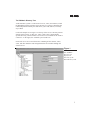
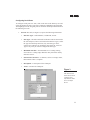
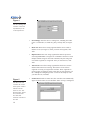
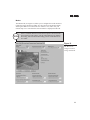
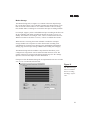
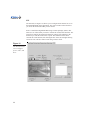
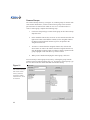
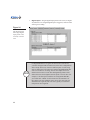
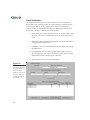
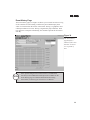
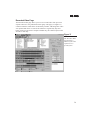
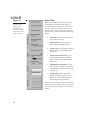
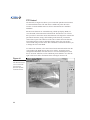
The Multiple Systems tab (see Figure 19) allows you to create new user
accounts based on existing accounts, add a new user or copy an existing user to
multiple systems, and change a user’s password on multiple systems. All
systems added in DSAdmin are available for multiple-system user administration, and you must have User Administration permissions on each system.
To copy an existing user to other systems, select the user in the list box and
click the Copy a User With Changes or the Copy a User With No Changes
button:
1.
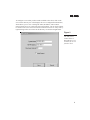
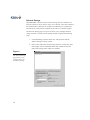
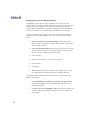
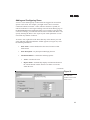
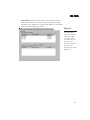
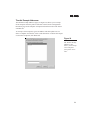
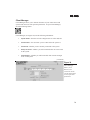
If you selected Copy a User With Changes: In the Specify User
Details window (see Figure 20), modify the user name, camera access,
and user rights as desired.
2.
If you selected either button: Enter the user’s password; if you want
this password to replace the password for this user on systems where
the user is already configured, select this option.
3.
Click Continue.
4.
Select the systems where you want to copy the user.
5.
Click Continue.
6.
Click Apply.
7.
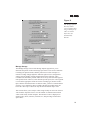
Watch the Status and Systems windows for messages. To save a log
file containing these information messages, click the disk icon.
Following are other administration procedures that you can perform on the
Multiple Systems tab:
40
•
To copy multiple users with the same password to other systems,
click the Copy Multiple Users button and begin with step 2 of the
preceding procedure.
•
To create a new user on multiple systems, click the Create New User
on One or More Systems button and begin with step 1 of the preceding procedure.