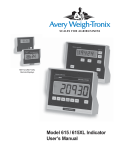
1
Model 915 Indicator
User’s Manual
CAUTION
Risk of electrical shock. Do not remove cover. No user serviceable parts inside. Refer servicing to qualified service personnel.
Weigh-Tronix reserves the right to change
specifications at any time.
06/02/03 915_U.P65 PN 29591-0012F e1 Printed in USA
2
Model 915 Indicator User’s Manual
Table of Contents
Introduction ........................................................................................................................................... 7
Front Panel .................................................................................................................................... 7
Keys ..................................................................................................................................... 7
Cable Connections and Power Requirements........................................................................................ 8
Indicator Operation ................................................................................................................................ 9
Gross Weighing ............................................................................................................................. 9
Net Weighing ................................................................................................................................. 9
Working with Tares ............................................................................................................. 10
Push-button Tare ......................................................................................................... 10
Quick Keypad Tare Entry ............................................................................................ 10
Selecting a Tare Register ............................................................................................ 10
Entering and/or Changing Values in Tare Registers 0-9 ............................................... 11
Clearing the Active Tare ............................................................................................... 12
Net Weighing Operation ...................................................................................................... 12
ID Number Entry .......................................................................................................................... 12
View Current ID ............................................................................................................................ 13
Clear Current ID ........................................................................................................................... 13
Printing a GTN Report .................................................................................................................. 13
Storing Data In The 0-99 Memory Registers ................................................................................ 14
Storing Numeric Data in A Specific Memory Channel ......................................................... 14
Storing Numeric Data in the Current Memory Channel ........................................................ 15
Storing a Gross or Net Value in a Specific Memory Channel .............................................. 15
Adding or Subtracting an Entered Weight Value To/From a Specific Memory Channel ....... 16
Storing a Gross or Net Value in the Current Memory Channel ............................................ 16
Adding or Subtracting an Entered Weight Value To/From the Current Memory Channel ..... 17
Clearing All the Accumulator Channels ............................................................................... 17
Printing Data Stored in Memory Channels ........................................................................... 17
AUTO Function ............................................................................................................................ 18
Setting Up the Acc-Sec Parameter ..................................................................................... 18
“IN” Operation with Tare ....................................................................................................... 19
Performing an Auto Accumulate Weighment (“IN/OUT” Operation) ...................................... 20
Viewing and Setting the Time ...................................................................................................... 22
Viewing and Setting the Date ...................................................................................................... 22
Checking Battery Voltage ............................................................................................................ 22
Diagnostic Tests .......................................................................................................................... 23
Troubleshooting ................................................................................................................................... 25
Power-On ..................................................................................................................................... 25
Stalled Display Following Power-On ............................................................................................ 26
Indicator Lock-Up ......................................................................................................................... 27
Inaccurate Weight Readings ........................................................................................................ 27
Alarm Light Function .................................................................................................................... 28
Measuring Supply Battery Voltage .............................................................................................. 28
Service Repairs ............................................................................................................................ 28
Display Messages ....................................................................................................................... 29
Miscellaneous Information ................................................................................................................... 29
Mounting the Model 915 .............................................................................................................. 29
RD912 Remote Display ............................................................................................................... 30
Optional Radio Remote Transmitter (XM710) and Receiver .......................................................... 30
User’s Menu ........................................................................................................................................ 31
Appendix A: Customizing Printouts..................................................................................................... 32
Layout 1 and 2 ............................................................................................................................. 32
ASCII ........................................................................................................................................... 32
To Delete All ASCII Characters ........................................................................................... 33
Table 1 ASCII Control Characters ........................................................................................ 34
Pages are numbered consecutively beginning with the cover page.
Model 915 Indicator User’s Manual
3
Specifications
Indicator Enclosure
Display
Impact, dust, and water resistant - structural polycarbonate enclosure stands
up to inclement weather and high vibration mobile farm applications. Standard
Weigh-Tronix mounting bracket. (Dimensions: 8.75 high x 10.5 wide x 6.5
deep)
8 digit, seven segment LCD, 1.0 inch high characters, 10 annunciators*, and
fiber optic back-lighting.
* annunciators- GROSS, TARE, NET, ID, MEMORY, MOTION, TOTAL,
AUTO, LB, and KG
Display Rate
One, two, or five times per second
Accuracy
+/- 0.1% of applied load or +/- one division, whichever is greater
Linearity
+/- .01 % of capacity
Repeatability
Power Requirements
Environment
Weigh-bar® Drive Capacity
Calibration
Divisions
Zero Balance Range
Analog Span
+/- .01% of capacity, +/- one division, whichever is greater
Typical: 12 VDC @ 95 mA (1.14 watts)
12VDC @ 180 mA (2.16 watts) for 5-pin 4 weigh-bars
Range: 10 DVC @ 89 mA (0.9 watts) to 18 VDC @ 555 mA (10 watts).
Negative ground system.
-20° F to 140° F (-29° C to 60° C) to 95% non-condensing humidity
Ten 350 ohm Weigh-bars
Front panel calibration and spanning for all types of weigh bars and load cell
applications up to 999999 lb. or kg.
.01, .02, .05, .1, .2, .5, 1, 2, 5, 10, 50, 100, 200, 500 lb. or kg.
+/- 1 mV/V via front panel push button
0.20 mV/V to 1.0 mV/V (full scale)
Automatic Zero Tracking
OFF, +/-0.5, 1.0, 2.0, 3.0, 5.0, 10.0 divisions
Motion Detection Window
OFF, +/-0.5, 1.0, 2.0, 3.0, 5.0, 10.0 divisions
Motion Filtering
Auto Axle Accumulate Timer
Normal, intermediate, and high
0(Off), or programmable from +/- 1 to 99 sec.
Auto Accumulate Weight
Threshold
Weight threshold that the weight must drop below 80% of the applied weight
and >= 500 lb. to trigger the next weight to be added to the accumulator.
Alarm Output
Comes on standard in the Auto Accumulate/Print mode when Auto-Accumulating takes place. Stays on until weight drops below 80% of the applied
weight to let user know it has accumulated the axle weight and it is all right
to advance forward to the next axle.
4
Model 915 Indicator User’s Manual
Options
RS232 serial output
Remote Display Output
Remote (XM710-L, XM910)
Includes battery backed up time and date
Baud rate selectable: 9600, 4800, 2400, 1200, 600 and 300
xon/xoff, 8 data bits, one stop bit, no parity
Initiate serial transmission through- print button, enquire characters, and auto
print after accumulate and after motion ceases.
Two format selectable printouts along with single line programmable (40)ASCII
characters.
To be used with the RD912 remote display.
Includes optional remote radio receiver, and transmitter.
Two separate inputs on the M915 will each be programmable to function as
Zero, Tare, G/N, RM, M+, M-, or Print.
Frequency: 303 MHz
Frequency on by key switch, causes activation of Input-1 or Input-2
Optional: XM910 allows 4 frequency channels of transmitter/receiver with the
following remote capabilities: ZERO,TARE, G/N, RT (Tare register, each
push of RT scrolls through the Tare Registers)
Frequency Base: 310 MHz
Model 915 Indicator User’s Manual
5
This page left intentionally blank.
6
Model 915 Indicator User’s Manual
Introduction
The Model 915 is a general purpose weight indicator designed to operate at
12VDC. It has a companion remote display called the RD912. This indicator
has Gross, Tare, Net (GTN) weighing, 0-9 tare registers, remote control of the
GTN weighing functions, 8 digit ID entry, and 100 memory channels. The
indicator can be configured for IN or IN/OUT operations. It can also print the
in/out weighing sequences automatically.
Front Panel
Figure 1 shows the Model 915 front panel.
Figure 1
Model 915 indicator
Keys
The front panel consists of the digital display window with annunciators,
numeric keypad and the following keys:
ON
Use this key to power up the 915 indicator
OFF
Use this key to power down the 915 indicator
MENU
Use this key to access the menus and scroll right in the
menu structure
SELECT
Use this key to make selections in the menus and to scroll
down in the menu structure
ID
Use this key to access the ID function
TARE
Use this key to tare a weight value
Model 915 Indicator User’s Manual
7
RM
Use this key to recall a weight stored in memory
G/N
Use this key to switch between gross and net weight
displays
M+
Use this key to add a displayed weight to the current
memory channel
M-
Use this key to subtract a displayed weight from the current
memory channel
PRINT
Use this key to output displayed information to a peripheral
device
ZERO/CLEAR
Use this key to zero the scale or clear a keyed in value
from the display.
Cable Connections and Power Requirements
Make sure all cables are connected as shown in Figures 2 & 3.
Voltage to the Model 915 must be 10-18 volts DC, negative ground only. If
voltage is between 8-10 volts, Lo-bAt is displayed on the indicator. Dropping
below eight volts will cause the Model 915 to automatically shut itself off,
protecting the battery from being completely drained. Consult the Model 915
Service Manual for instructions on disabling the automatic shut-off.
Pin A = +12 VDC
Pin B = Ground
Figure 2
Indicator with One Weigh Bar connector
8
Model 915 Indicator User’s Manual
Pin A = +12 VDC
Pin B = Ground
Figure 3
Indicator with four Weigh Bar connectors
Indicator Operation
Gross Weighing
1. Power up the indicator by
pressing ON.
2. If the unit is not in the gross
mode, press G/N to access the
gross mode.
Key names are in “BOLD
UPPER CASE” letters.
Dispayed characters are “Bold
Italicized”.
Annunciator labels are “UPPER
CASE”.
Net Weighing
3. Verify the scale is empty and
zero the scale by pressing ZERO.
4. Place weight on the scale.
Indicator powers up in mode that was
active prior to turning off.
The annunciator illuminates next to
GROSS.
0 is displayed. Zeroing can only
occur if there is no motion on the
scale.
Gross weight is displayed.
For net weighing operations a tare needs to be entered. A tare can be entered
by three methods:
• Using the push-button TARE key
• Using quick keypad tare entry
• Selecting a tare from the 0-99 memory registers. See User’s Menu
section.
Model 915 Indicator User’s Manual
9
Working with Tares
Push-button Tare
Displays CAn’t when weight
display shows upper or lower
dashes, and when there is
motion on the scale.
1. With the scale empty and the
indicator powered up in the
gross mode, zero the scale by
pressing ZERO.
2. Place tare weight on the system
Weight is displayed.
3. Press TARE.
The weight is tared, the display reads
zero and the NET annunciator
illuminates.
4. Add more weight to the scale.
Net weight is displayed.
5. View gross weight by pressing
G/N.
6. Press G/N again to see the net
weight.
Quick Keypad Tare Entry
1. From the Gross/Net mode, enter
a tare value using the numeric
keys.
2
Selecting a Tare Register
No weight is displayed. Zeroing can
only occur if there is no motion on
the scale.
Push TARE.
Gross weight is displayed and the
GROSS annunciator illuminates.
Net weight is displayed and the NET
annunciator illuminates.
Value is displayed as it is entered.
Net weight is displayed and the NET
annunciator illuminates.
Tare Values must be entered in the Tare Registers before they can be used in
weighing operations. Refer to the section Entering and/or Changing Values in
Tare Registers 0-9.
1. From the gross/net mode,
press MENU.
2. Using the keypad, enter the
number of the tare register you
wish to use. (Numbers 0-9 are
allowed).
tArE is displayed
That register with its tare value is
displayed.
If you wish to scroll through all
the tare registers, continue
pushing MENU. Stop when the
register you wish to use is
displayed.
3. With the correct tare register
displayed, press G/N.
10
Model 915 Indicator User’s Manual
Tare value is displayed in net mode.
Entering and/or Changing
Values in Tare Registers 0-9
Entering or changing a tare in a tare register is done through the User’s
Menu. The following instructions lead you through the tare section of the
User’s Menu. To see the complete User’s Menu turn to the User’s Menu
section of this manual.
1. With the gross or net annunicator
illuminated, press MENU.
2. Using the keypad, enter the
number of the tare register you
wish to view. (Numbers 0-9 are
allowed.)
Key names are in “BOLD
UPPER CASE” letters.
Dispayed characters are “Bold
Italicized”.
Annunciator labels are “UPPER
CASE”.
If you want to enter tares in
some or all of the registers, you
can quickly advance to the next
tare by pressing MENU.
tArE is displayed. This is the first
item in the User’s Menu.
The TARE annunicator illuminates
and the display show _x:
0,
indicating that register x has no value
entered.
3. You can enter/change a tare
value in a register in two ways:
3A. Key in a Tare value:
With the desired register
number displayed, key in
tare value, and press
SELECT.
The value is accepted and tArE is
displayed.
OR
3B. Use the push button Tare:
With the desired register #
displayed and the tare
weight on the scale, press
TARE.
The register number and the new tare
weight are displayed.
4. Press MENU to proceed to the
next tare register.
5. Press G/N to return to the
weighing mode.
Model 915 Indicator User’s Manual
The value is accepted, net weight is
displayed, and the NET annunciator
illuminates.
11
Clearing the Active Tare
There are two ways to remove the current or active tare weight.
A. Remove all weight from the scale
and press TARE.
Tare register is cleared, scale returns
to Gross mode and no weight is
displayed.
OR
B. 1. With the GROSS or NET
annunciator illuminated, press
MENU,
then press ZERO/CLEAR.
2. Press G/N.
Net Weighing Operation
Make sure the proper active
tare is still selected, or use the
4 channel remote transmitter to
reassure the proper tare
register is still active, to avoid
any confusion that someone
else had changed to a different
tare register while you were
away.
ID Number Entry
1. After a tare is established, place
the indicator in the net mode by
pressing G/N or remote
transmitter G/N.
2. Return later with a full truck and
drive on the scale.
no tArE is displayed.
Gross weight is displayed and no
tare is active.
NET annunicator illuminates. Zero
weight will be displayed with the tare
weight (truck) on the scale.
Net weight of material is displayed.
You may enter an 8 digit numerical ID number to be included in the Gross/
Tare/Net printouts
1. From the gross/net weighing
mode use the keypad and enter
the ID number.
2. Press ID.
12
tArE is displayed,
Model 915 Indicator User’s Manual
ID number is shown on the display.
The ID annunciator is turned on. ID
number is displayed for 2 seconds,
then returns to the gross mode.
View Current ID
1. Press ID.
Current ID is shown for two seconds
and then returns to the gross mode.
1. Press ID to display current ID.
Current ID is displayed.
If no ID is currently programmed, then ID key displays
“no Id” for 2 sec., and returns to
the Gross mode.
Clear Current ID
2. Press ZERO/CLEAR while ID is
displayed.
Printing a GTN Report
ID is cleared, and returns to gross
mode.
A Gross/Tare/Net report can be printed three ways:
1. By pressing PRINTduring GTN displays
2. When auto-printing occurs (after Acc-Sec timer runs out or when motion
ceases)
3. When an enquire character is received (default is HEX 05)
The printout will contain the following information:
Line 1: Optional User defined 40 ASCII characters (See Appendix A: Customizing Printouts)
Line 2: Optional ID number printout
Line 3: Layout 1 or Layout 2 (See Appendix A: Customizing Printouts)
Layout 1 will show:
Layout 2 will show:
Date
Time
G weight
T weight
N weight
Date
Time
Displayed weight (G, T, or N)
Below are samples of printouts with Layout 1 and Layout 2.
Layout 1 with optional ASCII
line and optional ID
number included
Model 915 Indicator User’s Manual
Layout 2 with optional ASCII
line and optional ID
number included
13
Storing Data In The 099 Memory Registers
The Model 915 has 100 memory channels that can be used to accumulate
weight values. Total accumulations of each channel must be between -19999
to 999,999 lb or kg. These memory channels can store and accumulate
active displayed weights, or user entered starting weights.
Storing Numeric Data in a
Specific Memory Channel
1. Use the keypad to enter a
memory channel (0-99).
2. Press RM to access the
selected memory channel.
Once the current memory
channel is displayed, to clear
that channel press
ZERO/CLEAR and the stored
value will immediately be
cleared to “0”.
3. To scroll through the memory
channels, use the MENU key.
Press and hold MENU to cause
the display to scroll through the
channels. The longer you hold
down the key the faster the
scrolling occurs.
4. Now using the keypad, enter in
over the current amount in the
displayed channel, then press
SELECT. . .
5. Press G/N. . .
14
Model 915 Indicator User’s Manual
The number is displayed on the
screen.
The selected memory channel will
appear with the current amount in
memory displayed. RR:WWWWWW
The selected memory channel with
its stored weight value will be displayed.
The new amount is displayed next to
the channel number. The TOTAL
annunciator turns on.
Returns to the gross/net weighing
mode.
Storing Numeric Data in the
Current Memory Channel
1. Press RM to access the last
selected memory channel.
2. Now using the keypad, enter in
over the current amount in the
displayed channel, then press
SELECT. . .
3. Press G/N. . .
Storing a Gross or Net
Value in a Specific
Memory Channel
1. Use the keypad to enter the
desired memory channel (0-99).
2. Press RM to access the
desired memory channel.
3. To scroll through the memory
channels, use the MENU key.
The last selected memory channel
will appear with the current amount in
memory displayed RR:WWWWWW
The new amount is displayed next to
the channel number.
Returns to the gross/net weighing
mode.
The number is displayed on the
screen. If you try to enter a number
greater than 99 the display will show
rEdO. Press ZERO/CLEAR and
enter a valid memory channel.
The selected memory channel will
appear with the current amount in
memory displayed. RR:WWWWWW
The selected memory channel with
its stored weight value will be displayed.
Once the desired memory channel is
displayed, to clear that channel
press ZERO/CLEAR and the stored
value will immediately be cleared to
“0”.
4. Press G/N to display the
data to be stored.
If a negative number is displayed and you press M-, the
indicator will store this as a
positive number.
5. Press M+ to add or M- to
subtract to the activiated
memory channel.
Model 915 Indicator User’s Manual
The mode annunciator should point
to the desired mode type and the
appropriate value should appear on
the display.
The new total is displayed next to the
activated memory channel, and will
return to the previous mode within a
second.
15
Adding or Subtracting an Entered
Weight Value To/From a Specific
Memory Channel
1. From gross/net mode, use the
keypad to enter a memory
channel (0-99). . .
2. Press RM to access the selected
memory channel. . .
The number is displayed on the
screen.
The selected memory channel will
appear with the current amount in
memory is displayed.
To scroll through the memory
channels, press MENU.
3. Press G/N.
4. Use the numeric keys to enter
the weight value to be added or
subtracted, then press M+
or M-. . .
Storing a Gross or Net
Value in the Current Memory
Channel
1. Press RM to access the current
memory channel.
2. Press G/N to display the data to
be stored.
If continual M+/M- will be stored
into the current memory channel, just continue to Press M+/
M-.
Adding or Subtracting an Entered
Weight Value To/From the Current
Memory Channel
3. Press M+ to add or M- to
subtract to the selected memory
channel.
1. From gross/net mode, press
G/N. . .
2. Use the numeric keys to enter
the weight value to be added or
subtracted, and press M+
or M-. . .
16
Model 915 Indicator User’s Manual
Current gross or net weight is
displayed.
The new total is displayed next to
the activiated memory channel, and
will return to the previous mode within
one second.
The current memory channel will
appear with the current amount in
memory displayed. RR:WWWWWW
The mode annunciator should point
to the desired mode type and the
appropriate value should appear on
the display.
The new total is displayed next to the
activated memory channel, and
returns to the gross/net mode within
a second.
Current gross/net weight is displayed.
The new total is displayed next to the
current memory channel, and will
return to the previous mode within
one second.
Viewing Memory Channel
Accumulators
1. From gross/net mode, use the
keypad to enter a memory
channel (0-99). . .
2. Press RM to access the selected
memory channel. . .
The number is displayed on the
screen.
The selected memory channel will
appear with the current amount in
memory is displayed.
To scroll through the memory
channels, press MENU.
3. Press G/N.
Viewing Total Accumulator
of All Memory Channels
Clearing All the
Accumulator Channels
1. From gross/net mode, press
SELECT. . .
2. Press RM. . .
Current gross or net weight is
displayed.
ALL Ch’S is displayed.
Total accumulator of all memory
channels is shown. Pressing PRINT
here prints the following:
Clearing all the accumulator channels is accomplished through the User’s
Menu. The steps to clear accumulators are below. See the User’s Menu
section of this manual to view the entire menu.
1. From gross/net mode repeatedly
press MENU until CLr Ch’S is
displayed.
CLr Ch’S stands for Clear Channels.
2. Press SELECT. . .
no is displayed.
3. Press MENU to toggle between
YES and no. Press SELECT
whenYES is displayed to clear
the memory channels or press
SELECT when no is displayed if
you change your mind and do not
want to delete the accumulated
data in the memory channels.
CLr Ch’S is displayed.
4. Press G/N to return to gross/net
mode.
Printing Data Stored in
Memory Channels
To print the data stored in a particular data
channel, display that channel and press
PRINT. Below is a sample printout:
Model 915 Indicator User’s Manual
To print the data stored in all the
channels, press and hold the
PRINT until Pr-ALL is displayed
and the report will print.
17
AUTO Function
The 915 has an annunciator called AUTO. When the AUTO function is
enabled this annunciator lights up. You enable the AUTO function by setting
the Acc-Sec parameter in the User’s Menu. (See the User’s Menu section of
this manual.) Enabling the AUTO function enables these functions:
• auto accumulating of multiple (split) axle weights
• the use of the 915 indicator for IN or IN/OUT weighing.
Setting up the
Acc-Sec parameter
While following these instructions, refer to the User’s menu shown in the
User’s Menu section of this manual.
1. From the normal operating mode,
press and hold the MENU key
until Tare is displayed.
2. Press MENU repeatedly until
Acc-Sec is displayed. Press the
SELECT key. . .
To disable the ACC-SEC timer,
set the value to 0.
Weight must be over 1%
of the Over Capacity
parameter for auto
accumulate to occur.
18
Seconds is displayed. You can set
this parameter from 0-99 seconds. If
you set it to 0, the Acc-Sec parameter is disabled. If you set it to
another value between 1 and 99 you
are enabling the Acc-Sec parameter.
The time you set is the maximum
time you have after one axle leaves
the scale till the next axle must be
on the scale. The timer does not
begin until the weight drops below
80% (default) of its previous value.
After the Acc-Sec delay time expires
the 915 will print a weight report.
3. Press SELECT to view the current
value in seconds. Press SELECT
to accept the current value or key
in the seconds you want and
press SELECT to accept the
value. . .
Display shows Seconds.
4. Press the MENU key. . .
in-out is displayed.
5. Press the SELECT key. . .
on or off is displayed. If you choose
on the IN/OUT function is enabled.
See description of this function in the
section Performing an Auto Accumulate Weighment (“IN/OUT” Operation). If you choose off, the IN
function is enabled. See a description of this function in the section “IN”
Operation with Tare.
6. Use the MENU key to toggle the
choices. Press SELECT when
your choice is displayed. . .
in-out is displayed.
7. Press the MENU key. . .
PErcEnt is displayed.
8. Press SELECT. . .
The current value is displayed. The
weight on the scale must drop to this
percentage of the current weight
before the delay timer starts.
Model 915 Indicator User’s Manual
9. Key in a number and press the
SELECT key to accept it. . .
The display shows PErcEnt.
10. Press G/N to return to normal
weighing mode.
“IN” Operation with Tare
You can use any of the nine tare registers (not push button tares) available to
tare weight of the vehicle and get an automatic printout when using the IN
operation described below.
You can do an auto-accumulate of axle weights with one pass over the scale.
We call this an “IN” operation. An IN operation works as follows:
1. Pull first axle onto the scale and
stop. . .
After weight stablizes, the alarm
comes on and the accumulated
weight and channel flash on the
display for three seconds, then
returns to live gross weight display
2. Pull next axle onto the scale.
You have the length of time set
in the delay timer to get the next
axle onto the scale.
3. Repeat this until all axles are
weighed. . .
Line 1:
Line 2:
Line 3:
Line 4:
Line 5:
Line 6:
Line 7:
Line 8:
Once the timer has elapsed, an
automatic printout will occur with the
following format: (up to 99 axles)
User optional 40 ASCII characters
User optional ID printout without leading zeroes
01/01/01^^09:00:00<CRLF>
^1-^^^^WWWWWW^lb<CRLF>
^2-^^^^WWWWWW^lb<CRLF>
^3-^^^^WWWWWW^lb<CRLF>
Total^^TTTTTTTT^lb<CRLFLF>
Shows the following if configured for layout 1:
Line 9: ^^^^^G^WWWWWW^lb<CRLF>
Line 10: ^^^^^1T^WWWWWW^lb<CRLF>
Line 11: ^^^^^N^WWWWWW^lb<CRLF>
Shows the following if configured for layout 2:
Line 9: ^^^^^G^WWWWWW^lb<CRLF>
Always displays Gross “G”.
See sample below.
Model 915 Indicator User’s Manual
19
Performing an Auto
Accumulate Weighment
(“IN/OUT” Operation)
When configured for Auto
Accumulating, Tare/Net mode
is disabled. This can be used
for split axle weighing on a
single platform scale.
When the AUTO function is enabled you can use the 915 to print incoming
(IN) weights for trucks or wagons and outgoing (OUT) weights for the same
vehicles. The 915 will determine the low weight value is a tare and will print
out a GTN report for that vehicle. You can handle up to 99 IN/OUT vehicles
just by using one of the memory channels for each vehicle.
1. Before pulling the vehicle onto the
scale, press RM, then press and
hold MENU until the memory
channel (0-99) for your truck is
displayed.
If you are using just one truck
this step can be omitted since it
will always be the same memory
channel.
Assume memory channel one is
selected for this example.
While your second axle is
coming onto the scale, the
weight of the first axle will be
displayed. DO NOT CLEAR
THIS DISPLAY.
2. For the IN weighment only, the
stored weight must be 0. If not,
press ZERO/CLEAR to clear the
register. Do not do this for the
second axle weighment.
3. Press G/N to access the
gross mode.
4. Drive the first axle onto the scale,
and stop. Truck can be empty or
full.
5. Drive forward to the next axle.
Key names are in “BOLD
UPPER CASE” letters.
Dispayed characters are “Bold
Italicized”.
Annunciator labels are “UPPER
CASE”.
20
Current memory channel with its
current stored weight value is displayed, 01:WWWWWW
6. Drive forward within the
programmed time-out period and
position the next axle on the
scale.
Model 915 Indicator User’s Manual
Gross mode is displayed indicating
zero gross weight.
Weight will increase and once it
stops and motion ceases, 01:
WWWWWW will be displayed
momentarily indicating axle #1
weight has been accumulated and
stored in memory channel 1. The
front panel red light will illuminate
and the actual gross weight is
displayed.
When the weight falls below 80% of
the axle weight the acc- sec timer
begins counting. Gross weight is
displayed.
Weight will increase and once it
stops and motion ceases,
01:WWWWWW will be displayed
momentarily indicating axle # 2
weight has been accumulated and
stored in memory, the front panel red
light will illuminate and the actual
gross weight is displayed.
7. Drive off the scale completely or
position the next axle on the
scale.
It doesn’t matter if the first
weighment from step 8 was of a
full or empty truck, the indicator
automatically calculates the
smaller weight as the tare
weight.
When the weight falls below 80% of
the accumulated weight, the acc-sec
timer will begin counting. Gross
weight is displayed.
8. Repeat steps 6-7 until all axles
have been accumulated. After the
last axle, pull the truck off the
scale and, after the time-out
period elapses, an automatic
printout will be printed similar to
this example:
This example shows the date, time,
memory channel where the information is stored, and the gross weight.
Other print formats are available. See
the Service Manual.
9. Return to the scale with the
empty or full truck, and repeat
steps 1-7.
10. After you pull the last axle off the
scale and the programmed
timeout expires, a G/T/N printout
similar to this example will be
printed.
Model 915 Indicator User’s Manual
21
Viewing and Setting the
Time
1. From gross/net mode repeatedly
press MENU until. . .
2. Press SELECT. . .
Refer to User’s Menu section
of this manual.
Hour is displayed.
The time will be displayed in hours,
minutes and seconds.
3. Enter the correct time allowing
spaces for hours, minutes and
seconds. For example, 1:59
would be entered as 15900.
4. Press SELECT. . .
Hour is redisplayed.
5. Press G/N to return to gross
weighing mode.
Viewing and Setting
the Date
1. From gross/net mode repeatedly
press MENU until. . .
2. Press SELECT. . .
Refer to User’s Menu section
of this manual.
Date is displayed.
The date is displayed in month, day,
year. (For kg: day, month, year)
3. To change the date, key in the
new numbers.
4. Press SELECT. . .
Date is redisplayed.
5. Press G/N to return to gross
weighing mode.
Checking Battery
Voltage
1. From gross/net mode repeatedly
press MENU until. . .
2. Press SELECT. . .
Refer to User’s Menu section
of this manual.
22
Model 915 Indicator User’s Manual
battErY is displayed.
The input voltage of the battery or
power source will be displayed.
Voltage to the Model 915 must be
10-18 volts DC. If voltage is between
8-10 volts, Lo-bAt is displayed on
the indicator. Dropping below eight
volts will cause the Model 915 to
automatically shut itself off, protecting the battery from being completely
drained.
Diagnostic Tests
There are four tests available to assist troubleshooting in these areas:
• display
• buttons
• serial
• relay
1. From gross/net mode repeatedly
press MENU until. . .
2. Press SELECT. . .
3. Press SELECT to perform a test
of the display segments and
annunciators. . .
tESt is displayed.
diSPlAYis displayed. This is the
display test.
The display alternately lights all the
display segments and annunciators.
Press SELECT to end the test
or
Press MENU twice to go to the
next test. . .
4. Press SELECT to perform a test
of the front panel buttons. . .
buttonS is displayed. This is the
buttons test.
When you press any key, that key
name will appear in the display. Press
MENU to stop the test. Display will
show SEriAl.
or
Press MENU to go to the next
test. . .
SEriAl is displayed.
5. SEriAl is the serial test. This will
tell you if pins 2 and 3 are
connected. If they are connected
loop is displayed when you
press SELECT.
no loop is displayed when you
press SELECT if pins 2 and 3 are
not connected.
6. Press MENU to go to the next
test. . .
7. Press SELECT. . .
Model 915 Indicator User’s Manual
rELAY is displayed. Use this test to
check alarm light function.
OFF is displayed.
23
You can press SELECT at any
time to return to the rELAY
display.
8. Press MENU once to cause the
light to flash on and off. . .
press MENU again to cause the
light to stay on. . .
on is displayed.
press MENU again to shut off the
light. . .
OFF is displayed.
9. Press SELECT. . .
rELAY is displayed.
10. Press MENU. . .
tESt is displayed.
11. Press MENU. . .
SoFt is displayed. This lets you see
the part number and revision level of
the software.
12. Press SELECT. . .
First part of the software number is
displayed.
13. Repeatedly press MENU to scroll
through the part number and
revision level and return to the
SoFt display.
14. Press MENU one more time and
you are back in the gross/net mode.
24
FLASH is displayed.
Model 915 Indicator User’s Manual
Troubleshooting
If you experience problems in the operation of your system, read through
these troubleshooting steps and perform those which are appropriate. This
information may help you to correct the following operational difficulties
without calling your supplier or sending your equipment in for repair:
• Power-on
• Stalled Display Following Power-on
• Indicator Lock-up
•Inaccurate Weight Readings
•Alarm Light Malfunction
•Measuring the Supply Battery Voltage
Instructions for sending an indicator in for repair are provided in the last
section under Service Repairs.
Power-On Failure
If your indicator doesn’t power-on, check the following possible problem
sources in the order given. Attempt to power-on after trying each of these four
troubleshooting steps:
1. Check Battery Voltage. Required voltage is 10-18 volts DC negative
ground. If the voltage is between 8-10 volts, the indicator will display LobAt. The indicator will automatically turn off if the incoming voltage drops
below 8 volts or rises above 18 volts.
2. Disconnect and Check Power Cable Connector at the vehicle or AC
to DC converter, clean if necessary, and reconnect.
3. Replace Fuses. Sometimes, a bad fuse can be recognized by an
obvious break in the wire filament. However, such a break is not always
observable, and getting a successful power-on after changing a fuse is
often the only way of knowing that the fuse was indeed defective.
Make sure new fuses are the proper size and have a current rating of five
amperes. Using a fuse with too high a current rating can cause costly
damage to the indicator and will void your warranty. The same is true for
substituting wire, a nail, or any other object in place of a fuse.
Place nothing in the fuse connector except a proper fuse.
Change one fuse at a time (see instructions below). Try to power-on after
changing the first fuse; if unsuccessful, change the second fuse and try
to power on again. If changing the second fuse fails to allow successful
power-on, proceed to the next trouble shooting step.
To replace a fuse, first locate fuse caps on the bottom panel of the
indicator. Then:
1. Turn cap counterclockwise and lift out fuse & cap assembly.
2. Remove old fuse from cap and insert new fuse.
3. Replace fuse & cap assembly in fuse connector.
Model 915 Indicator User’s Manual
25
4. Test Indicator and Cables to isolate the source of the problem.
Stalled Display
Following Power-On
a.
Disconnect all cables on bottom panel of Indicator except for power
cable. Do disconnect Weigh Bar® cables, and, if present, alarm cable
and printer/remote display cable.
b.
Now try powering-on. If this is not successful, your problem is in the
indicator and you should contact your supplier.
c.
If you are able to power-on with only the power cable connected, your
problem is most likely not in the indicator; continue troubleshooting.
d.
With power still on, plug in cables, one at a time — Weigh Bar®
cables first, then alarm cable, then printer/remote display cable —
until plugging in one of the cables causes the indicator to shut off.
That cable is the bad one and needs to be repaired or replaced.
This category of problems can exhibit any one of the following symptoms:
• An illegible display that cannot be zeroed and from which you cannot
exit;
• A legible display, such as HELLO, that cannot be zeroed and from
which you cannot exit;
• An illuminated backlight with no characters displayed and allowing no
exit.
• If the red illumination on the display is visible, telling you the indicator
has power (on a sunny day you may have to shade the display), you
can possibly restore the display function by doing a Reinitialization
(explained below).
To Reinitialize a Stalled Indicator:
1. Press OFF.
2. Press ZERO/CLEAR and hold in, while you
3. Press and release ON.
4. Then release ZERO/CLEAR.
If the display says Hl instead of HELLO following a reinitialization poweron, your indicator has a potential problem and should be checked.
Contact your supplier.
26
Model 915 Indicator User’s Manual
Indicator Lock-Up
A locked up indicator is represented by an illuminated alarm light and a
display of Error.
1. Shut off the alarm by pressing any key.
2. Test the Weigh Bar®cables to isolate the source of the lock up problem,
as follows:
a. Disconnect all Weigh Bars®.
b. Try to zero the indicator by pressing GROSS and ZERO/CLEAR.
• If you are unable to zero the indicator with the Weigh Bars disconnected, the problem is in the indicator and you should contact your
supplier.
• If you are able to zero your indicator with the Weigh Bars disconnected, then the problem is probably in the cabling or the Weigh Bars
and you should continue troubleshooting.
3. Reconnect all Weigh Bars. You will see Error displayed again.
4. If your Weigh Barconnectors have the four-pin configuration, disconnect
one Weigh Bar and connect an adapter plug in its place.
If your Weigh Bar connectors have the five-pin configuration, disconnect
one Weigh Bar. No adapter plug is necessary.
5. Try to zero the indicator.
Repeat Steps 4 and 5 with each Weigh Bar cable, making sure each time
that all cables are connected except the one you removed (for five-pin
connector) or replaced with an adapter plug (for four-pin connector).
A defective Weigh Bar may be easily recognized with this method —
when a defective bar is replaced with an adapter plug (for four-pin connector), or removed (for five-pin connector), the indicator will zero properly.
Inaccurate Weight
Readings
First: Visually inspect the scale system for apparent problems and improper
installation:
1. Check each cable, from source to indicator, for stress, cuts, breaks, or
abrasions.
2. Unplug and reconnect each connector at the indicator to verify that it is
tight and making good contact.
3. Check between supporting structure and weighing structure for debris
that might restrict Weigh Bar® movement.
4. Make sure the supporting structure and weighing structure do not touch
each other at any point except at the Weigh Bars®.
Model 915 Indicator User’s Manual
27
Next: Compare weight readings for all Weigh Bars:
Position a person or heavy object on the platform above each Weigh Bar, one
bar at a time, and compare weight readings for the same person or same
object.
For each weighing, the weight itself will be off-center, favoring a single Weigh
Bar; therefore, none of the readings will be accurate.
However, your readings obtained by weighing the same person or object
above each Weigh Bar should be nearly identical to each other. A single
Weigh Bar reading that is significantly different from the others is probably
defective.
Alarm Light Function
If your external alarm works properly but the alarm light fails to illuminate
when it should, a problem exists with the alarm light. Please send in the
indicator for repair.
Measuring Supply
Battery Voltage
To check input voltage to indicator (battery voltage):
1. Press MENU. . .
tArE is displayed.
2. Press MENU repeatedly until
battErY is displayed.
3. Press SELECT. . .
Incoming battery voltage is displayed.
4. Press SELECT. . .
battErY is displayed.
5. Press G/N to return to weighing
mode.
Service Repairs
If you find the indicator or one or more of the Weigh Bars to be defective,
contact your supplier, or send your equipment back to the factory for repair,
postage prepaid.
Include the following information:
1. Your name and address
2. Supplier name and address
3. Date of purchase
4. IMPORTANT: An informal note describing symptoms of the problem.
28
Model 915 Indicator User’s Manual
Display Messages
HELLO
Indicator is being reinitialized. Message is displayed
briefly at time of power-on.
————
Indicator is in state of over-capacity.
————
Indicator is in state of under-capacity.
Error
System is not functioning properly. Weight is not
being calculated because scale weight is too high or
too low. (Refer to information on “Indicator Lockup” in
Troubleshooting section of manual.)
Print
Indicator is transmitting data. Appears after pressing
the PRINT key when printing all memory channels.
Pr-All
Indicator is transmitting data. Appears after pressing
and holding PRINT key.
Lo-bAt
Displayed when input voltage to indicator is between
8 and 10 volts.
rEdO
User attempted to enter in too large a value for the
memory channel. 0-99 are the only valid numbers.
CAn’t
Displayed when attempting to tare when a gross
weight is negative or when motion is occurring.
ALL Ch’S
Dispayed when accessing total accumulator channel.
Miscellaneous Information
Mounting the
Model 915
The Model 915 mounts on a quick-detach bracket. Weld or bolt the quickdetach bracket into place, as follows:
1. Choose a mounting location that is
• convenient for operation of the indicator, and
• protected from moving parts or from other moving machinery.
2. Hold the indicator at the proposed mounting location, and verify that the
display is legible and the controls accessible.
3. Positioning the quick-detach bracket with the wider end at the top, mark
the desired mounting location. If bolting, use the quick-detach bracket as
a template and mark and drill holes.
4. Weld or bolt the quick-detach bracket at the appropriate location. If
bolting, use double nuts or self-locking nuts to protect both indicator and
machinery.
5. Insert the indicator bracket into the quick-detach bracket and push it
down into place.
6. For mobile applications, wrap and twist a strong wire around the indicator
bracket and the quick-detach bracket to stabilize the mounting.
Model 915 Indicator User’s Manual
29
RD 912
Remote Display
The RD912 is a remote display that is compatible with the Model 915. (An
RD912 output option is required on the Model 915 for interfacing.) The interface cable plugs directly into the bottom of the Model 915 (refer back to
Figure 2). When using the remote display, any data displayed on the Model
915 is also displayed on the RD912.
Figure 4
Model 912 Remote Display
Optional Radio Remote
Transmitters (XM710-L
and XM910 ) and
Receiver
An optional radio remote transmitter and receiver can be installed
This option lets the user configure the XM710 to act as a ZERO, PRINT, M+,
M-, RM, TARE or G/N key and work at up to 100 feet away, It can be installed in either the Model 915 or the RD912.
The XM910 option can be installed in the Model 915 only, and has remote
control of ZERO, TARE, G/N, and RT. Every push of the RT button scrolls
through the tare registers.
Figure 5
Radio Remotes
30
Model 915 Indicator User’s Manual
Figure 6
User’s Menu
User’s Menu
Model 915 Indicator User’s Manual
31
Appendix A: Customizing Printouts
Layout 1 and 2
The hidden E key is between
the 9 and the M+ keys on the
indicator
Below are the steps to choosing Layout 1 or 2.
1. Key in 915.
915 is displayed.
2. Press hidden E key and hold for
two seconds.
915 E is displayed.
3. Press SELECT.
ConF is displayed.
4. Press MENU repeatedly until
SEriAl is displayed.
5. Press SELECT.
bAUd is displayed.
6. Press MENU repeatedly until
LAYoUt is displayed.
7. Press SELECT.
1 or 2 is displayed.
8. Press MENU until the layout you
want is displayed, then press
SELECT.
That layout is now active.
9. Press MENU to scroll to next
desired option or G/N to exit.
The ASCII parameter lets you customize the first line of any printout. You key
in the ASCII code number for the character you want to print. You can use up
to 40 characters in the line. The ASCII codes are shown in Table 1.
ASCII
The hidden E key is between
the 9 and the M+ keys on the
indicator
1. Key in 915.
915 is displayed.
2. Press hidden E key and hold for
two seconds.
915 E is displayed.
3. Press SELECT.
ConF is displayed.
4. Press MENU repeatedly until
SEriAl is displayed.
5. Press SELECT.
bAUd is displayed.
6. Press MENU repeatedly until
ASCII is displayed
7. Press SELECT.
32
Model 915 Indicator User’s Manual
1
_ is displayed. The 1 refers to
the first of the 40 characters you can
insert.
8. Key in the control code from
Table 6 and press MENU.
2
_ is displayed.
Following is an example of how to enter Model 915, <CR><LF>:
To edit an existing sequence,
display the sequence number
you want to change, key in the
new ASCII code number and
press SELECT to return to the
ASCII display. Press the G/N
key when you are done.
To Delete All ASCII Characters
Enter the following control codes.
Sequence #
Control Code #
01
#77
02
#79
03
#68
04
#69
05
#76
06
#32
07
#57
08
#49
09
#53
10
#13
11
#10
Control Character
M
O
D
E
L
SPACE
9
1
5
Carriage Return
Line Feed
9. Repeat step 8 until all control
codes are entered, and press
SELECT. . .
ASCII is displayed.
10. Press G/N key to exit
programming mode and return
to the gross/net weighing mode.
1. Access Serial-ASCII in the
configuration menu. . .
2. Press the ZERO/CLEAR key. . .
Model 915 Indicator User’s Manual
ASCII is displayed.
ASCII blinks and all the control
codes are cleared.
33
Table 1 ASCII Control Codes
Code #
Control
Character
Code #
Control
Character
Code #
Control
Character
Code #
Control
Character
0
NUL
33
!
66
B
99
c
1
SOH
34
"
67
C
100
d
2
STX
35
#
68
D
101
e
3
ETX
36
$
69
E
102
f
4
EOT
37
%
70
F
103
g
5
ENQ
38
&
71
G
104
h
6
ACK
39
'
72
H
105
i
7
BEL
40
(
73
I
106
j
8
BS
41
)
74
J
107
k
9
HT
42
*
75
K
108
l
10
Line Feed
43
+
76
L
109
m
11
VT
44
,
77
M
110
n
12
Form Feed
45
_
78
N
111
o
13
Carriage Return
46
.
79
O
112
p
14
S0
47
/
80
P
113
q
15
S1
48
0
81
Q
114
r
16
DLE
49
1
82
R
115
s
17
DC1
50
2
83
S
116
t
18
DC2
51
3
84
T
117
u
19
DC3
52
4
85
U
118
v
20
DC4
53
5
86
V
119
w
21
NAK
54
6
87
W
120
x
22
SYN
55
7
88
X
121
y
23
ETB
56
8
89
Y
122
z
24
CAN
57
9
90
Z
123
{
25
EM
58
:
91
[
124
|
26
SUB
59
;
92
\
125
}
27
ESC
60
<
93
]
126
~
28
FS
61
=
94
^
127
Delete
29
GS
62
>
95
-
30
RS
63
?
96
`
31
US
64
@
97
a
32
Space
65
A
98
b
34
Model 915 Indicator User’s Manual
Model 915 Indicator User’s Manual
35
Standard Scale & Supply Company
Weigh-Tronix
25421 Glendale
Avenue
1000 Armstrong Dr.
Redford, Fairmont,
MI 48239
MN 56031 USA
Telephone: 507-238-4461
313-255-6700
Facsimile: 507-238-8283
www.standardscale.com
e-mail: [email protected]
www.agscales.com
Weigh Bar® is a registered trademark of Weigh-Tronix Inc.