1
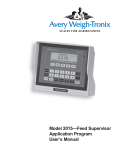
Model 1015 Indicator
User’s Manual
EUROPEAN COUNTRIES
WARNING
This is a Class A product. In a domestic environment this product may cause radio
interference in which the user may be required to take adequate measures.
CAUTION
Risk of electrical shock. Do not remove cover. No user serviceable parts inside. Refer servicing to qualified service personnel.
Weigh-Tronix reserves the right to change
specifications at any time.
10/23/03 1015_U.P65 PN 29592-0011G e1 Printed in USA
2
Model 1015 Indicator User’s Manual
Table of Contents
1015 Overview ...................................................................................................... 5
Simple Weighing ........................................................................................ 5
Single Ingredient Loading/Unloading ......................................................... 5
Single Ingredient Net Loading/Unloading .................................................. 5
Programmed Recipe Ingredient Loading/Unloading .................................. 6
Timer ......................................................................................................... 6
Usage ........................................................................................................ 6
Cable Connections and Power Requirements ........................................... 6
1015 Operations
............................................................................................. 8
Simple Weighing ........................................................................................ 8
Loading/Unloading Ingredients into a Feed Mixer ..................................... 8
Loading or Unloading Net Ingredients ....................................................... 9
Recipe Entry Programming Modes .......................................................... 10
Net Weight or Percent Mode......................................................... 10
Setting Equation Mode: Head Count ............................................ 11
Recipe Amount Per Animal ........................................................... 11
Entering and Editing A Recipe ...................................................... 12
Entering a Recipe for the First Time................................... 12
Entering Hand-Add Ingredients .......................................... 13
Editing an Existing Recipe.................................................. 13
Changing Ingredient Quantities .......................................... 13
Deleting Ingredients ........................................................... 14
Inserting Ingredients ........................................................... 14
Clearing A Recipe .................................................................................... 15
Recipe Ingredient Loading Method .......................................................... 16
Mixer Timer Operation ............................................................................. 17
Viewing Last Batch .................................................................................. 17
Viewing Batch Accumulators ................................................................... 19
Total of Individual Recipes ............................................................ 19
Total of Individual Ingredients within a Recipe .............................. 19
Total of All Recipes ....................................................................... 20
Total of Each Ingredient ................................................................ 20
Setting Batch Number Accumulator ......................................................... 21
Clearing Accumulators .................................................................. 21
Viewing And Setting The Time ................................................................ 22
Viewing And Setting The Date ................................................................. 22
Viewing and Setting the Auto Ingredient Advance Tolerance Range ...... 22
Pages are numbered consecutively beginning with the cover page.
Model 1015 Indicator User’s Manual
3
Auto-Advance Delay Timer ...................................................................... 23
Using A Printer ......................................................................................... 23
Basic Display Printout ................................................................... 23
Printing ID ..................................................................................... 23
Recipe Printout ............................................................................. 24
Last Batch Printout........................................................................ 24
Batch Accumulator Printouts ......................................................... 25
Maintaining Displayed Weight ................................................................. 28
Troubleshooting .................................................................................................. 29
Power On ................................................................................................. 29
Stalled Display Following Power On ........................................................ 30
Indicator Lock-up ..................................................................................... 31
Inaccurate Weight Readings ................................................................... 31
Alarm Light Function ................................................................................ 32
Measuring Supply Battery Voltage........................................................... 32
Service Repairs ....................................................................................... 32
Display Messages .................................................................................... 33
Mounting the Model 1015 ................................................................................... 33
RD1012 / RD1012XL Remote Displays .............................................................. 34
Indicator Diagnostics .......................................................................................... 35
Appendix A: Downloading Information From The 1015 ...................................... 36
Windows 3.1® Setup ................................................................................ 36
To Download ........................................................................................... 36
Windows 95® Setup ................................................................................. 37
To Download ........................................................................................... 38
Specifications ..................................................................................................... 39
Features ............................................................................................................. 40
Options ............................................................................................................... 41
Figures
Figure 1: Front Panel of Model 1015 Indicator ..................................................... 5
Figure 2: Indicator with 1 Weigh Bar Connector ................................................... 7
Figure 3: Indicator with 3 Weigh Bar Connectors ................................................. 7
Figure 4: Indicator with 4 Weigh Bar Connectors ................................................. 7
Figure 5: Entering and Editing Recipes Flowchart .............................................. 15
Figure 6: Timer Flowchart ................................................................................... 17
Figure 7: Menu Options ...................................................................................... 18
Figure 8: Viewing Batch Accumulators Flowchart .............................................. 19
Figure 9: Test Menu ........................................................................................... 35
Pages are numbered consecutively beginning with the cover page.
4
Model 1015 Indicator User’s Manual
1015 Overview
The Model 1015 indicator, see Figure 1, is a batching indicator designed to
be used on either portable or stationary feed mixers for accurate weightbased batching operations.
The Model 1015 has six primary modes of operation:
• simple weighing,
• single ingredient loading/unloading,
• single ingredient net loading/unloading,
• programmed recipe ingredient loading/unloading
• timer
• usage.
Figure 1
Front Panel of Model 1015 indicator
Simple Weighing
In simple weighing applications, press GROSS and weigh.
Single Ingredient
Loading/Unloading
For single ingredient loading/unloading, enter a target amount, press
LOAD/UNLOAD. Once the target is reached, the alarm will warn you to stop
loading or unloading.
Single Ingredient Net
Loading/Unloading
You can add ingredients until the desired weight is reached and tare off the
weight of each individual ingredient. When you have added all the ingredients you can press GROSS to see the total amount of weight on the scale.
Model 1015 Indicator User’s Manual
5
Programmed Recipe
Ingredient
Loading/Unloading
When you need multiple ingredients and recipes for loading or unloading,
the recipe feature can be used. You can enter up to 100 recipes, and each
recipe may consist of up to 100 ingredients.
Timer
Use the timer to mix a batch for a certain amount of time.
Usage
By accessing the usage mode, you will be able to monitor usage of all
batched ingredients and recipes. You can either view usages or send them
to a printer or computer. The following accumulators are available through
the usage mode:
• single ingredient per recipe
• total of any ingredients per all recipes
• single recipe
• total of all recipes
Cable Connections and
Power Requirements
6
Make sure all cables are connected as shown in Figures 2, 3 and 4 on the
next page.
Voltage to the Model 1015 must be 10-18 volts DC, negative ground only. If
voltage is between 8-10 volts, Lo-bAt is displayed on the indicator. Dropping
below eight volts will cause the Model 1015 to automatically shut itself off,
protecting the battery from being completely drained. Consult the Model
1015 Service Manual for instructions on disabling the automatic shut-off.
Model 1015 Indicator User’s Manual
Figure 2
Indicator with 1 Weigh Bar Connector
Figure 3
Indicator with 3 Weigh Bar Connectors
Figure 4
Indicator with 4 Weigh Bar Connectors
Model 1015 Indicator User’s Manual
7
1015 Operations
Simple Weighing
GROSS MODE is required for
zeroing. Your indicator must be
zeroed before weighing begins.
Loading/Unloading
Ingredients Into a
Feed Mixer
If you miskey Target Load
Quantity, simply press ZERO/
CLEAR to delete, then rekey.
IF YOU HAVE A PRINTER,
you may print actual net weight
of the just-loaded ingredient by
pressing PRINT/ID from either
Hold Mode.
1. Press ON. . .
Display shows HELLO, then value is
displayed in mode last used before
removal of power.
2. Press GROSS. . .
Live scale weight is displayed in
gross weighing mode.
3. Press ZERO/CLEAR. . .
Zero value is displayed. Weighing
system is zeroed.
4. Place weight on the scale. . .
Live gross weight of material is
displayed.
1. Zero indicator before loading first
ingredient.
2. Key in Target Load Quantity. . .
Quantity you intend to load is
displayed.
3. Press LOAD/UNLOAD. . .
Target Load Quantity blinks and
remains displayed, and the Load
annunciator turns on.
4. Load/unload ingredient into/from
feed mixer, viewing display as
you do so. . .
Alarm light flashes on and off when
display has decreased to
preprogrammed warning value,
warning you to watch the display and
giving you time to coordinate stoppage of material flow with display of
zero net value.
5. When appropriate, stop loading/
unloading.
6. Press any key. . .
8
Displayed value, showing net
amount of your keyed in Target
Quantity remaining to be loaded/
unloaded, decreases from Target
Load Quantity toward zero.
Model 1015 Indicator User’s Manual
Flashing alarm light shuts off, and if
enabled, indicator advances into
Auto-Hold mode, a holding mode
that protects gross weight and
displayed weight so you can move
the scale.
7. Move feed mixer to its next
ingredient loading/unloading
station. . .
Hold alternating with net amount
loaded/unloaded is displayed.
8. Do either A or B:
A. Key in a new Target
Load/Unload Quantity, then
press LOAD/UNLOAD,
OR
B. Press ZERO/CLEAR (after
pressing the LOAD/UNLOAD
key), to restore last-loaded
Target Quantity as the next
Target Load/Unload Quantity.
This is a convenient
technique for loading/
unloading a series of equal
quantities. Indicator is ready
for another ingredient
loading/unloading cycle.
9. Repeat Steps 4 through 8 for
each ingredient you want to
load/unload, stopping with final
ingredient after Step 6.
Loading or Unloading
Net Ingredients
The warning alarm is nonfunctional in this loading/unloading
procedure.
The indicator displays gross
weight value of successive
load or unload quantities. You
may press GROSS to view the
gross weight at any time, and
LOAD/UNLOAD to return to
net display.
Use this procedure to load a series of quantities onto the weighing system
by watching the net weight of each additional load increase from zero. This
procedure also allows you to unload a series of quantities from the weighing
system by watching the net weight of each unload quantity increase from
zero.
1. Zero the indicator.
Note: Do this only before loading
the first in a series of loadings.
2. Press the numeric 0 key.
Display blinks and zero value
remains displayed.
3. Press LOAD/UNLOAD.
Display blinks again, zero value
remains, and the Load annunciator is
on. The display now reflects Net
Weighing Mode.
4. Load or unload material and
observe the display.
Net weight value increases.
5. Stop loading or unloading
material at the desired net value.
Model 1015 Indicator User’s Manual
9
To Continue Loading or
Unloading Successive
Quantities:
6. Press ZERO/CLEAR. . .
Displayed net value of material last
loaded or unloaded is reset to zero.
You may now view gross weight. Just press and hold in the
ZERO/CLEAR key on your 1015 Indicator or your XM710-L
Hand-held Transmitter . . .
Release the ZERO/CLEAR key . . .
Zero is again displayed in net weighing mode.
If you press the XM710-L button for more than three (3) seconds, the display stays in gross mode.
7. Load or unload additional quantities by repeating Steps 4 through 7 as
many times as required for this loading/unloading operation.
Recipe Entry
Programming Modes
Before you can start programming recipes, the mode of recipe entry must be
determined.
The model 1015 has two modes available:
a. Net weight or percent mode (standard factory configuration)
b. Amount per animal (see sections Setting Equation Mode and Recipe
Amount Per Animal on the next page to configure to amount per animal)
Net Weight or Percent Mode
Example: Net Weight
Enter recipe such as: the sum of the ingredients is equal to your required
batch size.
(ex: 4,000 lb batch)
1.
2.
3.
4.
t
1000 lb
1000 lb
1000 lb
1000 lb
4000 lb
(ingredient # 1 amount)
(ingredient # 2 amount)
(ingredient # 3 amount)
(ingredient # 4 amount)
(total amount of all programmed ingredients, or standard
batch size)
Afterwards, each time this recipe is batched, the user can enter the appropriate load amount to determine the size of the batch. All actual ingredients
will be proportioned from the programmed recipe amount automatically.
Example: Percent
Enter recipe by entering the percent of each individual ingredient of the total
batch so they total 100 (t=100) Same example as above would now be:
1.
2.
3.
4.
t
10
25
25
25
25
100
(ingredient # 1 percent)
(ingredient # 2 percent)
(ingredient # 3 percent)
(ingredient # 4 percent)
(total percent of all programmed ingredients)
Model 1015 Indicator User’s Manual
Setting Equation Mode:
Head Count
Again, when batched the ingredients will automatically be proportioned to
achieve the desired load amount, based off the programmed recipe as
entered.
This option allows you to set whether the indicator dispenses recipes based
on percentage, net weight 1, or head count 2. (This feature is not present
when using RCU-1015 software 47744-2008)
Follow these steps for setting the indicator in equation mode:
If you select head count, you
must enter the recipes in
amounts/100 head.
1. Key in 1015.
1015 is displayed.
2. Press hidden E key and hold for
for five seconds.
1015 E is displayed.
3. Press SELECT.
ConF is displayed.
4. Press MENU until EQuAtion is
displayed.
5. Press SELECT.
6. Press MENU and scroll to
desired setting.
7. Press SELECT.
Equation mode is set.
8. Press MENU key to advance or
press GROSS key to return to
corresponding operational mode.
Recipe Amount Per Animal
Make sure the indicator is
configured for head count. See
the previous section; Setting
Equation Mode: Head Count
Use this mode to batch feed according to how many animals you need to
feed. When entering the ingredients, you must enter them as net weight per
100 animals. The ingredients are entered as per 100 instead of per animal
to insure more accuracy in producing the desired batch. Again the sum of
the ingredients should equal the required batch size for 100 animals.
1.
2.
3.
4.
t
1000 lb
1000 lb
1000 lb
1000 lb
4000 lb
(ingredient # 1 amount per 100 animals)
(ingredient # 2 amount per 100 animals)
(ingredient # 3 amount per 100 animals)
(ingredient # 4 amount per 100 animals)
(total amount of batched recipe for 100 animals)
Therefore, the example shows 1000 lb (10 lb/animal x 100 animals ) to be
entered for each of the four ingredients. The total batched amount shows
4000 lb (40lb/animal x 100 animals). Now when actually batching this recipe,
the programmed load amount will be the current number of animals requiring feed.
Model 1015 Indicator User’s Manual
11
Entering and Editing
a Recipe
Entering a Recipe
for the First Time
Load amount can be by load
weight, percent, or amount per
animal. NOTE: make sure the
M1015 is configured for the
desired recipe entry mode.
The 1015 allows you to enter and store recipes in memory where they can
be recalled and edited. Each recipe contains a load amount, ingredient
quantities, and a sum total of the ingredient quantities.
While in Gross, Load, or Timer modes, select a recipe number using one of
the following methods.
1. Do either A or B:
A. Press RECIPE to recall the last
viewed recipe. Then press
MENU to scroll to the desired
recipe number.
OR
B. Use the numeric keys to enter in
the desired recipe number and
press RECIPE.
2. Press SELECT.
Ingredients do not need to be
in numerical order and are
displayed in the order that they
are entered.
3. Press and hold SELECT.
t is displayed with a 0. This indicates
the sum total of the ingredients.
_ _ is displayed.
4. Enter the first ingredient number
and press SELECT.
5. Using the numeric keys, enter
the ingredient load amount and
press SELECT.
6. Repeat steps 4 and 5 until all
desired ingredients have been
entered.
7. Press MENU.
t is displayed with the sum total of
the ingredients.
8. Press SELECT.
The recipe number is displayed.
9. Press GROSS to exit.
12
Model 1015 Indicator User’s Manual
Entering Hand-Add
Ingredients
Hand-add ingredients are typically defined as those ingredients that are
used in such small amounts that, to guarantee accuracy, should be weighed
on a smaller, separate scale.
To include a hand-add ingredient in a recipe:
1. Once ingredient number is
displayed, enter load amount
and press HOLD/TIMER.
2. Press SELECT.
The Hand-Add annunciator turns on.
Unless it is disabled, from now on
the indicator will treat that ingredient
as a hand-add whenever it is used.
To disable a hand-add ingredient in a recipe:
1. Display ingredient.
2. Press HOLD/TIMER.
Editing An
Existing Recipe
While in Gross, Load, or Timer modes, select a recipe number using one of
the following methods.
1. Do either A or B:
A. Press RECIPE to recall the last
viewed recipe. Then press
MENU to scroll to the desired
recipe number.
OR
B. Use the numeric keys to enter in
the desired recipe number and
press RECIPE.
2. Press SELECT.
The first ingredient in the recipe is
displayed.
3. Press MENU until the ingredient
that you want to edit is displayed
and use any or all of the
following editing procedures.
Changing Ingredient
Quantities
1. Using the numeric keys, enter desired
ingredient quantity and press SELECT.
Model 1015 Indicator User’s Manual
13
Deleting Ingredients
1. Press and hold ZERO/CLEAR
until ingredient is deleted and the
next ingredient is displayed.
Inserting Ingredients
1. Press MENU until you get to the
ingredient just after where you
want to insert the new ingredient.
2. Press and hold SELECT.
_ _ is displayed.
3. Enter ingredient number and
press SELECT.
4. Enter ingredient quantity and
press SELECT. Repeat steps 2
and 3 for additional ingredients
that you want to insert.
5. Press MENU to exit ingredient
insertion and display next
ingredient.
Press RECIPE or SELECT to exit ingredient editing and display current
recipe or press GROSS to return to gross weighing mode.
14
Model 1015 Indicator User’s Manual
Clearing a Recipe
While in Gross, Load, or Timer modes, select a recipe number using one of
the following methods.
1. Do either A or B:
A. Press RECIPE to recall the
last viewed recipe. Then
press MENU to scroll to the
desired recipe number.
OR
B. Use the numeric keys to
enter in the desired recipe
number and press RECIPE.
2. Press and hold ZERO/CLEAR
key for three seconds.
Recipe is now cleared.
Figure 5
Entering and Editing Recipes Flowchart
Model 1015 Indicator User’s Manual
15
Recipe Ingredient
Loading Method
Recipe ingredient loading provides a simple method of consistent batching.
Recipe load amounts determine the batch size, and ingredient amounts are
calculated from the recipe to maintain correct proportions while producing
the programmed load amount.
1. While in gross weighing mode,
enter the number for the desired
recipe and press RECIPE.
At any time, the user can
switch between manual and
auto advance by pressing
LOAD/UNLOAD.
Desired recipe and total ingredient
load amount or number of head are
displayed. NOTE: head count mode
is only possible if your indicator is
configured for it. Refer to the service
manual for directions.
2. If you need to enter or change
the total amount to be batched
of the selected recipe or number
of head, enter the new amount
and press SELECT. Otherwise,
skip this step and go to step 3.
3. Press LOAD to initiate loading of
first ingredient.
A flashing alarm signals that
the weight is within alarm
warning range and a steady
alarm signals that the target
amount has been reached.
4. Load the amount of the displayed
ingredient.
As weight is added, display will
count to zero.
5. Stop loading ingredient when the
alarm signals that the target
amount has been reached.
6. Depending on your system setup,
either:
a. The indicator will automatically
advance to the next ingredient
OR
b. You will have to manually
advance the indicator to the
next ingredient.
16
A. Auto Advance Method -
When the scale is stable, the Motion
annunciator not lit, and the amount
loaded is within the range of the
target amount, the amount displayed
will be accepted and the next
ingredient shown. Repeat steps 4
through 6. Hand-add ingredients will
need to be manually advanced.
B. Manual Advance Method -
When amount loaded is acceptable,
→ or Remote ZERO.
press MENU/→
Repeat steps 4 through 6.
Model 1015 Indicator User’s Manual
Mix Timer Operation
To pause timer, press HOLD/
TIMER. Pressing HOLD/
TIMER a second time will
cause the timer to resume
count down.
1. In gross weighing mode, enter
mix time in hours, minutes, and
seconds. For example,12 hours
would be entered 120000.
2. Press HOLD/TIMER.
Indicator will display mix time and
immediately begin to count down.
Alarm will sound when the specified
time has elapsed.
3. To disable alarm and exit timer
mode, press GROSS.
Figure 6
Timer Flowchart
Viewing Last Batch
To navigate through the menu options for this and the following sections,
refer to Figure 7: Menu Options on the next page.
To view the most recent batch:
1. In gross weighing mode press
and hold the MENU key until. . .
L. bAtch is displayed.
2. Press SELECT. . .
The number of the most recent
recipe and the load amount is
displayed.
3. Press SELECT. . .
The ingredient number and the
actual amount batched of it are
displayed.
4. Press MENU. . .
The next ingredient number and the
actual amount batched are displayed.
5. Repeat step 4 until all ingredients
and their batched amounts have
been displayed.
6. After the last ingredient is
displayed, press MENU. . .
7. Press RECIPE or SELECT.
t is displayed with the sum of all the
actual ingredients.
The recipe number is displayed.
8. Press GROSS to return to gross
weighing mode.
Model 1015 Indicator User’s Manual
17
18
Model 1015 Indicator User’s Manual
Figure 7
Menu Options
Press the MENU key to scroll → in
the menu. Press the SELECT key to
move ↕ in the menu.
Press the MENU key to scroll → in
the menu. Press the SELECT key to
move ↔ in the menu.
Figure 8
Viewing Batch Accumulators Flowchart
Viewing Batch
Accumulators
Total of Individual Recipes
Refer to Figure 7 (page 13)
for menu flowchart.
Total of Individual Ingredients Within A Recipe
1. In gross weighing mode, enter
the recipe number, and press
RECIPE.
2. When the appropriate recipe is
displayed, press and hold
RECIPE until the Usage
annuciator appears.
The recipe number and actual
batched amount for that recipe are
displayed.
1. In gross weighing mode, enter
the recipe number and press
RECIPE.
2. When the appropriate recipe is
displayed, press and hold
RECIPE until the Usage
annunciator appears.
3. Press SELECT.
The recipe number and total
batched amount for that recipe are
displayed.
The first ingredient of the selected
recipe and its actualbatched amount
are displayed.
4. Press MENU to scroll through all
the ingredients, each displayed
with its total batched amount.
5. Press RECIPE or SELECT.
The recipe number and total
batched amount are redisplayed.
6. Press GROSS to return to gross
weighing mode.
Model 1015 Indicator User’s Manual
19
Total of All Recipes
1. In gross weighing mode, enter
recipe number and press
RECIPE.
2. When the appropriate recipe is
displayed, press and hold
RECIPE until the Usage
annunciator appears.
The recipe number and actual
batched amount for that recipe are
displayed.
3. Press MENU to view each recipe
and its total batched amount.
After recipe 99, the oo recipe will
be displayed. This is a final
accumulator that shows the total
amount batched for all the
recipes.
Total of Each Ingredient
1. In gross weighing mode, enter
the recipe number and press
RECIPE.
2. When the appropriate recipe is
displayed, press and hold
RECIPE until the Usage
annunciator appears.
The recipe number and total
batched amount for that recipe are
displayed.
3. Press MENU to view each recipe
and its total batched amount.
After recipe 99, the oo recipe will
be displayed. This is a final
accumulator that shows the total
amount batched for all the
recipes.
4. Press SELECT.
5. Press MENU to view each
ingredient and its total batched
amount.
6. To return to gross weighing mode,
press RECIPE or SELECT, and
then press GROSS.
20
Model 1015 Indicator User’s Manual
The first active ingredient number
will be displayed with the actual
amount of that ingredient batched in
all recipes.
Setting Batch Number
Accumulator
Refer to Figure 7 for menu
flowchart.
To set the batch number accumulator:
1. In gross weighing mode, press
and hold the MENU key until
L.bAtch is displayed.
2. Press MENU.
no. bAtch is displayed.
3. Press SELECT. Using the
numeric keys, enter the desired
starting number.
4. Press SELECT to return to
no. bAtch.
Clearing Accumulators
Refer to Figure 7 for menu
flowchart.
Clearing Single Ingredient Accumulators
1. In gross weighing mode, press
and hold the MENU key until
L.bAtch is displayed.
2. Press MENU until . . .
Clr Acc is displayed.
3. Press SELECT until . . .
Clr Ingr is displayed.
4. Press SELECT until . . .
Clr no is displayed.
5. Press MENU until . . .
Clr YEs is displayed.
6. Press SELECT until . . .
Clr Ingr is displayed.
7. Press GROSS to return to gross
weighing mode.
Clearing Recipe Accumulators
1. In gross weighing mode, press
and hold the MENU key until
L.bAtch is displayed.
2. Press MENU until . . .
Clr Acc is displayed.
3. Press SELECT until . . .
Clr Ingr is displayed.
4. Press MENU until . . .
Clr rEC is displayed.
5. Press SELECT until . . .
Clr no is displayed.
6. Press MENU until . . .
Clr YEs is displayed.
7. Press SELECT until . . .
Clr rEC is displayed
8. Press GROSS to return to gross
weighing mode.
Model 1015 Indicator User’s Manual
21
Viewing and Setting the
Time
Refer to Figure 7 for menu
flowchart.
1. In gross weighing mode, press
and hold MENU until. . .
L.bAtch is displayed.
2. Scroll through the menu options
by pressing the MENU key
until. . .
Hour is displayed.
3. Press SELECT. . .
The time will be displayed in hours,
minutes and seconds.
4. Enter the correct time allowing
spaces for hours, minutes and
seconds. For example, 1:59
would be entered as 15900.
5. Press SELECT. . .
Hour is redisplayed.
6. Press GROSS to return to gross
weighing mode.
Viewing and Setting
the Date
Refer to Figure 7 for menu
flowchart.
1. In gross weighing mode, press
and hold MENU until. . .
L.bAtch is displayed.
2. Scroll through the menu options
by pressing the MENU key
until. . .
dAtE is displayed.
3. Press SELECT. . .
The date is displayed in month, day,
year.
4. To change the date, key in the
new data.
5. Press SELECT. . .
dAtE is redisplayed.
6. Press GROSS to return to gross
weighing mode.
Viewing and Setting the
Auto Ingredient Advance
Tolerance Range
Refer to Figure 7 for menu
flowchart.
The 1015 Indicator will automatically advance to the next ingredient in a
recipe once a predetermined weight range is met and stays within the
tolerance for the Ad-delay timer parameter. See the next section AutoAdvance Delay Timer. To set the tolerance range, complete the following
steps.
1. From gross weighing mode,
press and hold the MENU key
until. . .
L. bAtch is displayed.
2. Scroll through the menu options
pressing the MENU key until. . .
tol is displayed.
3. Press SELECT. . .
The default tolerance range is
± 5 percent.
4. Using the numeric keypad, enter
the desired tolerance range. This
can be any number between 1
and 99. Setting this to 0 disables
the function.
5. Press SELECT to enter the new
range and return to tol.
22
Model 1015 Indicator User’s Manual
The current tolerance range will be
displayed.
Auto-Advance Delay
Timer
Ad-dELAY is a parameter in the User menu immediately after tol. This is a
programmable timer from 0-99 seconds to delay auto-advancing to the next
ingredient. Ad-dELAY enables better accuracy when loading an ingredient.
It prevents advancing before the user is actually ready.
The weight must be within the tolerance for 1-99 seconds before it will
advance forward. Selecting the default of 0 seconds disables the delay. If
the weight falls outside the tolerance window before the Ad-dELAY parameter times out, then it retriggers itself when weight falls within the tolerance
window again.
Using a Printer
If you have a printer, the following print options are available to you.
• Basic display printout
• Recipe printout
• Last batch printout
• Batch accumulator printouts
While all printed data includes the displayed value and the correct unit of
measure, Ib or kg, the printout format will vary depending on the options that
you choose.
Basic Display Printout
1. In gross weighing mode, press
PRINT/ID. . .
Amount displayed on indicator will
print as shown in sample below.
Basic Display Printout
Sample
Printing ID
To print out an ID number, in the Gross mode key in a 6 digit number and
then press PRINT/ID key. The indicator prints the following, for example:
ID 123456
The indicator then returns to the Gross Mode.
Model 1015 Indicator User’s Manual
23
Recipe Printout
1. Display the desired recipe.
2. Press PRINT/ID. . .
Alternate Printout Methods:
QuickPrint Method
While in gross mode, press 1,
then SELECT, then PRINT.
Print-1 is displayed and all
recipes are printed.
Recipe number, ingredients, target
amounts and totals will print as
shown in the sample below. See
note at left.
Printing to a Computer via RS232 port
Send a "1" (dec. 49 or HEX 31)
Print-1 is displayed and all
recipes are printed.
Recipe Printout
(Percent) Sample
Recipe Printout
(Head Count) Sample
To print all the programmed recipes, press and hold PRINT/ID until PR-ALL
is displayed.
3. Press GROSS to return to gross
weighing mode.
Last Batch Printout
Press and hold the PRINT/ID
key until Pr-ALL is displayed
and the last 99 batches will be
printed.
1. From gross weighing mode,
press and hold the MENU key
until. . .
2. Press PRINT/ID. . .
L. bAtch is displayed.
The last batch information will print
as shown in the sample below. If
your system is configured for auto
print, it will provide a printout after
each batch automatically. See note
at left.
Alternate Printout Methods:
QuickPrint Method
While in gross mode, press 2,
then SELECT, then PRINT.
Print-2 is displayed and the last
99 recipes batched with recipe/
ingredient information are
printed.
Printing to a Computer via RS232 port
Send a "2" (dec. 50 or HEX 32)
Print-2 is displayed and the last
99 recipes batched with recipe/
ingredient information are
printed.
Last Batch Printout
(Percent) Sample
3. Press GROSS to return to gross
weighing mode.
24
Model 1015 Indicator User’s Manual
Last Batch Printout
(Head Count) Sample
Batch Accumulator
Printouts
Single Recipe/Ingredient Accumulator Totals
1. In gross weighing mode, enter
the recipe number and press
RECIPE.
2. When the appropriate recipe is
displayed, press and hold
RECIPE until the Usage
annunciator appears.
3. Press PRINT/ID. . .
An asterisk (*) denotes a handadded ingredient.
The accumulated ingredient totals
for that specific recipe will print as
shown in the sample below.
Single Recipe/Ingredient
Accumulator Sample >
3. Press GROSS to return to gross
weighing mode.
All Recipe/Ingredient Accumulator Totals
1. In gross weighing mode, enter
the recipe number and press
RECIPE. Display any recipe, and
press and hold RECIPE until the
Usage annunciator appears.
Alternate Printout Methods:
QuickPrint Method
While in gross mode, press 3,
then SELECT, then PRINT.
Print-3 is displayed and all
individual recipe/ingredient
accumulator total printouts are
printed.
Printing to a Computer via RS232 port
Send a "3" (dec. 51 or HEX 33)
Print-3 is displayed and all
individual recipe/ingredient
accumulator total printouts are
printed.
2. Press and hold PRINT/ID until
PR-All is displayed.
3. Release PRINT/ID key.
See note at left.
All recipe and ingredient totals will
print as shown in the sample below.
All Recipe/Ingredient
Accumulator Sample >
4. Press GROSS to return to gross
weighing mode.
Model 1015 Indicator User’s Manual
25
Total Recipe Accumulator
Alternate Printout Methods:
QuickPrint Method
While in gross mode, press 4,
then SELECT, then PRINT.
Print-4 is displayed and the
Total Recipe Accumulator is
printed.
Printing to a Computer via RS232 port
Send a "4" (dec. 52 or HEX 34)
Print-4 is displayed and the
Total Recipe Accumulator is
printed.
1. In gross weighing mode, enter a
recipe number and press
RECIPE. Press and hold
RECIPE until the Usage
annunciator appears.
2. Using the MENU key, scroll to
the oo recipe and press
PRINT/ID.
See note at left.
The total of all the recipes batched
will print as shown in the sample
below.
Total Recipe
Accumulator Sample >
3. Press GROSS to return to the
gross weighing mode.
Individual Recipe Accumulators
1. In gross weighing mode, enter a
recipe number and press
RECIPE. Press and hold
RECIPE until the Usage
annunciator appears.
Alternate Printout Methods:
QuickPrint Method
While in gross mode, press 5,
then SELECT, then PRINT.
Print-5 is displayed and the
Individual Recipe Accumulators
are printed.
Printing to a Computer via RS232 port
Send a "5" (dec. 53 or HEX 35)
Print-5 is displayed and the
Individual Recipe Accumulators
are printed.
2. Using the MENU key, scroll to
the oo recipe and press and hold
PRINT/ID until Pr-All is displayed. See note at left.
3. Release PRINT/ID key.
Individual Recipe
Accumulators Sample >
4. Press GROSS to return to the
gross weighing mode.
26
Model 1015 Indicator User’s Manual
The total amount batched for each
recipe with active usage recipe will
print as shown in the sample below.
Individual Ingredient Accumulator Totals
1. In gross weighing mode, enter a
recipe number and press
RECIPE. Press and hold
RECIPE until the Usage
annunciator appears.
2. Using the MENU key, scroll to
the oo recipe.
3. Press SELECT.
4. Display ingredient and press
PRINT/ID.
The accumulator for the ingredient
will print as shown in the sample
below. See note at left.
Single Ingredient
Accumulator Sample >
5. Press GROSS to return to the
gross weighing mode.
All Ingredient Accumulator Totals
Alternate Printout Methods:
QuickPrint Method
While in gross mode, press 6,
then SELECT, then PRINT.
Print-6 is displayed and the
Individual Ingredient Accumulators are printed.
Printing to a Computer via RS232 port
Send a "6" (dec. 54 or HEX 36)
Print-6 is displayed and the
Individual Ingredient Accumulators are printed.
1. In gross weighing mode, enter a
recipe number and press
RECIPE. Press and hold
RECIPE until the Usage
annunciator appears.
2. Using the MENU key, scroll to
the oo recipe.
3. Press SELECT.
4. Display any ingredient, and press
and hold PRINT/ID until PR-All is
displayed.
5. Release PRINT/ID key.
The accumulators for all active
ingredients will print as shown in the
sample below.
All Ingredient
Accumulators Sample >
6. Press GROSS to return to the
gross weighing mode.
Model 1015 Indicator User’s Manual
27
Maintaining Displayed
Weight
In a typical moving procedure,
the scale is protected from
display shift by Auto Hold
mode.
Hold Mode Voids Effects of Moving
The Model 1015 Indicator provides a Hold Mode that can stabilize the
weighing function so that move-induced effects are not measured or registered; weighing capability is re-engaged when you relocate the system and
exit the Hold Mode to continue weighing. By using Hold Mode, you can be
certain that the scale measures only what you want it to measure.
The Model 1015 provides both automatic and manual access to the Hold
Mode.
Auto Hold Mode
Auto Hold allows the Model 1015 to stabilize gross and net weight so you
can move the scale, following the typical operating procedure of moving the
scale after you finish one load or unload cycle, and before you enter another
Target Quantity.
Auto-Hold Mode is enabled, and you may move the scale, while the
display alternates between
(1) Hold and
(2) actual weight of material just loaded or unloaded.
If ingredient load amount is
less than initial warning alarm
value, the indicator does not
advance into Auto Hold mode.
You may press PRINT/ID from Auto Hold Mode to transmit to a printer the
just-loaded or unloaded quantity.
Manual Hold Mode
Manual Hold allows you to re-enable the Hold Mode in case you have exited
Auto Hold prior to moving the scale. This means you can check the gross
weight and/or the overshot/undershot quantity right after loading or unloading, and restore the holding capability before moving.
Press HOLD.
After loading an ingredient
amount less than the initial
warning alarm value, access
Manual Hold mode before
moving the scale.
Manual Hold Mode is enabled; the scale is protected against display
shift and it is safe to move the scale while you see the display alternate
between
(1) Hold and
(2) actual weight of material just loaded or unloaded.
You may press PRINT/ID from Manual Hold Mode to transmit to a printer the
just-loaded or unloaded quantity.
28
Model 1015 Indicator User’s Manual
Troubleshooting
If you experience problems in the operation of your system, read through
these troubleshooting steps and perform those which are appropriate. This
information may help you to correct the following operational difficulties
without calling your supplier or sending your equipment in for repair:
• Power-on
• Stalled Display Following Power-on
• Indicator Lock-up
• Inaccurate Weight Readings
• Alarm Light Malfunction
• Measuring the Supply Battery Voltage
Instructions for sending an indicator in for repair are provided in the last
section under Service Repairs.
Power-On
If your indicator does not power-on, check the following possible problem
sources in the order given. Attempt to power-on after trying each of these
four troubleshooting steps:
1. Check Battery Voltage. Required voltage is 10-18 volts DC negative
ground. If the voltage is between 8-10 volts, the indicator will display LobAt. The indicator will automatically turn off if the incoming voltage drops
below 8 volts or rises above 18 volts.
2. Disconnect and Check Power Cable Connector at the vehicle or AC
to DC converter, clean if necessary, and reconnect.
3. Replace Fuses. Sometimes, a bad fuse can be recognized by an
obvious break in the wire filament. However, such a break is not always
observable, and getting a successful power-on after changing a fuse is
often the only way of knowing that the fuse was indeed defective.
Make sure new fuses are the proper size and have a current rating of
five amperes. Using a fuse with too high a current rating can cause
costly damage to the indicator and will void your warranty. The same is
true for substituting wire, a nail, or any other object in place of a fuse.
Place nothing in the fuse connector except a proper fuse.
Change one fuse at a time (see instructions below). Try to power-on
after changing the first fuse; if unsuccessful, change the second fuse
and try to power on again. If changing the second fuse fails to allow
successful power-on, proceed to the next trouble shooting step.
To replace a fuse, first locate fuse caps on the bottom panel of the
indicator. Then:
1. Turn cap counterclockwise and lift out fuse & cap assembly.
2. Remove old fuse from cap and insert new fuse.
3. Replace fuse & cap assembly in fuse connector.
Model 1015 Indicator User’s Manual
29
4. Test Indicator and Cables to isolate the source of the problem.
a. Disconnect all cables on bottom panel of Indicator except for power
cable. Do disconnect Weigh Bar® cables, and, if present, alarm cable
remote display cable.
b. Now try powering-on. If this is not successful, your problem is in the
indicator and you should contact your supplier.
c. If you are able to power-on with only the power cable connected, your
problem is probably not in the indicator; continue troubleshooting.
d. With power still on, plug in cables, one at a time — Weigh Bar®
cables first, then alarm cable, then printer/remote display cable —
until plugging in one of the cables causes the indicator to shut off.
That cable is the bad one and needs to be repaired or replaced.
Stalled Display
Following Power-On
This category of problems can exhibit any one of the following symptoms:
• An illegible display that cannot be zeroed and from which you cannot
escape;
• A legible display, such as HELLO, that cannot be zeroed and from
which you cannot escape;
• An illuminated backlight with no characters displayed and allowing
no escape.
• No escape? If the red illumination on the display is visible, telling you
the indicator has power (on a sunny day you may have to shade the
display), you can possibly make the display function by doing a
Reinitialization (explained below).
To Reinitialize a Stalled Indicator:
1. Press OFF.
2. Press ZERO/CLEAR and hold in, while you
3. Press and release ON.
4. Then release ZERO/CLEAR.
If the display says Hl instead of HELLO following a reinitialization poweron, your indicator has a potential problem and should be repaired. Contact
your supplier.
30
Model 1015 Indicator User’s Manual
Indicator Lock-Up
A locked up indicator is represented by an illuminated alarm light and a
display of Error.
1. Shut off the alarm by pressing any key.
2. Test the Weigh Bar®cables to isolate the source of the lock up problem, as follows:
a. Disconnect all Weigh Bars®.
b. Try to zero the indicator by pressing GROSS and CLEAR.
• If you are unable to zero the indicator with the Weigh Bars® disconnected, the problem is in the indicator and you should contact your
supplier.
• If you are able to zero your indicator with the Weigh Bars® disconnected, then the problem is probably in the Weigh Bars® and you
should continue troubleshooting.
3. Reconnect all Weigh Bars®. You will see Error displayed again.
4. If your Weigh Bar®connectors have the four-pin configuration, disconnect one Weigh Bar® and connect an adapter plug in its place.
If your Weigh Bar® connectors have the five-pin configuration, disconnect one Weigh Bar®. No adapter plug is necessary.
5. Try to zero the indicator.
Repeat Steps 4 and 5 with each Weigh Bar® cable, making sure each
time that all cables are connected except the one you removed (for fivepin connector) or replaced with an adapter plug (for four-pin connector).
A defective Weigh Bar® may be easily recognized with this method —
when a defective bar is replaced with an adapter plug (for four-pin
connector), or removed (for five-pin connector), the indicator will
zero properly.
Inaccurate Weight
Readings
First: Visually Inspect The Scale System for apparent problems and
improper installation:
1. Check each cable, from source to indicator, for stress, cuts, breaks, or
abrasions.
2. Unplug and reconnect each connector at the indicator to verify that it is
tight and making good contact.
3. Check the hitch Weigh Bar® and verify that mounting bolts are tight and
the hitch is not binding.
4. Check between the wheels and frame of the implement for mud and
debris that might restrict Weigh Bar® movement.
5. Check betwccn supporting structure and weighing structure for debris
that might restrict Weigh Bar® movement.
6. Make sure the supporting structure and weighing structure do not touch
each other at any point except at the Weigh Bars®.
Model 1015 Indicator User’s Manual
31
Next: Compare Weight Readings for All Weigh Bars®:
Position a person or heavy object on the platform above each Weigh Bar®,
one bar at a time, and compare weight readings for the same person or
same object.
For each weighing, the weight itself will be off-center, favoring a single
Weigh Bar®; therefore, none of the readings will be accurate.
However, your readings obtained by weighing the same person or object
above each Weigh Bar® should be nearly identical to each other. A single
Weigh Bar® reading that is significantly different from the others is probably
defective.
Alarm Light Function
If your external alarm works properly but the alarm light fails to illuminate
when it should, the problem may be the bulb itself.
Unscrew the red cap. To remove the bulb, grip it, push down, and turn
counterclockwise until it releases.
If the bulb is bad, you can replace it at most hardware stores. (Refer to page
28 to test internal relay)
Measuring Supply
Battery Voltage
To check battery voltage:
1. Press and hold GROSS until L. bAtch is displayed.
2. Press MENU to scroll through menu options until battErY is displayed.
3. Press SELECT to display incoming battery voltage.
4. Press SELECT to return to battErY.
Service Repairs
If you find the indicator or one or more of the Weigh Bars® to be defective,
contact your supplier, or send your equipment back to the factory for repair,
postage prepaid.
Include the following information:
1. Your name and address
2. Supplier name and address
3. Date of purchase
4. Important: An informal note describing symptoms of the problem.
32
Model 1015 Indicator User’s Manual
HELLO
Display Messages
————
————
Indicator is being reinitialized. Message is displayed
briefly at time of power-on.
Indicator is in state of over-capacity.
Indicator is in state of under-capacity.
Error
System is not functioning properly. Weight is not
being calculated because scale weight is too high or
too low. (Refer to information on “Indicator Lockup”
in Troubleshooting section of manual.)
Print
Indicator is transmitting data. Appears after pressing the PRINT/ID key.
Pr-All
Indicator is transmitting data. Appears after pressing
and holding PRINT/ID key.
Lo-bAt
Displayed when input voltage to indicator is between
8 and 10 volts.
HOLD
Used when moving a portable system. Alternates
between hold and net weight just loaded or unloaded
(see page 21).
Mounting the Model 1015
The Model 1015 mounts on a quick-detach bracket. Weld or bolt the quickdetach bracket into place, as follows:
1. Choose a mounting location that is
• convenient for operation of the indicator, and
• protected from moving parts or from other moving machinery.
2. Hold the indicator at the proposed mounting location, and verify that the
display is legible and the controls accessible.
3. Positioning the quick-detach bracket with the wider end at the top, mark
the desired mounting location. If bolting, use the quick-detach bracket
as a template and mark and drill holes.
4. Weld or bolt the quick-detach bracket at the appropriate location. If
bolting, use double nuts or self-locking nuts to protect both indicator and
machinery.
5. Insert the indicator bracket into the quick-detach bracket and push it
down into place.
6. For mobile applications, wrap and twist a strong wire around the indicator bracket and the quick-detach bracket to stabilize the mounting.
Model 1015 Indicator User’s Manual
33
RD1012 / RD1012XL Remote Display
The RD1012 and RD1012XL are remote displays that are compatible with
the Model 1015. (An RD1012 output option is required on the Model 1015
for interfacing.) The interface cable plugs directly into the bottom of the
Model 1015 (see Figure 2 below). When using the RD1012, any data
displayed on the Model 1015 is also displayed on the RD1012. Only the last
six digits from the Model 1015 will be displayed on the RD1012XL.
The only function available on the RD1012 is:
ZERO → Pressing this key on the RD1012 performs the same function as
pressing ZERO on the Model 1015 when 1015 is in Gross mode.
When batching a recipe, this key acts as a manual advance or
menu key.
An optional radio remote transmitter and receiver (XM710-L) can be installed in either the Model 1015 or the RD1012.
This option lets the user zero and manually advance to the next ingredient
from up to 100 feet away.
34
Model 1015 Indicator User’s Manual
Indicator Diagnostics
The test mode is used to test various functions of the 1015 Indicator. The
test menu is shown in Figure 4. Instructions for using the test menu are
found below.
For the complete flowchart of
menu options, refer to the
Flowchart Section of this
manual.
Press the MENU key
to scroll right in the menu.
Press the SELECT key
to move up or down
in the menu.
Figure 9
Test Menu
1. Enter the test mode from gross operation by pressing and holding the
MENU key until L. bAtch is displayed. Scroll through the menu options
until tESt is displayed.
2. To scroll through the menu, press the MENU key.
3. To move up or down a level in the hierarchy, press SELECT.
4. Press MENU to toggle between choices.
Below are the specific directions and explanations for the items you see in
the test menu.
DISPLAY
With diSPLAY displayed, press SELECT and a dynamic test is
run. Press SELECT when the dynamic test is active to return
the indicator to diSPLAY.
BUTTONS With buttonS displayed, press any key except MENU to check
for proper key functioning. After testing the buttons, press
MENU to return to diSPLAY.
SERIAL
Tells you if the serial output is ready or busy. Pressing the
MENU key puts LOOP or no LOOP on the display. With pins 2
and 3 connected, LOOP is displayed. With them disconnected,
no LOOP is displayed.
RELAY
With rELAY displayed, press SELECT. Press the MENU key to
scroll through the different alarm light functions. After testing the
alarm light, press SELECT to return to rELAY.
Model 1015 Indicator User’s Manual
35
Appendix A: Downloading Information From The 1015
Any of the Model 1015 printouts can be transferred to a computer by following these steps for Windows 3.1® or Windows 95®.
Windows 3.1® Setup
You must have Microsoft
Windows® version 3.1
You can use TERMINAL, the communications package in Microsoft Windows® 3.1, to download information from the Model 1015 to your computer.
Follow these steps to set up this function:
1. Select ACCESSORIES.
2. Select TERMINAL.
3. Select SETTINGS, and then COMMUNICATIONS.
4. Select appropriate COM1 or COM2 port, and make sure the rest of the
protocol is selected as follows: (Note: Select 1200 baud rate on Model
1015 : Default setting)
Baud Rate:
1200
Data bits:
8
Stop bits:
1
Parity:
None
Flow Control:
Xon/Xoff
Then select OK
5. Under FILE, select SAVE, and enter filename M1015.TRM, and select
OK.
To Download
1. Take the supplied computer interface cable and plug into COM port (9
pin) on the computer, and the serial port (15 pin) on the bottom of the
Model 1015. See diagram at left.
2. Select ACCESSORIES
3. Select TERMINAL.
4. Select FILE and OPEN File M1015.TRM
5. Select TRANSFERS-RECEIVE TEXT FILES.
6. Enter appropriate File name (EX: XXXXXX.TXT)and select OK. Must
be a .TXT file.
J11 Pin
2
3
7
4
12
Assignment
Transmit data
Receive data
Logic gnd
CTS
DTR
7. Access appropriate print transfer data on the Model 1015 (see users’
manual) and press print , and notice information will start transferring
across the screen. Once all the appropriate information is transferred,
select STOP to terminate the receiving mode on your computer.
8. Then select TERMINAL (-) and CLOSE, and return to ACCESSORIES
window.
9. Now select FILE MANAGER, under WINDOWS directory, and you can
find the data file that has the Model 1015 data information.
10. Select your file (EX: DATA1.TXT) and view the information that was
transferred from the Model 1015.
11. From this point the user can use this file and do whatever is required.
The next time repeat steps 1-10 as required .
36
Model 1015 Indicator User’s Manual
Windows 95® Setup
You must have Microsoft
Windows® 95.
Use HYPERTERMINAL, the communications package in Microsoft Windows
95® to download information from the Model 1015 to the computer.
Setting up the HYPERTERMINAL icon:
1. Click on the Windows 95 START ICON.
2. Go to Programs, then Accessories, and the click on HyperTerminal
3. Double click on the Hyperterminal ICON, and Execute Hypertrm.exe
4. Enter a name for the connection description EXAMPLE:
M1015
and click on the ICON you choose to use for this application.
5. Click on OK and it will ask for Phone Number: On the “connect using”
scroll to “Direct to
Com 1” and click on OK.
6. Now comes up with COM1 properties, select the following settings:
Bits per second:
Data bits:
Parity:
Stop bits:
Flow control:
1200 (std default baud rate for the Model 1015 or
any other baud rate as long as it matches the
Model 1015)
8
None
1
Xon/Xoff
7. Click on OK and then select File, and Save.
8. Return to Hyperterminal window
Setting up Model 1015 Shortcut to COM1:
.
1. In the Hyperterminal window. right click on the M1015.ht ICON created
above.
2. Right click on Shortcut, which will immediately create a shortcut to
M1015.ht with the same ICON as before, only with an additional arrow in
the ICON.
3. Right click on the new ICON, and then right click on properties.
4. Click on Shortcut, and change “start in” to example c:\winword\dwnld,
making sure you have already created this directory in your file manager.
Change to where ever you want the shortcut path to store all your
M1015.ht shortcut data transfers in that directory to recall the data files
later. Then click on OK.
Creating a download directory (REFERENCE)
1. Double click on Explorer Icon.
2. Assuming we want to create c:\winword\dwnld directory, click on
C;WINWORD
3. Click on FILE, NEW, FOLDER.
4. In the name field, type in dwnld, and then click on OK. The directory
c:\winword\dwnld has now been created for storing all the download files.
Model 1015 Indicator User’s Manual
37
To Download
1. Take the supplied computer interface cable and plug into COM port (9
pin)on the computer, and the serial port (15 Pin) on the bottom of the
Model 1015 indicator. See illustration at left.
2. Within the HyperTerminal window, double click on the new M1015.ht
ICON
3. Click on transfer, and then Capture Text and type in the file you want to
save the data transfer in (Example May 21.doc), notice the Capture text
screen will come up with the Folder name that you specified above when
creating the shortcut. In this example the Folder:C:\winword\dwnld will
appear.
4. Then click on Start...
J11 Pin
2
3
7
4
12
Assignment
Transmit data
Receive data
Logic gnd
CTS
DTR
5. Using the Model 1015 transfer the appropriate data from the indicator by
pressing PRINT/ID, or holding on the PRINT/ID key to transfer whichever accumulators or batch information to your computer. See earlier
sections of this manual on how to transfer appropriate data.
6. Click on File-Save. as your current data transfer will be saved.
7. Click on Call-disconnect, and then return to Hyper-Terminal Windows.
8. Once completed, return to Explorer, and retrieve the saved files, to edit,
print, etc.
38
Model 1015 Indicator User’s Manual
Specifications
Indicator Enclosure:
Impact/water/dust resistant - polycarbonate struc
tural foam enclosure; Dimensions: 8.75 “ H X 10.5"
W X 6.5"D; Standard Weigh-Tronix mounting
bracket on back of indicator
Display:
Eight digit, seven segment LCD, 1.0 inch high
characters, 10 annunciators, and fiber optic backlighting
(Annunciators - GROSS, RECIPE, LOAD, INGREDIENT, USAGE, MOTION, HAND-ADD, AUTO, lb
and kg.)
Display Rate:
One, two or five times per second.
Accuracy:
± .1% of applied load ± 1division, whichever is
greater
Linearity:
+ 0.01% of capacity
Repeatability:
+ 0.01 % of capacity or ± 1 division, whichever is
greater
Power:
10 to 18 volts DC negative ground at .10 ampere
for 4 Weigh Bars®(4-pin), and at .17 ampere for 4
Weigh Bars® (5-pin)
Current for remote alarm light—typically 2.2
amperes
Environment:
-20°to 140°F, or -29°to 60°C, to 100% humidity
Weigh Bar® Drive
Capacity:
Ten 350 ohm Weigh Bars®
Calibration:
Front panel calibration and spanning for all axle
sizes for all types of Weigh Bar® and load cell
applications up to 999,999 lb or kg
Zero Balance Range:
±1 mV/V, via front panel push button
Analog Span Range:
0.20 mV/V to 1.0 mV/V (full scale)
Automatic Zero
Tracking:
OFF, ± 0.5, 1.0, 2.0, 3.0 5.0, 10.0 divisions
Motion Detection
Window:
OFF, ± 0.5, 1.0, 2.0, 3.0, 5.0, 10.0 divisions
Motion Filtering:
Three selections - Normal, Intermediate, and High
Auto Ingredient
Tolerance:
OFF (manual), or programmable from ± 1 to 99 %
Alarm Warning:
Standard Cutoff
Output:
Warranty:
Programmable to any weight value. Light begins
flashing once per second when programmed value
has been reached.
Used in conjunction with alarm warning. To be
used with standard alarm and light options to
indicate when ingredient is approaching target
weight. Weigh-Tronix output connector comes
standard.
Three-year warranty against defects in material and
workmanship
Model 1015 Indicator User’s Manual
39
Features
Rugged Construction:
Selectable Units of
Measure:
Load/Unload Function:
Water/dust resistant enclosure for inclement
weather and high vibration farm applications.
Lb or kg equivalent, front panel selectable
Use alarm light on front panel or optional audible
alarm when batching to signal operator that
loading or unloading process is approaching a
pre-set weight. Use in conjuction with recipes or
single ingredient target weight.
External Alarm Connector:
Allows you to attach an audible alarm or
alarm light for batching operations.
Automatic Hold:
Move your grinder/mixer or feed wagon without
seeing a change in the displayed weight.
Timer:
Use for entering a mix time after all ingredients
have been loaded. Timer counts down and
activates alarm light when preset time has
expired.
Auto/Manual:
Configurable for manual or auto advance between ingredients. Can be changed during an
operation without returning to a special programming mode by pressing LOAD/UNLOAD key.
Large Memory:
Can program up to 100 recipes with 10 ingredients per recipe or a total of 1000 memory locations. Scrolling abilities make it simple to view
recipes and ingredients.
Inventory:
Ability to accumulate inventory on all recipes and
ingredients. All batched records are stored for
keeping track of total recipe and ingredient
usage. Scrolling abilities make it simple to view
inventory accumulations (Maximum of 999,999 lb
or kg total accumulations).
Hand-Adds:
Include hand-add ingredients as part of the recipe
for better accuracy of the total recipe batched.
Useful for pre-weighed ingredient amounts or
small amounts that cannot be weighed accurately
on the system.
Last Batch:
Recall batching information on the last recipe
which was completed. Useful for verifying which
recipe was last batched.
Power Fail Recovery:
When turning on after a power failure, indicator
returns to where the user was before the power
failed. Useful for continuing a batch or any other
procedure.
Front Panel Programming
and Calibration:
On site calibration. All functions performed
through keypad. Selectable calibration for other
uses without the need for weights. User can
easily switch between applications.
40
Model 1015 Indicator User’s Manual
Low Power
Requirements:
Automatic
Turn-off:
Choice of
Connectors:
Constant On:
Options
RS232 Serial
Output:
RD1012 Output:
Remote Zero/
Ingredient
Advance:
Current drain of only 0.10 to 0.180 amperes gives
extended life to your battery power source.
If voltage is less than 9.5 volts or higher than 18 volts,
the power supply turns unit off to protect the battery
from draining. Low battery indication when input drops
below 10 volts.
Allows field retrofit for any scale system; three connector 4-pin or 5-pin, four connector 4-pin or 5-pin, or one
7-pin connector for interface with junction box.
Can be setup to stay on whenever power is present.
Useful for bin inventory applications. Consult factory.
Includes battery backed up time and date baud rate
selectable: 9600, 4800, 2400, 1200, 600 and 300 xon/
xoff, 8 data bits, one stop bit, no parity. Initiate serial
transmission using PRINT/ID button, bidirectional
communications, auto print after batch and, broadcast
mode.
To be used with the new RD1012 remote display
Includes optional remote radio receiver and transmitter
to allow remote zero and ingredient advance from up to
100 ft. away from indicator.
Model 1015 Indicator User’s Manual
41
42
Model 1015 Indicator User’s Manual
Model 1015 Indicator User’s Manual
43
Weigh-Tronix
1000 Armstrong Dr.
Fairmont, MN 56031 USA
Telephone: 507-238-4461
Facsimile: 507-238-8283
e-mail: [email protected]
www.agscales.com
Weigh Bar® is a registered trademark of Weigh-Tronix Inc.