1
Setting Up PROCCamLink
Using PROCWizard
To set up the PROCCamLink IP, first enter the Configuration Screen in GiDEL
PROCWizard. The Configuration Mode is used to build designs in PROCWizard. New
items can be added to the design in this mode and existing items can be redesigned. To
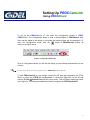
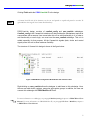
enter the Configuration mode, click the
button in PROCWizard's toolbar, as
shown in the figure below:
Figure 3: Configuration Mode Icon
Once in Configuration Mode, you will see the design you are building represented by a tree
of items.
To learn more about these items, please refer to PROCWizard User Manual.
To add PROCCamLink to your design, choose the IC item that represents the FPGA
device to which the PSDB_CL daughterboard is connected. Right-click on this IC and
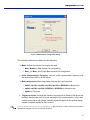
choose IP Core Æ Camera Link from the pop-up menu. This will open a dialog box shown
in the Figure 4. This dialog box enables the user to configure the PROCCamLink IP.
5