1
NetCommand® Initial Setup
When you first power On your new Mitsubishi TV, the initial setup screens appear. In order to use NetCommand,
select these screens after you have connected the compatible equipment to the TV. Most IR remote control signal
formats can be learned by NetCommand.
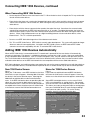
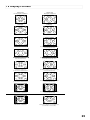
Language Screen
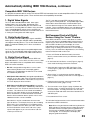
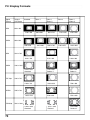
Device Setup Screen
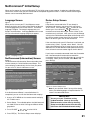
Figure 1
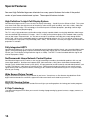
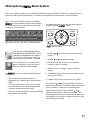
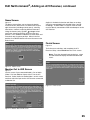
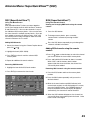
When you first turn on your TV, the Welcome screen
displays and asks you to select either English or Spanish
as the language for the on-screen menus. The default
language is English. To change Language later, use
Setup in the Main Menu. Selecting Cancel at this screen
will cause the default language (English) to appear.
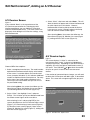
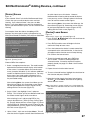
Figure 3
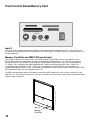
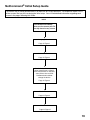
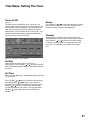
If the devices connected to the TV are already in
NetCommand memory, you can quickly select them
at this screen. Press ADJUST or
to move to each
device type. Press ADJUST
or
to select the
manufacturer of each device type. Select “Other” if the
manufacturer is not listed. Later, you can use the Change
setting in the Edit NetCommand option of the Setup menu
to learn the remote control signals for this device. Select
“None” for device types that are not connected.
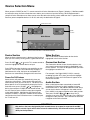
If the manufacturer for your A/V Receiver is not listed, you
cannot select “Other”. Instead, select “None”. You can
either select Edit on the Finish screen or you can use the
Add feature in the Edit NetCommand option of the Setup
menu to learn the remote control signals for this device.
Figure 1. Language screen
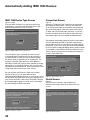
NetCommand (Information) Screen
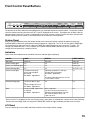
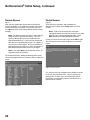
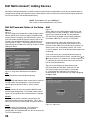
Figure 2
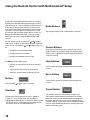
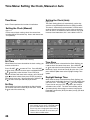
The NetCommand (Information) Screen describes how
to start or delay the initial NetCommand Setup. This
screen displays automatically the first time you power
On your new TV, after the Welcome screen.
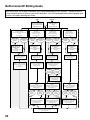
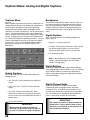
If you have a camcorder connected check the Camcorder
box. NetCommand will not be able to control the
camcorder, but will reserve the front input to use with the
camcorder. When you are finished, select Next> and
press ENT(er).
Figure 3. Device Setup screen
Figure 2. Information screen
If the NetCommand Setup is cancelled before it’s
completed, you can restart the NetCommand setup by:
1. A press of TV MENU on the remote control to display
the TV Main menu.
2. Select Setup. The available options for NetCommand
are: Add, Review or Initial. Change and Delete will be
grayed out.
3. Press ADJUST
,
,
or
Note: If you selected “Other” for any of the device
names, the following pages will explain how the TV
“learns” the connected device.
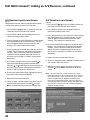
IMPORTANT
You may use your TV without setting
up NetCommand. You may also setup
NetCommand at a later time by choosing
Setup from the Main menu, then selecting
initial from the Edit NetCommand setting.
to select Initial.
4. Press ENT(er). The Device Setup screen displays.
21