1
1. Make sure your WEGO is not connected to your
PC.
2. Insert the Daytona Sensors CDROM. When the
Daytona Sensors autorun menu appears, click on
Software. Scroll down and click on the USB Driver
link. When the File Download dialog box appears,
click on "Run this program from its current
location." Ignore any security warnings and click on
Yes to continue.
3. After installation of the driver is complete, turn on
power to the WEGO unit and connect it to the PC
with the supplied USB cable. The Windows Found
New Hardware Wizard will appear and complete
installation of the USB drivers.
COM Port Configuration
After completing the installation steps outlined
above, you must configure the new COM port using
Device Manager.
1. Windows XP: click Start, Settings, Control Panel,
System, Hardware, and then Device Manager.
Windows Vista: click Start, Control Panel, System
and Maintenance, and then Device Manager.
Windows 7/8: Click Start, Control Panel, System
and Security, and then Device Manager. For more
information, visit www.pcsupport.about.com.
2. Scroll down to Ports (COM and LPT). The new
WEGO will appear as a USB Serial Port. Click on
this new port. Click on the Port Settings tab.
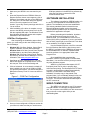
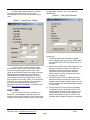
3. Click on Advanced. In most cases the wizard will
have installed your new unit as COM4 or COM5.
For optimum performance, you should change the
BM Options Latency Timer to 2 msec as shown in
Figure 1.
Figure 1 – COM Port Configuration
COM port selection in the WEGO Log software by
using the Port Setup command from the
Communications menu.
SOFTWARE INSTALLATION
The software is supplied on CDROM media or in
the form of a compressed file downloaded from our
website. The installation process uses InstallShield.
This industry standard installer is based the new
Microsoft Windows Installer service that greatly
reduces potential problems such as version conflicts
and allows for application self-repair.
Before proceeding with installation, shutdown
any other applications that may be running. For
Windows Vista, you must disable the User Account
Control (UAC) during installation. If you are not familiar
with the UAC, please refer to the Vista UAC Tech Note
on our website's Tech FAQ for details.
Use the Windows Explorer or the Run command
from the Windows Start Menu to launch setup.exe in
the WEGO_Log folder on the CDROM or the setup.exe
file downloaded from our website. InstallShield will
install the software in an appropriate folder under
Program Files.
Once InstallShield has completed the
installation, WEGO Log will appear on the Windows
Start Menu. You can then launch it just as you would
any other Windows program.
WEGO Log requires the Monospace 821 BT
fixed pitch printer font in order to properly align
columns when printing. The Monospace 821 BT font is
included in the distribution media and automatically
copied to your Windows Fonts folder during
installation. A backup copy is also placed in the
program folder. If you accidentally delete this font, use
the Install New Font command from the Fonts folder
File menu. The filename associated with Monospace
821 BT is monos.ttf.
WEGO CONNECTION
The WEGO unit connects to your PC by means
of a USB interface. A USB cable is supplied with the
unit. Turn on power to the WEGO unit. We recommend
that you do not run the engine while you are
downloading data.
4. Once you have configured a COM port number for
your new unit, make sure that you use this same
Daytona Sensors LLC, 933 Beville Road, Suite 101-I, S. Daytona, FL 32119
(386) 322-7390 www.daytona-sensors.com
Page 2
WEGO Single Channel Software
7/2014