1
Mitel NuPoint Messenger Technical Documentation - Release 7.0
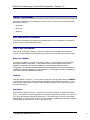
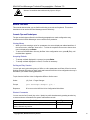
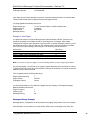
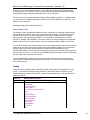
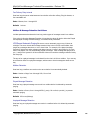
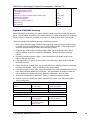
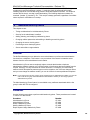
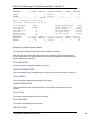
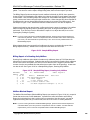
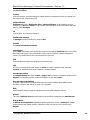
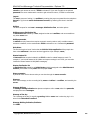
F9 or Esc
F10
Exit the Mailbox Screen
Edit current mailbox’s information
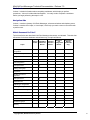
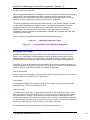
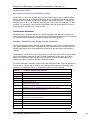
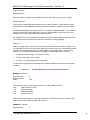
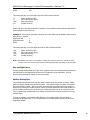
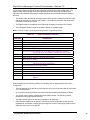
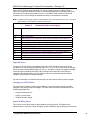
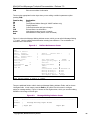
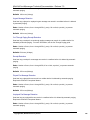
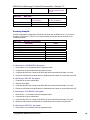
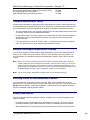
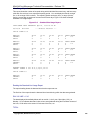
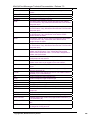
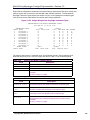
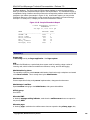
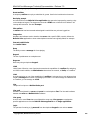
These are the appropriate function keys when you are editing a mailbox’s parameters (after
pressing F10):
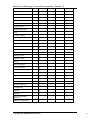
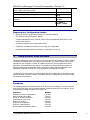
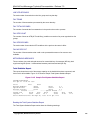
Function Key
F6
F7
F8
F9
F10
Home
End
Explanation
Billing
Family/Guest Mailbox Setup (for VMUIF interface only)
Display Statistics
Cancel edit session and ignore changes
Exit and Save new information
Help (based on where cursor is located)
Edit Additional Fields (where cursor is located)
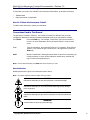
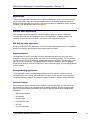
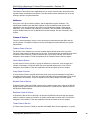
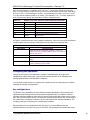
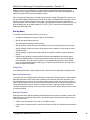
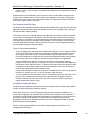
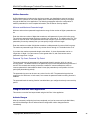
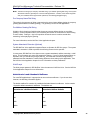
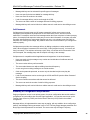
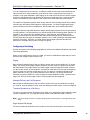
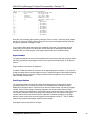
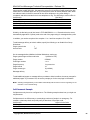
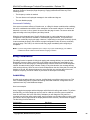
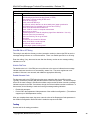
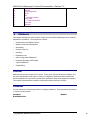
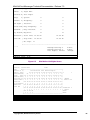
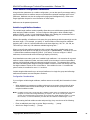
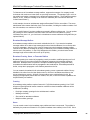
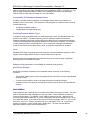
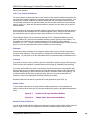
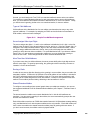
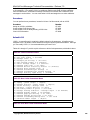
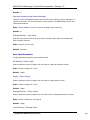
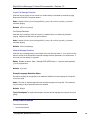
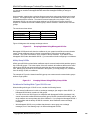
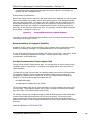
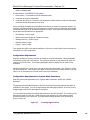
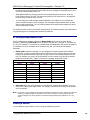
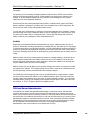
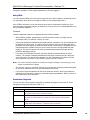
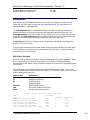
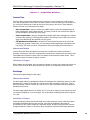
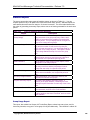
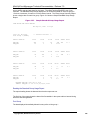
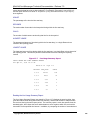
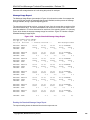
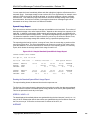
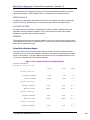
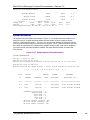
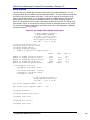
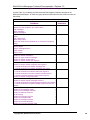
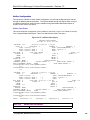
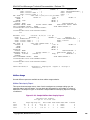
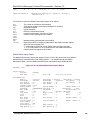
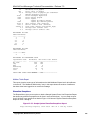
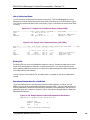
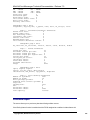
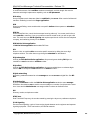
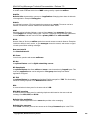
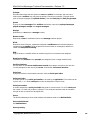
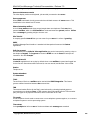
Figure 6-1 shows the Message Waiting Indicator screen, which you can edit for Message Waiting
1, 2, and 3. Use the mailbox worksheets when creating new mailboxes. The worksheets are
described in the next section.
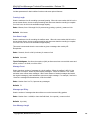
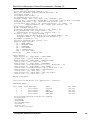
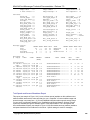
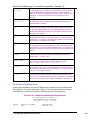
Figure 6-1
Mailbox: 00000000998
Name:
Classes of Service
Limits:
Default
Features: UNLIMITED
Group:
Default GCOS 1
Network: Default
Bad Login Count:
Access Code:
Password:
N
Day Treatment:
M
Extension:
998
Atten DN:
Mailbox Maintenance Screen
Code:
1
1
1
1
0
Tenant:
Default TCOS 1
Restriction:
1
1
Last Login Time:
NEVER
Speech Quality Msgs: 0 Greets: 0
Tutorial:
N
Night Treatment:
M
Index:
0
Index:
0
CallPlacement Index: N TimeZone: 0
Message Waiting 1:
0 None
Message Waiting 2:
0 None
Message Waiting 3:
0 None
List Rights: Review:
Change
F1 Next F2 Prior F6 Delete F8 Stats F9 or Esc Exit F10 Edit
Enter mailbox number to modify or create.
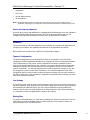
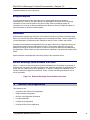
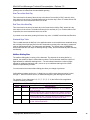
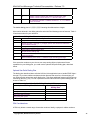
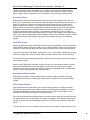
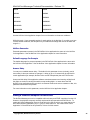
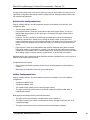
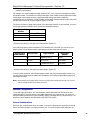
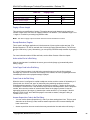
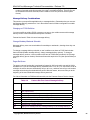
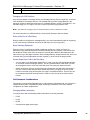
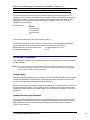
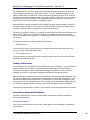
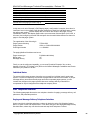
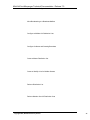
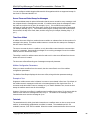
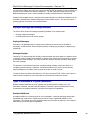
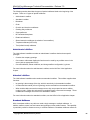
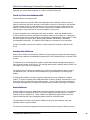
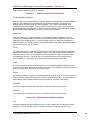
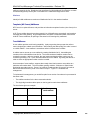
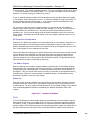
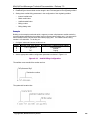
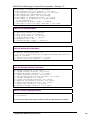
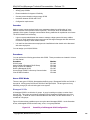
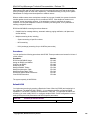
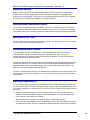
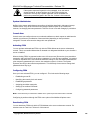
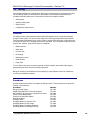
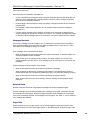
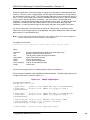
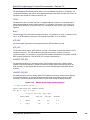
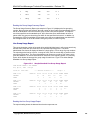
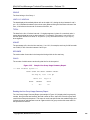
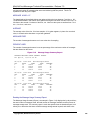
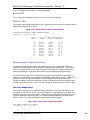
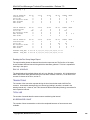
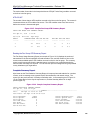
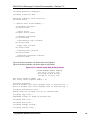
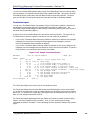
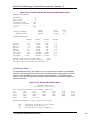
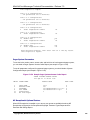
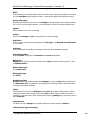
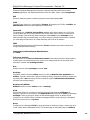
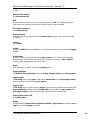
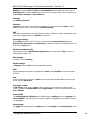
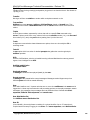
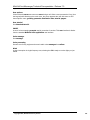
There are additional fields to edit for the three Message Waiting Indicator Fields, and for the two
List Rights fields. In both cases, press the End key to edit the Use this screen to configure
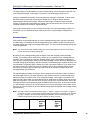
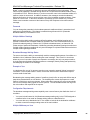
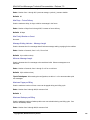
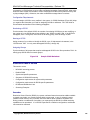
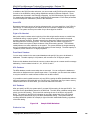
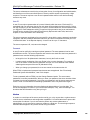
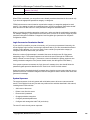
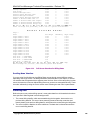
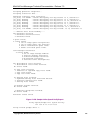
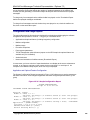
paging or message waiting. Figure 6-2 shows the List Rights screen, which you use when editing
distribution list change or review right.
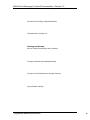
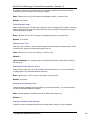
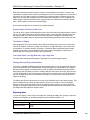
Figure 6-2
Message Waiting Indicator Screen
M A I L B O X M A I N T E N A N C E
+---------------------------------------------------------------+
Mailbox: |
Message Waiting Light Fields
|
Name:
| Pager #01
Pager #02
|
©Copyright 2002, Mitel Networks Corporation
83