1
All-in-1 / A+ Certification Exm Gde, 6th Ed. / Meyers / 6311-3
Chapter 20: Printers
887
The general installation, configuration, and troubleshooting issues are basically
identical in Windows 2000 and Windows XP. Here’s a review of a typical Windows
printer installation. I’ll mention the trivial differences Windows 2000 and XP as I go
along.
Setting Up Printers
Setting up a printer is so easy that it’s almost scary. Most printers are plug and play, so installing a printer is reduced to simply plugging it in and loading the driver if needed. If the
system does not detect the printer or if the printer is not plug and play, click Start | Printers
and Faxes in Windows XP to open the Printers applet; in Windows 2000, click Start | Settings | Printers. The icon for this applet can also be found in the Control Panel.
As you might guess, you install a new printer by clicking the Add Printer icon (somehow Microsoft has managed to leave the name of this applet unchanged through all
Windows versions since 9x). This starts the Add Printer Wizard. After a pleasant intro
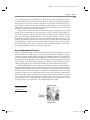
screen, you must choose to install either a printer plugged directly into your system or
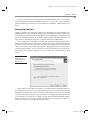
a network printer (Figure 20-18). You also have the Automatically detect and install my
Plug and Play printer option, which you can use in many cases when installing a USB
printer.
Figure 20-18
Choosing local or
network printer in
Windows XP
If you choose a local printer (see Chapter 21 for a discussion of networked printers),
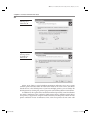
the applet next asks you to select a port (Figure 20-19); select the one where you installed the new printer. Once you select the port, Windows asks you to specify the type
of printer, either by selecting the type from the list or using the Have Disk option, just
as you would for any other device (Figure 20-20). Note the handy Windows Update
button, which you can use to get the latest printer driver from the Internet. When you
click Next on this screen, Windows installs the printer.
ch20.indd 887
11/26/2006 11:21:46 AM