1
i-CAT FLX Service Manual
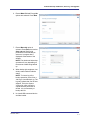
5. Select Continue. A message displays stating the disk will be erased.
6. Select Continue again. The disk is erased and software installation begins.
7. After the software is written to the internal hard drive, remove the UFD from the USB port.
NOTE: Failure to remove the UFD will cause the scanner controller to boot from it again. In this
case, remove the UFD and turn the scanner controller off, then on.
8. Select Quit. The scanner controller will reboot and start first-time boot processing (5-10 minutes).
It will reboot again, perform checks and configuration, then display the Login screen.
9. Log in using the Service account and select Explorer from the menu. Check to see if Imagers is
empty:
a. Navigate to Imagers (typically D drive). Check for a folder named for the serial number of the
detector panel (for example: E259-04B). If this file exists, installation is complete. Otherwise,
continue with step b.
b. Obtain the Imagers DVD for the panel. Obtain an external DVD drive or copy the DVD
contents to a UFD.
c.
Navigate to the Imagers content on the DVD or UFD.
d. Start Setup.exe and follow instructions.
Software Upgrades
This section describes the following upgrade scenarios:
•
Repartition and Upgrade Scanner Controller Software for Systems with a Single Disk Partition
to Version 2.1.0
•
Upgrade Scanner Controller Software from 2.0.1 to 2.1.0
•
Upgrade Clinical Software
Upgrades of the scanner controller software require that site-customized data (user accounts and
customized favorites) be recorded prior to the upgrade, so that they can be restored after the upgrade.
CAUTION
CAUTION
It is REQUIRED that the most current versions of the clinical software are installed after the
scanner controller is upgraded.
Clinical software at the site must be upgraded to the most current versions after the scanner controller
software is upgraded. Access Control Panel at each site workstation to view the current clinical software
versions loaded. The most current clinical software versions are:
•
SmartScan STUDIO Integration Services 1.1.0
•
SmartScan STUDIO Manager 2.1.0
•
DEXIS SmartScan STUDIO Integration Services 1.1.0
All servers and client workstations must be running one of the following operating systems. The upgrade
software performs a check, and will not continue if the computer is not running one of these operating
systems.
4-6
032-0332 Rev C