1
Layout
.. _..........
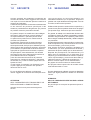
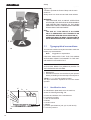
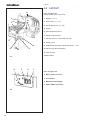
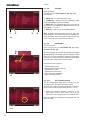
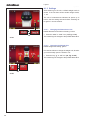
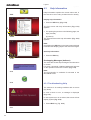
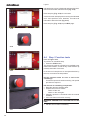
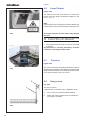
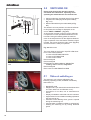
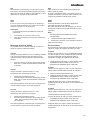
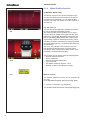
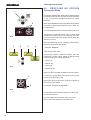
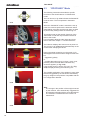
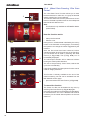
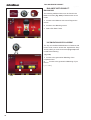
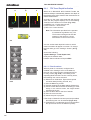
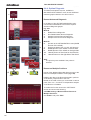
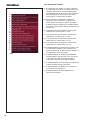
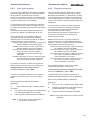
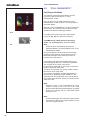
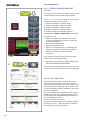
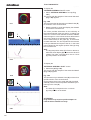
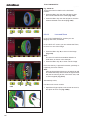
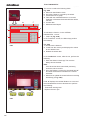
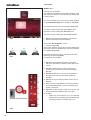
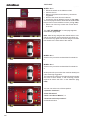
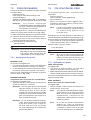
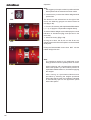
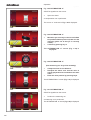
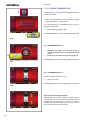
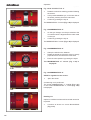
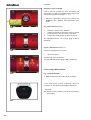
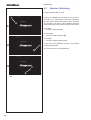
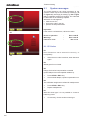
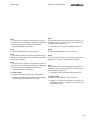
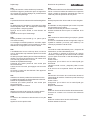
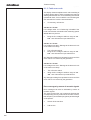
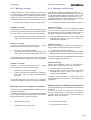
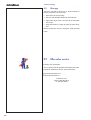
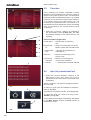
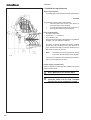
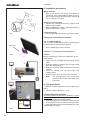
Fig. 4-7
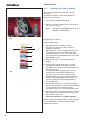
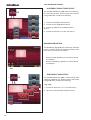
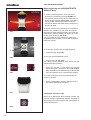
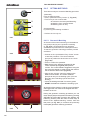
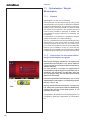
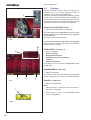
BALANCING
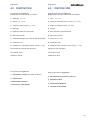
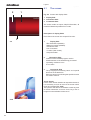
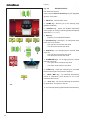
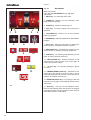
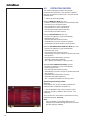
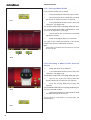
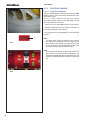
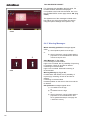
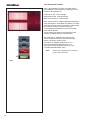
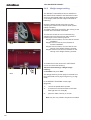
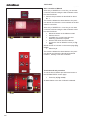
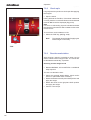
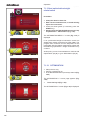
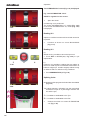
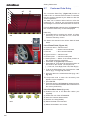
Balancing Screen.
Open with the BALANCING key (7, Fig. 4-5).
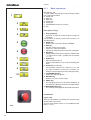
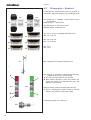
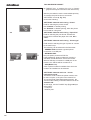
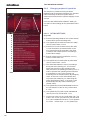
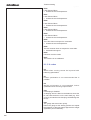
Commands:
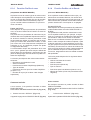
1 - HELP key - For selecting HELP texts.
2 - HOME key - Returns you to the starting screen
page (INTRO SCREEN).
3 - START key - Starts the measuring run.
4 - ESC key - To exit the option being executed or
displayed.
1
2
3
4
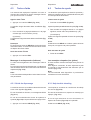
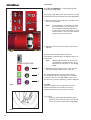
5 - BALANCE key - Returns you to the automatic
balancing program.
6 - OPT/MIN key - Starts the Optimisation / Minimisation
program.
5
6
7
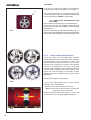
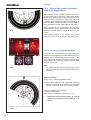
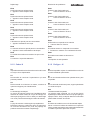
7 - SPLIT key - Starts the procedure for splitting the
wheel weight, to be applied behind the spokes.
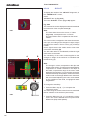
8 - PRECISION key - Increases the resolution of the
values shown, for reading remaining unbalances.
8
9
10
9 - STATIC key - For retrieving static balancing. Press
again to restore dynamic balancing.
10 - RELOCATION key - Enables relocation of the
wheel weight in Laser Pointer mode. Press again to
confirm the position change.
11
11 - “G / OZ” key - For selecting readings in grams
or ounces.
12
13
14
4-7
32
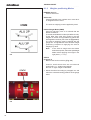
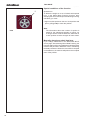
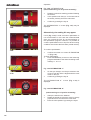
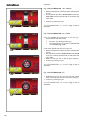
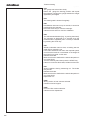
12 - FREEZE WHEEL DATA key - Size data for the
wheel being processed is saved so that it can be
used with subsequent wheels of the same size (set of
wheels). This allows a shorter run.
13 - RIM DATA ENTRY key - For passing to the Rim
data entry screen page, and to Manual operation from
“Automatic”.
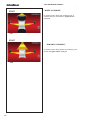
14 - WAP key - The key is at the imbalance value.
Press to automatically index the wheel to the weights
application position; the wheel starts to reach and stop
at the WAP position of that plane.