1
“FULL DIAGNOSTIC”
.. _..........
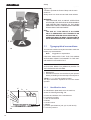
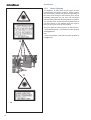
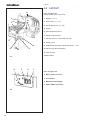
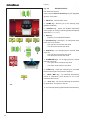
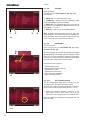
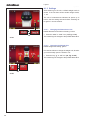
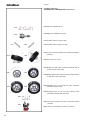
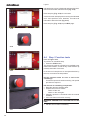
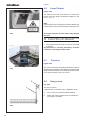
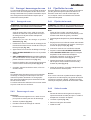
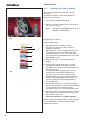
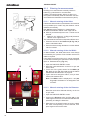
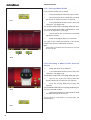
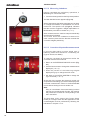
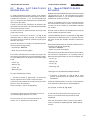
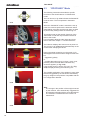
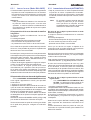
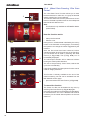
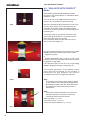
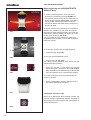
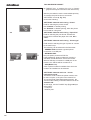
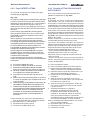
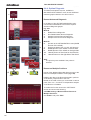
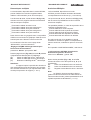
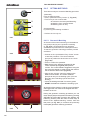
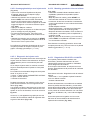
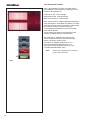
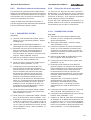
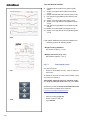
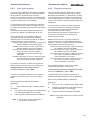
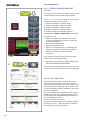
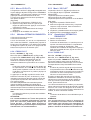
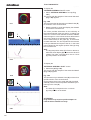
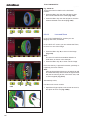
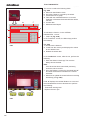
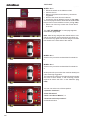
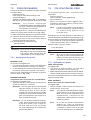
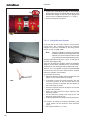
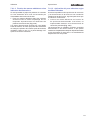
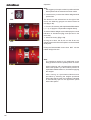
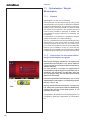
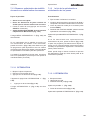
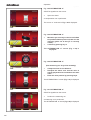
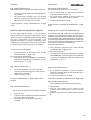
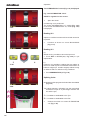
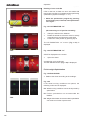
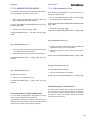
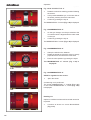
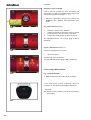
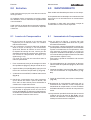
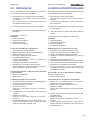
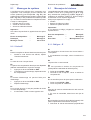
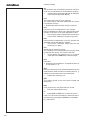
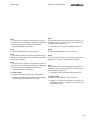
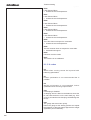
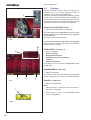
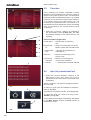
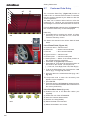
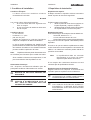
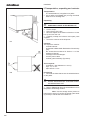
Fig. 6-83/6-84
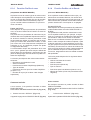
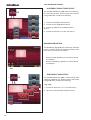
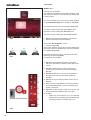
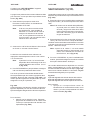
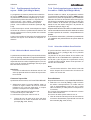
To turn the wheel in relation to the horizontal
position:
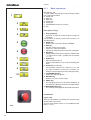
— Press the Menu key 2 on the right part to view
the internal sidewall of the wheel (Fig. 6-83).
— Press the Menu key 2 on the left part to view the
external sidewall of the wheel (Fig. 6-84).
6-83
2
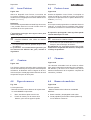
6.5.4.3
Lens and Zoom
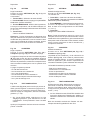
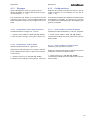
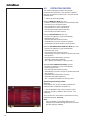
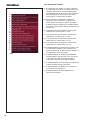
In the “FULL DIAGNOSTIC” screens you can
Magnify and Zoom, as follows:
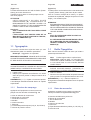
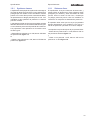
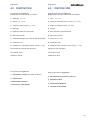
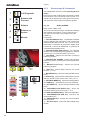
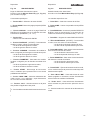
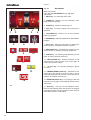
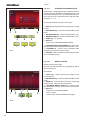
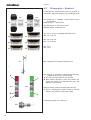
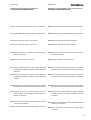
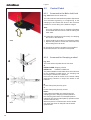
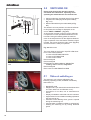
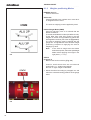
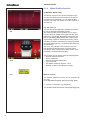
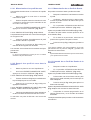
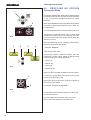
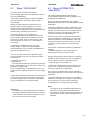
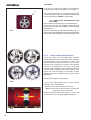
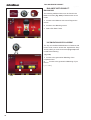
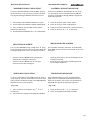
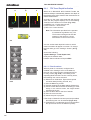
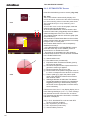
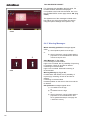
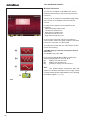
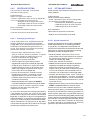
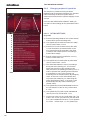
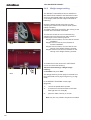
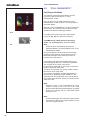
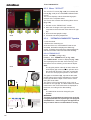
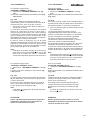
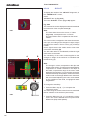
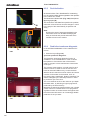
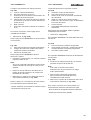
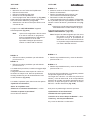
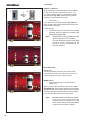
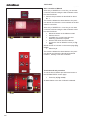
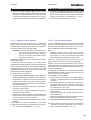
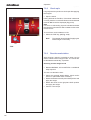
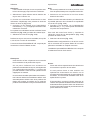
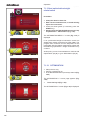
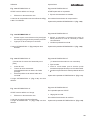
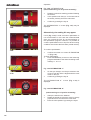
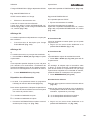
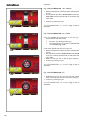
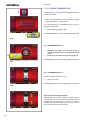
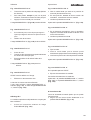
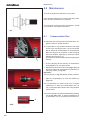
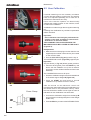
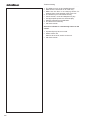
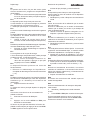
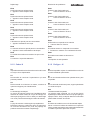
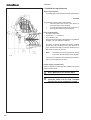
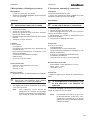
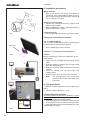
In the “3D PLOT” screen you can activate the Zoom,
to zoom in or out of the image.
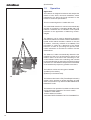
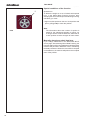
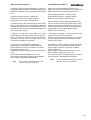
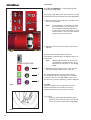
— Press the Menu key 3b, to zoom in the image
(Fig. 6-85).
Note:
The zoom is useful for anomalies limited to a
small area, as shown in the example.
6-84
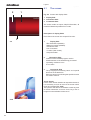
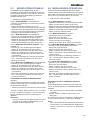
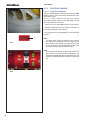
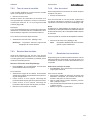
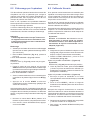
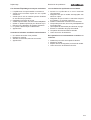
— Press the Menu key 3a, to zoom out the image.
Each time the key is pressed increases, positively or
negatively, the level of Zoom.
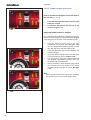
Note:
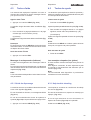
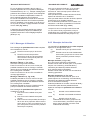
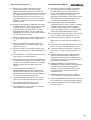
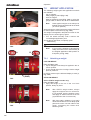
After having activated the zoom, the wheel can still
be rotated manually and turned to the right and left
with the function key 2, like in the basic view, with
no Zoom applied (Fig. 6-84).
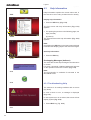
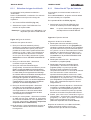
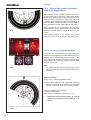
Alternatively to this;
2
6-85
6-85b
148
3a
3b
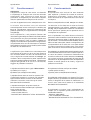
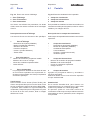
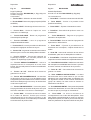
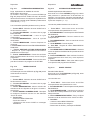
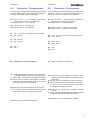
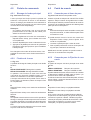
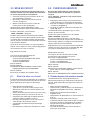
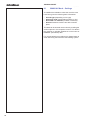
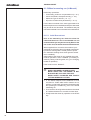
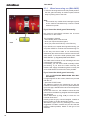
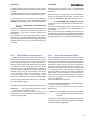
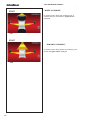
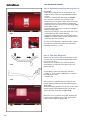
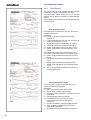
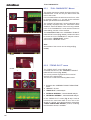
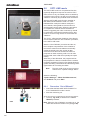
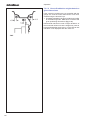
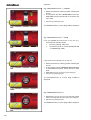
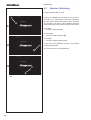
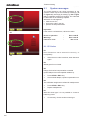
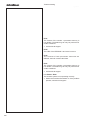
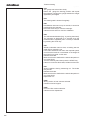
Use the touch screen controls.
— Spread two fingers apart on the screen to zoom in,
and pinch to zoom out (Fig. 6-85b).