1
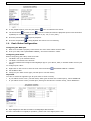
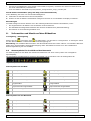
NVR5
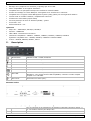
recording
human detection event
alarm event
motion event
live information
playback information
Quick Operation Menu
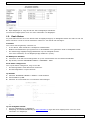
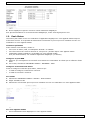
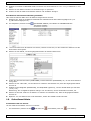
To access the Quick Operation menu, point the mouse to the arrow mark on the left of the screen. It contains
the following icons:
Click to show the channel switch panel and select the channel you want.
Click to display the playback control panel. In the control panel:
Click
to play the latest recorded video clip
Click
to open the search list.
Click to open the IP search window and check the connection status of each channel.
Click to show the power-off panel to stop or reboot the system.
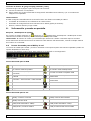
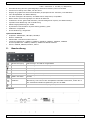
Main menu
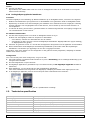
To access the main menu, right-click anywhere on the screen. Right-click again to hide the menu.
Icon
Label
Contains settings for
Quick start
Channel Title, Event Status, Date Display, Mouse Sensitivity, Record Config.
System
Account, Tools, System Info, Backup Schedule, Online, Regular Report
Event
information
Quick Search, Event Search, HDD Info, Event Log
Advanced config
Connection, Camera, Detection, Alert, Network, Display, Record, Notify,
Multicasting
Schedule
setting
Event Timer, Record Timer
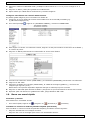
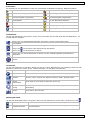
Playback panel
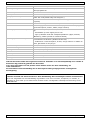
To access the playback panel, open the Quick Operation menu (see above) and click
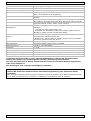
fast forward
Click to fast forward at 4 to 32 times normal speed.
fast rewind
Click to fast rewind at 4 to 32 times normal speed.
.
Click to play the latest recorded video clip. Click again to pause.
play/pause
In pause mode, click
frame backward.
stop
Click to stop the video playback.
slow playback
Click once to play at 1/4 normal speed, click twice for 1/8 normal
speed.
previous/next hour
Click to jump to the next/previous one-hour time interval (for example,
11:00 to 12:00 or 14:00 to 15:00) and start playing the earliest video
clip recorded during this hour.
quick search
Click to enter the quick search menu.
V. 01 – 14/04/2014
once to go one frame forward, or
7
to go one
©Velleman nv