1
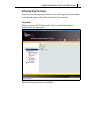
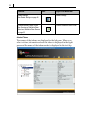
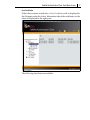
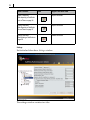
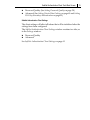
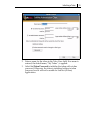
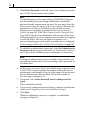
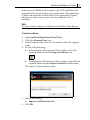
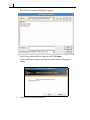
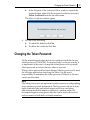
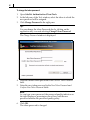
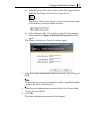
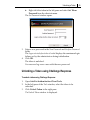
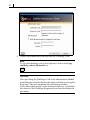
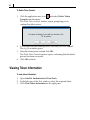
Unlocking a Token 45 Right‐click the token in the left pane and select Set Token Password from the shortcut menu. The Set Password window opens. 3. 4. Enter a new password in the New Password and Confirm Password fields. The Logon retries before token is locked displays the maximum login failures set by the administrator during initialization. Click OK. The token is unlocked. You can now log on as a user with the new password. Unlocking a Token using Challenge Response To unlock a token using Challenge Response: 1. 2. 3. Open SafeNet Authentication Client Tools. In the left pane of the Tools window, select the token to be unlocked. Click Unlock Token in the right pane. The Unlock Token window is displayed.