1
FINAL DRAFT
28 - Tutorials
Zoom (Magnification)
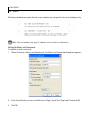
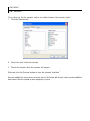
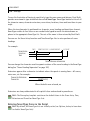
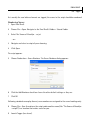
To continue the Tutorial, we will use a sample script that was installed along with Final Draft.
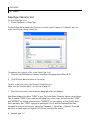
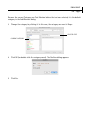
To open the sample script:
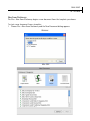
1 Choose File > Open.
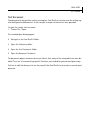
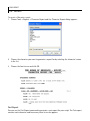
The standard Open dialog appears.
2
Navigate to the Final Draft 8 folder.
3
Open the Final Draft folder.
4
Open the Tutorial folder.
5
Open the script The Swans of Brooklyn - script.fdx.
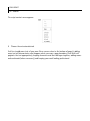
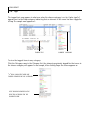
The script appears.
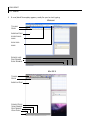
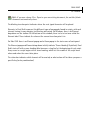
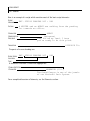
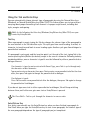
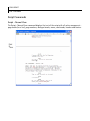
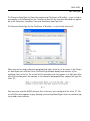
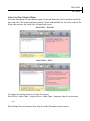
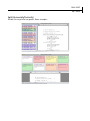
Final Draft has a zoom (magnification) feature which allows you to see more (or less) of the
script on a screen. This permits you to set the optimal size for working on various monitors or
laptop computers.
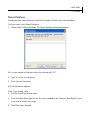
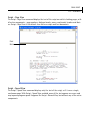
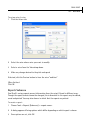
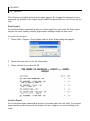
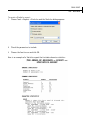
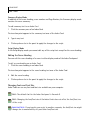
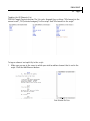
To view more of the script:
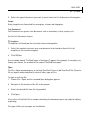
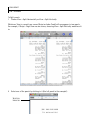
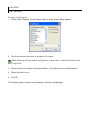
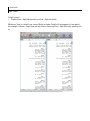
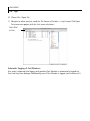
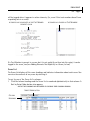
1 Choose View > Zoom > 75%.
Then:
2
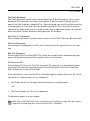
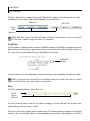
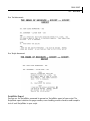
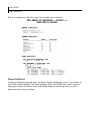
Choose View > Zoom > 125%.
As you can see, this feature could be useful in different work situations, especially if you are
using a laptop computer.
NOTE
NOTE: Final Draft retains its settings between sessions. Whichever magnification a script
is in when you save it, it will appear in the same magnification when it is next opened.
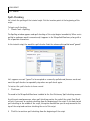
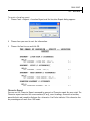
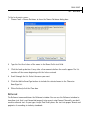
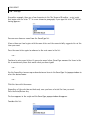
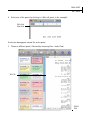
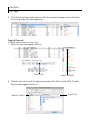
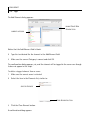
To view the script at “normal” size:
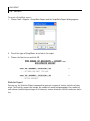
1 Choose View > Zoom > 100%.