1
Using MimioStudio Gradebook
If you already have a MimioHub installed on your computer, a dialog box appears
asking if you want to connect the MimioHub to the MimioVote system. Click Yes
to link the MimioVote system to your existing MimioHub.
Adding a Second MimioVote System
Each MimioVote system includes either 24 or 32 MimioVote units. For larger classes, you
can combine two MimioVote systems for a total of up to 64 units.
You can use the same MimioHub to connect all of your MimioClassroom devices to
your computer.
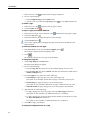
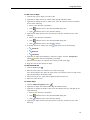
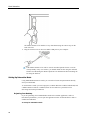
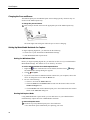
To add a second MimioVote system
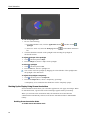
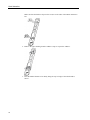
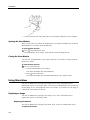
1. Set up the MimioVote station and units as described in Setting Up MimioVote.
Once the power is connected to the MimioVote system, the previously installed
MimioHub will detect the new system.
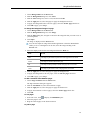
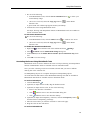
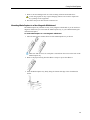
2. When prompted by the software, click Yes to connect the new system to the
MimioHub.
The second system is connected to your computer and the appropriate numbers are
assigned to each MimioVote unit automatically.
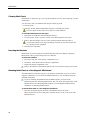
If you do not see the prompt, or you want to connect the system at a later time, see
Adjusting the Classroom Devices Settings for information about connecting
available devices to your computer.
Using MimioStudio Gradebook
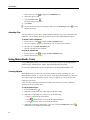
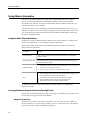
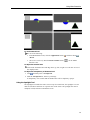
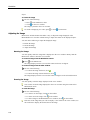
You can use MimioStudio Gradebook to store information for all of your classes, students,
and class activities. Student responses gathered using the MimioVote system are
automatically saved to the Gradebook along with complete information for each question.
You can also manually add activities that were not conducted using the MimioVote system,
making it easy to keep all your grades in one location.
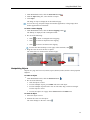
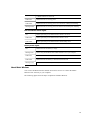
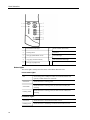
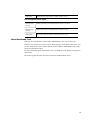
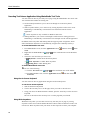
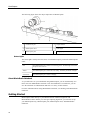
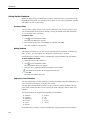
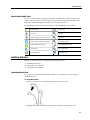
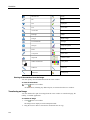
Several ways to access MimioStudio Gradebook are shown in the following table.
To start from the
Do this
Desktop
Double-click
Taskbar
Right-click
Start menu
Point to Programs, MimioStudio, Tools, and then choose MimioStudio
Gradebook.
on the desktop.
, and then choose
Gradebook.
99