1
Chapter 12
Customizing MimioStudio
This chapter describes the general features of MimioStudio Settings.
The following table shows several ways to access MimioStudio Settings.
To start from
Do this
Taskbar
Right-click
MimioStudio Notebook
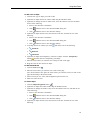
Do one of the following:
n
n
, and then choose
Settings.
Double-click on the status bar.
Choose
Settings from the Tools menu.
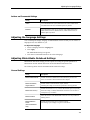
MimioStudio Settings contains options for setting and customizing the properties and
characteristics of your MimioClassroom system, including Classroom Devices, Ink Capture,
Interactive, Language, NetMeeting, Notebook, Recorder, and Vote.
To change the settings
1. From the MimioStudio Settings dialog box, select the setting you want to change from
the list on the left.
2. Make the changes you want to the settings.
See later sections in this chapter for a complete description of all settings.
3. Click Apply.
Adjusting the Classroom Devices Settings
The Classroom Devices settings displays a list of all MimioClassroom devices that are
connected or are available to connect to your computer. You can connect to any available
devices using the Classroom Devices settings.
To connect to an available MimioClassroom device
1. Select the device to connect to from the Devices list.
2. Click Connect.
Adjusting the Ink Capture Settings
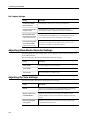
The Ink Capture settings allow you to do the following:
n
Change the surface size for a connected MimioTeach or Mimio Interactive device
n
Change the mounting location for a Mimio Interactive device
n
Change the width and color assignment for each MimioCapture or Mimio Capture Kit
pen
133