1
Page • 129
Objects and their Properties
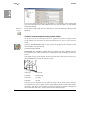
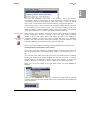
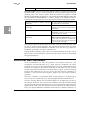
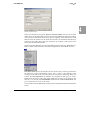
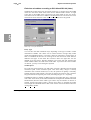
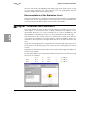
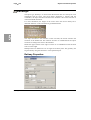
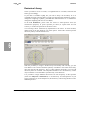
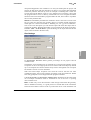
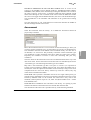
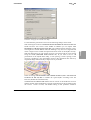
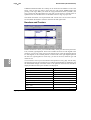
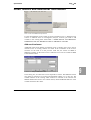
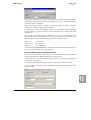
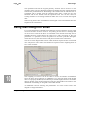
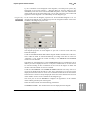
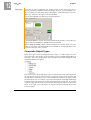
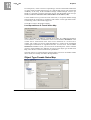
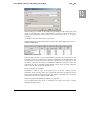
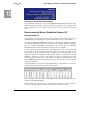
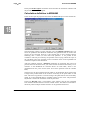
Tab index card "level": The displayed levels for the time ranges day, evening and
night are the average levels over the hours of the time range. For the entry types
where the road day histogram library is used, the emission stored per hour, so that
you can select assessments with any assessment time range definition, e.g. the
loudest 8 hours or the assessment time ranges day and night.
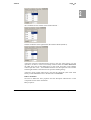
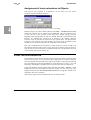
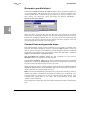
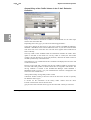
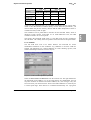
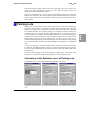
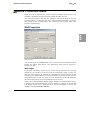
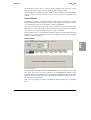
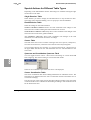
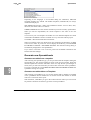
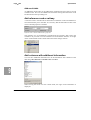
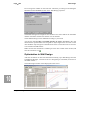
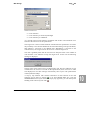
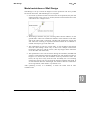
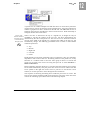
Define the entry type with the selection list:
ROAD DAY HISTOGRAM LIBRARY + ADT
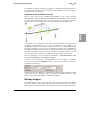
The distribution of the traffic volume over time originates from the road day
histogram library, the average daily traffic (ADT) is entered manually.
You can use this input type with data assigned from a road network. In this case the
ADT comes from the network element, assigned in the tab index card "traffic". The
percentage of the vehicle types are exactly the same as in the road day histogram
library.
ROAD DAY HISTOGRAM LIBRARY + ADT + HT
The distribution of the traffic volume over time originates from the road day
histogram library, the average daily traffic (ADT) and the percentage of heavy
traffic is entered manually.
This input type can also be used together with data assigned from a road network. In
this case the ADT and the portions of the vehicle types are taken from the network
element, assigned in the tab index card traffic. The vehicle types of the road day
histogram library are converted to the number of vehicles assigned in the network
element, whereas the temporal distribution according to the road day histogram
library is taken into account.
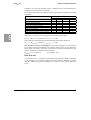
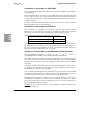
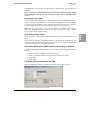
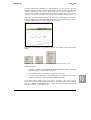
PORTION OF THE ADT MANUALLY
The portions of the ADT are entered as factors and the heavy traffic portion is
entered in per cent.
If a road type of the road day histogram library has been selected, the hourly
distribution averaged to the time ranges and converted into factors.
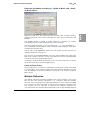
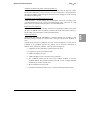
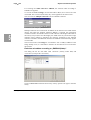
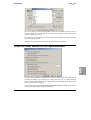
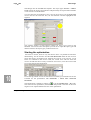
VEHICLE/H FROM THE INDUSTRY DAY HISTOGRAM LIBRARY
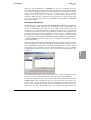
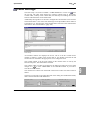
For industry and leisure noise investigations you can enter the traffic lanes of a
parking lot, which has to be calculated according to the exact procedure of the
Bavarian parking lot study. A day histogram from the industry day histogram
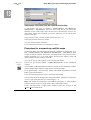
library is assigned to each vehicle type. If you want to add elements to the industry
day histogram library, click on the double arrow next to OPEN DAY HISTOGRAM
LIBRARY.
VEHICLE/H MANUALLY
Enter the vehicles per hour for each vehicle type and each time range.
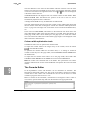
There are two additional entry types for CRTN (UK):
12, 4, 8, 18 HOUR DATA
and
18 HOUR DATA.
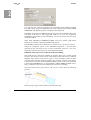
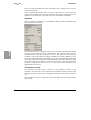
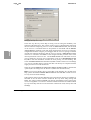
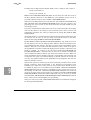
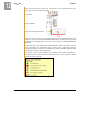
Enter the additional parameters for the calculation of the emission level in the fields
of the tab index card SPEED, SURFACE, ETC.
SoundPLAN Manual
Road Alignments
5