1
MasterTool Programming
User’s Manual
Rev. M 05/2009
Cód. Doc.: MU299601
altus
General Conditions
No part of this document may be copied or reproduced in any form without the prior written consent
of ALTUS Information Systems S.A. who reserve the right to carry out alterations without advice.
According to legislation in force in Brazil, the Consumer Defence Code, we are giving the following
information regarding personal safety and installation by the client.
The industrial automation equipment, built by ALTUS are strong and reliable due to the stringent
quality control it is subjected to. However the electronic industrial control equipment (programmable
controllers, numerical commands, etc.) can cause damage to the machines or processes through their
controllers when there are defective components and programming or installation errors. This can
even put human lives at risk.
The user should consider the possible consequences of the defects and should provide additional
external installations for security so that, if necessary, the security of the system can be maintained
especially during the initial installation and testing.
It is essential to completely read the manuals and/or about the technical characteristics of the product
before it’s installation or use.
ALTUS guarantee their equipment against genuine production faults for a period of twelve months
starting from the shipping date. This guarantee is given in terms of factory maintenance, that is to
say, the transportation costs of returning to factory will be borne by the client. The guarantee will be
automatically suspended where there are modifications introduced to the equipment by personnel not
authorised by ALTUS. ALTUS are exempt from any responsibility with regard to repairs or
replacement parts owing to faults created by outside influences, through inappropriate use, as well as
the result of accidents or force majeure.
ALTUS guarantees that their equipment works in accordance with the clear instructions contained in
their manuals and/or the technical characteristics, not guaranteeing the success of any particular type
of application of the equipment.
ALTUS does not acknowledge any other guarantee, direct or implied, principally when it is dealing
with supply of third parties.
Requests for additional information about the supply and/or characteristics of the equipment and
ALTUS services should be put in writing. The address for ALTUS can be found on the back cover.
ALTUS is not responsible for supplying information about their equipment without formal
registration.
COPYRIGHTS
MASTERTOOL and QUARK are the registered trademarks of ALTUS Information Systems S.A.
IBM is the registered trademark of the International Business Machines Corporation.
i
Sumary
Sumário
1. PREFACE....................................................................................................................................................1
Description of this Manual ..........................................................................................................................1
Related Manual............................................................................................................................................1
Terminology .................................................................................................................................................2
Conventions Used.........................................................................................................................................2
Warning Messages Used on this Manual.....................................................................................................2
Technical Suport..........................................................................................................................................3
2. INTRODUCTION .......................................................................................................................................4
The MasterTool Software............................................................................................................................4
MaterTool® Programming MT4000 and MT4100 .....................................................................................4
Programming the Series of PLCs ................................................................................................................5
3. INSTALLATION.........................................................................................................................................6
CD_Rom Distribution..................................................................................................................................6
Hardware and Software Requirements.......................................................................................................6
Installation of MasterTool ...........................................................................................................................6
In order to install MasterTool in Windows 95/98/ME/NT/2000/XP ........................................................6
Uninstalling MasterTool..............................................................................................................................7
Starting MasterTool.....................................................................................................................................7
Protection Key .......................................................................................................................................7
Altus Software License Contract ............................................................................................................8
Connections ...........................................................................................................................................9
Starting MasterTool .............................................................................................................................10
Configuration of the Serial Channel .....................................................................................................10
Terminating MasterTool ...........................................................................................................................10
To terminate MasterTool......................................................................................................................10
4. A GENERAL VIEW OF MASTERTOOL ...............................................................................................11
Initial Screen..............................................................................................................................................11
Work Area General View ..........................................................................................................................12
Titlebar.......................................................................................................................................................12
Menus .........................................................................................................................................................12
To Select a Menu Command ................................................................................................................12
Toolbars .....................................................................................................................................................13
ToolBar of Commands.........................................................................................................................13
ToolBar for Reports .............................................................................................................................14
ToolBar of Instructions ........................................................................................................................15
Hints About Using the Keyboard ..............................................................................................................15
Keys for Shortcuts ...............................................................................................................................15
List of Options.....................................................................................................................................16
Editing Area...............................................................................................................................................16
Editing Line ...............................................................................................................................................16
Windows for Editing Modules...................................................................................................................16
Configuration Module..........................................................................................................................16
Configuration Module for Router .........................................................................................................17
ii
Sumary
Program Module ..................................................................................................................................18
Help19
Consulting Help Directly .....................................................................................................................19
Consulting Help Starting from MasterTool...........................................................................................20
Obtaining Help Context through the Menu Command ..........................................................................20
Obtaining Help Context through an Instruction ....................................................................................20
5. MENU COMMANDS................................................................................................................................21
Initialization Menu.....................................................................................................................................21
Starting Menu Commands....................................................................................................................21
Main Menu.................................................................................................................................................21
Main Menu Commands........................................................................................................................21
Edit Menu...................................................................................................................................................22
Menu Commands for Editing ...............................................................................................................22
Inserting Instructions ...........................................................................................................................22
Dialogue Box of Instructions................................................................................................................23
6. PROCEDURE FOR USE ..........................................................................................................................25
Using Projects ............................................................................................................................................25
What is a Project Module? ...................................................................................................................25
What is a Project? ................................................................................................................................25
Files created through MasterTool .........................................................................................................26
Creating a Project ................................................................................... Erro! Indicador não definido.
Opening an Existent Project .................................................................................................................27
Editing a Project ..................................................................................................................................27
Creating a Module for a Project............................................................................................................28
Closing a Project..................................................................................................................................29
Renaming Files ....................................................................................................................................29
Importing Developed Projects into the AL-3830 Programmer...............................................................30
Inserting Project Notes.........................................................................................................................30
Archive/Retrieve Projects ....................................................................................................................31
Using Modules............................................................................................................................................32
Opening a Module ...............................................................................................................................32
Closing a Module.................................................................................................................................33
Saving a Module..................................................................................................................................33
Saving a Module with another Name....................................................................................................33
Obtaining Information from the Module on Disk..................................................................................34
Editing the Version of the Module........................................................................................................35
Configuration Module – Module C ...........................................................................................................35
What is a Module C?............................................................................................................................35
What is a C Extended Module? ............................................................................................................36
Configuring the PLC model .................................................................................................................36
Conversor of Program Modules............................................................................................................37
Configuring Simple Operands ..............................................................................................................38
Configuring the Table Operands...........................................................................................................39
Configuring Retentive Operands ..........................................................................................................41
Configuring the Maximum Time of Scan Cycle....................................................................................42
Configuring the Starting Time of Module E018....................................................................................42
Configuring the Bus.............................................................................................................................43
Configuring the Communication ASCII ...............................................................................................45
Configuring Networks..........................................................................................................................46
ALNET I Network...............................................................................................................................46
ALNETII Network...............................................................................................................................47
Ethernet Network.................................................................................................................................48
iii
Sumary
PROFIBUS Network ...........................................................................................................................49
Configuring the Relations to the PROFIBUS AL-3406.........................................................................50
Synchronism Network..........................................................................................................................51
Inserting Module Notes........................................................................................................................52
Routers Configuration Module (“Gateways and Bridges”) – Module R..................................................52
What is an R Module?..........................................................................................................................52
Configuring the Router Module............................................................................................................52
Configuring the Channel Parameters ....................................................................................................53
Configuring the Routing of the Channel ...............................................................................................54
Configuring the Redundancy of the Channel ........................................................................................55
Inserting Module Notes........................................................................................................................56
Program Modules – Modules E, P and F ..................................................................................................56
What is a Program Module?.................................................................................................................56
Modifying a Program Module ..............................................................................................................56
Editing the Parameters of Input and Output of Function Module...........................................................56
Searching for Determined Logic...........................................................................................................57
Inserting a Logic..................................................................................................................................58
Cutting, Copying and Inserting Cells....................................................................................................58
Cutting Logics .....................................................................................................................................60
Copying Logics....................................................................................................................................61
Moving Logics.....................................................................................................................................62
Moving on Logics................................................................................................................................62
Inserting an Instruction ........................................................................................................................63
Excluding an Instuction........................................................................................................................64
Modifying an Operand of the Instruction..............................................................................................64
Searching for an Instruction .................................................................................................................64
Searching an Operand ..........................................................................................................................65
Substituting an Operand.......................................................................................................................66
Inserting Module Notes........................................................................................................................66
Inserting Tags and Logic Comments ....................................................................................................66
Inserting Tags, Comments and Wire-info of Operands .........................................................................67
Importing and Exporting Tags and Descriptions ...................................................................................68
Completing the Connections ................................................................................................................68
Closing an Modification.......................................................................................................................69
Communicating with the PLC or Router..................................................................................................70
Considerations About Communicating with other Devices ...................................................................70
Enabling the Communication Modes....................................................................................................70
Configuring the Node and the Sub-Network for Communication..........................................................70
Configuring the IP Address for Communication...................................................................................71
Monitoring the Serial Interface.............................................................................................................72
Loading and Sending Modules to the PLC or Router ............................................................................72
Comparing the Project with the Modules of the PLC or Router ............................................................73
Changing the Status of the PLC or Router ............................................................................................74
Executing a Scan Cycle........................................................................................................................74
Obtaining Information from the PLC or Router ....................................................................................75
Status of the PLC or Router Window ...................................................................................................75
Obtaining Status of the Bus..................................................................................................................76
Obtaining the ALNET II Status Network..............................................................................................76
Obtaining the Forced Points .................................................................................................................77
Releasing Forced Operands..................................................................................................................77
Monitoring Operands ...........................................................................................................................77
Editing the Monitoring List..................................................................................................................79
Forcing Operands.................................................................................................................................80
Forcing Operands from the Monitoring List .........................................................................................81
Monitoring Programs ...........................................................................................................................82
Configuring the Colors to Monitoring the Programs .............................................................................82
iv
Sumary
Compacting the RAM Memory............................................................................................................83
Obtaining the Folder of the PLC or the Router .....................................................................................83
Transfering the Modules from RAM to Flash EPROM.........................................................................83
Erasing the Modules of the PLC or Router ...........................................................................................84
Rehabilitate Modules in EPROM or Flash............................................................................................84
Erasing the Flash Memory ...................................................................................................................85
Enabling and Disabling the Outputs .....................................................................................................85
Changing the Password........................................................................................................................85
Changing the Protection Level .............................................................................................................86
Documenting the Program.........................................................................................................................87
Carrying out the Cross Reference.........................................................................................................87
Comparing the Program Modules of Two Projects ...............................................................................88
Options to Comparing Projects.............................................................................................................89
Printing Modules .......................................................................................................................................90
Configuring the Printer ........................................................................................................................90
Printing Modules .................................................................................................................................91
View the Printing.................................................................................................................................92
Configuring the MasterTool......................................................................................................................93
Configuring the Colors.........................................................................................................................93
Configuring the View Mode of the Operand in the Logic .....................................................................94
Configuring the Maximum Length of New Tags ..................................................................................95
Configuring the View of a Cells Grid...................................................................................................96
Configuring the View of the Toolbars ..................................................................................................96
Configuring the Generation of Backup Files.........................................................................................97
Configuring the Numerical Base ..........................................................................................................98
Configuring the Decimal Precision.......................................................................................................99
Configuring the Confirmation on Changing the Status of the PLC......................................................100
Configuring the Use of the Symbol % in the Programming.................................................................100
7. IMPORTING A DOCUMENTATION IN MASTERTOOL PROGRAMMING..................................102
Software SDA3830 ...................................................................................................................................102
Files Generated through SDA3830 and importable through MASTERTOOL .....................................102
How MasterTool Imports a Documentation Developed in SDA3830 Version 4.00 or Higher..............102
8. ERROR MESSAGES ..............................................................................................................................104
Error Messages ........................................................................................................................................104
9. GLOSSARY.............................................................................................................................................115
General Glossary .....................................................................................................................................115
Network Glossary ....................................................................................................................................117
Issue of this Manual .................................................................................................................................118
v
1. Preface
1. Preface
This Manual gives a general description, instructions for programming, method of operating and
commands of the software programmer MT4000 or MT4100. It was written assuming a familiarity
with the use of standard IBMPC® microcomputers and WindowsTM operating environment.
The software programmer MT4000 or MT4100 referred to from now on as MasterTool®, was
developed for programming in the relay and blocks language of the programmable controller series
ALTUS AL-600, AL-2000, AL-3000, QUARK® and PICCOLO as well as the configuration of the
router devices AL-2400/S, AL-2401, QK2400 and QK2401.
ATTENTION:
From version 4.10, the programming of PLCs series AL-2004, Ponto and Grano are not supported
by MT4100. It is possible only by MasterTool Extended Edition.
Description of this Manual
This manual is divided into 6 chapters and two appendixes.
Chapter 1, Introduction, introduces the basic characteristics of the product.
Chapter 2, Installation, describes the necessary requirements for use, the procedure for installation,
execution and termination of MasterTool.
Chapter 3, A General View of MasterTool, gives an introduction to interface with MasterTool.
Chapter 4, Menu Commands, covers all the commands present in the MasterTool menus.
Chapter 5, Procedures for Use, describes the sequence of commands for achieving each action of
MasterTool.
Chapter 6, Import/Export, describes the application used to convert files of documentation of
MasterTool for the format of SDA3830 and vice-versa.
Appendix A, Error Messages, gives a list of error messages used in MasterTool.
Appendix B, Glossary, describes terms used frequently in this manual.
Related Manual
For more information about the MasterTool programmer, the ALTUS series of PLCs, the
programming language and the networks ALNET I and ALNET II we recommend the following
manuals:
•
Programming Manual for MasterTool
•
User’s Manual AL-600
•
User’s Manual AL-2000/MSP
•
User’s Manual AL-2002/MSP
•
User’s Manual AL-2003
•
User’s Manual AL-3000
•
User’s Manual for PLCs in the QUARK series.
•
User’s Manual for PLCs in the PICCOLO series.
1
1. Preface
•
User’s Manual for ALNET II
•
User’s Manual for FOCOS
•
Technical Characteristics
•
NT-031: ALNET PROTOCOL
Terminology
In this manual the words “software”, “hardware”, “mouse”, “tag” and “wire-info” are used freely, in
general and frequently. For this reason, despite their being English words, they appear without
inverted commas.
The following expressions are employed with frequency on the manual text. So, the need of being
known to a better understanding.
•
PLC: Programmable Logical Controller – understood as an equipment with an PLC, input and
output modules and power supply.
•
CPU: Central Processing Unit, is the main module of the CP, it process the data.
The word “module”, when referring to hardware, is used to determinate each component of an
equipment.
The word “module”, when referring to software, is used to determinate each component of an
application program.
Other expressions can be found on Appendix A, Glossary.
Conventions Used
The symbols used throughout this manual have the following significance:
•
This mark indicates a list of items or topics
CAPITAL LETTER
indicate names of keys, for example ENTER.
is used for keys which have to be pressed simultaneously. For example, the
simultaneous pressing of keys CTRL and END is indicated by CTRL + END.
KEY 1 + KEY 2
KEY 1 , KEY 2 is used for keys which have to be pressed sequentially. For example, the message
“Press ALT, F10” indicates that the ALT key should be pressed and freed and then the F10 key pressed
and freed.
CAPITAL LETTERS indicate the names of files and directories.
Italics indicate words and characters which are keyed in on the keyboard or viewed on screen. For
example, if you are asked to key in A:MasterTool these characters are keyed in exactly as they
appear in the manual.
• BOLD-FACED TYPE is used for names of commands or options, or for emphasising
important parts of the text.
Warning Messages Used on this Manual
Warning messages have the following format and significance.
DANGER:
The label DANGER indicates a risk to life, serious harm to people or that substantial material
damage may happen if the necessary precautions are not taken.
2
1. Preface
ATTENTION:
The label ATTENTION indicates a risk to life, of serious harm to people or that substantial
material damage can happen if the necessary precautions are not taken.
WARNING:
The label WARNING indicates that harm to people or minimal material damage can happen if the
necessary precautions are not taken.
Contains important information about the product, its operation or a part of the text which should be
given special attention.
☺HINT:
The label HINT indicates a better way of carrying out a task.
Technical Suport
Any questions about the product should be directed to ALTUS support service. The address and
telephone number can be found on the back cover. Or on the internet:
1
www.altus.com.br
2
E-MAIL: [email protected]
In the event of the equipment already being installed, it is advisable to provide the following
information before getting in contact:
3
Models of used equipments and configuration of the installed system
4
Serial number of the CPU, the equipment revision and the version of the executive software, on
the label on the equipment
Information about the status of the PLC, available through the command Communication, Status,
option information about MasterTool programmer or selecting the button
5
Modules of the applicative program, obtained through the MASTERTOLL programmer
Version of MasterTool programmer, which can be obtained starting with command Help, About
MasterTool or selecting the button
3
2. Introduction
2. Introduction
The MasterTool Software
Welcome to MasterTool, the programmer for ALTUS PLCs and routers for the Microsoft®
WindowsTM environment.
The MasterTool software is executable in the standard IBM PC® microcomputer operating
environment of WindowsTM 95/98/ME (MT4000) or Windows NT/2000 (MT4100).
It has an environment with integrated functions, containing all the tools necessary for symbolic
programming, visualization, printing, recording and monitoring in real time of applications programs
developed for programmable controllers in the series AL-600, AL-2000, AL-3000, QUARK® and
PICCOLO, as well as the edition of the configuration module for the router devices AL-2400/S, AL2401, QK2400 and QK2401.
The programmable controller is a piece of equipment which achieves control under the command of
an applications program written in the language of relays and blocks. It consists of a Central
Processing Unit (CPU), a power supply and an I/O structure.
The router device is a piece of equipment which carries out the routing of messages through different
sub-networks leading up to their destinations.
The microcomputer is connected temporarily to the programmable controller or router, with the
objective of sending the application programs or the configuration module elaborated.
MasterTool is used for carrying out the editing of programs for ALTUS PLCs, verifying programs
already sent, modifying prepared programs or for the dynamic status of variables in the control
system. It is possible to keep up with all of these steps of the applications program in real time,
forcing specific actions to be carried out. If required the microcomputer can operate permanently
connected to the programmable controller.
MaterTool® Programming MT4000 and MT4100
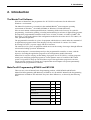
There are two series of MasterTool® Programming products, called MT4000 and MT4100.
MasterTool® Programming MT4000 runs in Windows 95, 98 and ME. MasterTool® Programming
MT4100 runs in Windows NT and 2000. They have little differences, as showed by the following
table:
MT4000
WINDOWS 95/98/ME® compatible
WINDOWS NT/2000® compatible
Hardkey use
Licence code use
Serial analyzer
serial chanel auto-select
Ethernet communication
4
MT4100
2. Introduction
Programming the Series of PLCs
MasterTool allows the programming of the following CPUs in the series AL-600, AL-2000, AL3000, QUARK and PICCOLO.
Regarding the applications program, all the PLCs are compatible amongst themselves, using the
ALTUS language of relays and blocks.
The router devices, AL-2400/S, AL-2401, QK2400 and QK2401 do not have applications programs
in ladder. MasterTool is only used to carry out its configuration.
AL-2400/S, AL-2401, QK2400 and QK2401 use a network configuration module of type R.
5
3. Installation
3. Installation
This chapter describes how MasterTool is distributed, the hardware requirements and the software
necessary for its execution, the procedure for its installation in hard disk starting with the distribution
disks and how to initiate the execution of MasterTool.
CD_Rom Distribution
MasterTool is distributed in a package containing:
•
1 CD-ROM.
•
1 Altus Software Licence Contract
•
1 User’s Manual for MasterTool
• 1 Programmer’s Manual for MasterTool
The CD-ROM has a folder called Mtool and the file CONFIG.EXE that carries out the installation to
hard disk. For more details about how to install it go ahead in this chapter to Installing MasterTool
section.
ATTENTION: Before MasterTool installation, if you already have old MASTERTOOL version in
3 ½ disks, please make a copy of original old disks and keep them in a safe place. If you have
another MasterTool, Independent of what version you have, make backup of important projects
before go on.
Hardware and Software Requirements
In order to install MasterTool it is necessary to have the following minimum requirements:
•
IBM-PC microcomputer or compatible
CPU Pentium 200Mhz or better.
64 MBytes of RAM memory
1 CD-ROM driver
1 hard disk with a minimum of 50 MBytes free
1 serial interface
1 parallel interface
1 ethernet board - if you need net communications then you need ethernet board. In
this case use MasterTool MT4100. Attention: MasterTool MT4000
do not support it.
•
•
Windows 95/98/ME (MT4000) or Windows NT/2000 (MT4100 compatible).
Microsoft Mouse or compatible device (optional and recommended)
Installation of MasterTool
In order to install MasterTool in Windows 95/98/ME/NT/2000/XP
1. Insert the CD-ROM on drive D: or as the configuration of the computer.
2. Automaticaly is exibed an auxiliar program that ask which product will be instaled. Select
MasterTool Programming and click on Install.
6
3. Installation
3. When begin the instalation, follow the procedures showed on the screen.
Uninstalling MasterTool
If you want to do it follow steps below:
Click Start button, select programs..., MasterTool, then click unistall.
Starting MasterTool
In order to start the execution of MasterTool any devices should be connected correctly to the
microcomputer.
Protection Key
A protection key should be permanently connected to the parallel interface of the microcomputer in
order to execute MasterTool.
WARNING:
To connect or disconnect the protection key, the microcomputer’s power should be turned off.
The protection key does not interfere with the functioning of any peripheral which may be connected
to the microcomputer. One of the ends has a connector which allows the connection of any peripheral
which uses a parallel interface (printers, for example).
If the microcomputer has more than one parallel interface, it can be connected by a protection key to
any one of these peripherals.
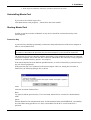
If the protection key is not connected to the microcomputer when it is starting the execution of
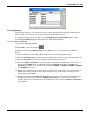
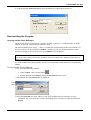
MasterTool, the following dialogue box is shown.
Abort
Abort the execution of MasterTool.
Retry
Try again to find the protection key. If it is not found, MasterTool is executed in a demonstration
mode.
Ignore
Execute MasterTool in demonstration mode. In demonstration mode, MASTERTOOL can normally
be used without being possible to save files, send modules for the PCL or activate the PCL’s
operands.
7
3. Installation
Altus Software License Contract
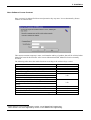
Since version 2.00, MasterTool don’t need protection key any more. It was substituted by license
contract of software altus:
This contract contains company’s name, serial number and key of product, that will be solicited when
MasterTool runs for the first time. After correct information fulfill, MasterTool can be normally
executed.
The following table shows the enable functions according to the software keys version.
Funcion
Ethernet Communication
Compatibility with the Ponto Series1
PROFIBUS configurations to the AL-2000 Bus
Uses of floating pointer (%KF, %F e %TF)
Ladder Comparator
TAGs with 25 characters
Visualization of CRC, date and time on sending
Instructions ECH, LTH and LAH
Compatibility with the Grano Series2
Configurations of the Ethernet Modules to the Ponto
Series
HardFlex Instalation
Uses of the integer operand (%KI, %I e %TI)
Uses of the Wizard
Ponto Series, Grano Series e AL-2004 are not supported
1
2
Version of the Software Key
2.10
3.00
3.20
3.30
Ponto Series is not more supported by version 4.10 of MasterTool Programming.
Grano Series is not more supported by verison 4.10 of MasterTool Programming.
8
3.40
3.50
3.60
3.70
3.80
4.10
3. Installation
Connections
MasterTool communicates with the programmable controller, gateway, bridge or with
communication adaptor in the network, through the RS-232C serial interface of the microcomputer
and, in MT4100 case, also communicates by Ethernet channel.
If there is more than one serial interface RS-232, MASTERTOOL assumes that the communication
will be achieved through interface 1 (COM 1). It is possible nevertheless to define another serial
interface for achieving communication through the MasterTool commands (c.f. section Configuring
the Serial Interface and the Baud rate in chapter 5 of this manual).
WARNING:
The connection or disconnection any peripheral (PLC, printer, software protector, etc) with the
microcomputer should be carried out with the equipment disconnected from the electrical network.
Otherwise there will be a risk of damaging the communication interfaces.
WARNING:
It is essential a grounding between the peripheral equipment and the microcomputer before carrying
out any connection.
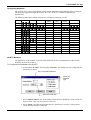
Table 2-1 shows the connections permitted between the microcomputer where MasterTool is
executed, and the peripheral devices as well as the ALTUS cables used for these connections.
Serial
Interface
9 pins
9 pins
9 pins
Type of Connection
Cable Used
MasterTool and
PLCs AL-600, AL-600/4, AL-600/8, AL-600/16,
AL-200, AL-2002/MSP, AL-3003, AL-3004,
QK800, QK801 and QK2000/MSP
gateways AL-2400/S and QK2400
bridges AL-2401 and QK2401
Serial communication module AL-1402
MasterTool and communications adaptor AL1413 or AL-1414
MasterTool and MODEM of standard RS-232C
AL-1342 or
AL-1390 *
AL-1349
AL-1346
9 pins
MasterTool and PLCs PL101/T, PL101/R,
PL102/T, PL102/R, PL103/T, PL103/R, PL104/T
, PL104/R, PL106/T and PL106/R
AL-1330
25 pins
MasterTool and
PLCs AL-600, AL-600/4, AL-600/8, AL-600/16,
AL-2000, AL-2002/MSP, AL-3003, AL-3004,
QK800, QK801 and QK2000/MSP
gateways AL-2400/S and QK2400
bridges AL-2401 and QK2401
serial communication module QK1402
MasterTool and communications adaptor AL1413 or AL-1414
MasterTool and MODEM of standard RS232C
AL-1343 or
AL-1383 *
25 pins
25 pins
AL-1395
AL-1345
Table 2-1 Types of Connections
* The cables AL-1342 and AL-1343 allow communication with PLCs configured for use with a
“half-duplex” MODEM, while the cables AL-1383 and AL-1390 do not. The other characteristics are
functionally identical.
9
3. Installation
Starting MasterTool
After the installation of MasterTool, a new group is created in the start menu on WindowsTM. This
new group is called MasterTool.
MasterTool can be started by carrying out a double click over the MasterTool icon.
MasterTool Icon
MasterTool can also be started directly like any other WindowsTM application starting with the
Windows Explorer.
Configuration of the Serial Channel
After MasterTool has been installed, during its first execution the menu command
“Options/Communication” should be selected to achieve configuration of the serial channel which
has to be used to communicate with the programmable controller.
If the mouse fails to work, communication with the programmable controller must be configured for
using the same serial channel as the mouse.
In this case it should be changed to the selection of the serial channel in MasterTool, or the
configuration of the serial channel used the mouse and re-starting Windows.
Terminating MasterTool
After a session of using MasterTool, the execution should be terminated and control passed to
WindowsTM.
To terminate MasterTool
•
MasterTool can be terminated in four ways:
•
Starting with the Project menu, choose End (ALT, P, E).
•
Press the keys ALT + F4
•
Carry out a double click on the Control menu of the application
•
Starting with the Control menu, choose Close (ALT, SPACEBAR, C).
In terminating MasterTool all the context is saved, that is, the next time that MasterTool is executed
all the context is restored and it can start the work from the point where it was terminated.
10
4. A General View of MasterTool
4. A General View of MasterTool
MasterTool is an application executed in the WindowsTM operating environment and has all the
facilities and standardisations for this environment.
Its operation, like other WindowsTM applications, is directed by the menu commands and dialogue
boxes which allow tasks to be carried out and a choice of options.
With the aim of facilitating the most common MasterTool procedures, there are many short cuts
where the pressing of two or more keys simultaneously carries out a command, as well as a Toolbar
where you only have to click the required button to carry out the command quickly.
MasterTool still has editing, windows specifically for the Configuration Module, the Network
Configuration Module and the Program Modules. These windows allow efficient editing and an
appropriate view of the different components of each specific module.
Initial Screen
When MasterTool is started, it displays the screen shown in figure 3-1 allowing the execution of all
the available commands.
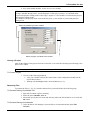
Figure 3-1 Initial Screen of MasterTool
11
4. A General View of MasterTool
Work Area General View
The Work Area of MasterTool is all the visible area of the application containing titlebar, menu,
toolbar, the editing area and the status line.
Titlebar
Situated in the upper part of the WindowsTM applications window, it contains the name of the
application and the active document. It can move the application window by pressing the left button
on the mouse above the titlebar and dragging it across the screen with the button pressed.
The titlebar can contain:
•
control menu for the application
•
control menu for the document
•
name of application
•
name of document
•
maximising button
•
•
minimising button
restoring button
Menus
The operation of MasterTool is guided by menus. A menu consists of various commands which have
different options to carry out the tasks in MasterTool and is situated directly below the titlebar.
To Select a Menu Command
Using the mouse
1. Click over the name of the required command.
2. In the vertical menu shown, click over the required option. If the option has a submenu,
click over the option required on the submenu.
Using the keyboard
1. Press the key ALT. The first menu command is displayed in a bar.
2. Use one of the following methods:
•
Select the required command using the arrow keys and press ENTER
•
Press the underlined letter of the required command.
3. In the vertical menu shown, use one of the following methods:
•
Select the required option using the arrow keys and press ENTER
•
Press the underlined letter of the required command
4. If the selected option has a submenu, use the same procedure as in step 3.
12
4. A General View of MasterTool
The menu commands of MasterTool are shown in detail in chapter 5 of this manual.
Toolbars
The Toolbars are a short cut to be used with the mouse and allow the most common MasterTool
operations to be carried out without having to use the menu.
There are 3 types of Toolbars in MasterTool:
•
Commands - allowing MasterTool commands to be carried out
•
Reports
- allowing access to the reports of documentation
• Instructions - allowing the insertion of all the instructions of the language.
The Toolbars can be displayed or obscured through the Options command, Configuration and
selecting the verification boxes of the required bars.
When shown, the Toolbars are to be found directly below the command menu.
ToolBar of Commands
The Toolbar commands allows the more commonly used commands to be activated by half a click of
the mouse. Its display is shown in figure 3-2.
Figure 3-2 Toolbar of Commands
The commands remain enabled or disabled in the toolbar according to the restrictions of each
command.
To
ClickOn
Open a Project
Edit a Project
Create a new module
Open a module
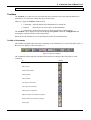
Save a module
Cut Logics or Instructions
Copy Logics or Instructions
Paste Logics or Instructions
Begin the edition of a module of a program
End the edition of a module of a program
Insert a logic
13
4. A General View of MasterTool
Get informations from the PLC or router
Begin execution mode
Begin programming mode
Begin the cycled mode
Execute a cycle
Read or send modules from or to the PLC or router
Monitoring values of operands
Forcing values on operands
Search of operands
Keep searching the operand
Cross reference
Obtain informations abaout the MasterTool
Context help
ToolBar for Reports
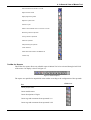
The toolbar for reports allows any editable report in MasterTool to be activated through a half click
of the mouse. Its display is shown in figure 3-3.
Figure 3-3 Toolbar of Reports
The reports are qualified or unqualified in the toolbar according to the configuration of the operands.
Click Over
For
Insert project notes
Insert module notes
Insert descriptions of logics
Insert tags and comments about operands % A
Insert tags and comments about operands % M
14
4. A General View of MasterTool
Insert tags and comments about operands % E
Insert tags and comments about operands % S
Insert tags and comments about operands % R
Insert tags and comments about operands % D
Insert tags and comments about operands % TM
Insert tags and comments about operands % TD
ToolBar of Instructions
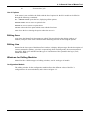
The toolbar of instructions allows any instructions in the ALTUS language of diagrams and relays to
be inserted into the logic by half a click of the mouse. The display is shown in figure 3-4.
Figure 3-4 Toolbar of Instructions
The instructions are enabled or disabled in the toolbar according to the restrictions of the cell where
the logic cursor is positioned.
For
Click Over
Inserting the required instruction
the corresponding button
Hints About Using the Keyboard
Keys for Shortcuts
In the dialogues and screens with the data input fields, the short cut keys CTRL + C, CTRL + V and
CTRL + X, to copy, paste and record the selected text as well as for editing instructions or logics. The
short cut keys associated with a menu command can be seen on the right side of the command.
CTRL + N
E.g.: New Module
Some keys can also be used to speed up a command. The function keys and the associated commands
are as follows:
F1
Calls for help from MasterTool
SHIFT + F1
Puts MasterTool in the appropriate help mode for the context
F3
Carries out a search of the next operand
CTRL + F3
Carries out a search of the next logic
F4
Changes the numerical base
15
4. A General View of MasterTool
Executes the Cycle
F5
List of Options
If the mouse is not available, the fields with the list of options for the PLC model can be filled in
through the following commands:
ALT + ARROW DOWN: opens
ARROW DOWN: moves
ARROW UP: moves
LETTER: selects
TAB: closes
the box, displaying all the options
cursor to option below
cursor to option above
the first option which starts with the first letter
the box selecting the option where the cursor is.
Editing Area
Area where the MasterTool documents are edited. This area displays the editing windows of
modules, analyzer of the serial communication and dialogue boxes for choosing the options.
Editing Line
Situated in the lower part of the MasterTool window, it displays help messages like the description of
a menu command or address, wire-info or operand tag when in editing mode, the current numerical
base (DEC, BIN, OCT and HEX and the type of visualization of the operand in the logic (TAG,
OPER and WIRE).
Windows for Editing Modules
MasterTool has 3 different types of editing windows, one for each type of module.
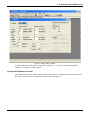
Configuration Module
The editing window for the configuration module allows the different values of the PLC’s
configuration to be seen and altered, and is shown in figure 3-5.
16
4. A General View of MasterTool
Figure 3-5 - Editing Window of Module
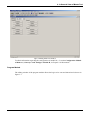
To obtain information about the configuration of module C, c.f. section Configuration ModuleModule C, in Chapter 5 of this manual.
Configuration Module for Router
The configuration module editing window for the router allows the different configuration values of
the router’s network to be seen and altered, and is shown in figure 3-6.
17
4. A General View of MasterTool
Figure 3-6 Editing Window for Module R
To obtain information regarding the configuration of module R, c.f. section Configuration Module
of Routers (“Gateways” and “Bridges”-Module R, in Chapter 5 of this manual.
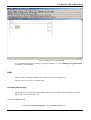
Program Module
The editing window of the program module allows the logics to be seen and altered and is shown in
figure 3-7.
18
4. A General View of MasterTool
Figure 3-7 Editing Window of Program Module
For information regarding the editing of a program module, c.f. section Editing a Program Module,
in Chapter 5 of this manual.
Help
MasterTool has a help file which can be consulted at any time during its use.
This file can be accessed in 3 different ways:
Consulting Help Directly
The help file can be consulted independently of the execution of MasterTool showing, in its initial
display, the contents of the help file.
To Consult Help Directly
1. Starting from Program Manager, open the MasterTool group.
19
4. A General View of MasterTool
2. Carry out a double click over the MasterTool Help Icon.
MasterTool Help Icon
Consulting Help Starting from MasterTool
The help file can be consulted at any time during the use of MasterTool starting from the main menu.
To Consult Help Starting from MasterTool
At the start of the Help menu, select Index (ALT, ?, I).
Obtaining Help Context through the Menu Command
MasterTool help can also be consulted through a specific menu command or the toolbars.
To obtain Help Context through a Menu Command
1. In the Toolbar, click over the button
2. Select the command required for help in the same way used to select a menu command
or the toolbars.
Obtaining Help Context through an Instruction
During the editing of a logic, MasterTool help can be consulted for a specific instruction already
edited in a program module.
To obtain Help Context for an Instruction
1. In the Toolbar, click over the button
2. Click over the required instruction.
20
5. Menu Commands
5. Menu Commands
This chapter describes in detail all the available menu commands in MasterTool.
During the execution of MasterTool 3 menu commands can be used:
•
Starting Menu - available when starting MasterTool and when there is no project open.
It has the commands to manipulate the files, communications, options and help.
•
Main Menu - available from the start of opening a project. It has the commands to carry
out all the procedures except the editing of programs and instruction menus.
•
Edit Menu - available only in logic editing mode. It has editing commands and searches
the ALTUS relay and block language instructions.
For more information about Menu Commands, consult MasterTool help.
Initialization Menu
The Initialization Menu is presented when no open project exists. It makes the use of basic
MasterTool commands possible and does not depend on an open project.
In this menu projects can be created or opened. To open modules only for viewing, configure the
printer, obtain information from the disk modules, communicate with PLC or router, configure the
MasterTool options and consult the help file.
Starting Menu Commands
The following items are available in the MasterTool initialization menu.
Project
project management and printing commands
Module
module management commands
Communication
communication commands
Option
MasterTool configuration command
Help
commands for using the help file
Main Menu
The Main Menu is shown from the start of opening a project, allowing the use of all MasterTool
procedures.
Main Menu Commands
The following items are available in the main menu of MasterTool.
Project
Commands for managing projects and printing
Module
Commands for managing modules
Editing
Commands for editing program modules
Search
Commands for searching logics, instructions and operands
Communication
Commands for communication
Report
Commands of description of projects, files, operands and logics and
creating of cross references
21
5. Menu Commands
Options
Commands of configuration of MasterTool
Window
Commands for selecting windows
Help
Commands for using the help file
Edit Menu
The Edit menu is displayed when a module is in editing mode. This menu allows editing commands
to be carried out and searches the program module, is able to manage the MasterTool windows,
consult the help file and insert instructions into the program module.
Menu Commands for Editing
The following items are available in the MasterTool menu when in module editing mode:
Editing
Commands for editing the program modules
Search
Commands for searching the logics, instructions and operands
Relay
Commands for inserting Relay group instructions
Mov
Commands for inserting Mover group instructions
Arit
Commands for inserting Arithmetic group instructions
Count
Commands for inserting Counter group instructions
Conv
Commands for inserting Convertor group instructions
General
Commands for inserting General group instructions
Connect
Commands for inserting Connection group instructions
Window
Commands for selecting the windows
Help
Commands for using the help file
Inserting Instructions
In the Edit menu, there are 7 items which allow the insertion of instructions into the program
module. They are shown in the following group of instructions:
•
•
•
Relay
RNA
RNF
BOB
SLT
BBL
BBD
PLS
FRM
RM
- Contact normally open
- Contact normally closed
- Simple coils
- Jump coils
- Connect coils
- Disconnect coils
- Pulse relay
- End of Master relay
- Master relay
MOV
MOV
MOP
MOB
MOT
MES
AES
CES
CAB
- Moving simple operands
- Moving parts of operands
- Moving blocks
- Moving tables
- Moving inputs/outputs
- Updating inputs/outputs
- Converting inputs/outputs
- Load operands block
ARIT
SOM
- Addition of operands
22
5. Menu Commands
SUB
MUL
DIV
AND
OR
XOR
CAR
=
<
>
•
•
•
•
- Subtraction of operands
- Multiplication of operands
- Division of operands
- “AND” binary between operands
- “OR” binary between operands
- “OR EXCLUSIVE” binary between operands
- Load operands
- Equals
- Less than
- More than
COUNT
CON
COB
TEE
TED
- Simple counter
- Bidirectional counter
- Time controller for power on
- Time controller for power off
CONV
B/D
D/B
A/D
D/A
- Conversion binary to decimal
- Conversion decimal to binary
- Conversion analogue to digital
- Conversion digital to analogue
GENERAL
LDI
TEI
SEQ
CHP
CHF
ECR
LTR
LAI
- Connect/disconnect indexed
- Status test indexed
- Sequence controller
- Call procedure module
- Call function module
- Writing operands to another PLC
- Reading operands from another PLC
- Release update of pictures of operands
LIGA
LGH
LGN
LGV
- Horizontal connection
- Denied connection
- Vertical connection
Dialogue Box of Instructions
For any instruction selected for insertion into the program module which uses operands
there is a dialogue box shown with the figure of instructions and editing fields for the
operands.
For more information about the behaviour, operands used and input and output signals for
each instruction c.f. Chapter 3 of the MasterTool Programming Manual.
Figure 4-1 shows the dialogue box for the instruction MOV and figure 4-2 shows the figure
of the MOV instruction shown in Chapter 3 of the Programming Manual.
23
5. Menu Commands
Figure 4-1 Dialogue Box for MOV Instruction
Figure 4-2 Figure of MOV instruction shown in Programming Manual
24
6. Procedure for Use
6. Procedure for Use
This chapter describes the procedures necessary to use the resources offered by MasterTool.
Using Projects
What is a Project Module?
A project module shows part of an applications program of a PLC or a configuration of a router.
There are 5 types of modules which can be used in a project:
•
configuration, execution, procedure and function in a programming
project and
• configuration of the routers in router projects
For more information about the types of modules c.f. sections Programming Project and Router
Project in chapter 2 Relay Diagram Language in the MasterTool Programming Manual.
What is a Project?
A project is a collection of modules and their descriptions which are used to carry out a PLC’s tasks
(application programs), or to configure a router device.
The project File Name can have up to 6 characters and is ended with the extension .MTL. Some
characters have special significance for the operating system being considered as invalid characters
for making up a project name.
Invalid Character: , . / / | ? * “ : ; [ ] = + < >
There are two types of projects:
Programming Project
A programming project is used to bring together all the modules necessary to execute the tasks for a
PLC, composing an applications program.
In this type of project a configuration module and an execution module EOOI are obligatory.
When a new programming project is created, the configuration module is automatically created and
visualized in the editing window of module C.
The name of the configuration module is made up from the type of module
and the extension .000.
(C-), the project name
The name of the main execution module is made up from the type of module
(E-), a name of up to 6 characters (suggesting project name) and through the extension .001. The
execution module can be created by the New Module command or can be inserted with option Insert
or the Edit Project command.
The following modules can do this type of project: configuration modules, execution modules (start,
main, interruption), procedure modules and function modules.
All the integrated project modules are located in the same subdirectory which is indicated in the
creation of the project. If the modules to be used are in other subdirectories, a copy of the module is
automatically made for the project’s subdirectory.
25
6. Procedure for Use
Router Project
A router project is used to define a network configuration and routed so that it can be carried out
through the router device.
This type of project only allows the use of a routing configuration module. when a new router project
is created, the routing configuration module is automatically created and visualized in Module R’s
editing window.
The name of the routing configuration module is made up from the type of module (R-), the project
name and the extension .000.
For more information about projects, c.f. sections Router Project and Programming Project in
chapter 2 of the MasterTool Programming Manual.
Files created through MasterTool
A file containing applications programs in MasterTool has the following format:
T - XXXXXX. NNN where,
T
- Type (C, E, P, F or R)
XXXXXX - Name (valid characters for Windows)
NNN
- Number
E.g.: E-TESTE.00I
During its operation, MasterTool creates files in which the “-” is substituted by a number. These
numbers indicate files with different objectives.
•
E2: file which describes the module logics.
•
E5: file which describes the module.
•
E9: file which contain the module’s cross references.
• PRN: file used to print the reports of modules C and the operands.
The files have the same file name as those they are associated with.
E.g.:
applications program
- E-TESTE.001
description of logics
- E2 TESTE.001
description of module - E5 TESTE.001
cross references - E9 TESTE.001
For an analogy, the files P2, P5, P9 or F2, F5 and F9 also exist.
If the files with the identifiers 2,9, and 5 are erased, all the descriptions already put in place will be
lost. These files are in binary form and cannot be seen or altered outside MasterTool.
Also produced are the files used to print the reports of modules C and the reports of the operands.
The files have the extension .PRN.
E.g.:
module C
MOD-C.PRN
description of decimal operands
D_.PRN
The files with extension. PRN are in a format which allows its visualization in a text editor with the
Windows notebook, but not the alteration of its contents.
26
6. Procedure for Use
Opening an Existent Project
For a project to be edited it must already be open in MasterTool.
When a project is open in MasterTool and has already been edited before, all the project windows
revert to how they were before the project has to be closed, that is to say MasterTool guards the
configuration of the whole project. This also happens when MasterTool is executed, resuming
exactly the same way as it was before the end of the last time it was executed.
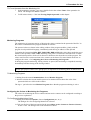
To Open an Existent Project
1. Use one of the following methods:
•
In the Toolbar, click over button
•
Starting at the Project menu, select Open (ALT, P, O).
2. In the File Name box, key in or select the File Name of the project to be opened.
3. In the Directories box, select the directory where the project is located.
4. In the List File of Type, select Project (*.MTL, C-*.* or R-*.*).
5. In the Drives box, select the disk drive where the project is located.
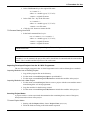
Type or select the module name
Select the directory
Select Project (*.MTL)
Select the disk drive
Editing a Project
Editing a Project allows modules to be added to those already on disk or modules which are already
part of the project to be withdrawn.
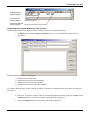
To Insert a Module in the Project
27
6. Procedure for Use
1. Use one of the following methods:
• In the Toolbar, click over button
• Starting with the Project menu, select Edit (ALT, P, E).
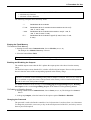
The dialogue box Edit Project is displayed.
2. Select the Insert Module button. The dialogue box Open File is displayed.
3. In the File Name box, key in or select the module name.
4. In the Directory box, select the directory where the module is located.
5. In the List Files of Type box, select the type of module E, P or F.
6. In the Drive box, select the disk drive where the module is located.
7. When all the parameters have been correctly configured, select the Close button.
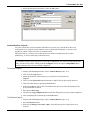
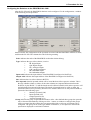
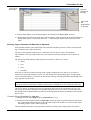
Click here to open
the module
Click here to
insert modules
Click here to
remove modules
To Remove Project Modules
1. Starting with the Project menu, select Edit Project (ALT, P, E).
The dialogue box Edit Project is displayed.
2. In the Project Modules box, select the modules to be removed. The selection of several
simultaneous modules is allowed, for this reason it is sufficient to select one by one the
required modules.
3. Select the Remove Module button.
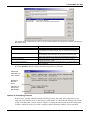
The modules selected in the Project Modules group can be opened by clicking above the Open
Module button. A module can also be opened by making a double click on its name. It is possible to
mark different modules by a half click of the mouse or the space bar.
Creating a Module for a Project
After creating a project, different program modules can inserted into it. The first method is to insert
an existing module into the project, in the manner described in the section Editing a Project. The
second method is to create a new module for the project.
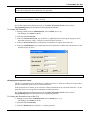
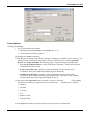
To Create a Module
1. Use one of the following methods:
•
•
•
In the ToolBar, click over the button
Starting with the Module menu, choose New (ALT, M, N).
Use the short cut of the CTRL+N key
2. Select the type of module to be created. The name of the module is shown at the side of
the type.
3. Key in the module name.
28
6. Procedure for Use
4. Key in the module number, in case it is E, P or F module.
If there is a module in the project directory with the same name as the module being created, the
message “Module already exists. Use the Original?” If the reply is positive, it is inserted in the
project and opened in editing mode. If the reply is negative, a new module is created for the project
and opened in editing mode.
If no module with the same name exists in the directory, a new module is created and placed in
editing mode.
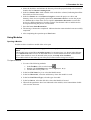
Select the module type to be created
Select the type of module to be created
Closing a Project
After all the editing of the project has been carried out, it can close the current project allowing a new
project to be edited.
Whenever a project is requested to be closed, a message will be displayed to confirm this operation.
To Close a Project
1. Use one of the following methods:
• Carry out a double click on the control menu of the configuration module (in the
top left hand comer).
• Starting with the Project menu, choose Close (ALT, P, C).
Renaming Files
To rename the files (C, E, F, P) created in MasterTool you should follow the following steps:
To Rename Starting from MasterTool
1. Open the file which requires renaming.
2. Select the option Module, Save as.
3. Afterwards specify the new name and directory where the file should be saved. Click the
Ok button.
To Rename Starting from Windows
1. In the Windows File Manager, select the files to be renamed and the option File,
Rename.
29
6. Procedure for Use
2. In the field From: Key in the original file name.
<t>?<name I>.*
where <t>: module type (C, E, F or P):
<name1>: original file name.
3. In the field “For:” key in the file name.
<t>?<name2>.*
where <t>: module type (C, E, F or P):
<name2>: new file name
4. Click the “Ok” button to rename the file.
To Rename Starting from DOS
1. In the DOS command line, key in:
ren <t>?<name1>.*<t>?<name2>.*
where <t>: module type (C, E, F or P);
<name1>: original file name;
<name2>: original file name.
In executing MasterTool, select the option Project, Edit, excluding the old modules and reinserting
with the new names.
WARNING:
If module C is to be renamed, the project file (.MTL) should also be renamed with the same module
name C. The C module and the Project have the same name.
Importing Developed Projects into the AL-3830 Programmer
The use of developed programs in the Al-3830 Programmer can be achieved through two methods:
Importing Modules into an Existing Project
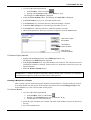
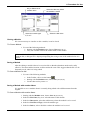
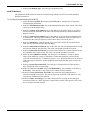
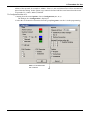
1. Copy all the program files to the directory.
2. Use the menu command Project, Open to open Module C.
3. Use the menu command Project, Edit, Insert to include the modules in the project.
Importing Modules into a New Project
1. Use the menu command Project, New to create a project with the same module name C
created though the AL-3830 programmer.
2. Copy the modules for the directory created.
3. Use the menu command Project, Edit, Insert to include the modules in the project.
Inserting Project Notes
A project can have various associated documentation data containing dates, names of designers,
descriptions and revisions of the project.
To Insert Project Notes
1. Starting with the Report Menu, choose Project Notes (ALT, R, P).
2. Fill in the fields according to the information requested.
30
6. Procedure for Use
3. When the data has been filled in, select the Ok button.
Archive/Retrieve Projects
Any work executed in a microcomputer should have a security copy which allows the work
environment to be restored if some problem occurs with the microcomputer, or in some of its
peripherals, which results in the loss of completed work.
This option allows a security copy of the project to be made in another disk drive and/or
subdirectory, as well as retrieving it when necessary.
WARNING:
To guarantee reliable copies of projects, execute the compatibility test before carrying out the first
filing. For this reason select, starting with the Configure button, the option Compatibility test ...
until the operation has been successfully completed.
To Archive Projects
1. Starting with the Project menu, choose Archive/Retrieve (ALT, P, A).
2. Click over the Copy button.
3. Select the disk drive where the project is found to be filed in the box
Copy of.
4. Click over the Select files button and make a double click on the project directory.
5. Then select the directory pressing the Ok button.
6. In the box Copy to, select a drive and indicate the directory where the backup for the
project should be recorded.
7. Press button Start copy.
8. The message Copy completed indicates that the filing has been successfully completed.
9. After completing the operation press the Exit button.
To Retrieve Projects
1. Starting with the Project menu, choose Archive/Retrieve (ALT, P, A).
2. Press the Restore button.
3. In the box Catalogue of security copies: select the backup file of the project to be
restored.
31
6. Procedure for Use
4. Select the disk drive and indicate the directory where the project backup to be restored is
found in the box Restore starting from:
5. In the box Restore files: make a double click on the drive selected, indicating that all the
files which are filed are restore.
6. In the box Restore to: select Places of origin to restore the project to a drive and
directory where it was originally copied from; Alternative drives to restore the project
to a different drive from where it was copied or Alternative directories to restore the
project to a different directory from the original. The alternative drives and directories
are requested during the process of restoration.
7. Press the button Start Restoration.
8. The message “Restoration completed” indicates that the restoration has been successfully
completed.
9. After completing the operation press Exit button.
Using Modules
Opening a Module
In order to edit or visualize a module it has to be open.
When opening a module which makes up part of a current project it has to be visualized and
edited.
If the module being opened does not make up part of a current project, it is shown in the dialogue
box of MasterTool where it has to be indicated where or not the module should be inserted in the
project. If the module is not to be inserted in the project, it is only to be visualized.
The modules which do not make up part of the project shown in the energy bars in grey.
To Open a Module
1. Use one of the following methods:
•
•
•
In the Toolbars, click over the button
Starting with the Module menu, choose Open (ALT, M, O).
Use the short cut key CTRL + R.
2. In the box File Name, key in or select the Module name.
3. In the box Directories, select the subdirectory where the module is saved.
4. In the box List Files of Type, select the type of module.
5. In the box Drives, select the disk drive where the Module is located.
6. When all the parameters have been indicated to the module, select button Ok or double
click over the file name.
32
6. Procedure for Use
Key or Select the of
module name
Select the directory where
the module is saved
Select the module type:
E, P or F
Select the disk drive
Closing a Module
If it is not necessary to visualize or edit a module, it can be closed.
To Close a Module
1. Use on of the following methods:
• Starting with the Module menu, choose Close (ALT, M, C).
• Carry out a double click on the control menu of the module.
If the module which is being closed has to undergo some alteration and does still not have to be
saved on disk, a dialogue box is displayed requesting the saving or not of the module before it is
closed.
Saving a Module
After the editing a module it has to be saved on disk so that the alterations made can be really
effective. The name and the location on disk remains the same. This suggests that the file is to be
frequently saved, when it is being edited.
To Save a Module on disk
1. Use one of the following methods:
•
•
•
In the Toolbar, click over the button
Starting with the Module menu, choose Save (ALT, M, S).
Use the short cut key CTRL + S.
Saving a Module with another Name
It is possible to save a module when it is actually being edited with a different name from the
original.
To Save a Module with another Name
1. Starting with the Module menu, choose Save as (ALT, M, A).
2. In the box File Name, key in or select the name of the module.
3. In the box Directories, select the subdirectory where the module is to be saved.
4. In the box List Files of Type, select the module type.
5. In the box Drives, select a disk drive where the module is to be saved.
33
6. Procedure for Use
6. When all the parameters are correct, select button Ok.
7. If there is already a saved module with this name, a confirmation is requested for
recording the new module in the old area.
Key the new module name
Select the module, case wish replace
Select the directory where the
module is to be saved
Select the disk drive where
the module is to be saved
Select the module type is to be saved
Obtaining Information from the Module on Disk
It is possible to verify information from a module on disk without having to open it. The following
information is available.
•
Module type
•
Module name
•
Module number
•
Version
•
PLC model which was programmed
•
Programming language used
•
Size in bytes.
•
CRC of the module
• Date and hour of sending to the PLC
To obtain information from a module on disk
1. Starting with the Module menu, choose Informations (ALT, M, I).
2. In the box File Name, key in or select the module name.
3. In the box Directories, select the subdirectory where the module is located.
4. In the box List Files of Type, select the module type.
5. In the box Drives, select the disk drive where the module is located.
6. When all the parameters are correctly configured, select button Ok. The box Module
Information is displayed with the information about the module.
34
6. Procedure for Use
Editing the Version of the Module
Each project module can have a version number. One common use for the version number of the
module is to relate the alterations carried out with a version number.
To Edit the Version of the Module
1. Starting with the Edit menu, choose Module Version (ALT, E, V).
2. In the box Module Version, key in the version for the module. The version should
follow the format X.Y, where X and Y are separate numbers for a point.
Key in the module version
Configuration Module – Module C
What is a Module C?
Module C is the module which has all the for the use of a programming project.
For more information about module C, c.f. section Programming Project in chapter 2 of the
MasterTool Programming Manual.
35
6. Procedure for Use
What is a C Extended Module?
The C extended module allows special configurations determined by the user. On the opposite of the
C Main Module, this kind of module is not created automatically when the project begins. To obtain
this module, should be created a new module (see section Creating a module to the project). Each C
extended module created allows only one kind of special configuration, determined on the module
creation.
To use a C extended module, it should be created a module first, with the type of configuration
desired by the user. Each of these special configurations described on this manual, present the
respective C extended module that should be created to save the respective configurations. After the
creation of the module, one must load the configurations. The C extended module is saved with the C
main module.
The managing of the C extended modules is not responsible of MasterTool Programming, or either,
when the C extended module is not usable anymore, one must delete it from the project (see item
Editing a Project).
Following is presented a table with the C extended modules available on the current version of
MasterTool Programming.
Type of the C Extended Module
Compatible CPUs
Item with the description of the
configurations
AL-2003
Rede PROFIBUS
PROFIBUS AL-3406
Table 5-1 Types of C extended modules
Configuring the PLC model
The PLC model in which the applications program is to be executed should be declared in the
configuration module. All the modules belonging to the project are identified with the type of CPU
declared in module C.
To Configure the PLC Model
1. Select module C as the current module.
2. In the box PLC model, select the PLC model to be used from the list of available CPUs.
36
6. Procedure for Use
Select the
PLC model
Conversor of Program Modules
All the Altus PLCs use the same programming language, although, the code generated by the
applicative program is not the same to all, being divided into two groups as the following table.
Inside of the same group, the generated code is the same. Between different groups, the code
generated is not the same.
Group 1
AL-600
PL104
AL-2000
PL105
AL-2002
PL106
AL-3003
QK600
AL-3004
QK800
PL101
QK801
PL102
QK2000
Group 2
AL-2003
PL103
To keep the compatibility, the MasterTool allows the automatic conversion of PLCs from the group 1
to PLCs of group 2. This conversion is directional, or either, after the project has been converted to
the group 2, is not possible to convert back to group 1. Between PLCs of the same group, no
conversion is carried out.
To convert a project, just load it on MasterTool and change the type of PLC declared on C module.
This operation, after confirmed, convert all the modules from the current project. The F modules in
37
6. Procedure for Use
assembly that exit on the project will be removed and should be substituted manually, as the new
PLC.
One advices to make a security copy (backup) before the conversion, because, as cited before, it is
not possible to undo this orerantion.
Modules with length of 32k are not converted if the length of the new code is bigger than the limit
length of the modules.
Configuring Simple Operands
The number of simple operands used should be declared in Module C through other modules which
make up the applications program.
The total amount of memory available for the operands depends on the PLC model declared. The
number of operands declared, and the amount of available memory left can be seen in the item Free
Bytes, below on the right.
The memory operands are arranged in blocks of 128 operands. If the value keyed in is not a multiple
of this value, it is rounded to the first multiple value of 128 greater than the number keyed in.
The decimal operands are arranged in blocks of 64 operands. If the value keyed in is not a multiple of
this value, it is rounded to the first multiple value of 64 greater than the number keyed in. The
operands can also be configured using the keys ‘+’e ‘-’ which allocate or withdraw blocks with 256
bytes as explained earlier.
To Configure Simple Operands
1. In the box Total of Operands, Memory, key in the number of memory operands to be
used or use keys ‘+’ and ‘-’ to achieve the configuration.
The item at the side automatically shows the addresses of the memory operands which
are available to be used.
2. In the box Total of Operands, Decimal, key in the number of decimal operands to be
used or use the keys ‘+’ and ‘-’ to achieve the configuration. The item on the side
automatically shows the addresses of the decimal operands which are to be used.
3. In the box Total of Operands, Real, key in the number of decimal operands to be used
or use the keys ‘+’ and ‘-’ to achieve the configuration. The item on the side
automatically shows the addresses of the decimal operands which are to be used.
4. In the box Total of Operands, Integer, key in the number of decimal operands to be
used or use the keys ‘+’ and ‘-’ to achieve the configuration. The item on the side
automatically shows the addresses of the decimal operands which are to be used.
38
6. Procedure for Use
Configuring the Table Operands
The number of table operands used should be declared in module C through other modules which
make up the applications program.
The total amount of memory available for the operands depends on the PLC model declared. The
number operands declared and the amount of available memory left can be seen in the item Free
Bytes, below on the right.
To Configure the Table Operands
1. In the Memory box of the four Tables, key in the number of memory table operands to
be used for the applications program. This number can vary between 0 and 225.
2. Choose the Positions button, in case the number tables is different to 0.
This shown in the dialogue box Memory Table Positions.
3. In the Positions column, key in the number of positions for each table.
This number can vary between 0 and 255
39
6. Procedure for Use
Press the Positions button,
to edit the number of table
positions
Key in the number of
table operands
4. In the Decimal box of the tables group, key in the number of decimal table operands to
be used for the applications program. This number can vary between 0 and 255.
5. Choose the Positions button in case the number of tables is different to 0. This is shown
in the dialogue box Decimals Table Positions.
6. In the Positions column, key in the number of positions for each table.
This number can vary between 0 and 255.
7. Do the same to the other type of tables.
Number of
positions to each
table
40
6. Procedure for Use
Configuring Retentive Operands
The number of operands retentive should be declared in module C, that is to say, their values must
not be lost when the PLC is Switched off. The operands retentive are a subgroup of the operands
configured and are always the last operands configured for each type. For example, if 256 memory
operands exist and 128 are declared as retentive, they are the operands of % M0127, to %M0255.
The operands of the table type are all retentive.
The memory operand declared as retentive are arranged in blocks of 128 operands. If the value keyed
in is not a multiple of this value, it is rounded up to the first multiple value of 128 greater than the
number keyed in.
The decimal operands declared as retentive are arranged in blocks of 64 operands. If the value keyed
in is not a multiple of this value, it is rounded up to the first multiple value of 64 greater than the
number keyed in.
The auxiliary and output operands are allocated one by one.
To Configure Retentive Operands
1. In the box Operands Retentive, Memory, key in the number of memory operands to be
retentive or use the keys ‘+’ and ‘-’ to carry out the configuration.
2. In the box Operands Retentive, Decimal, key in the number of decimal operands to be
retentive or use the keys ‘+’ and ‘-’ to carry out the configuration.
3. In the box Operands Retentive, Real, key in the number of decimal operands to be
retentive or use the keys ‘+’ and ‘-’ to carry out the configuration.
4. In the box Operands Retentive, Integer, key in the number of decimal operands to be
retentive or use the keys ‘+’ and ‘-’ to carry out the configuration.
5. In the box Operands Retentive, Output, key in the number of output operands to be
retentive or use the keys ‘+’ and ‘-’ to carry out the configuration.
6. In the box Operands Retentive, Auxiliary, key in the number of auxiliary operands or
use the keys ‘+’ and ‘-’ to carry out the configuration.
41
6. Procedure for Use
Number of
retentive
operands
Configuring the Maximum Time of Scan Cycle
The maximum time of the scan cycle for the applications program should be declared in module C.
The maximum configurable time limit depends on the model of CPU declared.
For more information about the maximum scan time, c.f. item Program Cycle Execution Times, in
the section Programming Project in chapter 2 of the MasterTool Programming Manual.
To Configure the Maximum Time of the Scan Cycle
In the box Maximum Time of Scan Cycle, select the time to be used in the list of available times.
The chosen values can be 100 ms to 400 ms for all the available CPUs, apart from the CPUs AL2002/MSP and AL-2003 which allow times between 100 ms and 800 ms.
Select the
maximum
time of the
scan cycle
Configuring the Starting Time of Module E018
The time period for operating the interruption of time module E018 should be declared in module C.
For more information about the operating period of the E018 Module c.f. Module E-Execution, in
the section Programming Project in chapter 2 of the MasterTool Programming Manual.
42
6. Procedure for Use
To Configure the Operating Period of the E018 Module
1. In the box E018 Period select the time which should be used between calls to the E018
module. The possible times are between 0.625 ms and 50 ms.
Select the
operating
period of
the E018
module
Configuring the Bus
The configuration of the input and output modules located in all the existing buses in each PLC
model should be declared in module C. In configuring the bus the input and output operands (% I and
% 0) are allocated to digital modules and indicated address of the address operands in the bus (%R).
In the box First Output Octet it is possible to define the operand address %S from when they are
reserved to the points of output. This value is automatically altered with the declaration of the I/O
modules in the buses, only needing to be modified for the user to reserve addresses %E for future
insertions of input modules.
The group Qualification keys for changing bus allows the qualification of the keys which control
the module changes with the PLC powered in bus 2 to 9 of the PLC. Each bus has a control key in
the power supply. If the key is to be enabled, (STBY), it has to stop its bus to change the modules. If
the key is disabled its bus always remains active, avoiding accidental shutdowns. In this last case,
however, the individual keys for controlling the modules present in the bus remain enabled, allowing
a change of modules which have this characteristic with the PLC powered.
To configure the bus of the series Quark, Piccolo e AL-600, AL-2000, AL-2003, AL-2004 and
AL-3000:
1. Select the button Bus. The dialogue box Bus for configuring the buses is shown.
2. In the box First Output Octet, key in the number of the first output octet, if a different
value is required from that which is automatically configured, being the address of the
last but one input.
3. In the verification box Change of Modules with Powered PLC, the item should be
selected in case a change of modules with a powered PLC is being used. This item only
exists in CPUs AL-2002/MSP and AL-2003.
4. In the panel Equalification keys for change bus select the buses which should have
their key enabled.
43
6. Procedure for Use
Mark it, if there is a change of modules with a powered PLC
Case necessary, key in the number of the
first output octet
Select the
bus which
must be
configurated
Enabling keys for change of bus
5. Select the button for the required bus, e.g. Bus 2. The dialogue box Bus 2 is shown.
Each line of the table corresponds to a position in the bus indicated in the column
Position. The column PA shows the value to be configured in the point of adjustment of
the module, if necessary. For more information about how to configure the modules, c.f.
manual of CPU or of the module used, listed in the section Related Manuals, in the
Preface of this manual.
Key in or select the module required
Press this button to
edit the next bus
Press this button to
select the module
Press this button to
edit the previous bus
44
6. Procedure for Use
6. In the Module column, key in the module number to be inserted or a space in white to
obscure the existing module. Also you can carry out a double click on the cell where you
require to edit the module or position the cursor on the required cell and select button
Add module. The dialogue box Modules is shown.
7. In the box Modules: select the required module from the list and select button Ok. If
the module selected is None, the existing module in that position is obscured. If the
module is digital input or output the operands %E or %S are configured according to
the number of octets in the module. The Address column indicates the address in the bus
to be used to access the analogue and special modules.
8. Repeat items 6 and 7 for all modules to be inserted in the bus.
9. Repeat item 5 selecting each bus to be configured. Repeat items 6 and 7 to configure the
modules for each bus. The number of buses varies according to the PLC model used.
Select the module required or <none>
for erase the existent module
When a project have an AL series PLC and exist expansions of bus with QUARK, all the modules
on the bus QUARK must be declared as AL series. On the same way should be done when exist a
PLC of QUARK series with expansions of AL series. The modules from the QUARK series
correspond to the AL series modules, although with the “QK” and “AL-“ exchange.
Configuring the Communication ASCII
The baud rate can be configured and the MODEM signals used in the ASCII communications.
To Configure the Communication ASCII
1 Select the button ASCII communication, the dialogue box ASCII communication is displayed.
When the CPU in use is AL-2003, the button is called Auxiliary Communication.
2
In the listing box Speed, select the baud rate to be used.
3
Select the verification box Use of signals RTS/CTS, in case it is required to use the MODEM
signals.
4
Select the button OK.
45
6. Procedure for Use
Configuring Networks
The ALTUS PLCs can be used together and to change information using different types of network.
The networks supported though the ALTUS PLCs are ALNET I, ALNET II, Ethernet and
Synchronism.
The following table shows which networks are available for each type of CPU.
UCP
ALNET I
ALNET II
MODBUS
Master
Ethernet
MODBUS
Slave
PROFIBUS
Master
Sincronismo
AL-600
AL-2000
AL-2002
AL-2003
AL-3003
AL-3004
QK600
QK800
QK801
QK2000
PL101
PL102
PL103
PL104
PL105
PL106
ALNET I Network
The parameters of the ALNET I network which should be used in communications with network
should be declared in module C.
To Configure the Parameters for ALNETI
1. Select button ALNET I from the panel Networks. The dialogue box for configuring the
parameters is shown.
Key in the station address
Select the
MODEM
type
Select the baud rate
1. In box Station Address, key in the address which the PLC should have in the ALNET I
network. This value can vary between 0 and 254.
2. In box Speed, select the baud rate that the PLC should use in ALNET I. The possible
values are from 300 bps to 9600 bps.
46
6. Procedure for Use
3. In the group Modem Type, select the type of Modem Used.
ALNETII Network
The parameters which should be used for communicating with the ALNET II network should be
declared in module C.
To Configure the parameters for ALNETII
1. Select the button ALNET II from the panel Networks. A dialogue box is shown for
configuring the parameters.
2. In the box Identification Name, key in the identification name of the station. This name
can be up to 20 characters long.
3. In the box Station Node Address, key in the address of the station node in ALNET II.
All the connected controllers of the same sub-network should have different addresses
between I and 31.
4. In the box Sub-network Address, key in the address or the sub-network which the PLC
is connected to. The programmed address in this item should be equal for all the PLCs
connected to the same sub-network, and be able to have values from I to 63.
5. In the box Baud Rate, select the speed to be used in the ALNET II communications.
This can vary between 64 Kbps and 1000 Kbps.
6. In the box Inter Sub-net Timeout, key in the time-out time for communications carried
out between different sub-networks. The value corresponds to tenths of seconds.
7. In the box Intra Sub-net Timeout, key in the time-out time for communications carried
out within the same sub-network. The value corresponds to tenths of seconds.
8. Select the button Multicast Groups. The dialogue box Multicast Groups is shown
where all the Multicast groups in which the CP takes part should be selected. In the
same sub-network there are 15 multicast groups 1 to 15. When one station in the network
sends a message in multicast, all the equipment associated with that group receives the
message.
9. In the group Physical Connection, select the type of connection used. This option is
only valid for the CPU AL-2002/MSP.
10. In the verification box Enable in the panel Redundancy, select whether or not there is
Redundancy. This options is only valid for use with the FOCOS network.
11. In the box Active Connection Test Time, key in the time period that the active
connection should be tested for. The time is expressed in seconds. This options is only
valid for use with the FOCOS network.
12. In the box Delay for Change, key in the waiting time for carrying out the change of
connection if there is a fault. The time is expressed in seconds. This option is only valid
for use with the FOCOS network.
47
6. Procedure for Use
Key in the node
addresses and sub-net
Key in the
timeout time
Key in the station
identification name
Select the
physical
connection
To configurate
the redundancy
parameters
Press this button to
configurate the multicast
groups
Choose the baud rate
Ethernet Network
The parameters which should be used to communicate with the Ethernet network should be declared
in module C.
To Configure Parameters for the Ethernet Network
1. Select the button Ethernet from the group Networks. The dialogue box Ethernet for
configuring the parameters is shown.
2. In the box IP Address, key in the address of the station in the Ethernet network where
the PLC is connected. The address should follow the format of IP addresses. For more
information about IP address c.f. Technical Characteristics of AL-3405.
3. In the box Default Gateway, key in the address of the gateway used to access other
TCP/IP sub-networks. The address should follow the format of IP addresses. For more
information about Gateway Default, c.f. Technical Characteristics of AL-3405.
4. In the box Sub-net Mask, key in the mask which allows identification of a sub-network
in the segment of the Ethernet network, masking a part of the address of this segment.
For more information about Sub-network Mask, c.f. Technical Characteristics of AL3405.
Key in the station address in Ethernet network
Key in the
default
gateway
address
Key in the Ethernet sub-net mask
48
6. Procedure for Use
PROFIBUS Network
The PROFIBUS configurations refer to the master module declared on the bus, in the case is AL
3406. Or either, it must create a Extended C Module or have one with these definite types. To create
this type of module it is only possible if:
o
Exists a Master PROFIBUS module Mestre declared on bus (AL-3406);
o
Exists Extended C Modules available to create at least one more;
o
The type of the Extended C Module is compatible with the current project, or either,
it must be using some of the CPUs compatible with this kind of project.
To the configuration of PROFIBUS net another software called ProfiTool is used beyond the
MasterTool Programming. With this software the PROFIBUS can be projected, declaring its
masters, slaves and the modules of E/S. The ProfiTool generates an archive of configuration of the
net with PB extension. To bigger information on how to use software, consult the Manual of Use of
the ProfiTool.
The PROFIBUS configurations of the Master are made from the main edition window of C Module,
through button PROFIBUS of the picture Nets. When clicked in the indicated button, a the following
window will be presented:
On window “Master PROFIBUS module configuration” the MasterTool present a list including the
extended C module that have the PROFIBUS configuration, indicating the position that the Master
Profibus Module is. In this way can be selected which extended C module will be configured.
When a extended C module is configured for the first time, the .PB file must be read, saved by the
ProfiTool. To import the file saved by the ProfiTool:
1
Inform the name of the .PB file on the correspondent edition field, without the extension (.PB);
2 Click on “Read...” button and a new window will be presented, it must be informed the first
operand to be allocated to the PROFIBUS relations;
3
Confirm the operation and the .PB file is read, all the relations are imported, and the operands are
automaticaly allocated to each relation;
If the error message “Error opening the data bank. Verify the DAO drivers configuration” appears, it
must be verifyed if the DAO drivers are instaled. It is on the suporte folder of the
MaterToolProgramming ditribution CD-ROM.
If the operation occurred with success, will be presented automaticaly a window of the configuration
relations of the PROFIBUS. From this point the types of the extended C module PROFIBUS
AL-3406 are different, and it is explained separately.
49
6. Procedure for Use
Configuring the Relations to the PROFIBUS AL-3406
After the file .PB read, the PROFIBUS relations can be configured. To the configuration, a window
as the following will be presented:
On this window the configuration of the operands associated with the PROFIBUS relations is made,
read from the file .PB. The columns have the following meaning:
Node: indicates the node of the PROFIBUS net that the relation belong;
Type: indicates the type of the relation, it can be:
•
•
•
•
•
•
IB: Digital Input
QB: Digital Output
IW: Analogical Input
QW: Analogical Output
RE: Redundant Input
RS: Redundant Output
Input Add: indicates the input address of the PROFIBUS configured on ProfiTool;
Output Add: indicates the output address of the PROFIBUS configured on ProfiTool;
Size: indicates the size of the relation in BYTES;
PLC Operand: band of operands which will be stored the data of the respective relation. This is
the only editable column, or either, all the other columns are imported information from the
ProfiTool, by the PB file. To edit the bands must be effected a double click in the respective cell
and inform the first operand of the band. The bands of operands must be valid, or either, the
operands will have to be previously declared on C module. Moreover are only allowed bands of
operands of the following types:
•
•
•
•
Memory Operand (%M)
Input Operand (%E)
Output Operand (%S)
Auxiliar Operand (%A)
Group: indicates the group of operands that wants to alloc. After defined these groups the operands
can be allocated automatically clicking on Alloc... button, an window to configure the groups
will be presented. On this window the start operands desired to each type of relations can be
configured. The group can be of the type default or alternative, so two options to allocate the
operands are displayed to each kind of relation.
50
6. Procedure for Use
The maximum number of relations that can be allocated is 2000.
On the window Master PROFIBUS module configuration, a redundant project can be configured just
marking the check box Redundant., if it is marked the field Redundant Position can be edited. When
this check box is not marked the project is not redundant, so the Redundant Position can not be
edited.
To configure the bands of disgnostic operands of the Masters A, B and the Redundant, must be
specified the first operands of the band, clicking on the respective buttons to each band “Master
Diagnostic”. In these bands is only allowed operands of the type Memory(%M).
It still has the fields “Position” and “Redundant Position”. The first one serves to specify which
position of the bus the AL3406 is inserted. The second field, applies only to masters redundant
PROFIBUS. It has the same functionality that the field “Position”, however the position of the local
bus that contains the redundant module will have to be informed. In these fields only valid values on
the bus are admited, or either, values between 0 and 4.
It still has the Update PROFIBUS time. This time is calculed based on the types and quantities of
relations on the bus.
The relations can be exported through the button Export Relations and imported again through the
button Import Relations. These buttons can help on backup creation of the project and increase the
security and the facility to edit the relations.
Synchronism Network
The parameters to be used in order to use the synchronism network should be declared in module C.
The AL-2002 can operate with its clock synchronised or not with other PLCs. If it is working
synchronised, it should configure the PLC to generate or receive synchronism. In normal applications
the option Without Synchronism should be selected.
To configure the parameters for the Synchronism Network
51
6. Procedure for Use
1 Select the button Synchronism from the Networks group. The dialogue box Synchronism is
displayed.
2 Select the button for the required option.
The NMEA Synchronism option refer to applications that using GPS synchronism and only can be
used with AL-2003.
Inserting Module Notes
A module can contain a lot of documentation associated containing data, name of the designer,
descriptions and issues of the project.
To insert notes on a module:
1. Use one of the following methods:
On the tool bar, click on
On Report menu, choose Module Notes (ALT, R, M).
2. Complete the fields as the requested information.
When all the fields are completed, select the OK button.
Routers Configuration Module (“Gateways and Bridges”) –
Module R
What is an R Module?
Module R is the module which has all the necessary configurations to use a router project.
For more information about module R c.f. section Router Project in chapter 2 of the MasterTool
Programming Manual.
Configuring the Router Module
The model of the router device where the configuration module R is to be loaded should be declared.
To Configure the Router Module
1 Select module R to be configured as the current module.
52
6. Procedure for Use
2 In the box CPU model, select the router model to be used from those present in the list of
available routers.
Select the
PLC model
Use to
configure the
parameters.
Use to
configure the
redundancy
Use to
configure the
routing.
Configuring the Channel Parameters
The routers have channel communication. Each channel corresponds to a connector in the front
panel and a communication protocol. For more information, c.f. documentation about the router
which is being used.
The procedure for configuring the parameters of each channel is the same. It is enough to select the
configuration button for the panel of the required channel, Channel 0, Channel I, Channel 2 or
Channel 3.
To Configure the Channel Parameters
1 Select the Parameters button on the channel required.
2 In the box Identification Name, key in the identification name of the station. This name can be up
to 20 characters in length.
3 In the box Station Node Address, key in the address of station node.
4 In the box Sub-network Address, key in the address of the station sub-network.
5 In the box Baud Rate, select the speed for communication.
6 Select the button Multicast Groups. The dialogue box Multicast Groups is shown where all the
multicast groups, in which the PLC takes part, should be selected. In the same sub-network there
are 15 multicast groups (1 to 15). When a network station sends a message in multicast, all the
associated equipment of that group receives the message. In the group Physical Connection,
select the type of connection. This item is only used with the ALNET II protocol.
7 In the group MODEM Type, select the type of MODEM or non-use. This item is only used with
the ALNET I protocol.
8 In the group Protocol, select the protocol used for the channel.
9 In the box Intra Sub-net Time-out, key in the time-out value for communications within the
same sub-network.
10 In the box Inter Sub-net Time-out, key in the time-out value for communications between
different sub-networks.
53
6. Procedure for Use
Select the
Modem
type
Select the
communication
speed
Type the
time–out
times
Select the
protocol of
the channel.
Select the
type of the
connection
Configuring the Routing of the Channel
There is a routing table in each channel which specifies the node to which a message should be sent,
in case this message is for a different sub-network from that which the channel is connected to. This
option allows the configuration of this table.
The table contains indices from 1 to 63 each one corresponding to one of the 63 possible subnetworks. It should be indicated for which node containing a router device, the message should be
sent so that in will arrive at the sub-network destination.
The procedure to configure the parameters for the routing of each channel is the same, in this way it
is enough to select the configuration required channel, Channel 0, Channel 1, Channel 2 or Channel
3.
To Configure the Routing of the Channel
1 Select the button Routing of the channel required.
2
In column Node, key in the address of the routing node for a message to be sent to the subnetwork which has the line number as address.
54
6. Procedure for Use
Type the number of
the node that
contain a router to
the message that
was send to the subnet equal to the line
number
Configuring the Redundancy of the Channel
The procedure for configuring the Redundancy parameters of each channel is the same, being enough
to select the configuration button of the channel panel required, Channel 0, Channel 1, Channel 2 or
Channel 3.
To Configure the Redundancy of the Channel
1 Select the button Redundancy for the channel required.
2 In the verification box Redundancy Enabled, select whether the Redundancy is to be enabled or
not.
3 In the box Active Connection Test Period, key in the time period that the active connection is to
be tested for. The time is expressed in seconds.
4 In the box Delay for Comutation, key in the waiting time for carrying out the of connection in
case there is some fault. The time is expressed in seconds.
These items are valid only to use with FOCOS network.
Enable or
disable the
redundancy
Type the
period of
active
connection
Type the delay
time to the
commutation
55
6. Procedure for Use
Inserting Module Notes
The process of inserting module notes to an R module is the same of the module C. For further
information on module notes see the item Inserting Module Note, on the section Configuration
Module – Module C on this chapter.
Program Modules – Modules E, P and F
What is a Program Module?
A Program Module is module which has developed routines for execution in a PLC.
For more information about program modules, c.f. chapter 2 of the MasterTool Programming
Manual.
Modifying a Program Module
To Modify a Program Module
1 Select the module to be modified for an active window.
2
Use one of the following methods:
In the Toolbar, click on button
Starting with the Edit menu, choose Modify (ALT, E, M)
Carry out a double click at any point in the Editing Area
The menu becomes the menu for module modification having 2 items with commands for editing and
search, and various items containing the groups of available instructions.
When in editing mode, it can access the Help of Context of the instructions, clicking on the
respective button on the toolbar and next over the required instruction. When editing an instruction, it
can use the button Help for existing help in the dialogue box to obtain information about description,
syntax and examples.
Editing the Parameters of Input and Output of Function Module
A function module, different from the execution and procedure modules, allows the use of input
parameters for the function and values returned after the execution of the function module.
To Edit the Input and Output Parameters
1 Starting with the Edit menu, choose Edit Parameters (ALT, E, E).
2 In the box Number of the group Input Parameters and/or of the group Output Parameters, key
in the number of input and/or output parameters of the module.
3 Select the button Parameters from the group Input Parameters and/or from the group Output
Parameters to carry out the editing of the input and/or output parameters.
56
6. Procedure for Use
Type the number
of parameters of
input and/or output
Use to make the
edition of
input/output
parameters
4 In the dialogue box Input Parameters and/or Output Parameters, fill in the column Operand with
the operands which should be used as input and/or output parameters. Click on Parameters…
The edition of output parameter is carried out on a similar dialog box with the title Output
Parameters.
Searching for Determined Logic
The editing is sometimes done in a logic. To edit a logic it has to be searched for.
To Search for a Determined Logic Trough a Number or Tag
1 Starting with the menu Search, choose Logic (ALT, S, L).
2 Select the button Logic/tag and key in the logic number or tag in the editing box at the side.
Type the number
or tag of the Logic
to be searched
Or type a part
of the
description of
the logic to
be searched
57
6. Procedure for Use
To Search for a Determined Logic Trough a Description
1 Starting with the menu Search, choose Logic (ALT, S, L).
2 Select the button Description and key in the description of the logic in the editing box on the side.
Inserting a Logic
To Insert a Logic
1 Use one of the following methods:
In the Toolbar, click on button
Starting with the Edit menu, choose New Logic (ALT, E, N)
2
In the Logic box, key in the logic number to be inserted.
3
In the box Tag, key in the tag for the logic. It can have up to 7 characters.
4
In the box Description, key in the description of the logic. It can have up to 60 characters.
5
In the box Notes, key in the notes regarding the logic. It can have up to 280 characters.
Type the
number of
inserted
logic
Type the tag
for the logic
Type the
descriptions
of the logic
Type the logic
notes
Cutting, Copying and Inserting Cells
Being in editing mode, it is possible to cut, copy and paste cells of one point to another.
The act of cutting cells, erases them from the module and makes a copy for a MasterTool area of
change for afterwards being pasted in other cells.
Copying cells also makes a copy of the cells for the MasterTool area of change, but does not erase
the original cells.
Pasting the cells means searching for the cells which are in the MasterTool area of change and in the
logic at the point where the logic cursor is.
For the operations of cutting and copying logics, first of all the cells should be marked.
To Mark Isolated Cells
1 Use one of the following methods:
Click with the left button of the mouse over the cell which is required to be marked while keeping
the CTRL key pressed.
Position the logic cursor on the required cell and press to space bar.
58
6. Procedure for Use
2 Repeat step I for all the cells to be marked.
To Mark a Block of Cells
1 Position the logic cursor at the start of the block to be marked.
2 Click with the left button of the mouse over the cell which delimits the end off the block while
keeping the SHIFT key pressed.
To Cut Cells
1 Mark the required cells according to one of the two methods described at the start of the section.
2 Use one of the following methods
In the Toolbar, click over button
.
Starting with the menu Edit, choose Cut (ALT, E, T).
To Copy Cells From one Place to Another
1 Mark the cells required according to one of the two methods described at the start of the section.
2 Use one of the following methods:
In the Toolbar, click over button
.
Starting with the Menu Edit, choose Copy (ALT, E, C).
3 Position the logic cursor for the point where the cells should be copied to.
4 Use one of the following methods:
In the Toolbar, click over button
.
Starting with the Menu Edit, choose Paste (ALT, E, O).
59
6. Procedure for Use
To Move Places from One Place to Another
1 Mark the required cells according to one of the two methods described at the start of the section.
2 Use one of the following methods:
In the Toolbar, click over button
.
Starting with menu Edit, choose Cut (ALT, E, O).
3 Position the logic cursor for the point where the cells should be copied to.
4 Use one of the following methods:
In the Toolbar, click over button
.
Starting with Menu Edit, choose Paste (ALT, E, O).
The command Paste is disable if the limit of the module length (32K bytes) is reached.
Cutting Logics
A group of logics can be erased from a module by the command Editing, Cut. A copy of these is
transferred to the Area of Change, being able to be newly inserted at whatever module point through
the command Editing, Paste.
The command for cutting logics can only be used in logic visualization mode. In editing mode the
same commands are used for cutting cells.
To Erase Logics
1 Starting with the Edit menu, choose Cut (ALT, E, T).
2 In the box Initial Logic, key in the number of the first logic to be erased.
3 In the box Last Logic, key in the number of the last logic to be erased.
Type the number
of the first logic to
be erased
Type the number
of the last logic to
be erased
60
6. Procedure for Use
Copying Logics
The copying of a group of logics to another place in the module, or among modules is carried out in
two stages:
•
copy the required group of logics to the area of change.
•
paste the group into the destination.
The commands used to carry out the copy of logics can only be used in visualization mode for the
logics. In editing mode, the same commands are used to copy cells.
To Copy Logics
1 Starting with the Edit menu, choose Copy (ALT, E, C). The dialogue box Copy Logics to
Clipboard.
2 In the box Initial Logic, key in the number of the first logic to be copied.
3 In the box Last Logic, key in the number of the last logic to be copied to the MasterTool transfer
area.
Type the
number of the
first logic to be
copied to
clipboard
Type the number of
the last logic to
copied to clipboard
4 Starting with the Menu Edit, choose Paste (ALT, E, P). The dialogue box Paste Logics from
Clipboard.
5
In the box Destination Logic, key in the logic number where the logics which are in the
MasterTool area of change should be copied to.
Type the number of the
logic to be copied the
content of the clipboard
The command for Pasting logics can only be used in logic visualization mode. In editing mode the
same commands are used for cutting cells.
61
6. Procedure for Use
Moving Logics
The movement of a group of logics to another place in the module, or between modules is carried out
in two stages:
•
erasing the required group of logics, this action copies the group to the area of change.
•
inserting the group in the destination place.
The commands used to carry out the movement of logics can only be used in logics visualization
mode. In editing mode, the same commands are used to move cells.
To Move Logics
1 Starting with the Menu Edit, choose Cut (ALT, E, T).
2 In the box Initial Logic, key in the number of the first logic to be erased.
3 In the box Last Logic, key in the number of the last logic to be erased.
Type the number
of the first logic to
be erased
Type the number
of the last logic to
be erased
4 On the menu Edit, click on Paste (ALT, E, O)
5 In the box Destination Logic, key in the logic number where the logics which are in the
MasterTool area of change should be copied to.
Type the number of the
logic to be copied the
content of the clipboard
Moving on Logics
To insert an instruction the logic cursor must be over the cell where it has to be inserted. The
movement of the logic cursor can be achieved through the keyboard or the mouse.
62
6. Procedure for Use
To Move Logic Cursor
Using the mouse.
Position the mouse over the required cell and press the left button of the mouse.
Using the keyboard
To
Press
Moving a cell to the right
→
Moving a cell to the left
←
Moving a cell up
↑
↓
HOME
END
PAGE UP
PAGE DOWN
Moving a cell down
Moving to the first cell in the line
Moving to the last cell in the line
Moving to the first cell in the column
Moving to the last cell of the column
Inserting an Instruction
The procedure for inserting one instruction is the same for all. For instructions which have operands,
a dialogue box for editing then is shown. This box reflects the design of the instruction box shown in
the chapter 3 of the programming manual of MasterTool.
To Insert a Instruction
1 Position the logic cursor on the cell where the instruction is to be inserted.
2 Select on the menu of instructions the group of instructions required and select the instruction in
the group or select the corresponding button on the Toolbar. A dialogue box with the format of the
instruction box is displayed. If it is not possible to insert a proper instruction to the restrictions of the
cell, the item on the menu and the button on the Toolbar are disabled.
3 Edit the operands corresponding to the instruction selected indicating the address or tag of the
operation. For more information about the dialogue box of instructions and which operands apply to
the syntax of the instruction, c.f. chapter 3 of the MasterTool Programming Manual.
4 If the tag does not exist, the dialogue box Create Tag is shown. In the Address box key in the
address of the operand. If the Ok button is disabled, the address supplied already is in use or invalid.
The other address should be informed. In the Description box, the description of the operand should
be keyed in. It can have up to 60 characters.
63
6. Procedure for Use
Type the
complete
address of
the operand
If the operand
already have an
wire-info this is
showed on this
field
Type the
description of
the operand
The insertion of an instruction can be accelerated using the toolbars of instructions, stopping to
choose the button corresponding to the required instruction and carry out a click on the mouse. For
more details c.f. section Toolbars in Chapter 3 A General View of MasterTool in this manual.
Excluding an Instuction
To Exclude an Instruction
1 Position the logic cursor over whatever instruction cell is to be excluded.
2 Press DEL.
Modifying an Operand of the Instruction
Any operand used in an instruction already inserted in the module can be altered.
To Modify an Operand in an Instruction Already Inserted
1 Position the logic cursor in the cell where the operand is to be altered.
2 Use one of the following methods:
3
•
Carry out a double click on the mouse.
•
Press ENTER.
In the dialogue box of instruction shown, in the box Tag or Address, key in the tag or address of
the operand.
Searching for an Instruction
The search for an instruction allows a very quick location of any instruction in the ALTUS diagram
language of relays and blocks in the programming module.
To Search for an Instruction
1 Starting with the Search menu, choose Instruction (ALT, S, I). The dialogue box Search
Instruction is shown.
2 In the box Instruction, select the instruction to be searched for from those on the list.
3 In the group Origin, select the search to be carried out starting from Beginning of the Module or
Current Logic.
4 In the group Number of Logics, select the search to be carried out in All Program or key in the
number of Logics starting from Origin which should be investigated.
64
6. Procedure for Use
Select the
instruction to be
searched
Use to
search on all
program
Use to start the
search on the begin
of the module
Type the
number of
logics to be
seached
Use to start the
search on the
current logic
Searching an Operand
The search an operand allows a the operand to be located quickly in a MasterTool program module.
To Search an Operand
1 Use one of the following methods:
{bmc BULLETPQ.BMP} In the Toolbar, click over the button {bmc BUSCA.BMP}.
{bmc BULLETPQ.BMP} Starting from the menu Search, choose Operand (ALT, B, O)
The dialogue box Search Operand is shown.
2
In the box Operand, type in the tag or address of the operand to be searched.
3
In the group Origin, select the search to be carried out starting with Beginning of the Module
or Current Logic.
4
In the group Number of Logics, select the search to be carried out in All Program or key in the
number of the Logics to be investigated starting with Origin.
Use this to
make the
search on
all program
Type the tag or
the operand to
be searched
Use to start the
search on the begin
of the module
Type the
number of
thelogics to
be searched
Use to start the
search from the
current logic
To Repeat a Search of an operand
1 Use one of the following methods:
In the Toolbar, click on the button
Starting from the menu Search, choose Search Next (ALT, B, B)
Press the key F3.
65
6. Procedure for Use
Substituting an Operand
The substitution of an operand for another can be carried out quickly and efficiently in MasterTool.
Substitutions can be achieved from 1 up to all the occurrences of the operand in the module.
To Substitute Operands
1 Starting from the Search menu, choose Replace (ALT, S, R). The dialogue box Replace Operand
is shown.
2 In the box Current Operand, key in the tag or address of the operand to be substituted.
3 In the box New Operand, key in the tag or address of the new operand.
4 Select the verification box Solicit confirmation, if confirmation of the substitution for each
operand is required.
5 Select the verification box Replace all occurrences, if it is required for MasterTool to substitute
all the occurrences off the operand. If only the substitution of the first occurrence is required,
leave the item not selected.
6 In the group Origin, select the search to be carried out starting from Beginning of the Module or
Current Logic.
Type the tag or
the address of
the operand to be
substituted
Ask confirmation for
each operand
Type the tag
or address of
the new
operand
Use to replace
all the
occurrences of
the operand
Use to
begin the
substitution
from the
current logic
Use to start
the
replacement
from the begin
of the module
Inserting Module Notes
The process of inserting module notes to an R module is the same of the module C. For further
information on module notes see the item Inserting Module Note, on the section Configuration
Module – Module C on this chapter.
Inserting Tags and Logic Comments
Each logic used can have an associated tag, a comment describing succinctly the logic function and a
field of observations for describing the logic in detail. The tag and the logic comment are shown on
the first logic line when a program module is being visualized or edited in MasterTool.
To Insert tags and Logic Comments
1 Starting from the menu Report, choose Logics (ALT, R, L). The dialogue box Logics Description
is shown.
2 In the Tag column key in the logic tag it can be up to 7 characters.
3 In the Description column key in the logic comment. It can be up to 70 characters.
66
6. Procedure for Use
Type the tag
of the logic
Type the
comment of
the logic
Use to edit
the
observations
of the logic
4 In the column Notes, select the button Notes. The dialogue box Observation is shown.
5 Edit the observations field. It can be up to 280 characters. After the end of observations editing the
button Notes passes to contain the character ‘*’ indicating that field of observations has been
filled.
Inserting Tags, Comments and Wire-info of Operands
Each operand and their point subdivisions and each table and their positions can have an associated
tag, a comment and a supervision field.
The tag of each operand can have up to 7 characters and can only use letters and numbers.
The comment of each operand can have up to 60 characters and any characters can be used in its
editing.
The supervision field indicates what the operand is used for. There are 4 values:
•
(none)
•
read
•
write
•
read/write
Wire-info is a label used in the housing of the wiring to identify the wire, that is to say, where it
comes from and which terminal it goes to. For this format, the corresponding input or output point
can be located through its wire info, from the electric housing, consulting itself the relationship of the
tags, operands and wire-info.
The wire-info label is used only for documentation of the system, not being able to be used in
forcing operations, monitoring or editing of instructions, al though it can be visualized in the logic.
The F8 key allows for changes between tag operand or Wire Info in the visualization of logic. If it
selects tag, the status bar introduces the operand and the Wire-Info. If it selects wire-info the status
bar introduces the operand and the tag and if it selects Operand, the status bar introduces the tag and
the wire-info.
To Insert Tag and Comments for Operands
1 Starting from the menu Report, choose Operands (ALT, R, O).
2 Starting from the suspended menu of Operands, choose the type of operand required. Only those
type of operands which already have the operands declared in module C are active in this menu.
An editing window with a table is displayed.
The first column shown shows the operands available according to the configuration of module C.
67
6. Procedure for Use
To edit subdivisions of points or positions of the table, make a double click over the required
operand. All the subdivisions of point for the table or the position of table are displayed under the
operand address.
3 In the column Tag, key in the operand Tag. It can have up to 7 characters.
4 In the column Description, key in the comment for the operand. It can have up to 60 characters.
5 In the column Supervision, select the required option from the list.
6 In the case of operands % E, % S or % R, key on the Wire-info information from the point into
the Wire-Info column.
Type the
wire-info
information
Type the tag
of the operand
or table
Select the
type of
operand use
Type the
description
of the
operand or
table
Importing and Exporting Tags and Descriptions
The MasterTool have functions to export and import tags and descriptions in two types of files: text
format (.TXT) and Excel file values (.CSV). These procedures can make easier the documentations
that the user desire to do about the project and make easier the edition of tags and description,
because it can be edited on Excel and after can be imported to MasterTool.
To Import Tags and Descriptions
1 On the Report menu, click on Import Tags and Descriptions… (ALT, R, I)
2 A dialog will open, and the user should choose the file that will be imported.
3 After selected, click on OK.
To Export Tags and Descriptions
1 On the Report menu, click on Export Tags and Descriptions… (ALT, R, I)
2 A dialog will open. The user should define the name and the type of the file that will be Exported.
It can be text (.TXT) or Excel (.CSV) and this is define don the List File Type. After the type file
selected, the name of the file should written and after press Export button.
3 Use the right program to open the respective file. On the .CSV file use the Microsoft Excel to open
it.
Completing the Connections
At the end of editing a logic, MasterTool completes with horizontal connections (LGH) the cells
where there are no introductions, in the lines which have edited instructions in column 7. The
procedure executed through MasterTool of filling in the cells is presented as follows.
1 For each one of the 4 lines of logic which have an edited instruction in column 7, the cells of
columns 6 to 0 are verified, one at a time.
68
6. Procedure for Use
2 If the verified cell is empty, a horizontal connection (LGH) is inserted and the verification, the
procedure is closed.
This procedure is always carried out at the end of editing a logic, but if required, it can be used
during the editing of the logic, through the command Edit, Complete Connections.
To Complete Connections
1 Starting from the Menu Edit, choose Complete Connections
(ALT, E, C).
Example:
The next figure shows logic before the command Complete Connections and the next figure shows the same
logic after the using of command.
Closing an Modification
After all the modifcations, this should be closed.
To Close the Modification:
1. Use one of the following methods:
•
On the ToolBar, click on the button
•
On the Edit menu, click on Terminate Editing (ALT, E, E)
69
6. Procedure for Use
Communicating with the PLC or Router
Considerations About Communicating with other Devices
Configuration Used
MasterTool can use any one of the serial interfaces of the microcomputer used to carry out
communications with various equipment. These communications can be used for reading/sending
modules of/for PLCs and routers, monitoring applications programs, changing the status of the CPU,
among other tasks. These communications always use the ALNET I protocol of ALTUS.
Using two modems AL-1413 to communication between MasterTool and the PLC, operand with
modem signals (RTS and CTS), there will be some communication problem when the AL-1413 is
configured to operate without delay.
Enabling the Communication Modes
To select the type of the communication channel between the PLC or Router and the MT4100, click
on menu Options\Communication... A dialog will be presented:
Select the channels that will be used .
Configuring the Node and the Sub-Network for Communication
Before carrying out a communication it is necessary to configure the addresses of the node and the
sub-network with which communication is to be carried out. These addresses identify the PLC or
router device with which MasterTool executes the communication.
Of omission, MasterTool takes on the address for the node and the for sub-network the value 000,
used for point-to-point communication with the PLC or router. Point-to-point communication is
carried out with a device directly connected to the MasterTool Microcomputer through a cable.
The address 000 node and sub-network should not be used in network communications, only in
point-to-point connections, so it determines that all the PLCs in the network open and respond to the
command sent, collisions occurring in the replies.
Table shows the possible values for addresses of the node and sub-network.
Sub-network
000
000
001 to 063
Node
000
001 to 255
001 to 031
Type of Communication
point-to-point
ALNET I
ALNET II with one node
70
6. Procedure for Use
The sub-net address equal to 000 indicates that the communication is carried out using the ALNET I
network and the value on Node option indicates the node that receive the communication.
The address of the node 000 determines that all the PLCs on the network can hear and answer to the
send message. The specification of the address of the node on the band from 001 to 254 assures that
only the correspondent PLC identify and answer to the command.
The address of the sub-net between the values 001 and 063 indicates that the communication is
carried out using the ALNET II network and the destination is only one node indicated on the option
Node.
The communication of MasterTool across the ALNET II network is possible using a gateway.
To Configure the Node Address and the Sub-Network
1 Starting from the menu Communication, choose Address (ALT, C, E).
The dialogue box Address is shown.
2 Select on the combo box Channel to Serial Channel (OBS.: Will be used the communication
channel between the MasterTool and the PLC or Router the one selected on the combo box Channel)
3 In the box Sub-net, key in the address of the sub-network to which the PLC or router is connected.
4 In the box Node, key in the address of the node in the sub-network where it is connected.
Type the
address of
the node
Type the
address of the
sub-network
Configuring the IP Address for Communication
Before carry out a communication it is necessary to configure the IP address of the communication.
This address identify the PLC or the router device that the MasterTool communicates with the
network.
To Configure the IP Address
1 On Communication menu, click on Address (ALT, C, A). The dialog box Address will be
presented;
2 Select on the combo box Channel to Ethernet Channel (OBS.: Will be used the communication
channel between the MasterTool and the PLC or Router the one selected on the combo box
Channel);
3 On the box IP Address, type the IP address that the PLC or Router is defined;
71
6. Procedure for Use
Monitoring the Serial Interface
MasterTool has a window which shows the monitoring of the serial interface used for the
communications, allowing all the commands carried out with MasterTool to be verified.
This window has 2 modes:
•
Pause Mode: in this mode commands executed through MasterTool are not monitored by the
analyser. This is the initial mode of the window of the Serial Analyser.
•
Monitor Mode: in this mode the commands executed through MasterTool are monitored and
shown in the analyzer window. All the commands used are shown in 2 lines containing the
command sent through MasterTool beginning with the prefix TX and the reply from the CP
or router beginning with the prefix RX.
In either of the two modes the window can be cleaned at any moment, using the letter L - Clean to
carry this task.
The analyzer window is also altered when a change of base is carried out, being able to show the
command in the 4 numerical bases used through MasterTool. For more information about how to
change the numerical base, c.f. Changing the Numerical Base.
The MasterTool commands follow the ALNET I protocol. For more information about ALNET I
commands c.f. Technical Standard NT-031.
To Monitoring a Serial Interface
1 Starting from the menu Window, choose Serial Analyzer (ALT, W, E).
2 The Serial analyzer window in the current mode is displayed. If the analyzer window is being
opened, its initial mode will always be Pause.
3 To change the mode of the analyzer or clean the window one of the following methods should be
used:
•
•
Use the keys
•
•
•
L - Clean
M - Monitor
P - Pause
Starting from the menu Window, select the command Serial Analyzer
(ALT, W, E). Select the required command.
Loading and Sending Modules to the PLC or Router
For a module to carry out tasks which are programmed, it should be sent for the PLC or router. When
a module which is in the PLC or router needs some alterations, it should be read for MasterTool so
that the alterations can be carried out.
The processes of loading and sending the modules for the PLC, erasing the modules and transfers
between RAM memory and EPROM Flash can wait a few seconds while MasterTool updates the
modules directory after these procedures.
Only modules which make up part of the project can be sent to the PLC or router.
To Load Modules of the PLC or Router
1Use one of the following methods:
•
In the Toolbar, click over the button
•
Starting from the menu Communication, choose Load/Send Module (ALT, C, L).
.
The dialogue box Load or Send Modules is shown.
72
6. Procedure for Use
2 In the box Modules in device, select the modules to be load. The number of modules can vary
from I to the limit available for in the PLC or router. Mark each module for loading, clicking
over the module or pressing the space bar. The process for cancelling a module already selected
is the same used for marking it.
3 Select the button Load Module (s) <.
To Load All Modules from the PLC
1 Starting from the menu Communication, choose Load/Send Module (ALT, C, L). The dialogue
box Load or Send Modules is shown.
2 Select the button Load All <<<.
To Send the Modules to the PLC or Router
1 Starting from the menu Communication, choose Load/Send Module (ALT,C, L). The dialogue box
Load or Send Modules is shown.
2 In the box Modules in Project, select the modules to be sent. The number of modules can vary
from I to the available limit of modules in the project. Mark each module to be sent, clicking
over the module or pressing the SPACE BAR. The process for cancelling a module already
selected is the same used to mark it.
3 Select the button > Send Module (s).
To Send All the Project Modules to the PLC
1 Starting from the menu Communication, choose Load/Send Module (ALT, C, L). The dialogue
box Load or Send Modules is shown.
2 Select the button >>> Send All.
Comparing the Project with the Modules of the PLC or Router
The modules of the project can be compared with the modules of the PLC or Router.
1 On the Communication menu, click on Load/Send Modules (ALT, C, L). The Load/Send dialog is
presented.
73
6. Procedure for Use
2 On the column CRC a resume of the module comparing of the modules of the PLC with the current
project is shown, with the following indications:
Símbolo
“=”
“!”
“”
Descrição
Módulos iguais
Módulos diferentes
Não há módulo de mesmo nome no projeto atual
3 On the column Send Data is showed the Send Data of the module to the PLC.
When the modules of the PLC was generated before the version 3.40 of the MasterTool
Programming or when the PLC don’t support the functionality of module comparing, the columns
CRC and Send Data will be clean.
If more detailed differences of modules between the PLC or Router and the Project, click on module
comparing to begin the comparing process. For further information see section Comparing Ladder
of Two Projects of MasterTool Programming.
Changing the Status of the PLC or Router
The status of the PLC or router can be altered through MasterTool.
For further information about the status of the PLC or Router, see items Router Status Operantion, on
the section Router Project and PLC Status Operation, on the section Programming Project on
MasterTool Programming Manual.
To Change the Status of the PLC or Router
1 Starting from the menu Communication, choose Status (ALT, C, S). The dialogue box Status is
shown
2 In the group Status, select which status the PLC or roteador should adapt.
Short Cut
1 In the Toolbar, click over the button:
for execution mode
for programming mode
for cycled mode
Executing a Scan Cycle
When the PLC is in a cycling mode it is possible to execute a program carrying out a scan cycle in
turn. In this cycle the input values are read, processing the applications program and generating
outputs.
To Execute a Scan Cycle
1 Starting from the menu Communication, choose Status (ALT, C, S). The dialogue box Status is
shown.
74
6. Procedure for Use
2
Select the button Execute Cycle.
Short Cut
In the Toolbar, click over button
Obtaining Information from the PLC or Router
During the execution of an applications program in the PLC or the execution of a router the status of
the PLC or router can be verified at a determined time. Obtaining information from the PLC allows
the items to be verified in the actual mode (programming, execution, cycled or error), error messages
or warning, times of instantaneous cycle, middle, minimum and maximum among other parameters
shown in the Status Window of the PLC or router.
To Obtain Information About the PLC or Router
1 Use one of the following methods:
•
In the Toolbar, click over the button
•
Starting from the menu Communication, choose Status
(ALT, C, S). The dialogue box Status is shown.
.
2 Select the button Information . A window with information about the PLC or router is shown.
3 Select the button New Status to update the visualization of the PLC. If a continuous update is
required the verification box Continuous Reading should be selected.
Status of the PLC or Router Window
75
6. Procedure for Use
Obtaining Status of the Bus
To obtain the bus status the modules declared in each position as well as the actual status of each of
the modules can be verified instantly whatever the type of bus (AL-1000 or AL-3000).
To Obtain the Status of the Bus
1 Starting from the menu Communication, choose Status (ALT, C, S). The dialogue box Status is
shown.
2 Select the button Bus. A window with the bus information is shown.
3 To obtain the status of other buses the buttons Next and Previous can be selected.
Obtaining the ALNET II Status Network
The status of ALNET II can be consulted directly starting from MasterTool. The values regarding the
statistics of the transmissions, receptions and router parameters. The ALNET II status can be
consulted one single time or with continuous reading. The statistical data can be re-initialize d at any
time.
To Obtain the ALNET II Status Network
1 Starting from the menu Communication, choose Status (ALT, C, S). The dialogue box Status is
shown.
2 Select the button ALNET II. The dialogue box ALNET II Status is shown with information
about the network.
3 Select the item Read Continuous, to get a status reading in continuous form.
4 Select the button New Status, to carry out a new status reading, when it is not in Read
Continuous mode.
5 Select the button Reinitialize, to reduce to zero all the values of the statistics shown.
76
6. Procedure for Use
Obtaining the Forced Points
The status of the forced points of the operands % E and %S can be consulted. The values are shown
in a panel with the operand name following the status of each operand point.
The status of each point can be:
•
1 - forced point for value 1
•
0 - forced point for value 0
•
_ - point not forced
For further information about forcing, see item Debugging the Programming Project, Forcing, on
the section Programming Project on the MasterTool Programming Manual.
To Obtain the Status of the Forced Points
1 Starting from the menu Communication, choose Status (ALT, C, S). The dialogue box Status is
shown.
2 The forced operands and the value of the forced points are shown in the box Forced Points.
Releasing Forced Operands
The forced values for operands %E and %S can be liberated through MasterTool.
For further information about forcing, see item Debugging the Programming Project, on the
section Programming Project on the MasterTool Programming Manual.
To Release Forced Points of an Operand
1 Starting from the menu Communication, choose Status (ALT, C, S). The dialogue box Status is
shown.
2 The forced operands and the value of the forced points are shown in the box Forced Points.
3 In the box Forced Points, select the required operand.
4 Choose the button > Release. The dialogue box Release is shown.
5 Select the item All Operand if you want to free all the forced points of the operands or select the
button for option Number of the bit and key in the number of the operand point to be released.
Monitoring Operands
The monitoring of operands consists of showing MasterTool in real time the values contained in the
operands of the PLC or router.
The values of the operands are shown in an editing window which contains a list of operands which
should be monitored. Various windows of monitoring can be used.
One for each device connected to the network is permitted, identified through address or node and
the sub-network of the network. The direct insertion or removal of an operand or position in the table
is allowed in the monitoring list window.
77
6. Procedure for Use
If the monitoring is to be carried for a block of operands or for more than one position in the table, a
monitoring window is shown for each block of operands. It is not permissible to edit directly in this
window.
Two columns are shown in the monitoring window, identifying the monitored Operand and its
Value.
The window title is shown in the monitoring window of each window, the node address and the subnetwork address of the device which is being monitored.
The operands can be inserted in the monitoring list in 2 ways:
o trough the command Communication, Monitoring, explained with detail on the items To
Monitoring Simple Operands and To Monitoring Table Operands on this chapter.
o
Directly on the edition window of the correspondent device, explained with detail on the item
Editing the Monitoring List, on this chater.
To Monitor Simple Operands
1 Use one of the following methods:
•
•
In the Toolbar, click over the button
.
Starting from the menu Communication, choose Monitor
The dialogue box Monitor PLC Values.
(ALT, C, M).
2 In the box Node, key in the node address of the device to be monitored.
3 In the box Sub-network, key in the sub-network address of the device to be monitored.
4 In the box Operand, key in the tag or address of the operand to be included in the monitoring list.
5 In the box Number of positions, key in the number of operands which should be monitored. Key
in 1 to paste / operand in the monitoring list. Key in a number greater than 1 to open a
monitoring window for a block of operand.
E.g.: If operand %M0002 is to be indicated in the item Operand and in the item Number of
positions, it will be shown in a block monitoring window with the operands %M0002, %M0003,
%M0004, %M0005 and %M0006.
☺HINT:
The process of defining the operand to be monitored or forced can be speeded up by placing the
cursor over it before selecting the option.
Type the tag or
address of the
operand to
included on the
monitoring list
Type the
address of the
node of the
device to
monitoring
Type the number
of operands to
be included on
the monitoring
list
Type the subnet address
of the device
to monitoring
To Monitoring Table Operands
1 Use one of the following methods:
78
6. Procedure for Use
•
•
In the Toolbar click over the button
.
Starting from the menu Communication, choose Monitor
The dialogue box Monitor PLC Values is shown.
(ALT, C, M).
2 In the box Node, key in the address of the node of the device to be monitored.
3 In the box Sub-network, key in the address of the sub-network or the device to be monitored.
4 In the box Operand, key in the tag or address of the table to be included in the monitoring list.
5 Select the button for option all table if a monitoring window with all the positions declared in
module C for the table is required, or select Interval, indicating the first and last table position to
be monitored in the monitoring window.
Type the address of the
node of the device to
monitoring
Type the subnet address of
the device to
monitoring
Use to insert all the
table on the
monitoring list
Use to insert a
position interval on
the monitoring list
Type the tag or
the address of
the operand
Type the first position
of the table to be
inserted on the
monitoring list
Type the last
position of the table
to be inserted on
the monitoring list
Editing the Monitoring List
The monitoring list for each device can be edited directly for inserting or removing operands.
To Insert Operands in the List
1 Find the insertion point (cell with a double outline) in the line where the new operand is required
to be inserted.
2 Use one of the following methods:
3
•
Carry out a double click
•
Press the ENTER key
Key in the tag or address of the required operand. If an operand already exists in an edited
position, it stops being part of the list being substituted by the new one.
To Remove Operands from the List
1 Find the insertion point (cell with double outline) in the operand to be removed.
2
Use one of the following methods:
•
Carry out a double click
•
Press the ENTER key
3 Press the key DELETE.
79
6. Procedure for Use
Forcing Operands
The operands of the PLC or router can have their values altered directly starting from MasterTool.
This procedure called forcing is very important in the depurationof projects.
For further information about forcing, see item Debugging the Programming Project, on the
section Programming Project on the MasterTool Programming Manual.
To Force Simple Operands
1 Use one the following methods:
In the Toolbar, click over the button
Starting from the menu Communication, choose Force (ALT, C, F). The dialogue box Force is
shown.
2 In the box Node, key in the node address of the device to have the operand forced.
3 In the box Sub-network, key in the sub-network address of the device to have the operand forced.
4 In the box Operand, key in the tag or address of the operand to be forced.
5 In the box Number of positions, key in the number of operands which should be forced. E.g.: If
the operand %A0002 has to be indicated in the box Operand and in the box Number of
positions the number 5 is to be edited, the operands %M0002, %M0003, %M0004, %M0005
and %M0006 are forced.
6 If the forcing operation is being carried out for operand 1, key in the value to be forced in the box
Value. If it is being carried out for a block of operands, key in the value of forcing for each
operand in the table Value.
7 Select the verification box Include for monitoring, in case the operand has to be included in the
monitoring list if the value in the box Number of Positions is 1, or if a block monitoring
window for the forced operands has to be created if the value in the box Number of Positions is
greater than 1.
80
6. Procedure for Use
Type the values
to be forced to
each operand
Select to
include the
operands on
the monitoring
Type the tag
or address of
the operand
Type the number
of operands to
be forced
To Force Table Operands
1 Use one of the following methods:
2
3
4
5
6
{bmc BULLETPQ.BMP}In the Toolbar, click over the button {bmc FORCA.BMP}
{bmc BULLETPQ.BMP}Starting from the menu Communication, choose Force (ALT, C, F). The dialogue box
Force is shown.
In the box Node, key in the node address of the device to have the forced operand.
In the box Sub-network, key in the sub-network address of the device to have the forced operand.
In the box Operand, key in the tag or address of the operands to be forced.
Select the button for the option all table if you want to force the contents of all the declared positions in
module C for the table, or select Interval, indicating the first and the last position of the table to be forced.
Key in the forcing value for each position in the table Value.
7 Select verification box Include for monitoring, if a monitoring window has to be created for the
table.
Type the tag or
the address of
the table
Use to force
all table
Use to force
an interval
of positions
Type the first and
the last position of
the table to be
forced
Select to include the
operands on the
monitoring list
Type the values to
be forced on the
positions of the table
Forcing Operands from the Monitoring List
The operands can also be forced starting from the monitoring list.
81
6. Procedure for Use
To Force Operands from the Monitoring List
1 In the monitoring window, carry out a double click in the column Value of the operand to be
forced. The dialogue box Force is shown.
2
To fill in these items, c.f. the item Forcing Simple Operands on this chapter.
Monitoring Programs
The monitoring of programs consists of showing the values contained in the operands of the PLC in
the window of the MasterTool program modules in real time.
The operand values are shown in the editing window of the program modules, jointly with the
program in relay and block language, immediately under the tag or address of the operand.
To monitor the instructions RNA, RNF, BOB, BBL, BBD and PLS the value shown under the tag or
address of the operand is LIG or DSL indicating if the point is connected or disconnected. To make
the visualization possible, all the cell is shown in a different color from the rest of the program. The
colors used for active contact and non active contact can be altered. For more details about how to
configure the colors, c.f. Configuring the Colors to Monitoring the Programs.
If during the program monitoring, forcing window is opened, the monitoring is suspended, returning
immediately after the closing of the forcing window.
The MasterTool do not allow monitoring the tables that is not declared on module C, from the
current open project. If there is no open project, its impossible to monitoring tables on MasterTool.
To Monitoring Programs
1 Starting from the menu Communication, choose Monitor Program.
2 After the selection the current module passes to be monitored been shown the value of the
operands which are visible in the window.
The sign a put before the item Monitor Program shows that the program monitoring is active.
Configuring the Colors to Monitoring the Programs
The colors for monitoring the active contacts and non active contacts can be configured according to
the previous explanation.
To Configure the Monitoring Colors
1 Starting from the menu Options, choose Configuration (ALT, O, C).
The dialogue box for configuring MasterTool is shown.
2 Click over the box of the item required in the group Show (Active Contact or Inactive Contact)
to edit a color. The dialogue box Color Selection is shown.
82
6. Procedure for Use
3 Click over the color required and select the button Ok.
4 Close the dialogue box Configuration clicking on the button Ok.
Select the desired color
Compacting the RAM Memory
The RAM memory is automatically compacted through the PLC, each time that this is put in
programming status. When in execution status, the RAM is compacted only with the starting of the
corresponding command in MasterTool, so this task increases the time applications program scan
cycle.
The compacting procedure is not necessary in router devices. The starting of the command for these
devices does not affect anything.
For more information about compacting the RAM memory, c.f. item Depuration of a Programming
Project, Compacting, in the section Programming Project on the MasterTool Programming
Manual.
To Compact the RAM Memory
1 Starting with the menu Communication, choose Load/Send Modules
(ALT, C, L).
2 Select the button Compact RAM.
On the MasterTool there is no Flash Compacting, as the RAM Compacting. The only way to
compact the Flash is loading the modules to RAM, clear the Flash and reload the modules to Flash.
Obtaining the Folder of the PLC or the Router
To Obtain the Folder of the PLC or the Router
1 On the Communication menu, click on Modules. The window Modules Folder is presented.
2 On the boxes RAM Modules and Flash Modules are listed the modules presented on the PLC or
Router and the length in bytes of it.
3 On the group Free Memory the quantity of free bytes on each memory bank RAM and Flash are
showed.
4 On the group Memory Ocupied the total quantity of ocupied bytes on memoy RAM and Flash are
showed, the total of ocupied bytes and the number of modules.
Transfering the Modules from RAM to Flash EPROM
To Transfer the Modules from Ram to Flash
1 Starting with the menu Communication, choose Modules (ALT, C, D).
The dialogue box Modules Directory is shown.
83
6. Procedure for Use
2 In the box RAM Modules, select the modules to be transferred. The number of module con vary
from 1. 70 the available limit of RAM modules. Mark each module to be transferred, clicking
over the module or pressing the space bar. The process for cancelling a module already selected
is the same used to mark it.
3 Select the button >> RAM --> Flash.
To Transfer All the Modules from RAM to Flash
1 Starting with the menu Communication, select Module (ALT, C, D). Modules Directory is shown
in the dialogue box.
2 Select the button >>> All RAM -->> Flash.
☺ HINT:
The transfer of RAM modules to the FLASH can take several seconds, depending on the size and
number of existing program modules. This time is necessary to update the windows with the module
directories. This operation can be speeded up by putting the PLC in programming mode.
If the CPU being used is from the Piccolo series, only the button All RAM ->> Flash will be
enabled, so the CPUs from the Piccolo series use the Flash EPROM only as backup.
Erasing the Modules of the PLC or Router
To Erase a Module from the PLC or Router
1. On menu Communication, click on Modules. The Module Directory window is presented.
2. On the box RAM Modules or Flash Modules, select the modules to be erased. The number of
modules can vary from 1 to the limit available of modules on RAM or Flash. Select each module
to erase, click on the module or type the space bar. The process to unselect the module is the
same.
3. Select the button Erase Module.
To each command Erase Module, only on board can contain modules selected to erasing, RAM
Modules or Flash Modules.
Rehabilitate Modules in EPROM or Flash
For the modules which are in EPROM or Flash memory, the command Erase Module only removes
the name of the module of the directory, not actually removing it from the memory.
After being erased, these modules can be restored and returned to being part of the directory.
Meanwhile, the erasing of the EPROM memory with ultraviolet rays or the execution of the
command Erase Flash removes the modules from the memory, not being able to be restored any
more.
To Rehabilitate a Module in EPROM or Flash
1 Starting from the menu Communication, choose Modules (ALT, C, D).
The dialogue box Modules Directory is shown.
2 Select the button Rehabilitate Module.
3 In the box Module of the dialogue box Rehabilitate, key in the name of the module to be restored
or specify a group of module to be restored through the characters * and ?
84
6. Procedure for Use
The characters * and? Work in the same way as in WINDOWS:
? - substitute any character
* - substitute various characters
The following examples shows how they works.
*-.*:
Rehabilitate all the modules.
F-.?20:
Rehabilitate all the F modules whose extensions end in 20 (F.020, F-.120, F-.220).
*-.000:
Rehabilitate all the modules with extension .000 (C- .000, E.000, F-.000, R-.000, P-.000).
E-*.*:
Rehabilitate all the modules of type E (E-.000, E-.001, E-.018,
E-.020)
Erasing the Flash Memory
To Erase the Flash Memory
1 Starting from the menu Communication, choose Modules (ALT, C, D).
The dialogue box Modules Directory is shown.
2 Select the button Erase Flash.
This operation is only possible with the PLC on Programming mode.
Enabling and Disabling the Outputs
The enabled outputs ensure that the PLC updates the output points with values from the memory
image.
The disabled outputs ensure that the PLC switches off all its digital outputs. However this operation
does not alter the status of the corresponding operands in the memory image.
WARNING:
If the PLC is switched off, the disabling of the points of output is removed. That is to say, when the
PLC is switched on again, the status of the operands in the memory will be transferred normally, at
the end of each scan, to the points of output.
For further information about forcing, see item Debugging the Programming Project, Disabling
the Outputs on the section Programming Project on the MasterTool Programming Manual.
To Enabling or Disabling Outputs
1 Starting with the menu Communication, choose Status (ALT, C, S). The dialogue box Status is
shown.
2 In the group Outputs, select the button for the option required Enabled or Disabled.
Changing the Password
The password is used to define the controller’s level of protection. It can have from 1 to 8 characters.
To change the password it is necessary to key in the actual password of the PLC, and to key in twice
the new password required.
85
6. Procedure for Use
On leaving the factory, the controllers do not have a defined password, not being necessary to
declare the actual password to define the first password.
It is recommended that the password is written and guarded in a safe area. If the programmed
password is lost in the PLC, contact ALTUS.
For Further information about password, see item PLC Protection Levels, on the section
Programming Project on the MasterTool Programming Manual.
To Change the Password
1 Starting with the menu Communication, choose Status (ALT, C, S).
The dialogue box Status is shown.
2 Select the button Password.
3 In the box Current Password, key in the PLC’s updated password. During the keying in of the
password in items 3,4 and 5, each key pressed will show asterisk ‘*’.
4 In the box New Password, key in the password which has to replace the current one.
5 In the box Confirmation, key in again the password which has to replace the current one to avoid
possible keying in errors.
This command is available only for PLC’s the series AL-600, AL-2000 and QUARK.
Changing the Protection Level
The PLC’s protection level is identified by a number from 0 to 3. Each one of these levels provides a
group of commands which can be executed in the PLC.
In the protection level 0 there is no restriction, all the commands can be executed in the PLC. As the
protection level rises, the group of commands available decreases.
For Further information about password, see item PLC Protection Levels, on the section
Programming Project on the MasterTool Programming Manual.
To Change the Protection Level of the PLC
1 Starting from the menu Communication, choose Status (ALT, C, S).
The dialogue box Status is shown.
2 Select the button Protection.
3 In the box Password, key in the PLC’s current password.
86
6. Procedure for Use
4 In the group New Protection Level, select the button for required protection level.
Documenting the Program
Carrying out the Cross Reference
The cross reference is carried out for a specific operand. It consists of a table indicating in which
modules, logics and instructions the operand is used.
The operand subdivisions of type ‘.’ and ‘h’ are taken into consideration for the cross reference. If
the cross reference for the operand % E0001.4 is already carried out, all the occurrences of this
operand are displayed, but no occurrences of % E0001 will be displayed.
☺ HINT:
On carrying out a double click on the operand of the cross reference it is displayed in the logic in
which it was selected.
For Further information about operands, see the section Operands on the MasterTool Programming
Manual.
To Carry out the Cross Reference
1 Use one of the following methods:
•
In the Toolbar, click over the button
•
Starting from the menu Report, choose Cross Reference (ALT, R, R).
2 The dialogue box Cross Reference is displayed.
Type the address or the
tag of the operand
3 In the box Operand, key in the address or tag of the operand which is required to be cross
referenced. The Cross Reference window containing all the occurrences of this operand in the
project.
87
6. Procedure for Use
Modules that the
operand appear
Logics that the
operand appear
Instructions that the
operand appear
Comparing the Program Modules of Two Projects
Comparing the Ladder of the projects help on it changes control. To enable this function:
1 On Report menu, choose Ladder Comparator (ALT, R, C). The following window will be
presented:
Exist the following options of comparison:
•
•
•
•
Comparison between Projects
Comparison between Execution Modules
Comparison between Function Modules
Comparison between the Procedure Modules
To compare different types of files, with the exception of the Project comparison that can be done only between
two projects.
2 Select two projects to compare. This can be done through the keyboard, typing on Arquivo 1 and
Arquivo 2 field, or via browser, clicking on the button of each project;
3 Click on Comparar button to obtain the result of the comparison.
88
6. Procedure for Use
The results of the comparison are done to each existent module on each project, and the indication of
the result can be:
Result
Arquivos Iguais
Arquivos Diferentes
Ladders Iguais, mas descrições diferentes
Possui X lógica(s) diferente(s)
Só existe no Projeto X
Erro na abertura do arquivo
Description
Files exaclty equal
Indicate only that the files are different, it does not contain the details.
This happens to non ladder modules, such as Configuration, Assembly,
etc...
Indicates that the ladders are equal, however other information of the file
can be different, such as the name, the sending to PLC date and time,
version of the MasterTool Programming that generated the module, etc...
Indicates that X logics are different between two modules
This module exist only in one project (1 or 2), so, there is no way to
compare with another module.
Indicates that the file is listed on the project and it is not on the folder or it
is a corrupted file.
To more details about comparison, such as number of different logics and which logics are different,
the button Detalhes must be clicked, the following window is presented:
Addicional
information of
each module
Number of
different
logics
Indication of
which logic
are different
Options to Comparing Projects
In some cases, specialy when the comparison of big projects, the result of the comparison is very
long, and can be difficult to to see the results of each module. It can be filtered omiting some results
of type of modules that it do not wants to compare, or results that do not interest on the comparison.
To filter comparison results, just click on Opções, and the following window will be presented:
89
6. Procedure for Use
Option
Modulos Configuração (C-*.*)
Modulos Execução (E-*.*)
Modulos Função (F-*.*)
Modulos Procedimento (C-*.*)
Exibir arquivos diferentes
Exibir arquivo idênticos
Exibir arquivos que contém somente no
projeto 1
Exibir arquivos que contém somente no
projeto 2
Exibir diferenças de descrição mas com
conteúdos iguais
Nomes de arquivos são iguais se tipo e
extensão forem iguais
Description
Includes on the comparison of the projects the C-*.* modules.
Includes on the comparison of the projects the E-*.* modules.
Includes on the comparison of the projects the F-*.* modules.
Includes on the comparison of the project the P-*.*.
Show on the project comparison result the different modules
Show on the project comparison result the equal modules
Show on the project comparison result the modules that only exist on project
1
Show on the project comparison result the modules that only exist on project
2
Show on the project comparison result the modules that possess only
description defferences, however with the same content
Consider the same name (just to compare) to modules of the same type and
equal extensions. Example: E-Motor.000 is considered the same name that
E-Gusa.000, just to compare.
Printing Modules
Configuring the Printer
To Configure the Printer
1 Starting from the menu Project, choose Printer (ALT, P, R). The dialogue box Print Setup is
displayed.
2 In the group Printer, select the printer to be used. The standard printer is defined in the Windows
Control Panel. If Specific printer is selected, you should define which printers in the list should
be used.
3 In the group Direction, select the printer to be made into the format Portrait or Landscape.
4 In the box Size of group Paper, select the size of the paper to be used from those in the list. This
list varies according to the printer selected.
5 In the box Origin of the group Paper, select the origin of the paper supply from those present in
the list. This list varies according to the printer selected.
6 Select the button Options. This dialogue box Options is displayed, with the specific options for
each type of printer.
90
6. Procedure for Use
Printing Modules
To Carry Out Printing
1 Use on of the following methods:
•
Starting from the menu Project, choose Print (ALT, P, P)
•
Use the short cut of the key CTRL+P.
The dialogue box Print is displayed.
2 Select the type of printing. The selection of the type of printing is mutually exclusive, that is to say,
only type can be selected for each printing. The type of printing are in 3 groups: Operands,
Project and Program Module. The following types of report referring to operands exists:
•
List of Tags and Descriptions - Listing of the notes of operands - edited in the Operands
command in the Report menu.
•
Project Cross Reference - produces a listing containing, for each operand, all its
occurrences in the project indicating module, logic an instruction.
•
Module Cross Reference - produces a listing containing, for each operand, all its
occurrences in the module indicating logic and instruction. This option is only available
when the print deals with the program module (E, Por F).
3 If any report in the Operands group is selected, you have to select the
corresponding
option button in the Types group for the type of operand for
which the print is required:
•
Memory
•
Decimal
•
Auxiliary
•
E/S
•
Memory Table
•
Decimal Table
4 In the Project now there are reports referring to the project active in MasterTool.
91
6. Procedure for Use
•
Project Notes - produces a listing of project notes edited in the command Project Notes in
the Reports Menu.
•
Configuration Module- produces a listing of all the options configured in module C.
•
Configuration Module Notes - produces a listing of the module C notes, edited with the
command Module Notes in the Report menu.
5 In the Program Module group, the reports options referring to the module
in MasterTool.
diagram active
•
Module Notes - produces a listing of module notes from the program being printed, edited
with the command Module Notes from the Report menu.
•
Logics List - produces a listing of logic comments edited with the Logics command in the
Report menu.
•
Diagram - produces a listing of the module in question in relay diagram language. The
numbers of the Initial Logic and Final Logic should be keyed in to be printed.
•
Print with the operands description - includes in the descriptions of the operands of each
logic in the diagram report.
•
Print with observation of logics - includes the observations of each logic in the diagram
report.
View the Printing
Any report selected for printing, can be visualized in MasterTool before sending to the printer.
To View the Printing
1 Starting from the menu Project, choose Print (ALT, A, P).
92
6. Procedure for Use
2 Select the report to be View.
3 Select the button View.
Configuring the MasterTool
There are some items on MasterTool that can be configured to personlize the using of MasterTool.
Configuring the Colors
To monitor the instructions RNA, RNF, BOB, BBL, BBD and PLS the value shown below the tag
or address of the operand is LIG or DSL indicating the point is connected or disconnected. To
facilitate the visualization all the cell is shown in a different color from the rest of the program. The
colors used for active contact and inactive contact can be changed.
The operands can be shown in the logic using its address, tag or wire-info. An editing color can be
configured for each one of the three options.
To Configure the Colors
1 Starting from the menu Options, choose Configuration (ALT, O, C). The dialogue box for
configuring MasterTool is displayed.
Click here to choose
the color of the
active contatct
Click here to
choose the color of
the inactive contact
Click here
to choose
the color
of the
wire-info
Click here to
choose the
color of the tag
Click here to
choose the
color of the
operand
2 Click over the box of the item required in the groups Show (Active Contact or Inactive Contact)
and/or View (TAG, Operand or Wire-Info) for editing a color. The dialogue box Colors Select
is shown.
3 Click over the required color and select the button Ok.
4 Close the dialogue box Configuration clicking on button Ok.
93
6. Procedure for Use
Select the desired color
Configuring the View Mode of the Operand in the Logic
There are three ways of showingan operand in a logic:
•
through tag
•
through address
• through wire-info
This option allows configuration of whichever of the three modes is to be used.
The selection carried out shows how the operand should appear in the logic, while the other two
alternatives are displayed in the status line. E.g. If the display has to be configured through address,
the operands are displayed in the logic with the address and in the status line through tag and wireinfo. During the visualization/editing of the logics, it is possible to alternate between the modes by
pressing the F8 key.
If a definition of the tag or wire-info does not exist the address of the operand is displayed.
To Configure the View Mode of the Operands in the Logic
1 Starting from the menu Options choose Configuration (ALT, O, C). The dialogue box
Configuration is displayed.
2 In the group Show, View, select the button for the option required: tag, operand or Wire-info.
94
6. Procedure for Use
Select how the
operand should
be showed on
the logic
Configuring the Maximum Length of New Tags
This option determines the maximum length in characters to the creation of new tags of operands.
The length of the tags already created is not changed.
To Configure the Maximum Length of New Tags
1 On the menu Options, click on Configuration. The Configuration dialog box is presented.
2 On the group Creation TAGs, select the desired option.
Maximum
length of the
new tags
WARNING: Here we have one limitation: the MasterTool don’t visualize all the characters on the
program window becuse the length of the instruction boxes is fixed and do not present big tags.
95
6. Procedure for Use
Configuring the View of a Cells Grid
Allows configuration or not of a cells grid in editing mode.
To Configure the View of a Cells Grid
1 Starting from the menu Options, choose Configuration (ALT, O, C). The dialogue box
Configuration is displayed.
2 In the group Show, select the verification box to display the cells grid.
Mark it, if the grid must be shown
Configuring the View of the Toolbars
Using this configuration it is possible to determine which toolbars should be shown.
To Configure the View of the Toolbars
1 Starting from the menu Options, choose Configuration (ALT, O, C).
The dialogue box Configuration is displayed.
2 In the group Toolbars, select the verification boxes required to display the corresponding bars:
Reports, Instructions and Commands.
96
6. Procedure for Use
Mark its, to which the
toolbars must be shown
Configuring the Generation of Backup Files
MasterTool can automatically generate backup for files which contain modules. This option allows
configuration of this.
When this option is selected MasterTool automatically saves the previous version of the file with the
other name using the character ‘-’ in the area of the character ‘-’ when the command for saving
modules will be used.
Ex: if the file saved were the file C-TESTE. 000, the backup file would be called C-TESTE.000.
To Configure the Generation of Backup
1 Starting from the menu Options, choose Configuration (ALT, O, C).
The dialogue box Configuration is shown.
2 In the group File, select the verification box Generation of Backup to generate backup files.
97
6. Procedure for Use
Select to create backup files
Configuring the Numerical Base
This item permits the configuration of the numerical base with what should be done to carry out
forcing and monitoring. The bases available are Decimal, Octal, Hexadecimal and Binary.
To Configure the Numerical Base
1 Starting from the menu Options, choose Configuration (ALT, O, C).
The dialogue box Configuration is displayed.
2 In the box Numerical Base of the group Operate, select the required base from the list: Binary,
Octal, Hexadecimal or Decimal.
98
6. Procedure for Use
Choose the numerical base
Configuring the Decimal Precision
This item allows to configure the decimal precision on %F operands.
To Configure the Decimal Precision
1 On menu Options, click on Configuration. The Configuration dialog is presented.
2 Select the option desired on group decimal precision after dot.
99
6. Procedure for Use
With this configuration the way that the %F operands is presented is directly afected. The
MasterTool don’t show the maximum precision.
If the number can not be presented with the user selection, the result is showed on Scientific
Notation, with the number of configured precision.
The number of significative numbers showed by MasterTool are 8.
Some examples:
Options
1
2
3
4
5
6
Scientific Notation
7000.123
7000.1
7000.12
7000.123
7000.123
7000.123
7000.123
7.000123e+03
70000.1234
70000.1
70000.123
70000.123
70000.123
70000.123
70000.123
7.0000123e+04
700123.4567
700123.5
700123.46
700123.46
700123.46
700123.46
700123.46
7.0012346e+05
700123456789.0123
7.0e+11
7.00e+11
7.001e+11
7.0012e+11
7.00123e+11
7.001235e+11
7.0012346e+11
0.0012345678
1.2e-03
1.23e-03
0.001
0.0012
0.00123
0.001235
1.2345678e-03
Configuring the Confirmation on Changing the Status of the PLC
This item allows the configuration so that at the moment of the change of status of the PLC
MasterTool should ask for confirmation or not.
To Configure the Change of Status of the PLC
1 Starting from the menu Options, choose Configuration (ALT, O, C).
The dialogue box Configuration is displayed.
2 Select the verification box Confirm changes of status of the PLC from the group Operate for
MasterTool always ask for confirmation in the change of status.
Select to ask
the
confirmation
of changing
of the PLC
status
Configuring the Use of the Symbol % in the Programming
This option permits defining that the % or will not be used in the editing of instructions to indicate
that it is an address or operand of a tag indicate is selected it should always put the % before the
100
6. Procedure for Use
address of the operand, for example % M0001. If the % is not used, MasterTool will be automatically
placed after the editing. In this options, tags cannot be defined with the same format from the name
of operands. Ex: A0041, M0012, TM0002.
To Configure the Use of %
1 Starting from the menu Options, choose Configuration (ALT, O, C).
The dialogue box Configuration is displayed.
2 Select the verification box Use of % from the group Program to use the % in the programming.
Mark it, if must be used
the % simbol
101
7. Importing a Documentation in MasterTool Programming
7. Importing a Documentation in MasterTool
Programming
This chapter describes the application Import which permits documents carried out in SDA3830 to be
imported for use in MASTERTOOL PROGRAMMING.
The process of importing documents is carried out using the format of the exportable files of
SDA3830. In the process of importation versions 4.00 or higher can be used, from SDA3830. For
more information about the SDA3830 version 4.0 c.f. chapter 7 from volume 2 of the User Manual of
AL-3830.
Software SDA3830
SDA3830 is a software which carries out the automatic documentation of the applications programs
developed in the Software Programmer AL-3830 which is the programmer for ALTUS CPS and
routers used in the MS-DOS operating system or compatible.
Files Generated through SDA3830 and importable through
MASTERTOOL
SDA generates various files for exporting a document containing descriptions of operands,
logics, modules and application, which can be imported through MASTERTOOL
PROGRAMMING. Table 6-1 shows the files generated through SDA3830.
File
xxxxxxxx.A
xxxxxxxx.M
xxxxxxxx.IO
xxxxxxxx.R
xxxxxxxx.D
xxxxxxxx.TM
xxxxxxxx.TD
xxxxxxxx.LG
xxxxxxxx.MD
xxxxxxxx.AL
Finality
Description of operands A
Description of operands M
Description of operands I/O
Description of operands R
Description of operands D
Description of operands TM
Description of operands TD
Description of logics
Description of modules
Description of application
Table 6-1 Files generated through SDA3830
In table 6-1 all the file names begin with xxxxxxxx. This convention shows that all the files have the
name equal to the name of the application being documented.
How MasterTool Imports a Documentation Developed in
SDA3830 Version 4.00 or Higher
In order to import a documentation in MasterTool it is important that the Application
developed in SDA3830 is exported with the same name of Configuration module of be
imported has the module C of name C-VAZ-2A.000, the application has to be exported with
the name VAZ-2A.
This care is essential for the operation of Importing from MasterTool to be executed
successfully.
The following are the step to be carried out:
1. Execute the application SDA3830.
102
7. Importing a Documentation in MasterTool Programming
2. Read the documentation to be exported, according to the procedure of SDA3830.
3. Starting from the menu Description, Transfer, choose Export.
4. Export each one of the items from the application. For more information regarding the
exporting of files from SDA3830, c.f. User’s Manual for AL-3830.
5. Close the execution of SDA3830.
6. Execute the application Import.
7. Starting from the menu Application, choose Import (ALT, A, I).
8. In the box File Name, key in or select the name of the documentation to be imported.
9. In the box Directories, select the directory cohere the documentation is located.
10. In the box List Files of Type, select Project (*.MD).
11. In the box Drives, select the disk drive where the documentation is located.
12. After selecting the documentation to be imported, choose button Ok. A new project with
the name of the imported document and extension. MTL is generated. This project can be
opened through MASTERTOOL PROGRAMMING.
WARNING:
The presence of physical addresses is not permitted without the presence of the tag and/or the
respective description in the file to be imported. For example:
A file containing the following description would be invalid:
A0000.1
A0000.2
LIGBOMB
Command to connect pump.
A0000.3
DESLBOM
Command to disconnect pump.
having to be substituted by:
A0000.2
LIGBOMB
Command to connect pump.
A0000.3
DESLBOM
Command to disconnect pump.
Since the address A0000.1 does not the tag nor description.
The program now is associated to a project and can be used normally, through the
programmer MASTERTOOL PROGRAMMING.
103
8. Error Messages
8. Error Messages
This appendix contains all the error messages or warnings that can be presented through
MASTERTOOL PROGRAMMING giving a description of the error and the procedure for its
solution.
The messages are referring to errors in the operation of MASTERTOOL PROGRAMMING, in the
communication with other equipment or errors/warnings strictly in the operation of the PLC.
Error Messages
Error on erasing of the flash EPROM
Description: Acting on a command which cannot be executed while the PLC is erasing the EPROM
Flash.
Solution: Wait for the end of the erasing of the EPROM Flash (approximately 10 seconds).
Inexistent file
Description: Attempt to send to the PLC from a module E, P or F which was not found on the disk.
Solution: Verify the module to be sent.
File DESCRI.MOD not found
Description: The file which describes the modules DESCRI.MOD was not found.
Solution: Verify the existence of the file in the MASTERTOOL work sub-directory.
Warning ! Change in the CPU type of the module
Description: The program module (E, P or F) being open has a different PLC model from module C
of the project, being changed to the same one.
Solution: If the PLC model of the project should continue being the current one, there is no error.
If the PLC model of the project should be changed, change the PLC model of Module C in the
project.
Absence of synchronism signal
Description: The PLC AL-2002 is configured as a receiver of synchronism and is not receiving the
signal from the synchronism network.
Solution: Verify the PLC’s connections with the synchronism network.
Verify if there is a single PLC in the network configured as a generator of synchronism and its
connections.
Low battery of the PLC
Description: The battery for the power supply is discharged or is not connected.
Solution: Connect the battery or change for a new one.
Invalid Header in the file xxxx
Description: Read with a module xxxx with invalid possibly module has two standards (not C, E, P,
F or R).
104
8. Error Messages
Solution: Verify the type of module.
Invalid cell
Description: The consistency of the cell in the logic was not successful, there being some invalid
operand or something not permitted for that position.
Solution: Verify the logic.
Call from inexistent module
Description: some CHP or CHF instruction is trying to execute a non-existent module in the PLC.
Solution: Verify that the instructions are calling the correct modules or send the modules calling for
the PLC.
Put FPGRIDIO.VBX into the path
Description: File FPGRIDIO.VBX cannot be found.
Solution: Put the file FPGRIDIO.VBX into subdirectory SYSTEM where WINDOWSTM is installed.
Invalid confirmation
Description: In the changing of the password, the items New Password and Confirmation have
different passwords.
Solution: Carry out again the process of altering the password.
PLC with activated protection
Description: Activating of a command which cannot be executed in the current protection level of
the PLC.
Solution: change the protection level of the PLC for a lower one, in which the command can be
executed.
PLC in Cycled Mode
Description: Trying to execute a command which cannot be executed in this mode.
Solution: Consult the manual to verify the correct status of the PLC for executing the command.
PLC in Error mode
Description: Activating a command which cannot be executed when the PLC is in Error mode.
Solution: Passing the reason for the error through the option Information from the command Status
from the menu Communication.
PLC in Execution mode
Description: Trying to execute a command which cannot-be executed in this mode.
Solution: Consult the manual to verify the correct status of the PLC to execute the command.
PLC in Programming mode
Description: Trying to execute a command which cannot be executed in this mode.
Solution: Consult the manual to verify the correct status of the PLC to execute the command.
PLC is loading module
Description: Activating of some command which cannot be executed while the PLC is loading
module in RAM or EPROM Flash.
Solution: Wait for the end of the module loading, being possible to be verified through the option
Information from the command status of the communication menu.
PLC is compacting RAM
105
8. Error Messages
Description: Trying to compact or erase the EPROM Flash while some program module is being
read.
Solution: Wait for the end of the reading of the program module.
PLC is not in Cycled mode
Description: Trying to carry out a Cycle in the PLC without it being Cycling Mode.
Solution: Pass the PLC for Cycling Mode.
PLC is not in Execution mode
Description: Trying to execute a command which cannot be executed in the current mode.
Solution: Pass the PLC for Execution mode.
PLC is not in Programming mode
Description: Trying to execute a command which cannot be executed in current mode.
Solution: Consult the manual to verify the correct status of the PLC for executing the command.
PLC without configuration module
Description: Configuration module (module c) does not exist in RAM or EPROM.
Solution: Send a module C to the PLC.
PLC without execution module E001
Description: Module E001 does not exist in RAM or EPROM.
Solution: Send a module E001 to the PLC.
Directory of invalid modules
Description: The modules directory of the PLC contains invalid data.
Solution: Re-initialize the PLC, turning it off and turning it on, and execute the Modules command
of the Communication menu. If the error continues, pass for programming mode, erase all the PLC
modules, re-initialize it and load the program again.
Invalid Directory
Description: Trying to create a new project with the name of the invalid directory for the operating
system.
Solution: Use a valid name.
Addressing of the module is invalid
Description: The modules directory of the PLC contain invalid data for the type of module.
Solution: Re-initialize the execution of the PLC, disconnecting and connecting again its power
supply. If the problem continues, pass to programming mode, erase all the program modules and reload them again.
Address of the sub-network incompatible with the address of the node
Description: The addresses of the sub-network and node configured are incompatible.
Solution: Configure addresses compatible with the address of sub-network and node. For further
information about addresses of the sub-network and node, c.f. item Configuring the Node and the
Sub-network for the Communication, in the section Communicating with the PLC or router in
chapter 5 of this manual.
Invalid IP Address
Description: The address configured in the item IP Address from the two parameters of the Ethernet
network is outside the defined format.
106
8. Error Messages
Solution: Configure the address using the format of the operands IP. For further information about
the IP address, c.f. Technical Characteristics of AL-3405.
Equipment not have channel selected
Description: A serial channel was configured communication not existing in the microcomputer
used.
Solution: Verify the existing channels in the microcomputer and configure again.
Consistency Error
Description: Trying to use an operand permitted in the instruction with a value not permitted.
Solution: Consult the description of the instruction to verify the values permitted.
Consistency error: invalid operand
Description: Trying to use a type of operand not permitted in the instruction.
Solution: Consult the syntax of the instruction and verify which types of operands are permitted.
Disassembly error
Description: The module read for MASTERTOOL has invalid content.
Solution: Contact ALTUS support service.
Configuration error
Description: Trying to close the report of the active operand with the some Tag duplicated or
invalid.
Solution: Verify the existence of duplicated or invalid tags and correct the error.
Error in the creation of the module
Description: There was an error in the creation of the module.
Solution: Verify the existence of available space or of problems in the disk drive.
Error in writing from the file notes
Description: There was some error in the recording of the file of project notes or module notes.
Solution: Verify the existence of available space in the drive or of some problem.
Error in the storing of the EPROM flash
Description: Error occurs in the recording of a module in EPROM Flash.
Solution: Transfer all the module to RAM, erase the EPROM Flash and try recording them in Flash
again. If the error persists, the Flash memory is damaged and should be replaced.
Error in the reading of the EPROM Programmer
Description: A communication error occurs with the EPROM programmer.
Solution: Verify the connections and the status of the recorder.
Syntax error
Description: Trying to use a type of operand not permitted in the instruction.
Solution: Consult the syntax of the instruction and verify which types of operands are allowed.
Error in access to the file DESCRI.MOD! Alterations will not be saved
Description: There was an error in the recording of the file DESCRI.MOD.
Solution: Verify the existence of available space or of problems in the disk drive.
Error in erasing of the EPROM Flash
107
8. Error Messages
Description: Error occurs in the process of erasing from the EPROM Flash memory.
Solution: Reinitializethe PLC, disconnecting and connecting again to its power supply. Pass to
Programming mode and fire again the erasing of the Flash. If the error persists, the Flash memory is
damaged, having to be replaced.
Error in the bus of the I/O module
Description: Error occurs in some of the input and output buses.
Solution: Verify which of the buses is in error through the option Information from the command
Status from the menu Communication.
Error in the Bus (0..9)
Description: I/O modules exist which are declared in the respective bus and the cable that connects
the CPU to the modules is not connected or is defective.
Solution: Disconnect the PLC and verify the connections of the cable to the modules. If the problem
persists, the bus cable should be changed.
Error in checksum
Description: Error occurs in the checksum in the communication with the PLC.
Solution: Try again to execute the command. If the error persists, disconnect the equipment and
verify its correct connection, earthing and probable sources of electrical noise in the vicinity.
Error in the checksum of the module
Description: There was a consistency error in the content of some module of the applications
program.
Solution: If the error has occurred in the loading operation of the module, it should be loaded again.
If a message is shown in the status window of the PLC, pass to programming mode and erase all the
program modules. Disconnect and connect the PLC again and reload the program.
Error in the hardware
Description: Error occurs in some component of the hardware circuit.
Solution: Contact the ALTUS support service.
Error in protocol
Description: There was an error in the communication protocol.
Solution: Try again to execute the command. If the error persists, disconnect the equipment and
verify its correct connection, earthing and probable sources of electrical noise in the vicinity.
Verify that the commands are correct in the window of the analyzer of the serial.
Error in the return of the program module
Description: There was some problem in the call of the applications program modules.
Solution: Pass the PLC to programming mode, erase all the program modules and reload then again.
If the error persists, contact the ALTUS support service.
Exceeded size of program
Description: The maximum size of the program module of 32KB was exceeded.
Solution: Optimise routines or divide the module into 2 or more to reduce the space used.
Exceeded number of logics
Description: Excedeed the maximim number of the logics by module.
Solution: Optimise routines or divide the module into 2 or more to reduce the space used.
108
8. Error Messages
Fault in the storing of the cross reference
Description: There was a error in the storing of the cross reference.
Solution: Verify the existence of available space or of problems in the disk drive.
Fault in the storing of the file
Description: There was an error in the storing of the file.
Solution: Verify the existence of available space or of problems in the disk drive.
Fault in the coprocessor
Description: The CPU’s coprocessor is not operating.
Solution: Reinitialize the PLC, turned off and turned on again. If the problem persists, change the
CPU.
Invalid forcing
Description: Trying to carry out a forcing of an invalid operand.
Solution: Verify the possible types of operands to be forced.
Framming
Description: Error occurs in the communication with the PLC.
Solution: Try again to execute the command. If the error persists, disconnect the equipment and
verify its correct connection, earthing and probable sources of electrical noise in the vicinity.
Framming and Overrum
Description: Error occurs in the communication with the PLC.
Solution: Try again to execute the command. If the error persists, disconnect the equipment and
verify its correct connection, earthing and probable sources of electrical noise in the vicinity.
Framming and Parity
Description: Error occurs in the communication with the PLC.
Solution: Try again to execute the command. If the error persists, disconnect the equipment and
verify its correct connection, earthing and probable sources of electrical noise in the vicinity.
Invalid IP Gateway
Description: The address configured in the item Gateway IP of the parameters of the Ethernet
network is to be of a defined format.
Solution: Configure the address using the format of IP operands. For further information about IP
addresses, c.f. Technical Characteristics of AL-3405.
Impossible to change constants in the instructions CAB and CHF
Description: trying to substitute constants in instructions which have special interfaces, where the
constant is associated with the number of parameters or with value.
Solution: Substitute the constants directly, in the editing of the instruction, through the command
Modify.
Table index is invalid
Description: Trying of carry out operations with an invalid position in the table.
Solution: Verify the number of positions of the table in the declaration of operands of Module C.
Invalid instruction in the program
Description: The program contains an instruction which cannot be used in the PLC (for example, an
instruction ECR in PLC AL-600).
109
8. Error Messages
Solution: Read the PLC program and search for the invalid instructions for the model used,
removing them.
Instruction not found
Description: The instruction selected for searching the command Instruction from the menu Search,
was not found in the module.
Solution: Verify if no error was found in the selection of the instruction to be searched.
Instruction not permitted for this type of CPU
Description: The instruction edited cannot be used with the current CPU model.
Solution: Verify the instructions that can be used for the current CPU model.
Limit of calls exeeceded
Description: Too many successive calls from modules P or F are occurring without return.
Solution: Reduce the number of or finalise the execution of a module for after to call the next.
Limit of forcing exceeded
Description: The number of forced operands %E or %S reaches the limit.
Solution: Free some operands %E or %S through the option Free from the command Status of the
Communication menu.
Empty logic! Ignore alterations
Descriptions: Trying to close the alteration of a logic with an empty logic.
To wipe out the contents of a logic, the command Erase from the Menu Edit should be used.
Invalid IP Mask
Description: The address configured in the item IP Mask from the parameters of the Ethernet
network is to be of a defined format.
Solution: Configure the address using the format of IP operands. For further information about IP
addresses, c.f. Technical Characteristics of the AL-3405.
Memory of operands used exceeds capacity of the XXXXXX
Description: Trying to change the PLC model for a CPU which has an area of operands smaller than
the area used at the moment.
Solution: Free area of memory of operands reallocating memory, decimal and table operands.
Insufficient memory
Description: There is not enough memory to carry out a task.
Solution: Finalise some application for freeing memory. Finalise the editing of some module.
I/O module already existent
Description: Trying to insert an input or output module with the same model as one already existing.
Solution: Verify the model of the module to be inserted and edit it again.
Inexistent model
Description: Trying to use a model of an I/O module, which does not exist, in the bus.
Solution: Verify the models of existing boards.
Invalid Module
Description: Trying to read from a module of a PLC with an invalid header.
110
8. Error Messages
Solution: Verify the correct name of the module to be read. Verify if some problem exists in the
module.
Module does not do part of the Project. Include? Yes/No
Description: Trying to open a module E, P or F which does not do part of a project.
Solution: Choose yes, if the module should do part of the project.
Choose no, if the module should not do part of the project. In this case the module is opened only for
visualization not being able to be modified.
Module received successfully
Description: The procedure for receiving the PLC module or router was carried out successfully.
Module exceeds limit of the bank 0. Change of bank for send module?
Description: Trying to send from the module to the EPROM programmer, overtaking the limit of the
bank 0.
Solution: If a change of bank is required for continuing to send modules to the bank 1, reply yes.
If it is required that the smaller modules are sent until complete to the memory area of bank 0,
respond No.
Module exceeds the end of the EPROM
Description: Trying to send from the module to the EPROM programmer overtaking the EPROM
limit.
Solution: Use one EPROM of greater capacity or change the size of the modules to be sent to the
EPROM programmer.
There is no space in memory
Description: There is no space in the memory of the PLC to send the application program module.
Solution: Erase some PLC modules to do the loading of a new one or transfer them to EPROM
Flash.
There is no EPROM Flash
Description: Trying to erase the EPROM Flash without their being one in the PLC.
Solution: If the PLC does not have Flash, insert one if required.
If the PLC has Flash, substitute it since it is dangerous.
Name with invalid character(s)
Description: Trying to create a Tag with an invalid character in the operand report.
Solution: Use only valid characters (letters and numbers).
Name of file invalid
Description: Trying to save a module with an invalid name.
Solution: Use a valid name for the file name of the program modules.
Name of the project must have unitl six characters !
Description: Trying to edit the name of the project with than six characters.
Solution: Use a name which has a maximum of six characters.
New operand is invalid
Description: The operand edited in the item New operand from the command Substitute Operand
from the menu Search, has an invalid address or tag.
111
8. Error Messages
Maximum number of modules attained
Description: Trying to insert a number of boards greater than the maximum in DESCRI.MOD.
Solution: Contact ALTUS support services.
Number of operands reduced to attend memory of the CPU
Description: Trying to use a number of operands which occupy an area of memory greater than that
available. The number of operands was reduced to the greatest possible number able to use the
available memory.
Solution: If it was necessary to use operands which could not be allocated, change the size of the
configuration of the operands.
Number of the module is invalid
Description: Attempt was made to load module with invalid number.
Solution: Change the module number and send it again to the CPU with a valid number.
Invalid Current operand
Description: The operand edited in the item Current operand from the command Substitute Operand
from the menu search, is invalid.
Solution: Edit an operand with valid address or Tag.
Invalid operand: exceeds limit of the configuration
Description: Trying to use an operand with an address greater than the maximum configured in
module C.
Solution: Use an operand which is in the track of operands configure or change the configuration of
the operands to allow the editing of to allow the editing of the operand.
Invalid operand: exceeds limit of values for constants
Description: Trying to use a constant with a value higher or lower than the limits. The limits for
constant memory operands go from -32.768 to +32.767 and for constant decimal operands from 9.999.999 to +9.999.999.
Solution: Use constants up to the value limit.
Operand not defined
Description: Trying to use an operand not declared in module C.
Solution: Declare the operand or verify the maximum number of operands able to be declared.
Operand not forced
Description: Trying to free a relay operand without some operand having been previously forced
(operands %E and %S).
Solution: Do not use this option without the relays forced beforehand.
Operand XXXX invalid
Description: Trying to use an operand with an invalid Tag or address.
Solution: Use an operand inside the configuration track or carry out a configuration according to the
needs of the operands.
Operands must be of the same type
Description: Trying to substitute operands with different types.
Solution: Use operands of the same type in the substitution of operands.
Overrum
112
8. Error Messages
Description: Communication error occurs with the PLC.
Solution: Trying again to execute the command. If the error continues, disconnect the equipment and
verify its correct connection, earthing and probable sources of electrical noise in the vicinity.
Overrun and Parity
Description: Communication error occurs with the PLC.
Solution: Try again to execute the command. If the error continues, disconnect the equipment and
verify its correct connection, earthing and probable sources of electrical noise in the vicinity.
Parity
Description: Error occurs in the communication with the PLC.
Solution: Try again to execute the command. If the error continues, disconnect the equipment and
verify its correct connection, earthing and probable sources of electrical noise in the vicinity.
Re-entered in module E018
Description: The execution time of module E018 exceeds the period programmed for its call.
Solution: Reduce the execution time of module E018 or increase the interruption period programmed
for its call.
Noise in the communication line
Description: Some noise interferes with the communication protocol, altering it.
Solution: Try again to execute the command. If the error continues, disconnect the equipment and
verify its correct connection, earthing and probable sources of electrical noise in the vicinity.
Invalid password
Description: the password supplied does not agree with password present in the PLC.
Solution: Use the correct password. If the password present in the PLC is lost, contact the ALTUS
support services.
Password not defined
Description: Trying to change the protection level without having defined the password in the PLC.
Solution: Define a password for the PLC.
Tag already declared with operand XXXXX
Description: Trying to associate an operand with a tag already defined.
Solution: Use a tag not yet defined.
Cycle time exceeded
Description: The execution of application program exceeds the maximum time permitted for the
PLC used.
Solution: Optimise the structure of the program in a way that complies with the maximum execution
time supported.
Trying to send a program module to EPROM which is already in this type of memory
Description: Trying to send a program module which is already in this type of memory.
Solution: Verify if the module can really be found in EPROM or if the name of the module was
keyed into the command with an error.
Trying to send to RAM a program module which already exists in this type of memory
Description: Trying to send to RAM a program module which is already in this type of memory.
113
8. Error Messages
Solution: Verify if the module really can be found in RAM or if the name of the module was keyed
into the command with an error.
Time-out
Description: Trying to communicate between the microcomputer and the PLC without being
successfully.
Solution: Verify all the connections between the microcomputer and the PLC.
Conflicting type with the module XXXX
Description: Trying to define an input or output module with a type already existing.
Solution: Verify the correct type of module.
Type of module invalid
Description: Attempt was made to load the module with an invalid type.
Solution: Try to load the module again. If an error persists, the module has an error.
Type of operand invalid
Description: Try to use an operand not defined for a determined command.
Solution: Verify in chapter 2 and 3 of the MASTERTOOL Programming Manual the types
permitted.
CPU of the program module invalid
Description: Trying to load from a module which cannot be executed in CPU.
Solution: If the module is to be of configuration (Module C) or is to be programmed in relay
diagrams, change the type of CPU. If the module is to be programmed in machine language, use the
module with the type of CPU configured.
Value must be between the limits of 0 to 15
Description: Trying to define the number of outputs of a module from the output outside the
permitted limit.
Solution: Use a number of outputs within the limit permitted.
Invalid value
Description: Trying to use an operand with a larger address than the maximum configured in
Module C.
Solution: Use an operand configured or change the configuration of the operands to allow the editing
of the operand.
114
9. Glossary
9. Glossary
General Glossary
Active CPU
Jumpers
Algorithm
In a redundant system is the CPU that is controlling the system – reading the inputs, executing the
application program and activating the outputs.
Small connector to shortcut pins located on a circuit board. Used to set addresses or configuration.
finite and well defined sequence of instructions with the goal to solve problems
Altus Relay and Blocks
Language
Set of rules, conventions and syntaxes used when building a application program to run in na Altus PLC.
Application Program
Program downloaded into the PLC and has the instructions that define how the machinery or process will
work.
Arrestor
Assembly Language
Backup CPU
Lightning protection device using inert gases..
Microprocessor programming language, it is also known as machine language
In a redundant system, it is the CPU supervising the active CPU. It is not controlling the system, but is
ready to take control if the main CPU fails.
Bit
Basic information unit, it may be at 1 or 0 logic level.
BT
Battery test.
Bus
Set of electrical signals that are part of a logic group with the function of transferring data and control
between different elements of a subsystem
Byte
Information unit composed by eight bits.
C-Module
Commercial Code
Commissioning
See Configuration Module.
Product code, formed by the letters PO and followed by four digits.
Final verification of a control system, when the application programs of all CPUs and remote stations are
executed together, after been developed and verified individually.
Configuration Module
Also referred to as C-Module. Unique module in a remote application program that carries several needed
parameters for its operation, such as the operands quantity and disposition of I/O modules in the bus
CPU
Central Processing Unit. It controls the data flow, interprets and executes the program instructions as well
as monitors the system devices.
Diagnostic
Procedures to detect and isolate failures. It also relates to the data set used for such tasks, and serves for
analysis and correction or problems.
E2PROM
Electrically Erasable Programmable Read-Only Memory. Non-volatile memory that may be electrically
erased by the electronic circuit.
E-Module
See Execution Module
Encoder
EPROM
ER
ESD
Execution Module
Firmware
Flash EPROM
F-Module
FMS
Function Module
Hardkey
Hardware
I/O
I/O Module
Normally refers to position measurement transducer.
Erasable Programmable Read Only Memory. Memory for read only, that may be erased and programmed
out of the circuit. The memory doesn’t loose its contents when powered off.
Acronym used on LEDs to indicate error
Electrostatic Discharge.
Application program modules. May be one of three types: E000, E001 and E018. The E000 module is
executed just once upon system powering or when setting programming into execution mode. The E001
module has the main program that is executed cyclically, while the E018 module is activated by the time
interruption.
The operating system of a PLC. It controls the PLC basic functions and executes the application programs.
Non volatile memory that may be electrically erased and programmed..
See Function Module.
Fieldbus Message System.
Application software module called from the main module (E-module) or from another function module or
procedure module. It passes parameters and return values. Works as a subroutine.
Connector normally attached to the parallel port of a microcomputer to avoid the use of illegal software
copies
physical equipment used to process data where normally programs (software) are executed
See Input/Output.
Hardware module that is part of the Input/Output (I/O) subsystem.
115
9. Glossary
I/O Subsystem
IEC 61131
IEC Pub. 144 (1963)
IEC-536-1976
IEC-801-4
IEEE C37.90.1 (SWC)
Input/Output
Interface
Interruption
ISOL.
kbytes
Set of digital or analog I/O modules and interfaces of a PLC
Generic international standard for operation and use of programmable controllers.
International standard for protection of accidental access and sealing the equipment from water, dust and
other foreign objects.
International standard for electrical shock protection.
International standard for tests of immunity against interference by pulses burst
SWC stands for Surge Withstand Capability. This is the international standard for oscillatory wave noises
protection.
Also known as I/O. Data input or output devices in a system. In PLCs these are typically the digital or
analog modules that monitor or actuate the devices controlled by the system.
Normally used to refer to a device that adapts electrically or logically the transferring of signals between
two equipment.
Priority event that temporarily halts the normal execution of a program. The interruptions are divided into
two generic types: hardware and software. The former is caused by a signal coming from a peripheral,
while the later is caused within a program
Acronym used to indicate isolation or isolated.
Memory size unit. Represents 1024 bytes.
LED
Light Emitting Diode. Type of semiconductor diode that emits light when energized. It’s used for visual
feedback.
Logic
A graphic matrix in Altus Relay and Blocks Language where are inserted the relay diagram language
instructions that are part of an application program are inserted. A set of sequentially organized logics
makes up a program module.
MasterTool
Menu
Module (hardware)
Module (software)
Module address:
Nibble
Not-operant CPU
Operands
PA
PLC
P-Module
Procedure Module
®
The Altus WINDOWS based programming software that allows application software development for
PLCs from the Ponto, Grano, Piccolo, AL-2000, AL-3000 and Quarks series. Throughout this manual, this
software is referred by its code or as MasterTool Programming.
Set of available options for a program, they may be selected by the user in order to activate or execute a
specific task
Basic element of a system with very specific functionality. It’s normally connected to the system by
connectors and may be easily replaced.
Part of a program capable of performing a specific task. It may be executed independently or in conjunction
with other modules through information sharing by parameters.
Address used by the CPU in order to access a specific I/O module.
Information unit composed of four bits.
In a redundant system this is the CPU that is not active nor backup. May not take control of the system.
Elements on which software instructions work. They may represent constants, variables or set of variables.
See Jumpers.
See Programmable Controller.
See Procedure Module.
PLC application software module called from the main module (E-module) or from another procedure
module or function module that does not have parameters.
PROFIBUS PA
Means PROFIBUS Process Automation.
Programmable
Controller
Also know as PLC. Equipment controlling a system under the command of an application program. It is
composed of a CPU, a power supply and I/O modules.
Programming Language
Set of rules, conventions and syntaxes utilized when writing a program.
RAM
Random Access Memory. Memory where all the addresses may be accessed directly and in random order
at the same speed. It is volatile, in other words, its content is erased when powered off, unless there is a
battery to keep its contents.
Redundant CPU
The other CPU in a redundant system. For instance, the redundant CPU of CPU2 is CPU1 and vice versa.
Redundant system
System with a backup or double elements to execute specific tasks. Such system may suffer certain
failures without stopping the execution of its tasks.
Ripple
Oscillation present in continuous voltages.
RX
Acronym used to indicate serial reception.
Scan Cycle
Sockets
Software
Supervisory Station
Tag
Toggle
Hot swap
TX
Upload
A complete execution of the PLC application program.
Part to plug in integrated circuits or other components, thus facilitating their substitution and maintenance.
Computer programs, procedures and rules related to the operation of a data processing system
Equipment connected to a PLC network with the goal of monitoring and controlling the process variables
Name associated to an operand or to a logic that identifies its content.
Element with two stable states that are switched at each activation.
Procedure of replacing modules in a system without powering it off. It is a normal procedure for I/O
modules.
Acronym used to indicate serial transmission.
Reading a program or configuration from the PLC.
116
9. Glossary
Varistor
Watchdog timer
WD
Word
Protection device against voltage spikes.
Electronic circuit that checks the equipment operation integrity.
Acronym for watchdog. See Watchdog timer
Information unit composed by 16 bits.
Network Glossary
Autoclear
Backoff
Baud rate
Bridge
Broadcast
Communication Network
PROFIBUS parameter that switches the master status into Clear when there is a network error.
Time that a node in a CSMA/CD network takes before transmitting data after a collision has occurred in the
physical medium.
Rate in which information bits are transmitted through a serial interface or communication network
(measured in Bits/second, bps )
Device to connect two communication networks with the same protocol.
Information sent simultaneously to all the nodes in a communication network.
Set of devices (nodes) interconnected by communication channels.
CSMA/CD
Way to control the access to the physical medium based on data collisions. It is used on Ethernet
networks.
Deterministic
communication
network
Communication network where the transmission and reception of information among the nodes is
guaranteed to occur within a maximum determined time period..
EIA RS-485
EN 50170
Industrial standard for physical layer on data communication.
European standard defining the PROFIBUS fieldbus..
Frame
Information unit transmitted in the network.
Freeze
PROFIBUS network status where input data is frozen.
Gateway
Master
Master-slave
communication
network
Media access
Monomaster
Multicast
Multimaster
Multimaster
communication
network
Device to connect two communication networks with different protocols.
Device connected to a communication network originating all the command requests to other network
units.
Communication network where the data transfer are initiated only by one node (the network master). The
remaining network nodes (slaves) only reply when requested..
Method used by all nodes in a network to synchronize data transmission and solve possible conflicts in
simultaneous transmissions.
PROFIBUS network with only one master
Simultaneous communication with a group of nodes connected to a network.
PROFIBUS network with more than one master.
Communication network where the data transfer are initiated by any node connected to the data bus.
Node
Any station in a network with the capacity to communicate using a determined protocol.
Peer to peer
type of communication where two nodes exchange data without relying on the master..
Protocol
Serial Channel
Slave
Sub network
Time-out
Token
Procedures and formats rules that allow data transmission and error recovery among devices with the use
of control signals
Unit interface that transfers data serially.
Device connected to a communication network that only transmits upon the master requests.
Segment of a communication network that connects a group of devices (nodes) with the goal of isolating
the local data traffic or using different protocols or physical media.
Maximum preset time to a communication to take place. When exceeded then retry procedures are started
or diagnostics are activated.
It is a mark that indicates who is the bus master in a moment.
117