Transcript
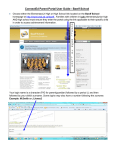
ConnectEd Parent Portal User Guide – Bawlf School
There is a link to this website on Bawlf School’s homepage at www.brsd.ab.ca/bawlf . Call the school for your password
and login.
Your login name is a character (M/F/G for mother/father/guardian) followed by a period(.), followed by your child’s
surname. Some logins may also have a number following the surname.
**Your password is initially an alpha-numeric computer generated password and you will be REQUIRED TO CHANGE
YOUR PASSWORD on your first login. The new password must be at least 8 characters long, and a combination of
letters and numbers. Please write this password down, as it is confidential and the school will not be able to access it
for you; the best we can do will be to reset it to a computer generated one and then you will have to come up with a
new password; it will not accept a former password once it has been reset.
Always use the ‘Logout’ choice in upper left to leave the program. Do not use the back and forth arrows to move about
the program; instead use the tabs on the ConnectEd screen.
Once in the program, parents with more than one student will have to choose a student from a pull-down menu, and
then choose the ‘GO’ icon to see that particular student’s information.
There are several tabs across the top; most will be self explanatory on some investigation.
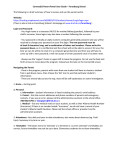
1. Home – shows attendance information for last and current week. If you hover your mouse over an attendance item,
it will display detail.
2. Personal
a. Information – student information is listed including the parent’s email address
b. Parent – lists the current addresses and phone numbers of parents and emergency contacts. If you see an error,
please call or email Mrs. Erickson at the school office. (780-373-3784 or [email protected] ) Please note
that our emergency contact lists in the Student Software Program were just expanded so the list you see here is
likely incomplete – we are using the paper copy you provided with your registration packages as we work
toward getting the information into the computer)
c. Medical – lists any medical notes on your student
3. Attendance –lists daily and year-to-date attendance; also Notes about absences (e.g. Field trips). Summary is by
term or year.
4. Achievement –:
a. Marks and Comments – this is the summary of marks for your student: Choose the ‘class’, and the ‘term’
(defaults to “accumulated”), Click on the little grid icon, and it displays as much as the teachers have recorded in
their markbooks. I personally find it easiest to use the “custom” choice, and enter from the start of the year to
current date. To print a copy of the report, click on the little (PDF) icon that looks like an inverted red V, located
next to the “date range” box. The program generates a PDF file in a tiny box up in the left hand corner of the
screen. Choose the square icon to maximize it. This report can be printed, saved or shared. Choose the X icon
to close the PDF screen and return you to the student information screens.
5. Accounts – shows the money owed to the school for school fees only. If a payment is listed, click on the + to see
payment details.