1
WELFORD CHART NOTES
NEWSLETTER
Volume 32, No. 6
June, 2008
copyright 2008, Welford Medical Computing, Inc.
All rights reserved
PRESCRIPTION LOG AND PRESCRIPTION WRITER AUTO SHOW UPCOMING
OPTIONS (User’s Manual, pg. 1028 )
The Upcoming Reminders Report, introduced in version 5.0 (User's Manual, page 960-962), lets you see, in
one convenient report, all of the current and future Datebook, Flowsheet, and Rule Reminder items for a
particular patient. You can arrange for the Prescription Log and/or Prescription Writer to automatically
display this report each time you write a prescription for a particular patient. If you see that the patient is
overdue for an important test or procedure, you can then decide to limit the number of pills or refills on the
prescription, or refuse to refill the prescription. You can also send a Message to your staff, telling them to
contact the patient and remind the patient to schedule the overdue test. This feature helps to enhance
patient adherence to recommended procedures even if the patient is not coming in for a visit. Many patients
request prescription refills between visits, and this gives you an additional opportunity to catch those patients
who are overdue and remind them.
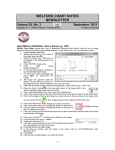
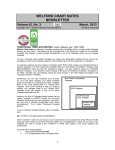
Let's see this feature in
action.
First, we will
record
a
Datebook
reminder for a patient:
1. Press
Tools
\Datebook
\ADD.
2. For Date, enter
a date on or
before today's
date.
3. Leave
Time
blank.
4. For
Status,
choose Active.
5. For Message, enter "due for CXR (followup of nodule)".
6. For Patient, enter Kelly Erickson.
7. Leave Trigger Upcoming checked. (If
you uncheck it, this Datebook Reminder
will NOT cause the Upcoming Reminders
report to open).
8. Press OK.
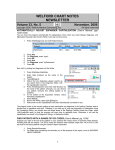
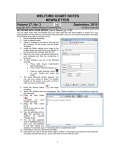
Now, activate the Auto Show Upcoming Options:
1. Press View\Prescription Log\OPTIONS.
2. Check Auto Check Upcoming and Auto
Show Upcoming.
Auto Check
Upcoming causes the Prescription Log to
display a red button if the patient has any
upcoming reminders. You then click the
red button to see them. Auto Show
Upcoming automatically displays the
upcoming reminders, if any exist, saving
you the step of having to press the red
button.
3. In general, you will want to have weeks
into the future set to 0, so you only see
those reminders that are currently due, not
those that may be due in the near future.
However, you might want to set it to a
11
4.
5.
6.
7.
number higher than 0 if you would like to be able to remind the patient of things which are coming
due in the near future.
Press OK.
Press Write\Prescriptions\OPTIONS.
Check Auto Check Upcoming and Auto Show Upcoming, and set weeks into the future the
way you wish. Note that these settings are independent of those in the Prescription Log. Thus you
can have the two program functions operate differently if you wish.
Press OK.
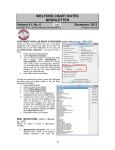
Now, let's record an entry in the Prescription Log and see how it triggers the upcoming report:
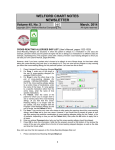
1. Press
View\
Prescription
Log\Add.
2. For
Patient
Name, enter
Kelly Erickson.
3. Note that the
Upcoming
Reminders
window opens,
showing
the
Datebook
reminder you
stored
previously.
4. You
can
double-click
the item (or
press Edit) to
edit
the
Datebook
reminder. You
can press Jump to move to a different program function, e.g. to write a Message to your staff to
contact the patient and remind her to get the chest X-ray.
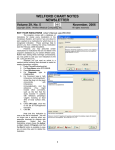
Note the Unlock\Lock button on the upper right corner of the Upcoming Reminders report. (User’s Manual,
pg. 1029) You should generally press the Lock button after you have checked the program functions
(Datebook, Flowsheets, Rule Reminders) that you would like included in the Upcoming Reminders report.
By doing this, you will avoid inadvertently unchecking one of these boxes if you start to type ahead while the
Upcoming Reminders report is in the process of opening.
The Auto Show Upcoming Options slows the opening of the Prescription Log or Prescription Writer while the
program is checking for any Upcoming Reminders. This is especially true if you have many Rule Reminders.
You can speed this process (at the cost of not seeing the Rule Reminders) by unchecking the Rule
Reminders box in the Upcoming Reminders window. Furthermore, if you are a user whose primary role is to
record refill requests and send them to a physician (for example, a nurse or secretary), you may well wish to
uncheck the Auto Show Upcoming Options so that you can speedily enter refill requests, while having the
physician check Auto Show Upcoming Options and then decide which patients need to be sent reminders.
Conversely, the physician might delegate this decision to a nurse and turn off this Option so that it does not
slow the physician’s workflow.
NEWS ON UPCOMING VERSIONS
We are putting the finishing touches on version 5.4. It has over 35 new features and enhancements. We
thank our users for their many helpful suggestions for new features.
SEND US YOUR TIPS
If you have tips, shortcuts, questions, or suggestions for future newsletter topics, please send them to us at:
Welford Medical Computing, Inc.
or
MEDCOM Information Systems
3779 Hermitage Trail
2117 Stonington Avenue
Rockford, IL 61114
Hoffman Estates, IL 60195
12