1
Completing and Submitting Your Application, Continued
Quick
Reference
Procedure
(continued)
Step
32
33
Action
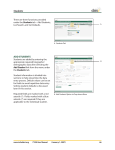
Select the following information from the online calendar:
• applicable month
• applicable year
• date associated with the month and year
Result: The date selected will default into the applicable date
field.
Click on the Save & Add More button to add more job training
details.
34
Click on the Save & Return button to go back to the My Resume page.
Result: your job training details will default into the My Training
section.
35
Click on the Save as Draft button to ensure your job training
details are saved.
How to Complete the My Licenses and Certificates section
Click on the Add Licenses and Certificates link to enter the
licenses and/or certificates you have or are currently in the process
of acquiring.
Result: the Add License or Certificates page displays.
Enter your license and/or certificate details by completing the
following fields:
• License/Certificate
• Issued By
• License/Certification Number
• Date Issued
36
37
38
Click on the calendar icon to enter the date for the Date Issued field.
Result: an online calendar displays.
39
Select the issue date of the license and/or certificate from the
online calendar:
• applicable month
• applicable year
• date associated with the month and year
Result: The date selected will default into the Date Issued field.
Click on the Save & Add More button to add another license
and/or certificate.
40
41
42
Click on the Save & Return button to go back to the My Resume page.
Result: your license and/or certificate details will default into the My
Licenses and Certificates section.
Click on the Save as Draft button to ensure your license and/or
certificate details are saved.
Continued on next page
External Civilian Applicant
11