1
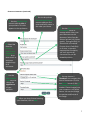
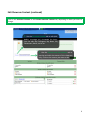
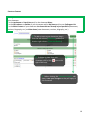
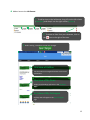
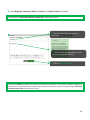
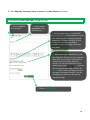
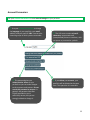
Showcase Parameters (continued) 1. Use the Portfolio Title menu to edit the title of your portfolio. This title appears in the top banner. 2. Use the drop-‐down Personal Name Format menu to add your first name and family name in the order you choose. 4. Select Yes from the Receive a copy of each comment by email? drop-‐ down menu to receive an emailed copy of all comments. 3. Use the Who can submit a comment? menu to manage which visitors can post comments on this showcase. Select from No Visitors (private), All Visitors (public), Colleagues Only, or Visitors with a Protected Content Access Code Only. In all cases, to prevent inappropriate comments, you must approve all comments that can be viewed by visitors. 5. Use the 6. You can choose a Edit Portfolio Style menu to change the appearance of your portfolio. 7. When you have finished creating your showcase, click on Add. Thumbnail to accompany the titles of showcases. Click on the Browse button in the Use this image for section titles textbox. Choose images from your computer or an online source. You can also change the position and format of the image. 7