1
Section 8: Class Roster
Print a class roster
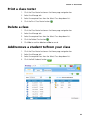
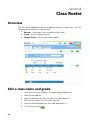
1. Click the Class Roster button on the Home page navigation bar.
2. Select the Manage tab.
3. Select the required class from the Select Class drop-down list.
4. Click the Print Class Roster button
.
Delete a class
1. Click the Class Roster button on the Home page navigation bar.
2. Select the Manage tab.
3. Select the required class from the Select Class drop-down list.
4. Click the Delete Class button
.
5. Click Yes to confirm deletion or No to cancel.
Add/remove a student to/from your class
1.
2.
3.
4.
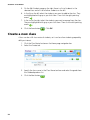
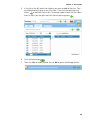
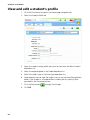
Click the Class Roster button on the Home page navigation bar.
Select the Manage tab.
Select the required class from the Select Class drop-down list.
Click the Edit Students button
.
21