1
Section 8: Class Roster
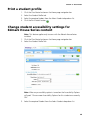
Print a student profile
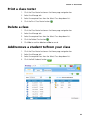
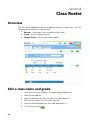
1. Click the Class Roster button on the Home page navigation bar.
2. Select the Student Profile tab.
3. Select the required student from the Select Student drop-down list.
4. Click the Print Details button
.
Change student accessibility settings for
Edmark House Series content
Note: This feature applies only to users with the Edmark House Series
installed.
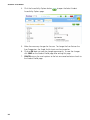
1. Click the Class Roster button on the Home page navigation bar.
2. Select the Student Profile Tab.
Note: When any accessibility option is turned on the Accessibility Options
will read: “One or more Accessibility Options for this student are currently
ON.”
3. Select the required Student from the Select Student drop-down list.
25