1
Email User Guide
6. Calendars
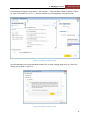
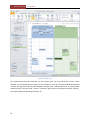
Figure 16: Creating a meeting (appointment)
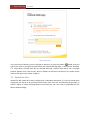
For repetitive activities, you can set up a recurrence pattern. Click on
to get a dialog where
you can set the frequency and scope of the recurrence. Once a recurrence pattern is set, whenever you
modify the item in your calendar you will be asked whether to edit the series or an individual
occurrence.
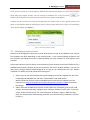
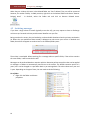
By default Outlook pops up a reminder of the appointment 15 minutes prior. This can be controlled for a
particular meeting by selecting the time next to the reminder icon
. The default
reminders can also be turned off globally by going to Info: Options (or Options : Settings in OWA) and
checking off “Default reminder” in the Calendar section.
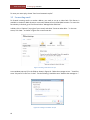
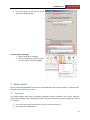
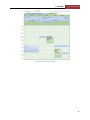
To add participants to your meeting click on the Scheduling Assistant. When you save the meeting,
invitations will get sent via email, and you can come back to the meeting in your calendar to track these
responses. Add the attendees on the left-hand side of the screen, as shown in Figure 17. The attendees
availability is shown in the calendar view on the right-hand side. When adding a group, you show
expand it with so that you can view the attendees schedule and track their responses.
If the meeting takes place in one of the College meeting rooms, you may also add it by clicking “Add
Rooms…”. This will give you the availability of the room and send a booking request when you save the
meeting. Remember though the room is not booked until confirmed.
18