1
Email User Guide
1. Overview
1 Overview
This document explains the basic functionalities of the College email system, Exchange 2010.
Instructions are designed primarily for Outlook and OWA (Outlook Web Access), although some setup
instructions are included for some other clients and mobile devices. We recommend Outlook and OWA
to take full advantage of collaborative features: shared folders, contacts, calendars, etc.
For more general information about email and best practices, please refer to Email Best Practices on
Docushare.
2 Access
The email server, Exchange 2010, is where your email account, along with all the emails, calendars, etc.,
are stored. The email client, for example Outlook, is the application you use to access your account,
send emails, respond to calendar invitations, etc. Although the email client may make a copy of your
data on your computer, it is always still available on the server, such that it could be accessed from
another client or another computer.
This section provides instructions to launch/configure emails clients for the first use.
2.1 Outlook
Microsoft Office Outlook 2010 should already be installed and configured on your Dawson desktop or
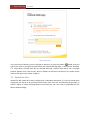
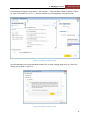
laptop computer. If not you may be prompted to ‘add a new account’ : just choose Email account and
type in your Dawson email address (which is usually your network account with
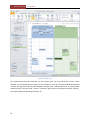
@dawsoncollege.qc.ca) as shown in Figure 1. This may also done or modified at any time by
launching Mail from the Control panel.
To use Outlook at home, you need to configure Outlook Anywhere (see Configuring Outlook Anywhere
on SharePoint). Alternatively you can use a Web browser (see OWA below). Please note that Outlook
Express does not allow a native connection to Exchange.
2