1
• • • • •
FACTORYTALK VIEW SITE EDITION USER’S GUIDE
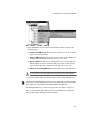
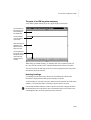
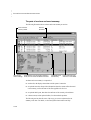
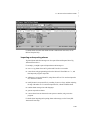
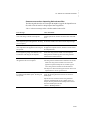
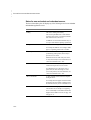
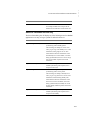
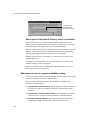
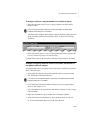
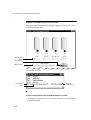
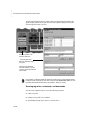
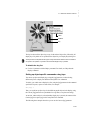
Use the buttons and touch zones provided, to navigate through the Water Samples
application, view alarm summaries and trends, and switch between application languages.
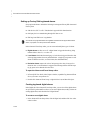
Creating a new FactoryTalk View SE application
You can also create a simple, new application, to exercise some of the development and
run-time features of FactoryTalk View SE. Following are some steps to get you started.
Step 1: Create the application
First, create the application itself, and then add one HMI server or more.
The HMI server stores project components (for example, graphic displays), and serves
these components to clients. The server also contains a database of tags, and performs
alarm detection, and historical data management (logging).
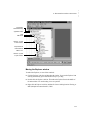
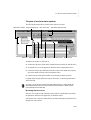
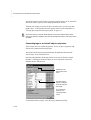
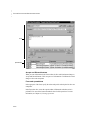
To create a new network application
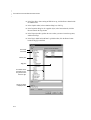
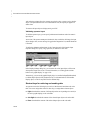
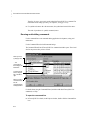
1. On the desktop, click Start > All Programs, and then click FactoryTalk View Studio.
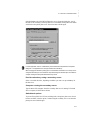
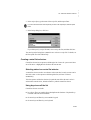
2. In the Application Type Selection dialog box, click Site Edition (Network), and then
click Continue.
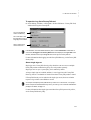
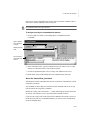
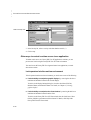
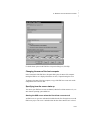
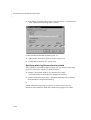
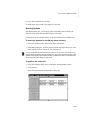
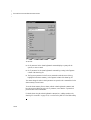
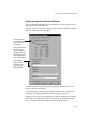
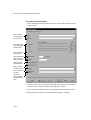
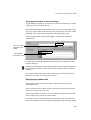
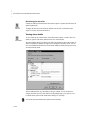
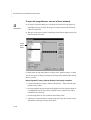
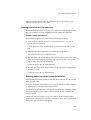
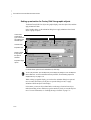
3. In the New/Open Site Edition (Network) Application dialog box, click the New tab
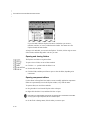
4. Type a name and description for the application, select an application language, and
then click Create.
The default language displayed in the New tab is the operating system language. You
can accept the default or, in the Language list, select any language that Windows
supports. For more information, see Chapter 12, Setting up language switching.
After creating the application, you can add an HMI server to the root of the application, or
to another area in the application. For this example, add an area to contain the new HMI
server.
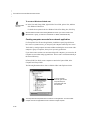
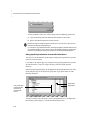
To add an area to the application
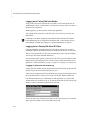
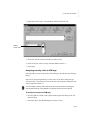
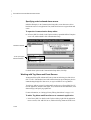
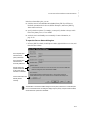
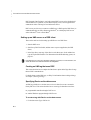
1. In FactoryTalk View Studio, in the Explorer window, right-click the application icon,
and then click New Area.
2. Type a name and description for the area, and then click OK.
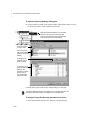
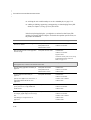
To add an HMI server
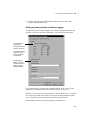
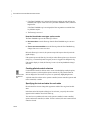
1. In FactoryTalk View Studio, in the Explorer window, right-click the area you just
created, click Add New Server, and then click HMI Server.
1–12