1
4.3. MAIL
CHAPTER 4. HOW DO I USE CPANEL?
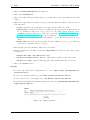
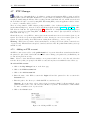
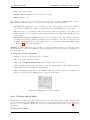
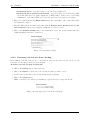
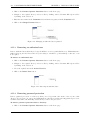
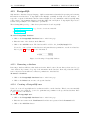
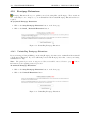
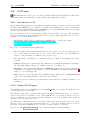
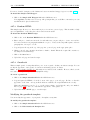
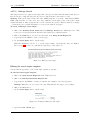
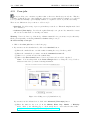
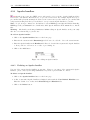
1. Click on the E-mail Filtering link in the Mail area.
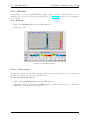
2. Click on the Add Filter link.
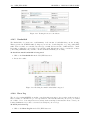
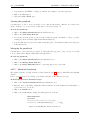
3. Click on the required header field in the first drop-down list. These are the various fields in any e-mail
message.
4. Click on the required filter action in the second drop-down list. This action will act on the text entered
in the third field.
• equals – match the text exactly (whole words only). ”Credit” will block ”Credit”.
• matches regex – matches the text based on regular expression (regex) rules. Regular expressions
are a powerful but complex area. You do not need to use regular expression filters for most
circumstances. Refer to these two good introductory tutorials – Using Regular Expressions and
Learning to Use Regular Expressions – for more information.
• contains – match the specified text in any circumstance. ”porn” will block ”porn” and ”pornography”.
• begins with – match the specified text when it is the beginning of a word. ”porn” will block
”porn” and ”pornography” but not ”teenporn”.
5. Enter the filter text in the third field. This text is case sensitive.
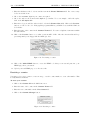
6. Enter the destination for the filtered e-mail in the Destination field. There are three separate types
of destination:
• Destroy the e-mail – Enter Discard in the field.
• Redirect to another address – Enter the e-mail address to which to redirect the e-mail.
• Redirect to a script – Enter the full script path on the machine that hosts your web site.
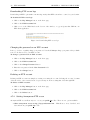
7. Click on the Activate button.
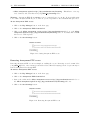
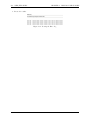
Example:
• To redirect all e-mail from ”[email protected]”, enter:
[email protected]
From, equals, [email protected],
• To delete all e-mail from paradise.net, enter: From, contains, paradise.net, Discard
• To delete all references to pornography, enter: Any Header, contains, porn, Discard
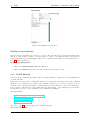
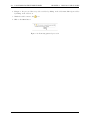
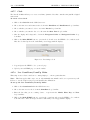
• To discard all e-mail that Spam Assassin has marked as spam, enter: SpamAssassin Spam Header,
begins with, yes, Discard
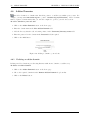
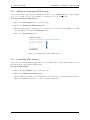
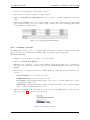
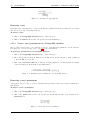
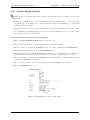
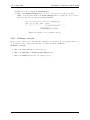
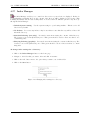
Figure 4.11: Adding a spam filter
21