1
3.5.7
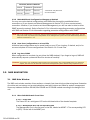
SNMP Community Administration Window
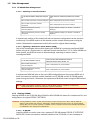
In the Global SNMP Trap Settings Window, click the SNMP Community Administration (padlock)
button to bring up a floating window requesting Old Community, New Community and Confirm New
[Community] for both Read Only and Read/Write community strings. Enter the requested (userdefined) strings for one or both communities and click the corresponding Submit button. Read Only
and Read/Write community strings cannot be submitted simultaneously; for Read Only community
string configurations you must click the Submit button in the Read Only column and for Read/Write
community strings you must click the Submit button in the Read/Write column.
NOTE All Read Only users use the same password, as do all Read/Write users; only one password is configurable for
each type of user.
3.6
Management Port Status Window (Micro DSLAMs ONLY)
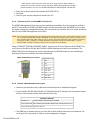
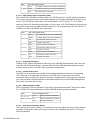
Access the Management Port Status window by clicking on the MGMT port LED (LED 1) in the NMS Main
Window. Data presented includes port type (MGMT), port number (1), port speed (10 Mbps or 100 Mbps)
and duplex mode* (full or half). This window is read only; there are no configuration fields because the
MGMT Port auto-negotiates both port speed and duplex mode.
*Duplex Mode indicates whether the Ethernet line can receive and transmit data simultaneously (Full
Duplex) or in only one direction at a time (Half Duplex).
3.7
Uplink Interface Configuration Window (Micro DSLAMs ONLY)
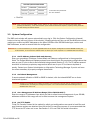
Access the Uplink Interface Configuration windows by clicking on the Uplink Interface port LEDs (LEDs 2-4)
in the NMS Main Window. Refer to your Micro DSLAM Installation Instructions for more detailed
information regarding uplink configurations.
3.7.1
10/100 Ethernet Uplink Configuration Window
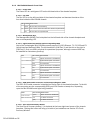
States uplink type (10/100), port number (2), uplink speed (10 Mbps or 100 Mbps) and duplex
mode* (full or half). This window is read only; there are no configuration fields because the 10/100
Ethernet Uplink Port auto-negotiates both speed and duplex mode.
*See Duplex Mode definition in Section 3.6.
3.7.2
T1 Uplink Configuration Window
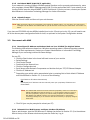
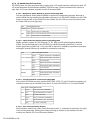
States uplink type (T1), port number (2-4) and current uplink speed. This window contains
configuration fields for T1 Line Buildout (0db, -7.5db, -15db or -22.5db), Line Code (B8ZS or AMI)
and Frame Type (ESF or SF/D4).
3.7.3
E1 Uplink Configuration Window
States uplink type (E1), port number (2-4) and current uplink speed. This window contains
configuration fields for Line Code (HDB3 or AMI) and Frame Type (CRC or No CRC).
210-0000048 rev 06