1
Troubleshooting
179
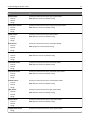
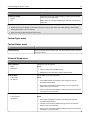
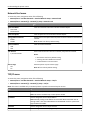
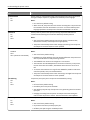
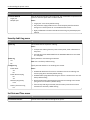
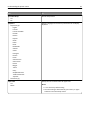
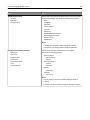
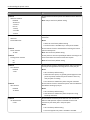
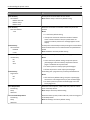
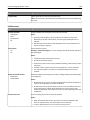
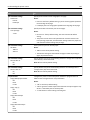
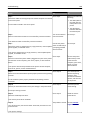
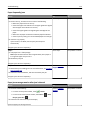
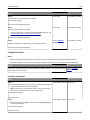
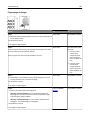
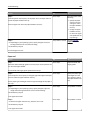
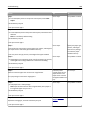
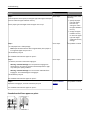
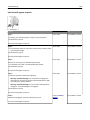
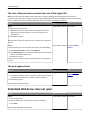
Tray linking does not work
Notes:
• The trays can detect paper length.
• The multipurpose feeder does not automatically detect the paper size. You must set the size from the Paper
Size/Type menu.
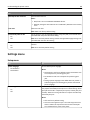
Action
Yes
No
Step 1
The problem is solved. Go to step 2.
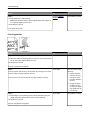
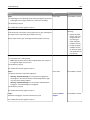
a Open the trays, and then check if they contain paper of the same size
and type.
• Check if the paper guides are in the correct positions for the size
of the paper loaded in each tray.
• Check if the paper size indicators on the paper guides are aligned
with the paper size indicators on the tray.
b Resend the print job.
Do the trays link correctly?
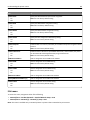
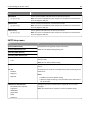
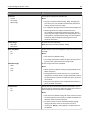
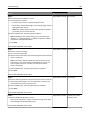
The problem is solved. Contact customer
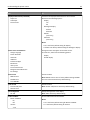
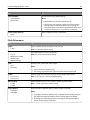
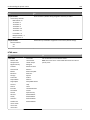
Step 2
support.
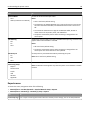
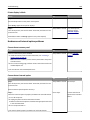
a From the printer control panel, set the paper size and type in the Paper
menu to match the paper loaded in the trays to be linked.
Note: The paper size and type must match for trays to be linked.
b Resend the print job.
Do the trays link correctly?
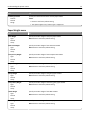
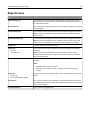
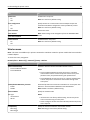
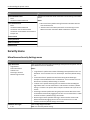
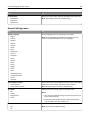
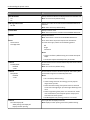
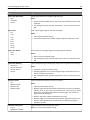
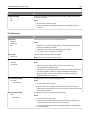
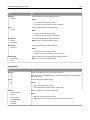
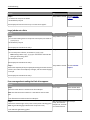
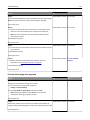
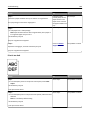
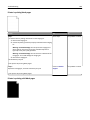
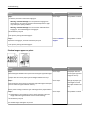
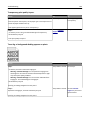
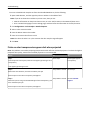
Multiple‑language PDF files do not print
Action
Yes
No
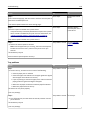
Step 1
The problem is solved. Go to step 2.
a Check if the print options for the PDF output are set to embed all fonts.
b Generate a new PDF file, and then resend the print job.
Do the files print?
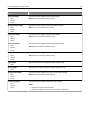
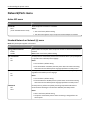
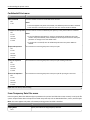
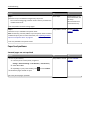
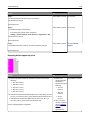
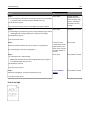
Step 2
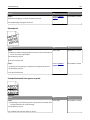
a Open the document you want to print in Adobe Acrobat.
b Click File > Print > Advanced > Print As Image > OK > OK .
Do the files print?
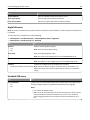
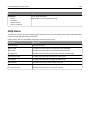
The problem is solved. Contact customer
support.