1
AT-ARW256E User’s Guide
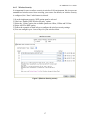
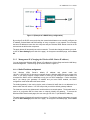
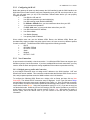
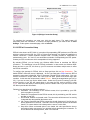
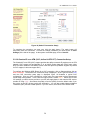
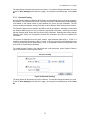
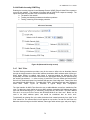
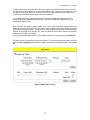
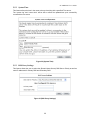
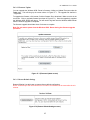
Figure 11 (Example of a DHCP Relay configuration)
By turning off the DHCP server and relay the network administrator must carefully configure the
IP address, Subnet Mask and DNS settings of every computer on your network. Do not assign
the same IP address to more than one computer and your Wireless ADSL Router must be on the
same subnet as all the other computers.
The apply button will temporarily save this connection. To make the change permanent you need
to click on Save Settings (at the side of the page). At the system commands page, click on Save
All.
5.1.2
Management IP (Changing the Wireless ADSL Router IP address)
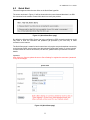
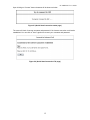
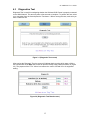
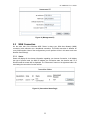
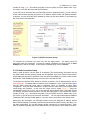
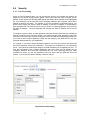
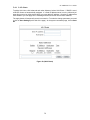
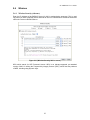
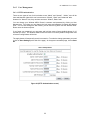
You can change the Wireless ADSL Router’s IP address by, clicking Setup and under LAN Setup,
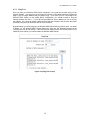
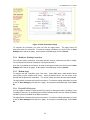
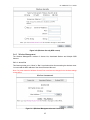
select Management. This will bring up the screen shown in Figure 12.
5.1.2.1 Static IP address assignment
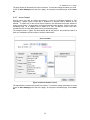
Your Wireless ADSL Router’s default IP address and subnet mask are
192.168.1.1/255.255.255.0; this subnet mask will allow the Wireless ADSL Router to support 254
users. If you want to support a larger number of users you can change the subnet mask; but
remember the DHCP server is defaulted to only give out 255 IP addresses. Further remember
that if you change your gateways’ IP address and you have DHCP enabled, the DHCP
configuration must reside within the same subnet.
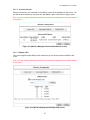
The default gateway is the routing device used to forward all traffic that is not addressed to a
station within the local subnet. Your ISP will provide you with the default gateway Address.
The hostname can be any alphanumeric word that does not contain spaces. The domain name is
used to in conjunction with the host name to uniquely identify the gateway. To access the
Wireless ADSL Router’s web pages, the user can type 192.168.1.1 (the default IP address).
The apply button will temporarily save this connection. To make the change permanent you need
to click on Save Settings (at the side of the page). At the system commands page, click on Save
All.
21