1
Layer 2 Switching
65
configuration, so an IP interface does not have to be attached to the VLAN, and
IGMP does not have to be enabled or configured.
IGMP snooping is enabled by default. To disable it, use the command:
DISABLE IGMPSNOOPING
Disabling IGMP snooping may be useful if filters are used extensively, because
IGMP snooping uses a Layer 3 filter. When IGMP snooping is disabled, this
filter becomes available. See “Hardware Packet Filters” in Chapter 2, Switching
in the Rapier Switch Software Reference for information about filters. Note that
multicast packets will flood the VLAN when IGMP snooping is disabled.
IGMP is used in conjunction with limited static multicast settings, or with
DVMRP or PIM Sparse Mode for full multicast support (IP Multicasting chapter
in the Rapier Switch Software Reference).
IGMP is enabled and disabled using the commands:
ENABLE IP IGMP
DISABLE IP IGMP
IGMP snooping is then enabled or disabled on a VLAN using the commands:
ENABLE IP IGMP INTERFACE=interface [DLC=1..1024]
DISABLE IP IGMP INTERFACE=interface [DLC=1..1024]
The switch will snoop IGMP packets transiting the VLAN and only forward
multicast packets to the ports which have seen a membership report from
network devices connected to those ports, instead of being forwarded to all
ports belonging to the VLAN.
The command:
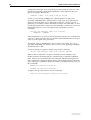
SET IP IGMP TIMEOUT=1..65535 QUERYINTERVAL=1..65535
sets operational parameters for IGMP. The QUERYINTERVAL parameter
specifies the time interval, in seconds, at which IGMP Host Membership
Queries are sent if this switch is elected the designated router for the LAN. The
default is 125.
The TIMEOUT parameter specifies the longest interval, in seconds, that a
group will remain in the local group database without receiving a Host
Membership Report. The default is 270. If a value is specified for
QUERYINTERVAL without specifying a value for TIMEOUT, TIMEOUT is
calculated as 2*(QUERYINTERVAL + 10). The 10 seconds is the variation that
hosts use when sending Host Membership Reports. If a timeout interval is
specified, it will override any calculated value.
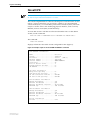
The command:
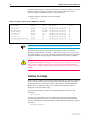
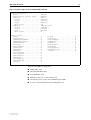
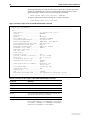
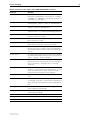
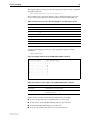
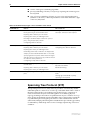
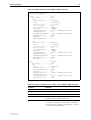
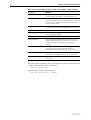
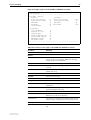
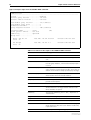
SHOW IP IGMP [COUNTER] [INTERFACE=interface]
displays information about IGMP, IGMP snooping, and multicast group
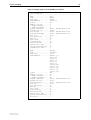
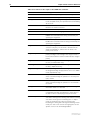
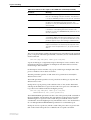
membership for each VLAN-based IP interface (Figure 5 on page 66, Table 21
on page 66).
Software Release 2.5.1
C613-02025-00 REV B