1
3
Making copies
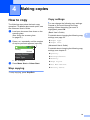
Copy settings
3
You can change the copy settings temporarily
for multiple copies.
3
Changing copy speed and
quality
You can choose the copy quality. The factory
setting is Normal.
The machine returns to its default settings
after 1 minute.
To change a setting, press a or b to scroll
through the copy settings. When the setting
you want is highlighted, press OK.
When you are finished choosing settings,
press Mono Start or Colour Start.
Fast
Fast copy speed and lowest
amount of ink used. Use this
setting to save time (documents to
be proof read, large documents or
many copies).
Normal
Recommended setting for ordinary
print outs. Good copy quality with
adequate copy speed.
Best
Use this setting to copy precise
images such as photographs. The
highest resolution and slowest
speed.
Note
You can save some of the settings that
you use most often by setting them as
default. These settings will stay until you
change them again. (See Setting your
changes as a new default on page 7.)
Stop copying
To stop copying, press Stop/Exit.
4
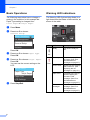
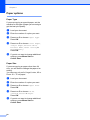
3
a
b
c
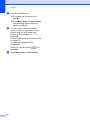
Load your document.
d
Press a or b to choose Fast, Normal or
Best.
Press OK.
e
If you do not want to change additional
settings, press Mono Start or
Colour Start.
Enter the number of copies you want.
Press a or b to choose Quality.
Press OK.
3