1
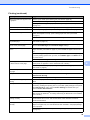
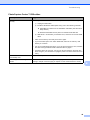
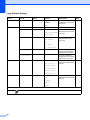
Network Difficulties (DCP-J315W only)
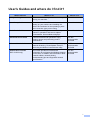
Difficulty
Suggestions
Cannot print over the Network.
Make sure that your machine is powered on and is online and in Ready mode.
Print a Network Configuration list (see Printing reports in chapter 2 in the
Advanced User’s Guide) and check the current Network settings printed in this list.
(If you are having Network problems, see the Network User’s Guide for more
information.)
The network scanning feature does
not work.
(Windows® users)
It is necessary to configure third-party Security/Firewall Software to allow Network
scanning. To add port 54925 for Network scanning, enter the information below:
In Name: Enter any description, for example Brother NetScan.
In Port number: Enter 54925.
In Protocol: UDP is selected.
Please refer to the instruction manual that came with your third-party
Security/Firewall Software or contact the software manufacturer.
(Macintosh users)
Re-select your machine in the Device Selector application located in
Macintosh HD/Library/Printers/Brother/Utilities/DeviceSelector or from the
model list in ControlCenter2.
The Brother software cannot be
installed.
(Windows® users)
Allow network access to the following programs if your security software displays
an alert message during MFL-Pro Suite installation.
BrC3Rgin.exe
BrnIPMon
Brother Status Monitor (Network)
ControlCenter Program
Generic Host Process f...
Setup.exe
Spooler SubSystem App
wdsw MFC Application
(Macintosh users)
Re-select your machine in the Device Selector application located in
Macintosh HD/Library/Printers/Brother/Utilities/DeviceSelector or from the
model list in ControlCenter2.
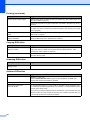
Cannot connect to wireless
network.
Investigate the problem using the WLAN Report.
Press Menu key, choose Print Reports and then press OK. Choose
WLAN Report.
For details, see the Network User’s Guide.
Reset the network settings.
Press Menu key, choose Network and then press OK. Choose
Network Reset.
For details, see the Network User’s Guide.
46