1
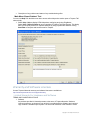
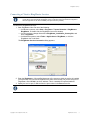
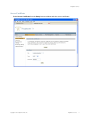
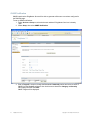
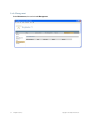
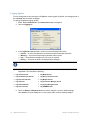
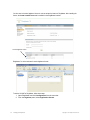
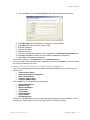
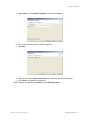
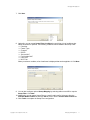
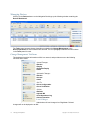
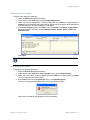
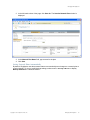
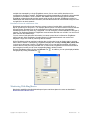
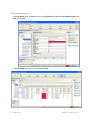
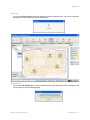
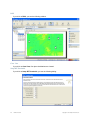
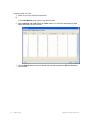
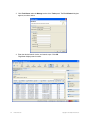
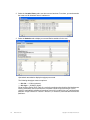
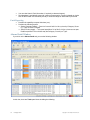
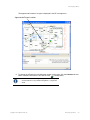
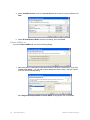
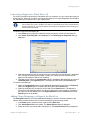
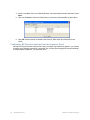
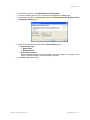
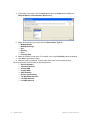
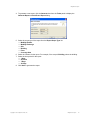
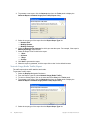
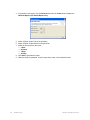
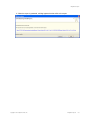
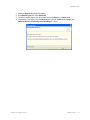
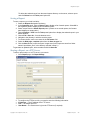
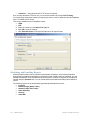
4. To generate a new report, click the Generate item from the Tasks panel to display the
Generate Report > Network Usage (Port Traffic) Report dialog.
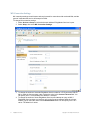
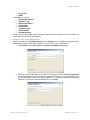
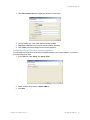
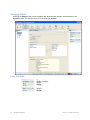
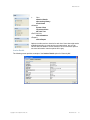
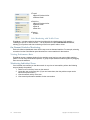
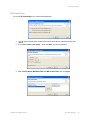
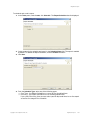
5. Select the scope type of the report from the Report Scope Type list:
❑
Network Plan
❑
Mobility Domain
❑
Mobility Exchange
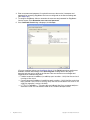
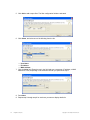
6. Select the Report Scope Instance for which you want the report. For example, if the scope is
Mobility Exchange, select an MX.
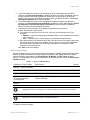
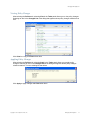
7. Select the Report Time Period for the report:
❑
1 Hour
❑
24 Hours
❑
7 Days
❑
30 Days
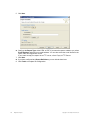
8. Click Next to generate the report.
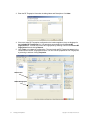
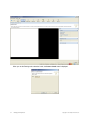
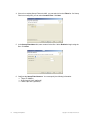
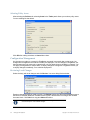
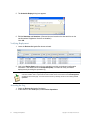
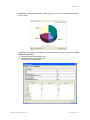
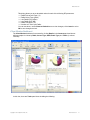
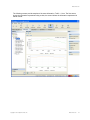
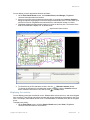
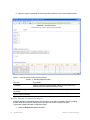
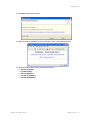
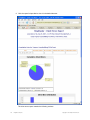
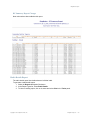
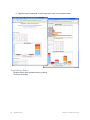
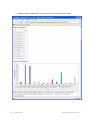
9. When the report is generated, click the report link to view it in the default browser.
Network Usage (Radio Traffic) Report
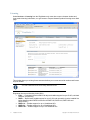
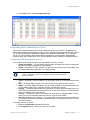
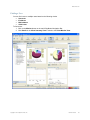
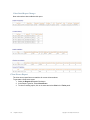
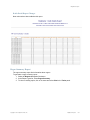
The traffic report shows traffic statistics and trends.
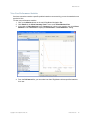
To generate a traffic report:
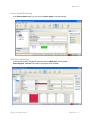
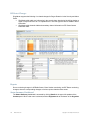
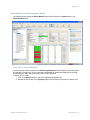
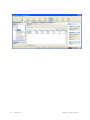
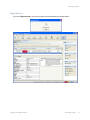
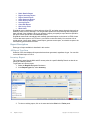
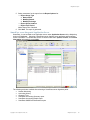
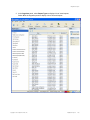
1. Select the Reports Navigation Bar button.
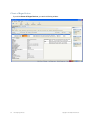
2. From the Report Types list, select Network Usage (Radio Traffic).
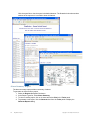
3. To view an existing report, click on its name and select View in the Tasks panel.
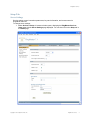
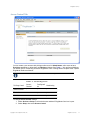
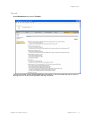
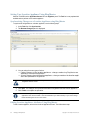
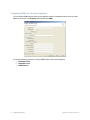
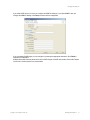
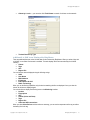
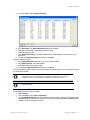
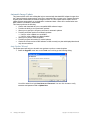
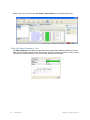
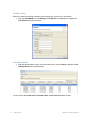
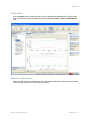
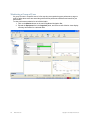
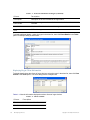
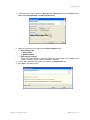
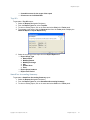
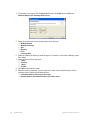
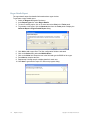
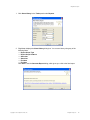
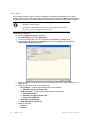
4. To generate a new report, click the Generate item from the Tasks panel to display the
Generate Report > Network Usage (Radio Traffic) Report dialog.
5. Select the scope type of the report from the Report Scope Type list:
184
RingMaster Reports
Copyright © 2011, Juniper Networks, Inc.