1
Managing with RingMaster
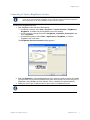
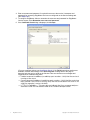
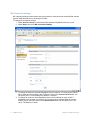
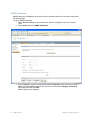
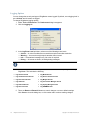
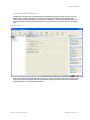
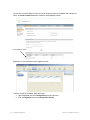
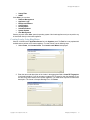
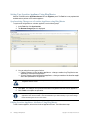
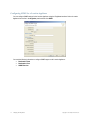
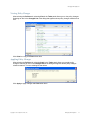
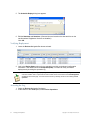
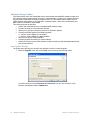
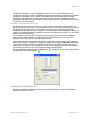
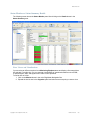
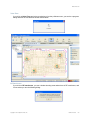
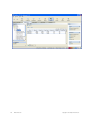
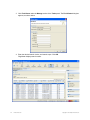
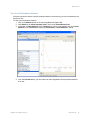
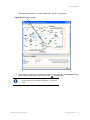
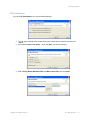
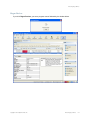
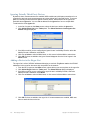
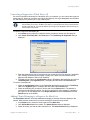
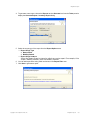
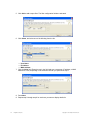
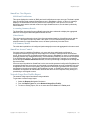
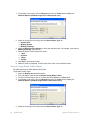
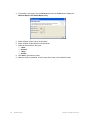
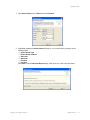
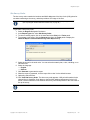
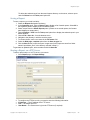
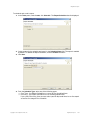
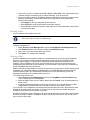
3. From the Task list, select Create Location Server and the associated wizard opens.
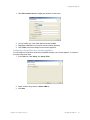
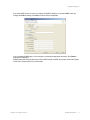
4. Select Managed to allow RingMaster to manage the location appliance.
5. In the Name field, enter the name of the LA-200E.
6. Enter the IP address.
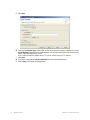
7. Enter the User Name.
8. Enter the Password.
9. If there is a management password, enter the password in the Management Password field.
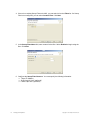
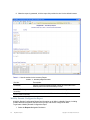
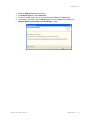
10. Click Next. RingMaster connects to the LA-200E and establishes a connection.
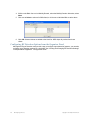
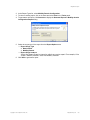
11. Click Finish to complete the configuration.
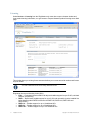
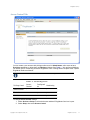
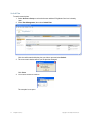
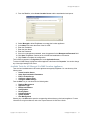
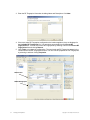
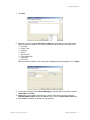
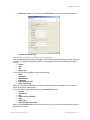
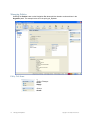
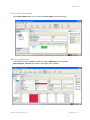
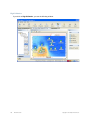
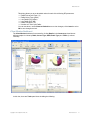
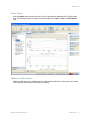
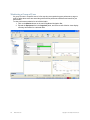
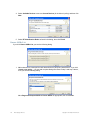
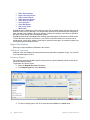
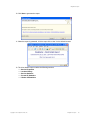
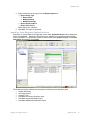
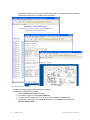
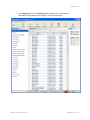
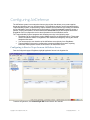
The LA-200E now appears in the Organizer panel under Application Servers.
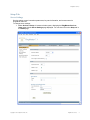
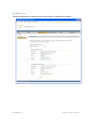
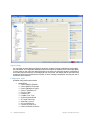
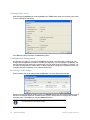
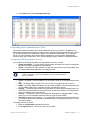
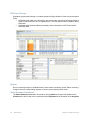
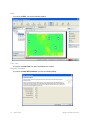
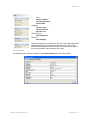
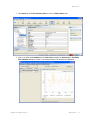
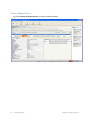
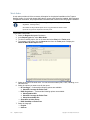
To review LA-200E settings, highlight the Location Appliance in the list and click Properties. You can then change
any of the original settings for the server.
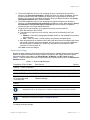
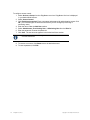
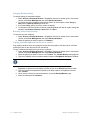
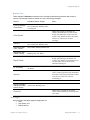
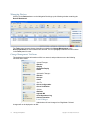
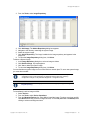
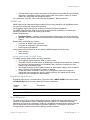
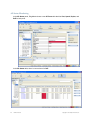
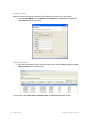
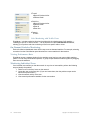
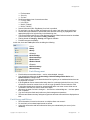
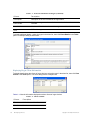
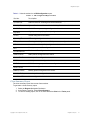
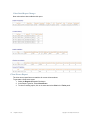
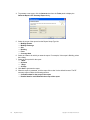
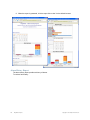
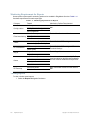
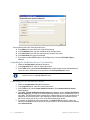
Available Tasks for All Managed LA-200E Location Appliances
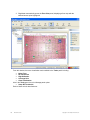
There is a list of available tasks for all location appliances managed by RingMaster. You can select any of the
following tasks:
❑
Create Location Server
❑
Setup Synchronization Parameters
❑
Edit a Location Server
❑
Configure a Snoop Filter
❑
Configure SNMP Settings
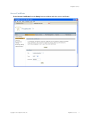
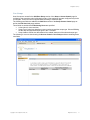
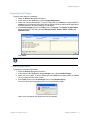
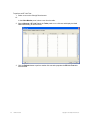
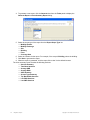
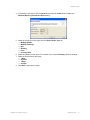
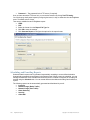
From the Other List, you can select from the following tasks:
❑
Platform Management
❑
Appliance Logs
❑
Backup and Restore
❑
Configuration
❑
Factory Reset
❑
Schedule Reboot
❑
System Update
❑
User Management
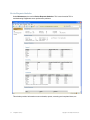
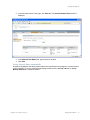
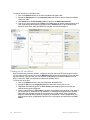
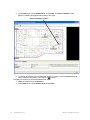
Selecting any of the Other tasks opens the corresponding software feature on the location appliance. For more
information on using these features, refer to the Trapeze Networks LA-200E User's Guide.
Copyright © 2011, Juniper Networks, Inc.
Managing with RingMaster
59