1
EXO BUSINESS CRM
User Guide
EXO
BUSINESS
MYOB ENT ERPRI SE SOLUT IONS
Important Notices
This material is copyright. It is intended only for MYOB Enterprise Solutions Business Partners and their customers. No
part of it may be reproduced in any way without the prior permission of MYOB.
MYOB has carefully prepared this material but excludes (to the extent allowed by legislation) any direct or indirect
liability arising from errors or omissions or from its use. Any case studies (including the application of particular accounting
standards or legislation) are representative examples only, and will not directly apply to the user’s own circumstances. They
are not a substitute for professional advice. Users must check that third party materials, for example from the IRD and the
ATO, are current at the time they are used.
Trademark Rights
MYOB is an internationally registered trademark of MYOB Technology Pty Ltd. The use of this trademark and MYOB’s other
trademarks is prohibited without prior consent. Other products mentioned may be service marks, trademarks or registered
trademarks of their respective owners.
Table of Contents
EXO Business CRM _______________________________________________________ 1
Outlook Integration .......................................................................................................................1
Quick Add Widgets ........................................................................................................................1
Licensing ........................................................................................................................................2
My Day ________________________________________________________________ 3
Companies _____________________________________________________________ 4
Available Functions .......................................................................................................................5
Contacts _______________________________________________________________ 6
Contacts in EXO Business CRM......................................................................................................6
Contacts Master ............................................................................................................................7
Contacts Tab..................................................................................................................................9
Entering Contacts for an Account ...............................................................................................10
Contact Marketing Classes ..........................................................................................................13
Contact Invoices ..........................................................................................................................14
Contacts Orders...........................................................................................................................14
Contact Accounts ........................................................................................................................14
Contact Lists ................................................................................................................................15
Emailing Contacts ........................................................................................................................19
Activities _____________________________________________________________ 20
Activities ......................................................................................................................................20
Activities in EXO Business CRM ...................................................................................................23
Synchronising Activities with Outlook.........................................................................................25
Opportunities _________________________________________________________ 28
Viewing Opportunities ................................................................................................................28
Creating Opportunities................................................................................................................29
Additional Tabs............................................................................................................................31
Copying Opportunities ................................................................................................................31
Opportunity Quotes ....................................................................................................................33
Opportunity Quote Options ........................................................................................................37
Opportunity Stages .....................................................................................................................40
Sales Team Budgets _____________________________________________________ 44
Setting up Sales Team Budgets ...................................................................................................44
Creating and Editing Budgets ......................................................................................................46
Campaigns ____________________________________________________________ 47
Viewing Campaigns .....................................................................................................................47
Creating Campaigns ....................................................................................................................48
Campaign Communication Waves ..............................................................................................50
Campaign Transactions ...............................................................................................................57
Index ________________________________________________________________ 59
iii
EXO Business CRM
The EXO Business Customer Relationship Management module (CRM) is an add-on module that adds
Customer Relationship Management functionality to the MYOB EXO Business system. With EXO Business
CRM, users can keep track of contacts, companies, prospects, tasks and appointments - as part of the EXO
Business system, EXO Business CRM has access to all relevant records in the EXO Business database.
EXO Business CRM allows you to create, edit and keep track of:
Activities (see page 23)
Contacts (see page 6)
Companies (see page 4)
Opportunities (see page 28)
Sales Team Budgets (see page 44)
Marketing Campaigns (see page 47)
Other areas of the EXO Business system, e.g. Stock items, can be viewed read-only from EXO Business CRM.
The EXO Business CRM interface makes extensive use of Dashboard widgets, allowing the interface to be
tailored to each user’s specific needs.
Outlook Integration
EXO Business CRM integrates with the Microsoft Outlook client for the two-way synchronisation of
Contacts (see page 7) and Activities (see page 25). If Outlook is not installed, all integration functions will be
disabled.
Note: Synchronisation with Microsoft Exchange Server is not supported.
Quick Add Widgets
EXO Business CRM includes several Quick Add functions, which allow users to quickly create new records by
entering the minimum required details into a simple window. The new records can then be opened and
filled out at a later time. Quick Add functions are available for adding Activities, Companies, Contacts and
Opportunities.
Quick Add functions are available as Dashboard widgets and as standalone windows:
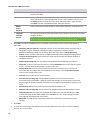
Tip: Quick Add windows can be added to menus and given shortcuts so that they appear in the EXO
Business CRM shortcut menu for easy access.
1
EXO Business CRM User Guide
Licensing
The EXO Business CRM module requires separate licences to run - one CRM licence is consumed on logging
in to EXO Business CRM.
CRM features, such as the ability to add and edit Opportunities, can be added to menus in the EXO Business
core module. When CRM features are added to the core menu, CRM-specific functionality becomes
available throughout the system, e.g. the Opportunities tab (see page 28) becomes available on the
Debtors and Creditors windows. This allows authorised users to manage the whole end-to-end process in
EXO Business without needing to switch between the core and CRM modules. However, doing so consumes
a core licence and a CRM licence when logging in to EXO Business.
If an employee attempts to open the EXO Business core module where CRM features have been added but
a CRM licence is not available, they are given the option of quitting or running EXO Business with all CRM
features disabled.
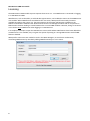
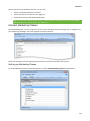
CRM-specific menu items are marked as such in the Menu Designer, to avoid users inadvertently
consuming CRM licences by mistakenly adding CRM functionality to a core menu:
2
My Day
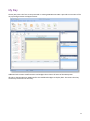
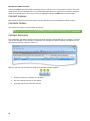
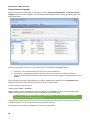
The My Day view is the first screen presented on starting EXO Business CRM. It provides an overview of the
any upcoming Activities and Opportunities.
Additional tabs contain workflow menus and widgets that relate to all areas of the CRM system.
All tabs on the EXO Business CRM interface use Dashboard widgets to display data. This means that they
can be fully customised as necessary.
3
Companies
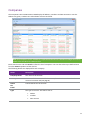
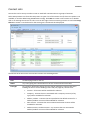
The Companies view in EXO Business CRM displays all Debtors, Creditors and Non Accounts in one list.
Debtors are green, Creditors are red and Non Accounts are black.
Note: The Companies view is available as a separate window and as a Dashboard widget that can be
added to the EXO Business CRM interface.
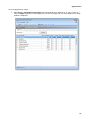
Enter search terms and click Search to filter the list of companies. You can also select a pre-defined view
from the Views dropdown to filter the list.
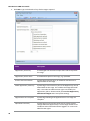
The following details are displayed for each company:
Detail
Description
Company Name
The name of the account.
Primary Contact
The name of the account’s default Contact, if one has been selected on the
account’s Contacts tab (see page 8).
Phone
Fax
Email
Contact details for the account.
Type
The type of account. This will be one of:
Debtor
Creditor
Non Account
4
Companies
Available Functions
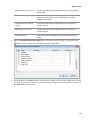
Double-click on a company to open the record for that account.
Click the New button to create a new Non Account record, which can be converted to a Debtor or Creditor
later if necessary.
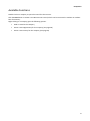
Right-clicking on a company gives the following options:
Send an email to the company
Create a new Opportunity for the company (see page 28)
Create a new activity for the company (see page 20)
5
Contacts
Debtors, Creditors and Non Accounts all include a Contacts tab, where Contacts can be created and
assigned to accounts. The Contact tab is a useful marketing tool; it contains a list of business Contacts
associated with the main company. You can easily create marketing campaigns or documents that get sent
to the right person (Contact) within the right company.
Contacts can also be set up independently of accounts from the Contacts window, which is available under
the Accounts menu.
You may on a regular basis liaise with the accounts manager. However, the right person for the details
about a new product being launched by your company may be the debtor’s Managing Director. So, you can
mark the information directly to the director since you have the address and e-mail details on the Contacts
tab.
You can also maintain a record of how each Contact first heard about your business: newspaper, television,
yellow pages or any other and determine the effectiveness of an advertising medium for your future
campaigns.
The two tabs, Details and Marketing, contain information about your Contact. The Notes field on the
Details tab allows you to make brief notes about the debtor or Contact listed here. Any data stored on the
Contacts tab can serve as a common pool of information for the Sales and Marketing team.
Relationships can be formed between contacts and Debtors, Creditors, Non Accounts and staff.
You can also add an Extra Fields tab with related information such as the Contact’s credit card number,
birthday and hobbies.
Contacts in EXO Business CRM
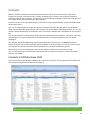
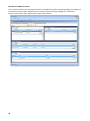
The Contacts view in EXO Business CRM lists all Contacts in the system. This view behaves in the same way
as the Contacts window in EXO Business (see page 7).
Note: The Contacts view is available as a separate window and as a Dashboard widget that can be
added to the EXO Business CRM interface.
6
Contacts
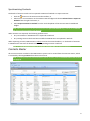
Synchronising Contacts
The details of Contact records can be exported to Microsoft Outlook. To export Contacts:
Click the
Select one or more Contacts on the Contacts Search widget and choose Selected Items > Export to
Outlook from the right-click menu, or
Select Export Contacts to Outlook from the Tools dropdown of the Contacts Search Dashboard
widget.
button on the Contacts window toolbar, or
Note: Individual Contacts can only be exported if the Sync with Outlook flag is ticked on the Details
tab of the Contacts window (see page 10).
When Contacts are exported, the following updates occur:
Any new Contacts in EXO Business are exported to Outlook.
Any existing Contacts that have been modified in EXO Business are updated in Outlook.
When exporting Contacts, EXO Business is always used as the master database, i.e. the details of Contacts
in EXO Business overwrite the details of the corresponding Contacts in Outlook.
Note: The synchronisation options for Activities (see page 25) also apply to Contacts.
Contacts Master
All account Contacts recorded in the EXO Business system can be viewed from the Contacts master, which
is accessed by selecting Contacts from the Account menu.
Note: To view the Contacts associated with a specific account, view the Contacts tab on that account
(see page 8).
7
EXO Business CRM User Guide
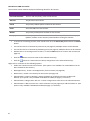
The Contacts master window displays the following details for all Contacts:
Field
Description
First and Last Name
The first and last (family) name of the Contact.
Job Title
The job title of the Contact.
Phone
The primary landline phone number for the Contact.
Email
The email address of the Contact.
Mobile
The primary mobile phone number for the Contact.
Company Name
The company name for the Contact. This will normally default to the company
(Debtor, Creditor or Non Account) selected when creating this Contact.
To search for an existing Contact, enter search terms in to the Search Key field and click the Search
button.
You can filter the list of Contacts by Contact List (see page 14). Multiple classes can be selected.
You can filter the list of Contacts by Marketing Class (see page 13). Multiple classes can be selected.
Double-click on an existing Contact to edit it, or click the New button to create a new Contact (see
page 10).
Click the
button to send an email to the selected Contact(s).
Click the
button to create and send a Clarity merge letter to the selected Contact(s).
Right-click on a Contact for the following options:
8
Send Email - Send an email to the Contact. (This option is not available if an email address has not
been entered for the Contact.)
New Opportunity - Create a new Opportunity for the Contact (see page 28).
New Activity - Create a new Activity for the Contact (see page 23).
Selected Items > Export to Outlook - Export the details of all selected Contacts to Microsoft
Outlook. (This option is only available if EXO Business CRM (see page 1) is licensed.)
Selected Items > Merge Letter with List - Create a merge letter to be sent to the selected Contacts.
Selected Items > Add to Contact List - Select a Contact List (see page 14) to add the Contact to. (This
option is only available if EXO Business CRM (see page 1) is licensed.)
Contacts
Contacts Tab
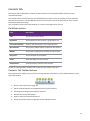
The Contact tab on the Debtor, Creditor and Non Account screens displays details of the account’s
associated Contacts.
This tab lists all the Contacts that are associated with the account. From this window, you can add new
Contacts to the account, set the default Contact for the account, and create and remove other Contact
associations with the account.
You can email a Contact from this window, or create a mail merge letter to them.
Field Descriptions
Field
Description
Title
The job title of the Contact.
Salutation
The salutation for the Contact, e.g. Mr, Mrs or Dr.
First and Last Name
The first and last (family) name of the Contact.
Direct Phone
The primary landline phone number for the Contact.
Mobile
The primary mobile phone number for the Contact.
Direct Fax
The fax number of the Contact.
Email
The email address of the Contact.
Home Phone
The home phone number of the Contact.
To edit an existing Contact, double-click on the Contact’s name in the grid.
Contacts Tab Toolbar Buttons
The Contacts tab is display-only; to create or change Contact information, use the toolbar buttons at the
top of the window.
1. Create a new Contact (see page 10).
2. Set the selected Contact as the default Contact for this account.
3. Associate an existing Contact with this account.
4. Remove the Contact association.
5. Send an email to the selected Contact.
6. Create and send a Clarity merge letter to the selected Contact.
9
EXO Business CRM User Guide
Adding a New Contact
Click the New Contact button to add a new Contact (see page 10).
Note: We suggest that you first search for the Contact (see page 7), as they might already be in the
system.
Entering Contacts for an Account
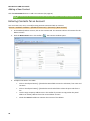
You can create new, view, or modify existing Contacts associated with an account.
Account > Creditors or Debtor > {Double Click Account} > (Contacts) > [New Contact]
1. In the Debtor/Creditor account, click on the Contacts tab. The Contacts tab lists all Contacts for the
debtor account.
2. Click the New Contact icon in the toolbar (
). The Contacts window opens:
3. Complete the fields in this table.
10
Click on the ellipsis button [...] beside the Name field to enter the salutation, first name and
surname.
Click on the ellipsis button [...] beside the Postal code field to select the post code from a
list.
Use the Copy Company Address icon in the toolbar if you want to copy either the postal
address or delivery address from the current debtor account.
Check the Active checkbox to maintain the account of this debtor.
Contacts
These actions are detailed in the Field Descriptions below:
Field
Description
Name
The Contact name can be manually entered here, however it’s recommended
that you use the name Check Full Name window to enter the details. Click on the
ellipsis [...] button and select the Salutation, enter the First name and the Last
name. Click OK to enter this full name into the name field.
Company
The company name for the Contact. This will normally default to the company
(Debtor, Creditor or Non Account) selected when creating this Contact.
Job Title
The job title of the Contact.
Contact Details
Postal and
Delivery
Address
Use the Copy icon in the toolbar to copy details from the selected account.
Selecting Copy company main details copies the following information to the
Contact:
Postal Address
Phone
Fax
Email
Sales person
Postal Code
Enter the postal code if it is known; if not, click on the ellipsis [...] button to
search and select a postal code.
Phone Numbers
Email
Phone
Fax
Mobile
Home Phone
Complete these fields with as much information at hand.
Flags
Active
This flag is enabled by default. If this Contact is to be inactive for any reason,
disable this checkbox.
Sync with
Outlook
If this flag is enabled, the Contact will be synchronised with Outlook whenever a
sync is performed. If this flag is not enabled, the Contact will not be included in
synchronisation operations.
Opt-Out
eMarketing
If the contact has opted out of electronic marketing communications, enable
this flag. Contacts with this flag enabled can be excluded from Contact Lists (see
page 14).
11
EXO Business CRM User Guide
Miscellaneous
Sales Person
If there is a designated salesperson associated to this debtor/creditor, enter
his/her name here.
Advert/ Source
The name of the advertising source through which you received this Contact.
Select the advert or source if applicable. If one is not available in the list, click
the Setup button to create one. This opens the Setup Advert Types window;
click New to create a new Referral item, then save and exit.
MSDN
Yahoo
Skype ID
If this Contact has account details for these online networks, enter them here.
Facebook
LinkedIn
Twitter
To view social media account information for the Contact, enter their usernames
or logon IDs here.
Note: The LinkedIn ID must be the numerical ID, not a username. The Facebook ID
can be a numerical ID or a Facebook username, if one has been set up.
3. Click Save. A number of additional tabs now appear in the window. Enter Contact information in
these tabs.
Marketing tab (see page 13). Assign the Contact to your marketing classes (see page 13), or
categories, so your marketing campaigns are more targeted to relevant Contacts.
Additional Marketing Classes can be setup, when this tab is active a Setup Marketing
Classes button activates. Click this to configure additional or edit existing marketing classes.
Invoices tab (see page 14). Lists invoices for which the Contact was the default Contact of
the Debtor account.
Orders tab (see page 14). List any Sales/Purchase Orders associated with the Contact.
Notes tab. Enter any notes for the Contact. Use the New Note icon on the toolbar to enter
a note - this will automatically assign a header to this note.
History Notes tab. Enter any history notes for the Contact. History notes are notes for
which the date and subject are also recorded. As with notes, click the New History Note
icon to create a new history note.
Docs tab. Link any documents to the Contact.
Accounts tab (see page 14). Edit the Debtor/Creditor accounts that the Contact is
associated with. For example, a Contact may be the manager of one company, the partner
of a manager of another company, the father of a son who works at another company, and
so on.
Relationships tab. Lists any other relevant Contacts the Contact has.
Activities tab (see page 20). Lists any tasks and appointments associated with the Contact.
Opportunities tab. This tab is only displayed when functions from the EXO Business CRM
module (see page 1) have been added to the EXO Business core. It lists all Opportunities
(see page 28) associated with the Contact.
Social tab. This tab displays information about the Contact from various social media
services.
4. Click Save.
5. To make this new Contact the default Contact for this debtor account, click on the Set to Default
Contact icon in the toolbar.
12
Contacts
Once you have set up the debtor Contact, you can also:
Create a relationship between Contacts.
Create activities for the Contact (see page 20).
Synchronise Contacts with Microsoft Outlook.
Note: If the Contact’s address details are the same as those on the debtors account, click the Copy
from Account button and the details are copied here.
Contact Marketing Classes
On the Marketing tab, you can assign the Contact to your marketing classes (see page 13), or categories, so
your marketing campaigns are more targeted to relevant contacts.
Check the checkboxes for the marketing classes that you need to associate to this contact.
Setting up Marketing Classes
To create additional classes or edit existing ones, click the Setup Marketing Classes toolbar button.
13
EXO Business CRM User Guide
Clicking the New button will create a marketing class for the next one in the sequence. If there are a few
blank classes after last defined class it is recommended editing these as preference. To edit an existing or
blank class, double click on the entry in the list or highlight and click the Edit button on the toolbar.
Contact Invoices
This tab lists invoices for which the contact was the default contact of the Debtor/Creditor account.
Contacts Orders
This tab lists the orders associated with the Contact.
Note: For this feature to work, the Add debtor contact details to transactions Company-level profile
setting has to be enabled in EXO Business Config. A salesperson can be associated with Sales Orders.
Contact Accounts
This tab displays the Debtor/Creditor accounts that the Contact is associated with. For example, a Contact
may be the manager of one company, the partner of a manager of another company, the father of a son
who works at another company, and so on.
With this tab active in the Contacts window, the following toolbar appears:
1. Assign the Contact to a Debtor or a Creditor.
2. Set as the default Contact for this debtor.
3. Un-assign the Contact from this account.
14
Contacts
Contact Lists
Contact lists can be set up to make it easier to send bulk communications to groups of Contacts.
Select Setup Contact Lists from the Setup menu to open a list of all Contact Lists (if this menu option is not
available, it must be added using EXO Business Config). Click New to create a new Contact List or doubleclick on an existing Contact List to edit it. You can also right-click on an existing Contact List and select Copy
this List to create a new list based on the existing one. The Details tab is displayed:
The Details tab of the Contact Lists window contains the following details:
Field
Description
Title
An identifying name for the list.
Notes
Any notes giving extra information on the list can be entered in this field.
List Type
This property determines which Contacts will be available to choose from when
building the list on the List Building Criteria tab (see page 16). Choose from:
Contact - all Contacts will be available for selection.
Company - Contacts that are associated with a company account (of any
type) will be available for selection.
Debtor, Creditor - Contacts that are specified as the default Contact for a
Debtor/Creditor account will be available for selection.
Non Account - Contacts that are associated with a Non Account will be
available for selection.
Debtor Contact, Creditor Contact - any Contacts that are associated a
Debtor/Creditor account will be available for selection.
15
EXO Business CRM User Guide
Serviceable Unit - Contacts that are set as the default contact for a
Serviceable Unit (EXO Job Costing) will be available for selection.
Subscription - Contacts that are associated with a subscription will be
available for selection.
Note: Selecting an option other than “Contact” means that a JOIN operation
will be performed between the CONTACTS table and the table that relates to
the selected option. You can view the details of the JOIN on the SQL sub-tab
(see page 17).
Create Date
A read-only field displaying when the list was created.
Created By
The name of the EXO Business staff member who created the list.
Owner
The name of the EXO Business staff member who is responsible for the list.
Active
If this option is not ticked, the list will be considered inactive, and will not be
available for selection.
Private
If this option is ticked, the list will only be available to the staff member select in
the Owner field; if it is not ticked, all staff members will be able to select and use
it.
Click the
button to hide these details.
Contacts
The bottom half of the Details tab displays the details of all Contacts who have been added to the list.
Contacts who were added manually are highlighted green; contacts who were added from the List Building
Criteria tab are not highlighted.
Double-click on a Contact to open the Contacts window to view and/or edit its details.
Right-clicking on the list brings up the following options:
Delete Selected Contacts from List - removes all Contacts whose tick box is checked from the
Contact List.
Delete All Contacts from List - removes all Contacts from the Contact List.
Selected Contacts Opt-Out of eMarketing - enables the Opt-Out eMarketing flag for the selected
Contacts. If the Exclude Opt-Out eMarketing option is ticked on the List Building Criteria tab, the
Contacts will be removed from the list automatically.
These functions are also available as buttons on the Contact List window toolbar.
Adding Contacts to Contact Lists
Whenever a Contact is added to a list (by any method) or deleted from one, an entry is added to the
History Notes tab of that Contact.
Contacts can be added to a Contact List manually from the Contacts master screen (see page 7). Tick the
box(es) for one or more Contacts, then right-click and select Selected Items > Add to Contact List.
Contacts can also be added manually from the Details tab by clicking the
button. This opens a search
window - tick the box(es) for one or more Contacts, then click Select & Close. Contacts that are added to a
list manually are highlighted green on the Details tab. Manually added Contacts are not be affected if the
Contact List is refreshed, and can only be deleted manually.
16
Contacts
To select and add many Contacts at once, you can build a list using the List Building Criteria tab on the
Contact Lists window:
This tab contains an advanced search control. Set filters to specify which Contacts to include on the list,
then click Apply to populate the Grid sub-tab with all Contacts that match the filters.
Note: You can double-click on a Contact on the Grid sub-tab to open the Contacts window to view
and/or edit its details.
Tick the boxes for all Contacts you want to add to the list (or tick the box next to the grid header to select
all Contacts), then right-click on a Contact and select one of the following options:
Add Selected Contact to List
Add All Contacts to List
These functions are also available as buttons on the Contact List window toolbar.
Note: You can right-click on a Contact List on the Contact Lists search window and select Refresh this
List to regenerate the list based on the existing list building criteria. This will capture any changes to
Contacts that have been made since the list was last generated.
17
EXO Business CRM User Guide
Selecting Contacts via a SQL Query
For a more advanced way to select Contacts, select the SQL sub-tab. This tab displays the SQL used to
populate the filters in the advanced search control:
To customise the advanced search control:
1. Edit the query on the SQL sub-tab. For example, you can remove unneeded filters from the
advanced search control by deleting them from the query, or add new fields to filter by.
2. Click Re-Build Filter.
You can now use the updated advanced search control to select a group of Contacts for the list.
Clicking the Preview SQL button on the SQL sub-tab opens a new window showing the full SQL query that is
being used to select the Contacts in the Contact List:
The query can be copied from this window and pasted elsewhere, e.g. into a Grid widget or another
application.
18
Contacts
Manual Mode
Clicking the Manual SQL Mode button on the SQL sub-tab changes the List Building Criteria tab into a mode
where the SQL statement used to build the Contact List can be edited directly.
Note: Changing to Manual SQL Mode means that the advanced search control can no longer be used;
the control disappears from the tab. This change cannot be undone - once a Contact List is put into
Manual SQL Mode and saved, there is no way of going back to using the advanced search.
In Manual SQL Mode, enter a SQL statement to specify the Contacts to include in the Contact List and click
Run Manual Query. The Grid sub-tab is populated with the results of the SQL statement.
Emailing Contacts
Account > Contacts
You can send emails to individual Contacts, groups of Contacts, or all Contacts, from the Contacts window.
To email Contacts:
1. Go to the Account menu and choose Contacts. The Contacts window is displayed.
2. Select the Contacts you want to email in one of the following ways:
Highlight a single Contact
Holding the CTRL key down, click on a selection of Contacts
Select a marketing class, click Search, select all in that marketing class using the keystroke
CTRL + A
Select all Contacts using the keystroke CTRL + A
3. Click the Send Email to List toolbar button (
).
4. If you don’t have email addresses recorded for all of the selected Contacts, a warning is displayed,
and you are prompted to confirm if you want to email the remaining Contacts that do have email
addresses. Click Yes.
5. A dialog is displayed asking if you want to hide the CC list in the email. If you don’t want each
Contact to see the other Contact email addresses being emailed, click Yes to hide the email address
list.
19
Activities
Activities
Activities can be set up in EXO Business to provide reminders and progress indicators for important
events. An activity can be a Task or an Appointment:
A Task is a to-do item that must be completed in a specified time frame.
An Appointment is an event scheduled for a specific time.
Activities can be accessed in multiple ways:
Via the Activities tabs in the maintenance screens for Contacts, Debtors, Creditors and Non
Accounts.
Via the Activity Search widget, which can be added to the EXO Business business flow menu.
Via the EXO Business CRM module (see page 1).
When using the EXO Business CRM module, activities can be synchronised with Microsoft Outlook. Tasks
are converted to Outlook Tasks and Appointments are converted to Outlook Appointments.
Creating an Activity
Click the New Activity ( ) toolbar button to create a new activity. Alternatively, right-click on the Activity
Search widget’s calendar in the time slot that you want to create the activity in.
The Activity Window
Note: If Extra Fields have been set up for Activities, an Extra Fields tab will also be available on this
window.
20
Activities
This is the window for entering new activities; use the table below as a reference for completing the fields
in this window.
Field
Description
Activity
Type
Select whether the activity is a Task or an Appointment.
Type
This is a user-definable classification for the activity. Select a type from the list, or
select “Edit List...” to create a new type.
Sync with
Outlook
If this box is ticked, the activity will be synchronised with Outlook whenever a
sync is performed. If this box is not ticked, the activity will not be included in
synchronisation operations.
Subject
Type a brief description of the activity and its purpose.
Company
Contact
Assignment of an activity to a Company and/or Contact is optional. Where
assigned, the activity will appear on the Activities tab of that company (Debtor,
Creditor, Non Account) and/or the Contact screen.
Note: When entering the Company name, use the search option by typing ?
and pressing TAB.
Opportunity
This field is only available when the EXO Business CRM module is licensed. If the
activity was created from an Opportunity, that Opportunity will be displayed
here; otherwise, you can optionally specify an Opportunity to associate the
activity with.
Job Code
This field is only available when the EXO Job Costing module is licensed. If the
activity was created from a job, that job will be displayed here; otherwise, you
can optionally specify a job to associate the activity with.
Campaign
Wave
If the EXO Business CRM module is installed, activities can be associated with a
campaign wave (see page 50).
Note: When creating an activity from the Details tab of the Campaigns
window, the activity is associated with the first wave of that campaign. When
creating an activity from the Waves tab, the activity is associated with the
selected campaign wave.
Label
A label can be specified for the activity - this affects how it will appear on
calendar displays.
Priority
A priority (Low, Normal or High) can be specified for the activity. Low and High
priority tasks are indicated with an icon on calendar displays.
Status
The Status setting has predefined list entries, but these may be edited or added
to using the “Edit List...” option.
For Tasks, clicking the Mark Complete toolbar button automatically updates this
property to “Completed”.
Assigned To
Assigned By
The EXO Business Staff members that the activity was assigned to and by.
% Complete
This property applies to Tasks only. Specify the percentage completion by
entering a number or using the arrow controls.
Clicking the Mark Complete toolbar button automatically updates this property
to 100%.
21
EXO Business CRM User Guide
Start Time
End Time
The start and end time for the activity.
All day
event
If this is selected, the selections for the time of day will disappear as they are no
longer valid.
Reminder
If you tick this checkbox, the system will pop up a reminder from the system tray
after adding a reminder icon. Reminders can be enabled or disabled using the
Enable Reminders option on the Tools menu of the Activity Search
window/Dashboard widget.
Show time
as
This property applies to Appointments only. Select how to display the time for
this activity on the Task Scheduler. Choose from:
Free
Tentative
Busy
Out of Office
Note: The relationship between the Status and % Complete properties is automatically maintained.
For example, setting Status to “Completed” automatically updates the % Complete value to “100”
and vice versa.
Once all properties are configured, click Save & Exit on the toolbar to save your changes and close the
Activity window, or Save & New to save changes to this Activity and reset all fields so that a new Activity
can be added.
Activity Recurrence
Click the Recurrence button to set an activity as recurring and establish the frequency.
Configure the recurrence options and click OK to assign this to the new or edited task. If you are editing an
existing task and no longer need this recurrence to continue, click Remove recurrence to remove this from
the calendar.
22
Activities
Activities in EXO Business CRM
The Activities view in EXO Business CRM displays all Tasks and Appointments (see page 20) in the EXO
Business system. Activities can be displayed in a simple list, or on a calendar interface.
Note: The Activities view is available as a separate window and as a Dashboard widget that can be
added to the EXO Business CRM interface.
List View
Selecting the List View option displays all Tasks and Appointments in a simple list. Tasks are highlighted
green; Appointments are not highlighted.
You can select a pre-defined view from the Views dropdown to filter the list.
Double-click on an activity to edit it.
Click the New button to create a new activity (see page 20).
Right-clicking on an activity provides the following options:
Postpone - applies to Tasks only. Delays the activity by a specified amount of time.
Mark as completed - sets the activity’s Status to “Completed”.
Selected Items > Export to Outlook - synchronise the specified activities with Microsoft Outlook
(see page 25).
23
EXO Business CRM User Guide
Calendar View
Selecting the Calendar View option displays Tasks and Appointments in a calendar view similar to the Task
Scheduler in the EXO Business core module.
Appointments appear on the calendar, while Tasks are listed in the section below.
Note: By default, only Appointments for the logged in user appear on the calendar - you can display
other users by right-clicking on the calendar and selecting Resources layout editor.
Double-click on an activity to edit it.
The Calendar view offers several options for creating new activities (see page 20):
24
Click the New button.
Double-click on a time slot on the calendar to create an activity at that time.
Right-click on a time slot on the calendar to create an activity at that time. The right click menu
also contains options to create an all-day activity or a recurring activity.
Activities
Setup Options
Select Setup Calendar from the Tools dropdown to configure options for the Calendar View:
You can specify the days and times worked in your organisation, and set up the time zone(s) that your
organisation is in.
Synchronising Activities with Outlook
EXO Business CRM allows activities (Tasks and Appointments) to be synchronised between MYOB EXO
Business and Microsoft Outlook. When activities are synchronised, the following updates occur:
Any new activities in EXO Business are exported to Outlook.
Any new activities in Outlook are imported to EXO Business.
Any existing activities that have been modified in either system are updated in the other system.
In all cases, the distinction between Tasks and Appointments is preserved, e.g. activities that exist as Tasks
in EXO Business will appear as Tasks in Outlook after activities are synchronised.
Note: When updating existing activities, the synchronisation process uses the most recently updated
activity as the “master” and copies this to the other system. This means that if the same activity is
edited in both systems before activities are synchronised, only the most recent changes will be
saved.
25
EXO Business CRM User Guide
To synchronise all activities in a specified date range:
1. Select Sync Activities with Outlook from the Tools dropdown on the Activities window. The
following window opens:
2. Specify which activities to synchronise by selecting a date option. All activities for the selected day
or date range will be synchronised.
3. Click OK.
To synchronise specific activities:
1. In the List View (see page 23), tick the boxes of all activities you want to synchronise.
2. Right-click anywhere on the list and select Selected Items > Export to Outlook.
Note: Individual activities are only synchronised if the Sync with Outlook box is ticked on the Activity
window (see page 20).
Functions are also available to perform a one-way synchronisation of activities:
Select Import Activities from Outlook from the Tools dropdown to import activities to EXO
Business from Outlook.
Select Export Activities to Outlook from the Tools dropdown to export activities to Outlook from
EXO Business.
Synchronisation Options
While the Sync with Outlook option can be used in EXO Business for controlling which activities will be
synchronised, synchronisation can also be controlled based on settings in Outlook.
Tasks and Appointments that are marked as Private in Outlook will not be synchronised.
Outlook categories can also be used to control which records are synchronised - EXO Business can be set up
to exclude or include a specified list of categories in synchronisation options. Two User-level profile settings
are used to control this:
26
The INCLUDE or EXCLUDE CRM-Outlook categories list setting determines whether records should
be included or excluded based on their category.
The List of CRM-Outlook categories setting specifies the comma-separated list of categories to be
included in or excluded from synchronisation operations.
Activities
Examples:
To set up the system so that only records with the category of “EXO” are synchronised:
Set the INCLUDE or EXCLUDE CRM-Outlook categories list setting to “Include”.
Enter “EXO” for the List of CRM-Outlook categories setting.
To set up the system so that all records are synchronised except for ones with the categories “Confidential”
or “Personal”:
Set the INCLUDE or EXCLUDE CRM-Outlook categories list setting to “Exclude”.
Enter “Confidential,Personal” for the List of CRM-Outlook categories setting.
If you do not want Outlook categories to affect synchronisation operations at all, set the INCLUDE or
EXCLUDE CRM-Outlook categories list setting to “Exclude” and leave the List of CRM-Outlook categories
setting blank.
27
Opportunities
Opportunities represent transactions that do not yet have a financial dimension; they are a stage before
the generation of a quote. Once complete, an Opportunity can be converted to a quote.
Opportunities can be created for Debtors, Creditors, Non Accounts or Contacts.
An Opportunity tab and/or toolbar buttons are available on the Debtors, Creditors, Non Accounts and
Contacts screens in the EXO Business core module if EXO Business CRM features have been added to the
core module’s menus.
Note: Opportunities do not support foreign currency and hidden costs. Tax-inclusive pricing is
supported when converting Opportunities to Sales Orders, but not when converting them to Jobs.
The Opportunities window functions as normal in these cases, but the reliability of any generated
transactions cannot be guaranteed.
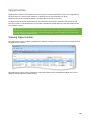
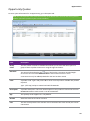
Viewing Opportunities
The Opportunity search window in EXO Business CRM lists all Opportunities in the system. Double-click on
an Opportunity to edit it.
The Opportunity search view is available as a separate window and as a Dashboard widget that can be
added to the EXO Business CRM interface.
28
Opportunities
Creating Opportunities
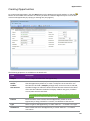
To create a new Opportunity, click the New button on the Opportunity search window, or click the
button on the toolbar of the account or Contact you want to create the Opportunity for. You can also
create a new Opportunity by copying an existing one (see page 31).
The following properties are available on the Details tab:
Field
Description
Subject
Enter a subject that describes the Opportunity.
Company
Debtor
Creditor
Non Account
Enter the name of the company account (Debtor, Creditor or Non Account)
that the Opportunity relates to, or enter ? and press TAB to search for one.
The label for this field is Company to begin with; once an account is selected,
the label changes to reflect the kind of account that was selected. The colour
of the text also indicates the kind of company: Debtors are green, Creditors
are red, Non Accounts are black.
Note: An Opportunity must be associated with a Debtor account before it
can be converted to a quote (see page 36).
Contact
Enter the name of the Contact that the Opportunity relates to. If the
Opportunity is being created for a Contact, this defaults to that Contact.
Type
Select a type for the Opportunity, or select “Edit List...” to create a new type.
Lead Source
Select a lead source for the Opportunity, or select “Edit List...” to create a
new source.
29
EXO Business CRM User Guide
Stage
Select a stage for the Opportunity (see page 40), or select “Edit List...” to
create a new stage.
Probability
Specify the percentage probability of the Opportunity converting to sales.
This percentage is used to calculate the Weighted Val and Weighted Est
values on the Opportunity search window.
Campaign Wave
If the Opportunity is associated with a campaign wave (see page 50), e.g. if
the Opportunity came about as a result of a campaign, the wave can be
specified here.
Estimate
Enter the initial estimated value for the Opportunity.
Quote Value
A read-only field displaying the total amount from the Quote tab (see page
32).
Lost Value
The difference between the Estimate and the Quote Value.
Due Date
Select the date when this Opportunity is due to be completed.
Assigned To
Select the EXO Business staff member who is responsible for the Opportunity.
Note: If the Default salesperson for converting opportunity quotes
profile setting is enabled, then when the Opportunity is converted to a
Sales Order, the salesperson assigned to the order will be the staff
member specified here. If the profile setting is disabled, the salesperson
will be assigned according to the existing Default salesperson
identification method profile setting.
Assigned By
This read-only field is automatically populated with the name of the EXO
Business staff member who created the Opportunity.
Create Date
This read-only field is automatically populated with the date that the
Opportunity was created on.
Close Date
This read-only field is blank to begin with, and is automatically populated with
the current date when the Opportunity is closed (i.e. when its Stage is set to
“Closed Won” or “Closed Lost”).
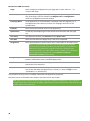
A text field for entering notes is available underneath the Opportunity properties.
The lower section of the Details tab is blank to provide room for Extra Fields.
Note: Opportunities support the Event Log functionality available in EXO Business; every change to
an Opportunity field is recorded in the AUDIT_TRAIL table and can be reported on in the same way as
all other events in the Event Log.
30
Opportunities
Additional Tabs
After entering information on the main Details tab, click Save. Additional tabs become available - the
Opportunities window includes the following common tabs:
History Notes
Transactions
Documents
Activities (see page 20)
Social
Note: The Social tab uses the social media account details that have been set up for the company
that the Opportunity is associated with.
A Quote tab is also available for adding quote information against the Opportunity (see page 32).
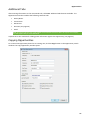
Copying Opportunities
To create a new Opportunity based on an existing one, click the Copy button on the Opportunity search
window. The Copy Opportunity window opens:
31
EXO Business CRM User Guide
Specify details for the new Opportunity:
Field
Description
Copy From
Opportunity no
The ID number of the source Opportunity.
Company
The company account (Debtor, Creditor or Non Account) that the
source Opportunity relates to.
Copy To
Subject
Enter a subject that describes the Opportunity. By default, this is
copied from the source Opportunity.
Company
Enter the name of the company account that the new Opportunity
relates to, or enter ? and press TAB to search for one. By default, this
is copied from the source Opportunity.
Contact
Enter the name of the Contact that the Opportunity relates to. By
default, this is copied from the source Opportunity.
Due Date
Select the date when this Opportunity is due to be completed.
Estimate
Enter the initial estimated value for the Opportunity. By default, this
is copied from the source Opportunity.
Extra Fields
This section displays any Extra Fields on the Opportunity whose Copy
field property is set to “Prompt”. By default, these fields contain the
values from the source Opportunity; either leave the values as they
are or enter new values.
Options
Duplicate quote lines
Duplicate line narratives
Duplicate history notes
Duplicate quote options
Select which attributes of the source Opportunity to copy to the new
one. Tick the boxes for all attributes that you want to copy.
Include lost lines
If this box is unticked, quote lines with a status of “LOST” will be not
copied from the source Opportunity. Tick this box to copy lost quote
lines to the new Opportunity.
Copy documents
Tick this box to copy all documents attached to the source
Opportunity.
Click Copy to create the new Opportunity. The new Opportunity appears, so that any additional edits can
be made. You are given the option of keeping the prices of copied line items, or re-applying pricing rules to
them.
32
Opportunities
Opportunity Quotes
To enter quote information for an Opportunity, go to the Quote tab.
Note: This tab replicates most of the functionality of the Quote tab in the EXO Job Costing add-on
module. (Functions specific to jobs are not included.)
Field
Description
Group
select
The first column contains a checkbox that allows you to select the line as part of a
group of lines to perform actions on using the right-click menu.
Narrative
The second column displays the
icon if the line has a narrative attached. Rightclick on this line and select Add Narrative to add a new narrative to a line.
A narrative can only be added/edited after the line has been saved.
Code
A product code. Type ? and press TAB to return a list of products. Double click product
required.
Type . (full stop) and press TAB to load a Bill of Materials.
Description
A product description. This uses the description of the product as entered in the main
MYOB EXO Business stock record. It can be overwritten.
Qty
The quantity to be supplied. It is 1 by default.
GST No
Select the GST rate to use for this item.
Cost
The cost of the product. This uses the cost as entered in the stock records, but can be
overwritten.
33
EXO Business CRM User Guide
Sell
The selling price of the product. This uses the selling price, as attached to the
customer. It can be overwritten.
Total
Automatically calculated – cannot be directly overridden.
Markup %
This value is automatically calculated, and can be overwritten. Enter the percentage
amount of the new markup, ignoring the % sign, e.g. 112.5.
Status
The status of this line. Will be one of:
LOST
QUOTE
JOB
ORDER
When a quote is converted (see page 36), only lines with the status “QUOTE” will be
copied to the Sales Order or Job. A quote line can be changed from “QUOTE” to
“LOST” and vice versa using the Set Line Status as Quote and Set Line Status as
Lost right-click menu options.
Converted lines automatically have their status changed to “JOB” or “ORDER” as
relevant.
Date
The date of transaction being entered.
Cost Type
This column is only available if EXO Job Costing is installed. Enter a Cost Type, if types
are used. Type ? and press TAB to select from cost types available.
Cost Group
This column is only available if EXO Job Costing is installed. Enter a Cost Group, if
groups are used. Type ? and press TAB to select from cost groups available. Cost
group will auto populate if a Cost Type is entered first, but can be overridden.
Disc (%)
Discount applied to the selling price of this line.
Gross
Margin %
Automatically calculated – cannot be directly overridden.
Supplier
Name
The preferred supplier for any lines that you will need to “order in”. Used when
creating purchase orders based on the lines that have a “copy to” flag set to “P” on
the quote.
From
Location
The preferred location to draw stock from if this quote is converted.
Kit No
When a kit is added to the quote, the lines of the kit are given a kit incidence number
that is used to hold the likes of the kit together. Lines that are not part of a kit have
the value -1.
Quote
Options
This works in conjunction with the Quote Options defined in the area above the
grid. These are covered in more detail later but allow the quote to be split onto
sections (say for optional upgrades). One quote option is created by default (‘Default
Option’).
34
Opportunities
Analysis Codes
Analysis Codes are arbitrary codes that can be assigned to transactions, allowing
you to group them together in various ways for sorting and reporting. They do
not perform any function themselves; they are simply a customisable way of
grouping related transactions together.
Labour Allowance
This allows a unit labour allowance to be specified associated with a product.
Labour allowances are distinct from an actual “time” lookup item within the grid
and act as a guide. Labour allowance is optionally keyed in the Labour Allowance
column and can also be defaulted from an extra field on the Stock Item. This is a
“per unit” labour value so is multiplied by quantity.
As this tab is an ExoGrid there are more columns available by right-clicking on the column header and using
Select Visible Columns. The columns shown above are shown by default.
Additional columns that may be selected include:
Field
Description
Sell Inc GST
Sell price including GST.
GST
GST value per unit.
GST Total
Total line value of GST.
Total Inc GST
Line total including GST.
ST
The one-letter code for the line’s status.
GST Rate
The percentage rate of GST.
Length, Width
and Depth
Allow additional factors to apply to quantity. These default to 1.
Total Qty
Used with Length, Width and Breadth gives the effective quantity when these
factors are multiplied by quantity.
Line Type
This is normally zero but this can indicate:
1 = Kit header
2 = Component
Kit Code
Normally blank but this can contain the BOM code of a kit.
Line #
Line number. This can be edited and used with the ExoGrid sorting capabilities (or
Clarity reporting) to re-sequence the lines from their original entry sequence.
Analysis Code 1
Analysis Code 2
Can be used as another coding for posting to the General Ledger.
Showline
Contains a Y or N to indicate if the line should appear on an invoice. This applies
to kit component lines where the component lines may be hidden (set on BOM
header).
35
EXO Business CRM User Guide
Spread
Defaults to Y but can be changed to N. Indicates if the line will be taken into
account when using the spread function to alter the quote total.
When adding lines, the checkboxes for those lines will not appear until the quote is saved.
Clicking Save, Save & Exit, or pressing CTRL + S commits the changes. Clicking Cancel cancels changes and
returns to the search screen.
Clicking Print prints the Opportunity Quotation form (Opportunity.CLF), containing details of the
Opportunity and its associated quote.
Converting Opportunity Quotes
An Opportunity quote can be converted to one of the following:
A Sales Order Quote.
A Sales Order.
A Job Quote, i.e. a Job where all information is on the Quote tab and no transactions have been
activated.
Note: An Opportunity must be associated with a Debtor account before it can be converted to a
quote. If the Opportunity is currently associated with a Non Account, you will be given the option of
converting the Non Account to a Debtor before converting the Opportunity.
To convert an Opportunity quote, select an option from the Convert dropdown in the Opportunity window
toolbar:
Note: The available options are determined by the CRM Opportunity Conversion Options User-level
profile setting.
Only quote lines that have the status of “QUOTE” will be copied to the Sales Order/Job. These lines will
have their status updated to “ORDER” or “JOB” as applicable. If lines are removed from the Sales Order or
Job, the relevant lines are updated in the Opportunity. The following window appears when the Sales
Order/Job is closed:
If the Mark any unconverted lines as lost option is ticked, then any lines on the original Opportunity that
were deleted from the Sales Order/Job will be set to “LOST”. If the option is not ticked, then any lines on
the original Opportunity that were deleted from the Sales Order/Job will be set back to “QUOTE”.
36
Opportunities
Opportunity Quote Options
The functions that are available to be performed on Opportunity quote lines are detailed below.
Toolbar Options
Change quote total The
button can be used to alter the quoted values of lines to sum to a specified
total. The system prompts for the new total.
Lines are proportionally altered by factoring them on the basis of old total versus new total (the difference
is spread according to the lines original value). If you have some lines which you do not wish to be altered
by this process then set the value in their Spread column to N.
Check for Price Changes Click the
button to check quoted prices against the latest cost and selling
prices from the stock ledger. A prompt will appear when copying a quote or a job, when converting a quote
to a job, or manually by pressing the calculator button.
Check Stock Level The current levels of stock relating to the requirements of a quotation can be checked
before it is activated as a job by clicking the
button. This may be useful to help decide whether the lines
need to be set to be purchased or whether it is expected that stock be taken from a particular stock on
hand location.
Move line up/down The quote lines can be reorder by selecting a line and using the
or
move it up or down. The arrangement of the quote lines is saved when the quote is saved.
buttons to
37
EXO Business CRM User Guide
Quote Options
By default, all lines of a job belong to the DEFAULT OPTION, which is automatically created for each
job. When quoting, it may also be preferable to include additional lines for optional extras or upgrades to
the default being quoted.
To create or maintain one or more additional Quote Options click the Setup button. A search screen of
additional Quote Options will be displayed. For a new job where additional options have not yet been
created, there will be no entries.
To create a new option click New. To edit an existing, option double-click its entry.
The name of the option can be set or maintained.
For each line on the Quote/Budget tab, the Quote Option column can be changed from the DEFAULT
OPTION.
Ticking or unticking a Quote Option in the header panel will include/exclude that option from the job totals
at the bottom of the screen.
The Quote Options can also be used in Clarity reporting to provide alternate quoted options within the
single job.
Right-click Menu Options
Right-clicking on a quote line will show options relevant to the line. These options change depending on the
characteristics of the current line. Some are common with the toolbar actions detailed above.
Note: Any options specific to Job Costing are not available.
Add Narrative (CTRL+N) This allows a line level narrative to be added to or edited for a line. A narrative
editing window is opened with blank or previously entered text. Right clicking in the text area provides
additional options for inserting text:
38
Insert Common Phrases - adds a Common Phrase to the narrative.
Insert Stock Notes - copies the content of the Notes tab from the Stock Item setup screen.
Opportunities
Set Line Status as Lost/Quote This sets the Status column for the selected line to “LOST”. If the line is
already in the “LOST” status, this option changes it back to “QUOTE”. When right-clicking on a kit, this
option becomes Set Kit Status to Lost/Quote, and affects all lines in the kit.
Split line This allows a line that has a quantity > 1 to be split into two lines so that they can be acted upon
independently. The system will prompt for the quantity to be split-off into the new line:
The remainder of the quantity will be left on the original line.
Attach Line to Kit At least one kit must exist on the job before this function can be used. When selected a
search screen of kit headers on the job appears so that you can select which kit the line is to be appended
to. The line will be re-sequenced if necessary and added as the last line of the kit.
Remove Line (CTRL+DEL) This deletes the current line from the job. A confirmation request is displayed.
Check Stock Level This checks the current levels of stock relating to the requirements of a quotation. This
function is also available by clicking the
button.
Kit Functions
When right-clicking on a kit header or one of its components, a different set of options relating to kits
becomes available under the Kit sub-menu.
Append Component Line This function allows the user to select additional lines from the Bill of Materials
set up for addition to the kit. These are lines that have been marked as non-default and therefore were
excluded when the kit was originally added to the job. These non-default BOM lines could be substitute
items (used in conjunction with delete line of the original component) or common optional extras.
Append Stock Item Line You can append a stock item line from the Stock file. Selecting this option displays
the entire stock list in a search screen for selection. The item you choose does not have to be an item preconfigured as optional in the Bill of Materials.
Substitute Component Line This function is only available when right-clicking on a component line in a kit
on the Costs tab. Selecting this option allows you to choose a new component item to replace the selected
item.
Extra Kit information This function allows you to enter additional information for the kit. A periscope-style
window is displayed to allow serial number information to be entered if this kit will make an output item:
39
EXO Business CRM User Guide
This information is for record keeping and may be printed on customer reports - the serial does not exist in
the main stock serials list. If an asset is produced for the job and this is a serialised item, the serial number
must be added there manually.
Copy Bill Notes This function allows you to copy the notes established on the Bill of Materials setup screen
into a narrative on the kit header line within the job. The narrative may then be customised as required and
therefore the notes of the Bill of Materials may constitute a template.
Marked Lines
The functions under Marked Lines on the right-click menu operate on the lines which have checkboxes
ticked. All lines can be ticked/unticked by clicking the checkbox in the column header row. The Marked
Lines submenu contains the following options:
Set Markup % This function prompts for a markup percentage and adjusts the sell prices of the selected
lines accordingly.
Set Gross margin % This function prompts for a gross margin percentage and adjusts the sell prices of the
selected lines accordingly.
Set Cost Types This function pops a combo box dialogue where the user can select a cost type to apply to
the selected lines.
Set Cost Groups This function pops a combo box dialogue where the user can select a cost group to apply
to the selected lines.
Opportunity Stages
Opportunity Stages are used to indicate what point an Opportunity is at in the sales cycle. Each stage has a
number of associated characteristics that dictate whether certain system-defined flags are raised on
changing to this stage.
For example, an Opportunity may be at the stage of Unqualified, Qualified, Solution Defined, Proposal
Submitted, and Closed. An Opportunity may in fact have two stages representing closed Opportunities:
those that closed after being processed to a sale (Closed Won), and a similar Closed stage that represents
when an Opportunity did not result in a sale (Closed Lost). Both of these stages would have the same
characteristics of being non-active Opportunities, and probably Locked. However it is possible to
differentiate between these two Closed stages on analysis reports.
40
Opportunities
To set up Opportunity stages:
1. Select Setup > Setup Opportunity Stages from the EXO Business CRM menu, or select “Edit List...”
from the Stage dropdown on the Opportunity window (see page 28). The Setup Opportunity Stage
window is displayed:
41
EXO Business CRM User Guide
2. Click New. Type in the details of any further stages required.
42
Field
Description
Opportunity status key
A meaningful one character unique short code to represent
this stage.
Opportunity status name
A suitable description of the stage, e.g. Qualified.
Prevent new transactions
System flag preventing entry of additional transactions to
Opportunities at this stage.
Make opportunity read only
System flag to ensure that no part of the Opportunity can be
edited while at this stage. This includes the Stage field itself.
Only a user who has administrator rights can modify this
Opportunity (this is determined by the User has Opportunity
Administrator Rights User-level profile setting).
Opportunities are complete
System flag indicating that Opportunities in this stage are
complete.
Quotations read only
System flag used to lock the Quote tab to prevent further
changes while the Opportunity is at this stage. Default is No.
The Quote tab will be locked unless logged in as a user with
administrator rights.
Opportunities
Opportunities are archived
System flag indicating that Opportunities in this stage should
be archived.
Workflow Constraints Apply
When this flag is set, the user may specify which stages the
Opportunity may move to. The stage change can also be
flagged to be tracked.
Opportunities are ready to
invoice
System flag indicating that Opportunities in this stage are
ready to invoice.
Opportunities are active
System flag indicating that Opportunities in this stage are
currently active.
Def. Probability
Select the default Probability level for Opportunities at this
stage.
3. When the Workflow Constraints Apply option is checked for a given stage, you can click on the
button to open a further screen to specify workflow stage paths.
4. Check the boxes in the Active column to specify which stages you can move an Opportunity to from
this stage. If you want to record the history of the stage change in the Event Log, check the boxes in
the Track Event column as well.
43
Sales Team Budgets
Sales Team Budgets are intended for clients whose businesses are focused on selling to existing clients and
who therefore manage their sales staff by comparing actual sales versus budgeted sales. As EXO Business
CRM is integrated with the rest of the EXO Business system, it can use historical sales data as input into
creating budgets and tracking budgets to current sales.
Sales Team Budgets can be defined at the following levels:
Account Group 1 and 2
Account
Stock Group 1 and 2
Stock item
Setting up Sales Team Budgets
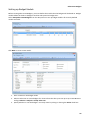
Setting up Sales Staff
Staff members are set up as members in EXO Business Config at Staff > Profile Assignment > Staff > Sales
Team tab.
Tick the Has Budget option for each staff member who is to have a sales budget.
Use the Reporting To dropdown to select the sales manager that the staff member reports to (by default,
staff members are their own managers). Specifying managers for staff members affects the budget
generation process; when editing a budget, users can see the budgets for all staff members that report to
them. This is hierarchical - if Staff Member A reports to Staff Member B, and Staff Member B reports to
Staff Member C, then C will be able to see the budgets for both A and B. The area below the Reporting To
option contains a tree view showing all staff members who report to the selected manager.
Setting up Sales Years
Sales Team Budgets use the same budgeting periods as the EXO Business Analytics module. These periods
are set up in EXO Business Config at Admin > Analytics > Setup Sales Year.
44
Sales Team Budgets
Setting up Budget Models
Before creating Sales Team Budgets, you must define the models that the budgets will be based on. Budget
models define the levels to budget at and the sales period to budget over.
Select Setup Sales Team Budgets from the Setup menu to set up budget models. All currently defined
models are listed.
Click New to create a new model:
1. Enter a name for the budget model.
2. Select a Sales Year to create budgets for. Choose from the sales years set up set up in EXO Business
Config at Admin > Analytics > Setup Sales Year.
3. Specify whether or not the budget is currently active by ticking or clearing the Active check box.
45
EXO Business CRM User Guide
4. Select the levels to create budgets at by ticking the required boxes in the Budget Model section. It
is only necessary to tick one box for each column - ticking the box for one level effectively selects all
levels above it, e.g. selecting to budget by Account Group means that budgets will be created for
Account Group 2 as well. It is not necessary to select an option from both columns; you could
choose to budget by Stock Group only, for example.
5. Click Save to save the budget model.
Creating and Editing Budgets
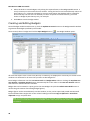
Once all budget models have been set up, click the Update Structure button on the Budget Models window
to generate the budgets specified by the models.
Once created, select a budget and click the Open Budget button (
). The Budget window opens:
All users that report to the current user (directly or indirectly) are displayed in a hierarchy on the left of the
window. Tick the boxes for all users that you want to edit budgets for.
Enter budget information into the Last Year Actuals and Budget Value columns. Clicking the Populate Last
Year Actuals or Populate Actuals buttons automatically fills in the values in the Last Year Actuals columns
with data from the EXO Business database.
Budget data can be viewed in a pivot grid on the View Budget tab (click the Refresh Pivot Grid button to
refresh the grid contents after editing budget figures).
Budget figures can be entered directly into this window, or they can be copied and pasted into Microsoft
Excel and edited there. Right-click on the column headings and select Copy to clipboard or Paste from
clipboard to copy and paste data.
Note: The data copied to Excel can be manipulated as required; however, in order to be able to be
pasted back into EXO Business CRM, the SEQNO column must remain the first column in the
spreadsheet.
46
Campaigns
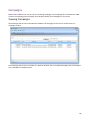
EXO Business CRM lets you set up and run marketing campaigns. The Campaign tab in EXO Business CRM
contains the Campaign Search widget, which displays details of all campaigns in the system.
Viewing Campaigns
The Campaign Search view in EXO Business CRM lists all campaigns in the system. Double-click on a
campaign to edit it.
The Campaign Search view is available as a separate window and as a Dashboard widget that can be added
to the EXO Business CRM interface.
47
EXO Business CRM User Guide
Creating Campaigns
To create a new campaign, click the New button on the Campaign Search window.
The following properties are available on the Details tab:
48
Field
Description
Reference
Enter a short reference code to identify the campaign.
Title
Enter a descriptive name for the campaign.
Estimated Cost
Enter the estimated costs of the campaign. This provides a simple
method of costing campaigns - for more advanced costing, use the EXO
Job Costing module and associate the campaign with a job using the
Campaign Costs property.
Estimated Revenue
Enter the estimated revenue that will be generated by the campaign.
Estimated Response
Enter the estimated number of respondents for the campaign.
Estimated Cost per
Response
The value in this field is calculated automatically based on the values of
the Estimated Cost and Estimated Response fields.
Campaigns
Stage
The campaign stage indicates the progress of the campaign from
creation to completion. Choose from:
New
In Progress
Postponed
Cancelled
Completed
Stages can be added and set up in the same way as Opportunity Stages
(see page 40) by selecting Setup Campaign Stages from the Setup
menu.
Notes
This field can contain a details description of the campaign, or any other
additional information.
Start Date
End Date
Use the start and end dates to specify the period over which the
campaign will run.
Days Remaining
This field is calculated based on the start and end dates, and displays
how much longer the campaign has to run.
Owner
The EXO Business staff member who is responsible for the campaign.
Campaign Type
Select whether this is a Marketing or Non-Marketing campaign. This
affects Contacts who have opted out of marketing communications (by
ticking the Opt-Out eMarketing flag on the Contacts window); they will
be excluded from campaigns that are set as “Marketing”.
Campaign Costs
This field is only available when the EXO Job Costing module is installed.
When using the EXO Job Costing module to track campaign costs,
specify the job that will contain costs for this campaign.
Note: A Campaign Wave field is available on jobs. This field is used
to indicate that the job was raised as a result of a campaign wave,
not that it contains costs for a campaign.
Campaigns support extra fields - if any have been set up, they appear underneath the Notes section.
Once a new campaign has been saved, additional tabs appear next to the Details tab:
Activities - this tab displays all activities (see page 20) created for the campaign.
Contact Lists - this tab displays all Contact Lists (see page 14) associated with the campaign. Contact
Lists can be created and added to the campaign from this tab.
Waves - this tab is where the communication waves (see page 50) that make up the campaign are
set up and processed.
History Notes - this tab displays all history notes for the campaign.
Transactions - this tab displays all transactions associated with the campaign (see page 57).
Documents - this tab displays any documents related to the campaign.
Analysis - this tab contains a dashboard interface with widgets that display analysis information on
the campaign.
49
EXO Business CRM User Guide
Campaign Communication Waves
Campaigns can be separated into communication “waves”, which can be processed one after another as
the campaign progresses. The Waves tab on the Campaigns window displays all actions planned for the
campaign.
Setting up Campaign Waves
To create a new campaign wave, click the Create New Wave button on the toolbar of the Campaigns
window.
50
Campaigns
Fill in all relevant details of the campaign wave. The following details are available:
Field
Description
Campaign Ref
The title of the campaign that the wave is a part of.
Description
A brief description of the wave.
Communication Method
The communication method indicates what action should be
performed in this wave. Choose from:
Mailshot Process - send bulk communications to selected
Contact Lists using the mailshot function.
Bulk Activity Creation - create Tasks or Appointments (see page
23) related to all members of selected Contact Lists.
Execute SQL - execute a custom SQL query against selected
Contact Lists.
Social Media Post - post to the company social media networks.
Export List - export the details of selected Contact Lists to a CSV
file.
Execute External Program - run an external file or program.
Note: Communication methods can be hidden using the Hide
Campaign Wave Communication types User-level profile setting;
if any of the methods listed above do not appear, check this
profile setting.
Target Contact Lists
This property allows you to select the Contact List(s) that the wave
should apply to. Its availability depends on which option is selected
for the Communication Method.
Opt in URL
Opt out URL
Landing Site
Tracker Key
These fields become available if “Mailshot Process” is selected for
the Communication Method. These are details that may be relevant
to the campaign wave, which can be included in communications. For
example, one or more of them could be included in the email
template used by this wave.
Note: The values entered for these details are stored for each
wave in the CAMPAIGN_WAVE table.
Text
This field becomes available if “Social Media Post” is selected for the
Communication Method. It allows you to enter the text that will be
sent to the target social media network(s).
Start Date
End Date
Enter the date range over which this campaign wave will run.
Processed
Complete
These flags can be ticked to indicate the current status of the
campaign wave. When the wave is processed (see page 52), the
Processed flag is ticked automatically.
51
EXO Business CRM User Guide
Processing Campaign Waves
Campaign waves are processed in different ways, depending on the action chosen for the Communication
Method property.
Logging functions are available so that campaign waves can be followed up (see page 57) after they have
been processed.
When processing a campaign wave that uses one or more Contact Lists, i.e. all communication methods
except for “Social Media Post”, you are given the option of refreshing the Contact Lists before processing.
This will regenerate the lists based on their list building criteria, capturing any changes to Contacts that
have been made since the list was last generated.
Note: For lists that do not use the list building criteria, i.e. lists where all Contacts were added
manually, there is nothing to refresh, so this option will not appear.
Mailshot Process
When “Mailshot Process” is selected for a wave’s Communication Method, a Mailshot button becomes
available on the Campaign Wave window toolbar. Clicking this button launches the mailshot process for all
Contact Lists selected in the Target Contact Lists field.
When performing a mailshot from a campaign wave, any Contacts in the target Contact List who have the
Opt-Out eMarketing flag ticked will be highlighted in grey, and will not be processed (this only happens for
campaigns where the Campaign Type property is set to “Marketing”).
Bulk Activity Creation
When “Bulk Activity Creation” is selected for a wave’s Communication Method, a Bulk Activity button
becomes available on the Campaign Wave window toolbar. Clicking this button opens a window where you
can enter a SQL query to be run against all Contact Lists selected in the Target Contact Lists field:
52
Campaigns
Most of the details on this window are the same as those on the Activities window (see page 20). The
following additional fields relate specifically to bulk creation:
Field
Description
Assign to Sales Person
If this option is ticked, each appointment created will be assigned to
the Sales Person associated with the Contact. If no Sales Person is
specified, the appointment will be assigned to the staff member
specified in the Assign To dropdown.
Start On
Specify the date and time when the first activity in the sequence should
start.
Duration
Specify how long each activity should last for.
Interval
Specify the interval in between each activity - this is the amount of time
between the end of one activity and the start of the next.
Set all details as appropriate, then click Preview. A Preview tab becomes available, showing a schedule of
all proposed activities:
If the schedule is correct, click Go to create all activities.
53
EXO Business CRM User Guide
Execute SQL
When “Execute SQL” is selected for a wave’s Communication Method, an Execute SQL button becomes
available on the Campaign Wave window toolbar. Clicking this button opens a window where you can enter
a SQL query to be run against all Contact Lists selected in the Target Contact Lists field:
Select the type of query to run:
Concurrent - the query will be applied to the entire Contact List in one operation.
Consecutive - the query will be applied to each contact in the list in turn. When this option is
selected, the details of all members of the selected Contact List(s) appear in the bottom pane of the
window.
Enter the SQL query into the main area of the window, then click Run Manual Query to apply the query.
Social Media Post
When “Social Media Post” is selected for a wave’s Communication Method, a Text field becomes available,
and three buttons social media buttons appear on the Campaign Wave window toolbar:
Facebook Post
LinkedIn Activity
Tweet Status
Enter text for the social media post into the Text field, then click one or more of the toolbar buttons to post
the text to the relevant social media network(s). The accounts posted to are those that were entered in
EXO Business Config at Admin > Social Media > Setup Social Media. The account details used to post with
are those that were used to log in and authorise the social media applications on the Setup Social Media
screen.
Note: The number of characters entered into the Text field is displayed - this is useful when posting
to Twitter, as it shows if the text will exceed the 140-character limit for a single tweet.
54
Campaigns
Export List
When “Export List” is selected for a wave’s Communication Method, an Export List button becomes
available on the Campaign Wave window toolbar. Clicking this button opens the following window:
All Contacts from the list(s) specified in the Target Contact Lists field are displayed in the grid; tick the
Export box for all Contacts whose details you want to export. Right-click on the column headers and choose
Select visible columns to select the columns to export; all visible grid columns will be exported to the CSV
file, with the exception of the Export column.
Note: Right-click options are available to check or uncheck the Export box for all Contacts.
Enter the name of the CSV file to export to, then click Export to export the list. The exported CSV file can
then be used in third party applications, for example, a third party bulk mailing system.
When exporting to a list, any Contacts in the target Contact List who have the Opt-Out eMarketing flag
ticked will be highlighted in grey, and will not be processed (this only happens for campaigns where the
Campaign Type property is set to “Marketing”).
55
EXO Business CRM User Guide
Execute External Program
When “Execute External Program” is selected for a wave’s Communication Method, an Execute External
Program button becomes available on the Campaign Wave window toolbar. Clicking this button opens the
following window:
The external program can be run in one of two modes, as specified by the Type property:
Concurrent - the program will be run once for the entire Contact List.
Consecutive - the program will be run for each Contact in the list in turn. When this option is
selected, the details of all members of the selected Contact List(s) appear in the bottom pane of the
window.
Enter the name of the file or executable to run and any additional parameters into the Parameters field.
Additional parameters work the same way as they do for custom buttons:
To run an external program, enter
“MyProg.EXE <LOGIN> <CURRENT>“
Where <LOGIN> passes the database connection details and <CURRENT> passes out the campaign wave
SEQNO in Concurrent mode and each Contact’s SEQNO in Consecutive mode.
Note: Clicking the Campaign Wave Seqno or Contact Seqno toolbar button adds the <CURRENT>
parameter to the end of the parameter string.
Any parameter entered with the extension .CLR will assume that you want to run a clarity report and will
call Clarity directly. It is not necessary that Clarity.EXE exist to do this.
Once parameters are entered, click Run to run the file or executable.
56
Campaigns
Following up Campaign Waves
Several logging functions are available to record when and how campaign waves are processed. The
recorded information can be useful when following up on a wave after it has been processed.
When a campaign wave is processed, a History Note is added to the campaign’s History Notes tab. A History
Note is also added to the History Notes tabs for each affected Contact when using one of the following
communication methods:
Execute SQL
Export List
Execute External Program
When using the “Mailshot Process” communication method, a Save copy of sent email option is available
on the Mailshot window. If this option is ticked, a History Note is created for each Contact that the mailshot
was sent to, and a copy of the email is saved to each Contact’s Documents tab.
When following up on a campaign wave, it can be useful to know which Contacts the wave was sent to. The
CAMPAIGN_WAVE_AUDIT table contains a persistent record of which Contacts each campaign wave was
sent to. (Checking the Contact List that the wave was sent to may not always be reliable, as the list may
have been edited since the mailshot was sent.) Audit logging is available for the following communication
methods:
Mailshot Process
Execute SQL
Export List
Execute External Program
Campaign Transactions
When EXO Business CRM is installed, a Campaign Wave field is available on the following windows:
Sales Orders
Purchase Orders
Debtor Invoices
Non Accounts
Opportunities (see page 28)
Activities (see page 20)
Jobs (EXO Job Costing module)
This field allows all transactions relevant to a campaign to be associated with that campaign. The specified
campaign wave is copied from transaction to transaction where appropriate, e.g. when converting an
Opportunity to a Sales Order or a job.
Note: You can use the Track Campaigns On Transactions Company-level profile setting to turn the
Campaign Wave field on and off for each transaction type as appropriate.
57
EXO Business CRM User Guide
The Transactions tab on the Campaigns window is a dashboard interface containing widgets that display all
transactions that have been assigned to the currently selected campaign. Widgets are available for
Invoices, Sales Orders, Jobs, Opportunities and Purchase Orders.
58
Index
campaign waves ............................................. 52
A
Activities........................................................ 20
in EXO Business CRM ......................................23
synchronising with Outlook ............................25
C
campaigns ..................................................... 47
transactions ....................................................57
waves ..............................................................50
Companies ....................................................... 4
Contact Lists .................................................. 15
Contacts .......................................................... 6
Accounts tab ...................................................14
e-mailing .........................................................19
entering for an account ..................................10
in EXO Business CRM ........................................ 6
lists ..................................................................15
searching ........................................................... 7
synchronising with Outlook .............................. 7
Creditors
Contacts tab ...................................................... 9
CRM ................................................................ 1
E
EXO Business CRM ........................................... 1
M
Marketing Classes .......................................... 13
Microsoft Outlook
synchronising Activities.................................. 25
synchronising Opportunities ............................ 7
My Day ............................................................ 3
O
Opportunities ................................................ 28
quote options ................................................. 37
quoting ........................................................... 33
stages ............................................................. 40
Outlook
synchronising Activities.................................. 25
synchronising Opportunities ............................ 7
S
Sales Team Budgets ....................................... 44
social media
posting from a campaign wave ...................... 52
synchronising
Activities ......................................................... 25
Opportunities ................................................... 7
W
waves (EXO Business CRM) ............................ 50
processing ...................................................... 52
mailshot
59