1
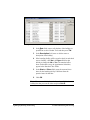
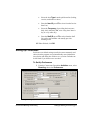
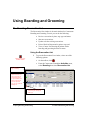
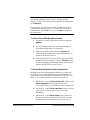
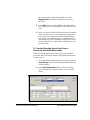
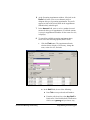
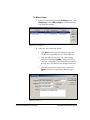
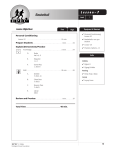
Grooming Appointment window for practices using Appointment Scheduler
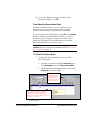
Tip If the patient has prior grooming appointments, the View
History button is active. To transfer information from a prior
grooming appointment to the current grooming appointment, see
"To Transfer Grooming Appointment History to a New Grooming
Appointment" on page 42.
2
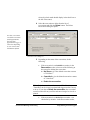
If you are changing information for an existing
appointment, change information in the Prefix,
Appointment Items, Staff Time and/or Notes fields.
Note To change other grooming appointment information, such
as date/time, staff, room, reason for visit and time units, use your
Cornerstone Appointment Scheduler software.
36 • Using Boarding and Grooming
3
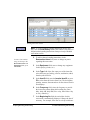
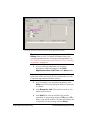
If you are making a new grooming appointment, in the
Units field, if necessary, change the number of time units
to schedule.
4
In the Reason for visit field, select the reason for visit
from the pull-down list.
5
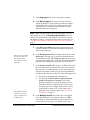
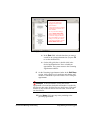
In the Staff field, enter the staff ID of the provider
responsible for the grooming and press Tab or press F2 to
display a list of staff members. Click the staff member that
is responsible for the grooming and click Select.
Cornerstone® Boarding and Grooming