1
Step 8
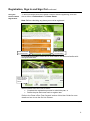
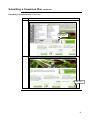
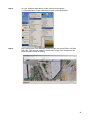
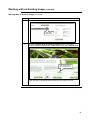
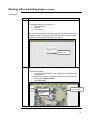
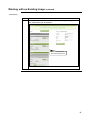
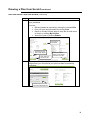
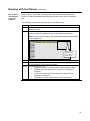
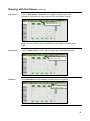
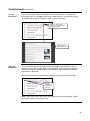
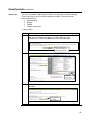
We can now through Paint go to the top menus, click Edit and then click
Paste and the “cut” image will now be inserted back into the Paint software.
Step 9
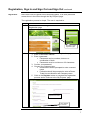
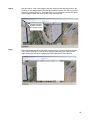
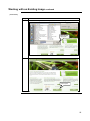
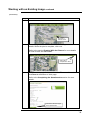
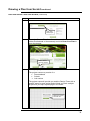
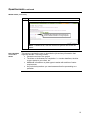
We now have the image we wish to use and can save this image ready for
import into the Reece Irrigation online planner. By going to our top menus
and clicking on File>>>>Save As we will see the dialog box where we can
simply type in the preferred filename and click the Type of file as JPEG and
click Save.
Step 10
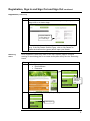
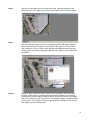
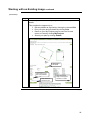
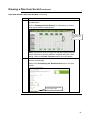
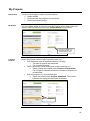
When we have visited the Site to obtain other information such controller
location, power access, proposed pump and tank locations, flow rate and
pressures we simply need to measure just a single line that is on the image
and record with your other information. For example length of middle carpark
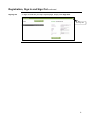
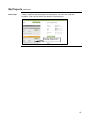
is 30 metres. The next part of the user guide will now explain how to import
this image into the online planner.
21