1
Using S-PLUS With Microsoft Excel
Removing the
Excel Add-In
If you choose to remove the Excel add-in, you can do so either by
running S-PLUS Setup or by removing the add-in from within Excel.
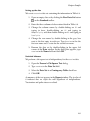
To remove the Excel add-in using S-PLUS Setup, do the following:
1. Run S-PLUS Setup, choosing the Modify option.
2. Select Excel Add-in from the list of components.
3. Follow the on-screen instructions.
Note
If you install the Excel add-in during the installation of S-PLUS and later remove S-PLUS, the
Excel add-in is removed automatically.
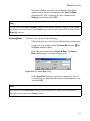
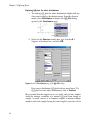
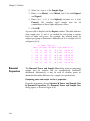
To disable the Excel add-in from within Excel, do the following:
1. Start Excel.
2. Create a new worksheet if one does not already exist.
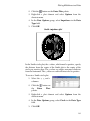
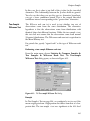
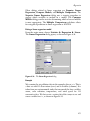
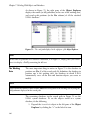
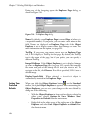
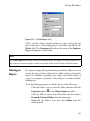
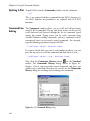
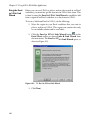
3. From the Tools menu, choose Add-Ins.
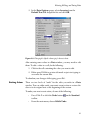
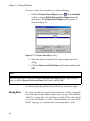
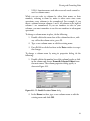
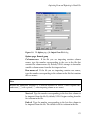
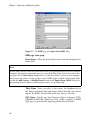
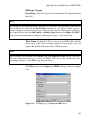
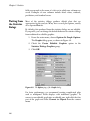
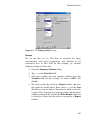
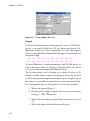
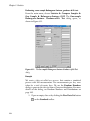
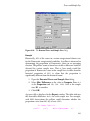
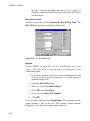
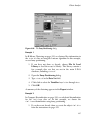
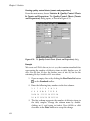
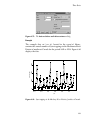
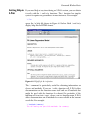
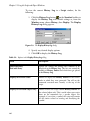
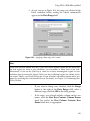
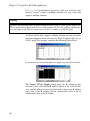
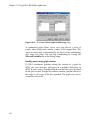
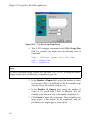
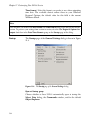
4. In the Add-Ins dialog, clear the S-PLUS Add-In check box
(see Figure 10.10.) and click OK.
Using the Excel
Add-In
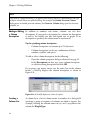
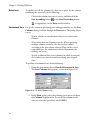
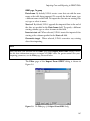
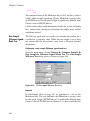
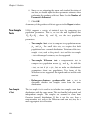
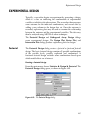
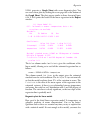
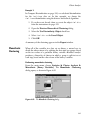
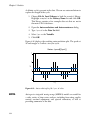
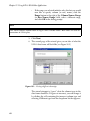
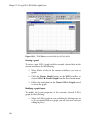
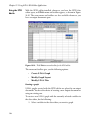
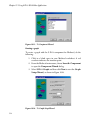
With the Excel add-in installed, whenever you have a worksheet in
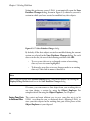
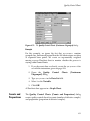
focus in Excel, an S-PLUS menu and toolbar appear, as shown in
Figure 10.11.
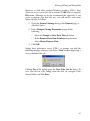
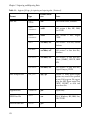
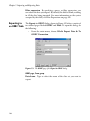
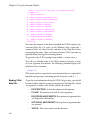
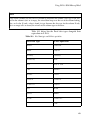
The menu and toolbar give you the following options:
•
Create Graph
•
Modify Graph Layout
•
Modify Plots
501