1
How to Use Simple Connect
Note: The Powerline Adapters that you have received are ready for use straight out of the box. They require no initial set-up or configuration - all you need to do is connect
them as detailed in the Quick Start Guide. The following Instructions about the Simple Connect button to configure your network are only applicable if you are wanting to
change the default private network name or include more adaptersinto the same powerline network.
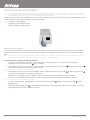
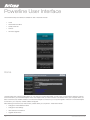
Simple Connect provides a more convenient way of creating your Powerline network without the need to open the Powerline Utility software
from a computer. The button has three main functions which includes:
• Creating a Powerline Network
• Resetting the Private Network Name
• Joining an existing Powerline Network
Creating a Powerline Network
To create a Powerline network, you need at least two Powerline devices using random Private Network Names. When you press Simple
Connect on both devices, a common Private Network Name will be automatically generated to enable them to communicate with each
other.
Note: New Powerlines from a Twin Pack can already communicate with each other out of the box. However, if you intend to create a new Private Network Name using Simple
Connect for both devices, you need to reset their Private Network Names to a random key before proceeding.
To create a Powerline network using Simple Connect:
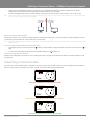
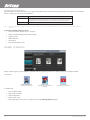
1 Plug your Powerlines side by side where you can easily observe the LED behavior. Upon connection, the LEDs will blink
simultaneously and then the Power LED lights on steadily.
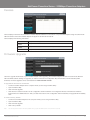
2 Press Simple Connect for two seconds on Adapter X. After you release the button, the Power LED
did not blink, press Simple Connect again for two seconds.
Note: will blink. If the Power LED
Do not press Simple Connect for more than 2 seconds.
3 Press Simple Connect for two seconds on Adapter Y. After you release the button, the Power LED
did not blink, press Simple Connect again for two seconds.
will blink. If the Power LED
Make sure to press Simple Connect on Adapter Y within two minutes after you press Simple Connect on Adapter X.
The LEDs on both devices will switch off and on twice to signify that they are searching for another device to pair with.
Note: Do not press Simple Connect for more than 2 seconds
4 To confirm if the connection was established, check the LEDs. The Power LEDs
Adapters are on.
and the Powerline Activity LEDs
on both
When the Powerline Activity LED
on either Adapter X or Adapter Y is off, this means the pairing is not successful. In this case,
please repeat the the process as outlined from point 1.
200Mbps Powerline Adapters User Guide
6
YML204
www.netcomm.com.au