1
FAMIS Release 2.0.0
Facilities Management Information System
Training Guide
and
User Manual
Copyright © 2007 Department for Transport, Energy and Infrastructure
COPYRIGHT NOTICE
This Training Guide and User Manual is copyrighted and all rights are
reserved by the Department for Transport, Energy and Infrastructure. No
part of this publication may be reproduced, transmitted, transcribed, stored
in a retrieval system, or translated into any language or computer language,
in any form or by any means, electronic, mechanical, magnetic, optical,
chemical, manual or otherwise, without the prior written permission of the
Department for Transport, Energy and Infrastructure, Building Management,
Level 2, 211Victoria Square, Adelaide, SA 5000.
Version 5 2010 March 2010
Table of Contents
Conventions ............................................................................................. 1
Using the Keyboard .......................................................................................... 1
Using the Mouse ............................................................................................... 2
Terms ............................................................................................................... 3
Getting Started with FAMIS ..................................................................... 4
Introduction ....................................................................................................... 5
Logging On ....................................................................................................... 7
Password Requirements ................................................................................... 9
The Welcome Screen...................................................................................... 10
The Asset List ................................................................................................. 11
The Work Tabs ............................................................................................... 12
Data Entry Techniques, Tips & Hints............................................................... 13
Using the Keyboard...................................................................................... 13
Using the Mouse .......................................................................................... 13
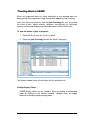
Work Tabs Scroll Arrows .............................................................................. 14
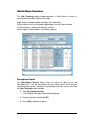
Text Tips ...................................................................................................... 14
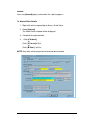
Searching for Assets....................................................................................... 15
Navigate to an existing Asset ....................................................................... 15
‘Search’ using the Toolbar Menu .................................................................. 15
Setting up an Asset List .................................................................................. 17
User Contact Details ....................................................................................... 19
Shutdown Procedure ...................................................................................... 20
Work Requests ....................................................................................... 21
Request Work ................................................................................................. 22
Unplanned Work ............................................................................................. 23
Planned Work ................................................................................................. 25
Work Agreement..................................................................................... 26
Agreement of Works ....................................................................................... 27
Authorise, Dispute or Delete an Agreement .................................................... 28
Clearing an Action........................................................................................... 28
Action List Options .......................................................................................... 29
Amending Work Details................................................................................... 30
Job Tracking........................................................................................... 31
Tracking Work in FAMIS ................................................................................. 32
Quick Menu Functions .................................................................................... 33
Description Search ....................................................................................... 33
Display Options ............................................................................................ 34
Action Options .............................................................................................. 35
Approvals................................................................................................ 42
Approvals for Payment.................................................................................... 43
Display Job Details on the Approvals Tab....................................................... 45
Accept, Approve or Dispute claims for Payment.............................................. 46
Clear Disputes on claims for payment............................................................. 47
Job History ............................................................................................. 48
Job History Details .......................................................................................... 49
View the history of a completed Job ............................................................. 49
Quick Menu Options ..................................................................................... 50
Export information to Excel........................................................................... 51
Job Billing............................................................................................... 53
Job Billing Details............................................................................................ 54
View the Billing details of a Job .................................................................... 54
Invoicing ................................................................................................. 55
View Jobs ready for Invoicing.......................................................................... 56
Invoicing Jobs by the FM ................................................................................ 57
Work Schedules ..................................................................................... 59
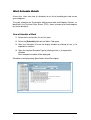
Work Schedule Details.................................................................................... 60
View a Schedule of Work ............................................................................. 60
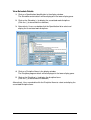
View Schedule Details.................................................................................. 61
Budgets................................................................................................... 63
Budget Details ................................................................................................ 64
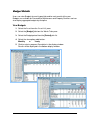
View Budgets ............................................................................................... 64
Troubleshooting ..................................................................................... 65
Error Messages............................................................................................... 66
Bugs ............................................................................................................... 66
How to enter a new Bug or Problem ............................................................. 67
View the ‘About’ screen................................................................................... 67
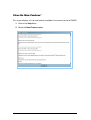
View the ‘New Features’ ................................................................................. 68
Reports.................................................................................................... 69
Report Details ................................................................................................. 70
Conventions
This section explains the keyboard functions, mouse actions, and terms used in these
training materials.
Using the Keyboard
Keys that do not produce a character appear within angle brackets.
These keys include:
Function keys
<F1> through <F12>
Booster keys
<Alt>, <Ctrl>, and <Shift>
Pointer Movement keys
Other Keys
<Home>, <Page Up>, <Page Down>,
<End>, <Tab>, and the arrow keys
<Backspace>, <Del>, <Ins>, <Caps Lock>,
<Esc>, <Enter>, and <Num Lock>
Buttons that appear in dialog boxes and references to data entry fields are shown in
bold square brackets.
For example:
Choose [OK]
or
Click in the [Asset] field
1
Using the Mouse
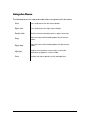
The following terms are used to describe actions you perform with the mouse.
Click
Press and release the left mouse button.
Right-click
Press and release the right mouse button.
Double-click
Click the left mouse button twice in rapid succession.
Drag
Move the mouse while holding down the left mouse
button.
Right-drag
Move the mouse while holding down the right mouse
button.
Highlight
Drag the mouse pointer across data, causing the
information to appear in reverse video.
Point
Position the mouse pointer on the indicated item.
2
Terms
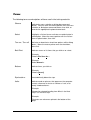
The following terms are descriptions of those used in the training materials:
Choose
Indicated a menu selection or dialog box command
button. You can move the mouse pointer over the menu
selection or dialog box command button, then click, or
execute the appropriate keyboard commands.
Select
Highlights a list box item or activates an option button in
a dialog box. Move the mouse pointer over the list box
item or option button, then click.
Turn on / Turn off
Activates or deactivates check box options within dialog
boxes. Move the mouse pointer over the check box,
then click.
Bold Print
Indicates menu or list items that you click on or select.
Example:
Choose File Save As….
Example:
Select Numeric.
Buttons
Indicate items you click on.
Example:
Choose [Insert]
Explanations
Located directly below the step.
Italics
Indicate words or phrases that appear on the computer
screen, references to text or a number as itself, or to
newly introduced terms.
Example:
Change the selected heading from What is the Next
Step? to The Next Step.
Example:
Footnotes are references printed a the bottom of the
page
3
Getting Started
with FAMIS
OBJECTIVES
You will be able to:
•
Understand the function of FAMIS
•
Start-up FAMIS
•
Move around the FAMIS screens
•
Exit FAMIS
4
Introduction
The Facilities Management Information System (FAMIS) is a program designed to
be used by staff and management who are responsible for the management and
implementation of systems pertaining to the Facilities Management Arrangements.
The function of FAMIS is to improve the management of assets through its ability to:
•
Enable agencies and sites to procure the following services:
Planned Services
o Preventative Maintenance
o Planned Replacement/Refurbishment Maintenance
o Planned Minor Works
Unplanned Services
o
o
o
o
Breakdown Maintenance
Unplanned Property Services
Unplanned Replacement/Refurbishment Maintenance
Unplanned Minor Works
Property Services
o
o
o
o
o
Cleaning Services
Hygiene Services
Security Services
Grounds Maintenance
Waste Management
•
Enable the Agency representatives to follow up on the progress of work
requests and allow Agency representatives and Facility Managers to track jobs.
•
Store all data relating to the asset/cost centre, the type of work involved, and the
labour, materials, equipment and resources used.
•
Enable Agencies and sites to accept and approve jobs for payment or dispute
work as required.
•
Allow Facility Managers to enter two invoices, per month, for completed jobs.
5
NOTE: The FAMIS software has now been extended to work with Assets not
covered by the FM Arrangements and located outside the Adelaide
metropolitan area.
This is a Pilot situation, limited to selected designated locations.
In FAMIS, when work is submitted by an Agency representative a job number is
issued for the work to be done. The details are passed to the Facilities
Management Service Provider (FM) for registration with their system. The agency
deals directly with the FM. The FM reports to DTEI via a daily file upload which
contains claim information and other data requested.
Breakdowns reported
via hotline
Facility Manager
Agency
FAMIS
6
Logging On
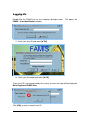
Double-click the FAMIS icon on the computer desktop screen. This opens the
FAMIS – User Identification window.
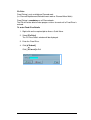
1. Enter your User ID and select [
OK]
2. Enter your Password and select [
OK]
If your User ID is not recognised by the system, an error message will be displayed:
Not a Registered FAMIS User.
Click [OK], re-enter a correct User ID.
7
Occasionally during the Log-in process Users are advised that the current version of
FAMIS is out-of-date and Users will be prompted by the system to download a
NEW FAMIS version.
There may be up to four separate modules included in the new version and Users
will be asked for download confirmation for each module.
Download times may vary depending on the speed of the internet connection being
used. Normal broadband connection can take approximately 2-3 minutes, however,
slower speeds can cause the download process to take up to 45 minutes.
Click [
OK] to download now (recommended)
or
Click [Ignore] to download at a later time
8
Password Requirements
To comply with Government Security Guidelines FAMIS requires Users to change
and maintain their own Password in accordance with FAMIS Password
requirements:
Passwords must comply with the following:
•
•
•
•
All Passwords must be 8 characters or more
All Passwords must contain at least, 1 number, 1 uppercase letter and 1
lowercase letter.
Users will be prompted to change their Password every 30 days (the system
will allow 1 grace login, per User)
Passwords cannot be re-used until 13 other Passwords have been utilised.
FAMIS will allow 3 login attempts; if you exceed 3 login attempts the system will
lock your User access.
Contact the Service Desk by telephone on 8226 1511 or by emailing
[email protected] to re-set and unlock User access.
9
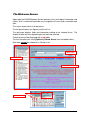
The Welcome Screen
Upon login the FAMIS Welcome Screen provides Users with topical information and
notices and is structured to provide easy navigation to Assets and associated work
tabs.
The screen layout consists of two panes.
The left pane displays the Agency and Asset List.
The right pane displays fields and information relating to the selected Asset. The
display window will vary depending on the work tab selected.
Closed Assets will be displayed with a red folder.
To view Closed assets select [Options]: Closed Assets from the toolbar Menu.
New work cannot be created for a Closed asset.
Work Tabs
The Asset
Display Window
Closed Assets
10
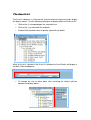
The Asset List
The Asset list displays in a hierarchical structure where the top most levels display
the Agency names. Use the following techniques to display details of the Asset list:
•
Click on the (+) to expand/open the selected Asset
•
Click on the (-) to close/hide Asset details.
•
Double-Click the folder name to quickly expand Asset details.
When an Asset is selected in the Asset List window the Asset Details will display in
the Work Tabs windowpane.
•
To change the size of either pane, click and drag the vertical split bar
between the display panes.
11
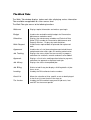
The Work Tabs
The Work Tab window displays twelve work tabs displaying various information.
Tabs available are applicable to a Users access level.
The Work Tabs give access to the following functions:
Welcome
Displays topical information and notices upon login.
Budget
Used to view and edit monthly budgets for Preventative
Maintenance and other works.
Schedules
Displays the maintenance schedule and Technical Data
Sheet (TDS) number for Preventative Maintenance and
Property Services. Displays by work disciplines.
Work Request
Used to enter required data for planned and unplanned
work.
Agreement
Used to view a list of planned replacement/refurbishment
and planned minor works jobs still awaiting authorisation.
Job Tracking
Displays the status of jobs that are currently in progress,
and allows for variations, reworks and costs to be added.
Approvals
Displays a list of tasks awaiting authorisation for payment,
and allows for approval or dispute of each job.
Job History
Displays the status of completed jobs.
Job Billing
Similar to Job History but displays all billing details of jobs
for an asset.
Invoicing
Used by the FM to allocate invoice numbers.
Asset List
Allows the selection of User specific assets to be displayed
in the Asset List next time the User logs on.
Tax Invoice
Used by the FM to authorise payment of job costs, fees
and GST for the current period.
12
Data Entry Techniques, Tips and Hints
FAMIS data entry can be completed using the mouse or the keyboard to access
data entry fields.
Using the Keyboard
Use the following keys to move around fields in data entry areas.
<TAB>
Move to the next field
<SHIFT> <TAB>
Move to the previous field
Using the Mouse
There are a variety of techniques you can use when selecting fields with the mouse:
•
Pick List Fields – Some fields will consist of ‘pick lists’, i.e.: select from a
pre-defined list of options. Click the down arrow to access the list then click
to highlight the required entry.
Click to view ‘pick
list’ options.
•
Free Text Fields – Click in the data entry field with the mouse and then type
in the required text.
•
Date Fields – Date fields will display monthly calendars where you can click
on the required day to enter the date.
Use the left or right arrows to scroll through the months and/or years.
Click the calendar arrows to
scroll:
<< or >> - by Year
< or > - by Month
13
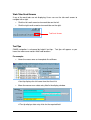
Work Tabs Scroll Arrows
If any of the work tabs are not displaying, Users can use the tab scroll arrows to
navigate left or right.
•
Click the left scroll arrow to view work tabs on the left.
•
Click the right scroll arrow to view work tabs on the right.
Tab Scroll Arrows
Text Tips
FAMIS navigation is enhanced by helpful ‘text tips. Text tips will appear as you
hover the mouse over certain fields and locations.
For example:
•
Hover the mouse over an incomplete Asset Name.
A text tip displays the full name from the Asset List
•
Move the mouse over a data entry field in the display window.
A Text tip displays data entry hints for the required field.
14
Searching for Assets
Finding Assets within FAMIS is quick and simple using one of following methods:
Navigate to an existing Asset
1. Click in the [Asset] field in the Work Tabs pane.
2. Enter the Agency Code and Asset Number with a dot separator.
e.g.: TAFE.07754, EDUC.01777
3. Press <Tab> on the keyboard.
FAMIS will display the Asset Details for your selection in the Work Tabs pane.
‘Search’ using the Toolbar Menu
The toolbar Search Menu offers Users several options to locate existing Assets:
1. Click the Search Menu
2. Choose search type
Assets by Name
1. From the Search menu, select [Assets by Name]
2. Type in the Asset Name or part name, press <Enter> or click [Find].
3. Results will be displayed, click on the Asset required and click [Select].
4. FAMIS will display the newly selected Asset in the Asset Details section of
the Work Tabs pane.
15
Assets by Number
1. From the Search menu, select [Assets by Number]
2. Type in the Asset Number, press <Enter> or click [Find].
3. Results will be displayed, click on the Asset required and click the
[Select] key.
4. FAMIS will display the newly selected Asset in the Asset Details section
of the Work Tabs pane.
Assets by Address
1. From the Search menu, select [Assets by Address]
2. Type in the Address, or part address, press <Enter> or click [Find].
3. Results will be displayed, click on the Asset required and click the
[Select] key.
4. FAMIS will display the newly selected Asset in the Asset Details section
of the Work Tabs pane.
Search results table.
Highlight the required Asset
Click [
Select] to access the Work Tabs pane.
Click [X Cancel] to cancel the Search
16
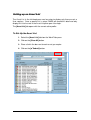
Setting up an Asset List
The Asset List in the left-hand pane can be setup to display only those assets a
User requires. Once a specific list is setup, FAMIS will record this detail and only
display this list of assets in the Asset List pane upon User login.
The [Asset List] tab opens with the current active profile.
To Set-Up the Asset List
1. Select the [Asset List] tab from the Work Tabs pane.
2. Click on the [Clear All] button.
3. Place a tick in the box next to each asset you require.
4. Click on the [
Submit] button.
17
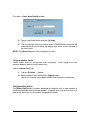
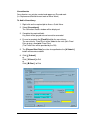
This opens a Save Asset Profile window.
5. Type a new Profile Name and click [
Save].
6. The next time the User exits and re-enters FAMIS the new Profile will be
used and the Asset List pane will display only those Assets included in
the new Profile.
NOTE: The [Asset List] tab is not available to all Users.
To Show Another Profile
FAMIS allows Users to set up more than one profile. Once set-up Users can
alternate between profiles as the need arises.
From the [Asset List] Tab:
1. Click the [Profiles … ] button.
2. Select another Profile and click the [Apply] button.
The Asset List pane closes down and the new Profile list is displayed.
The [Show Role] button
The [Show Role] button has been designed for Agencies with a large number of
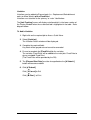
Assets being looked after by several people. It displays all Assets for that User as a
crosscheck that each Asset has been assigned and ticked.
18
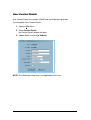
User Contact Details
User Contact Details are stored in FAMIS and should be kept up to date.
To view/update User Contact Details:
1. Open the File Menu
2. Select Contact Details
the Contact Details window will open.
3. Update details and click [
Submit]
NOTE: The Notification check box is not applicable at this time.
19
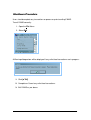
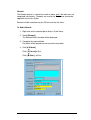
Shutdown Procedure
Users should complete any transactions or processes prior to exiting FAMIS.
To exit FAMIS correctly:
1. Open the File Menu
2. Select Exit
A Warning dialogue box will be displayed if any unfinished transactions are in progress.
1. Click [
OK]
2. Complete or Cancel any unfinished transactions.
3. Exit FAMIS as per above.
20
Work
Requests
OBJECTIVES
You will be able to:
•
Recognise in the Request Work Tab, which fields are:
o
o
o
o
Required
Optional
Default Data
Selection Data
•
Submit a Work Request
•
Release Planned Jobs
•
Cancel a Work Request
21
Request Work
The Work Request screen will display various fields appropriate for the type of work
being entered.
Fields are colour coded as follows:
1.
White
Displays Asset Details for the chosen asset.
2.
Grey
Displays ‘default’ data that cannot be changed.
3.
Blue
Mandatory Field for data entry.
4.
Yellow
Optional field for data entry.
NOTE: Not all of the fields are displayed for some agencies.
Some agencies may only require some of the optional fields to be populated.
22
Unplanned Work
Unplanned work consists of:
•
Breakdown Maintenance
•
Unplanned Property Services
(i.e: Cleaning, Security etc…)
•
Unplanned Replacement/Refurbishment work (less than $11,000)
•
Unplanned Minor Works (less than $11,000)
There are 5 priority levels available, depending on the urgency of the work.
Priority 1
Emergency, immediate less than 30 minutes.
Highest call out fee and is intended only for emergencies.
Attendance is within 30 minutes and can only be requested by telephone using
the Hotline.
Priority 2
High priority within 2 hours.
High call out fee and is intended for work of high urgency.
Attendance is within 2 hours and can only be requested by telephone using
the Hotline.
Priority 3
Same day if reported before 1 pm or by 1 pm the next day if reported after 1 pm.
Lesser call out fee and is intended for most medium urgency jobs.
Attendance is same day if reported prior to 1 pm or next day if reported after 1 pm.
Priority 4
Within 5 working days.
Lowest call out fee and is for work of a lesser urgency.
Attendance is within 5 working days.
Priority 5
Within 30 days.
No call out fee and is intended for low priority repairs.
Attendance is within a 30-day maximum period.
This work is programmed by the FM to maximise their use of resources.
23
How to Request Unplanned Work in FAMIS
1. Select an Asset from the ‘Asset List’ pane.
2. Select the [Work Request] tab from the ‘Work Tabs’ pane.
A new form will be displayed in the Display window.
3. Fill in the applicable fields on the work request form.
[Agency Ref] and [General Ref] are optional fields and may be used by the
Agency to further identify work on invoices.
NOTE: Available fields may differ depending on business requirements.
4. Click on the [
Submit] button to complete the request.
Select an Asset from
the ‘Asset List’
Fill in the required
fields.
Click [
Submit] to Complete
or
Click [X Cancel] to Cancel
24
Planned Work
1. Select an Asset from the ‘Asset List’ pane.
2. Select the [Work Request] tab from the ‘Work Tabs’ pane.
A new form will be displayed in the Display window.
3. Select the [Work Type] under Job Details
4. Select [Planned] from the pick list box.
5. Choose the [Planned Start date] and the [Planned Finish date]
Dates must be changed from the default before the [
Release] button is
enabled.
6. Fill in the required fields on the work request form.
[Agency Ref] and [General Ref] are optional fields and may be used by the
Agency to further identify work on invoices.
7. Click on the [
Release] button to save the job to the agreement list.
NOTE: All Mandatory fields must be populated before the [
Release] button
is enabled.
FAMIS will automatically advance to the [Agreement] tab.
8. On the [Agreement] tab, double-click on the newly created job and click on the
[
Submit] button.
The job will appear in [Job Tracking] the following day.
Select an Asset from
the ‘Asset List’
Fill in the required
fields.
Click [
Release] to Complete
25
Work
Agreement
OBJECTIVES
You will be able to:
•
Submit authorisation of agreed work.
•
Dispute Planned Work
•
Access Job details from the Agreement tab.
26
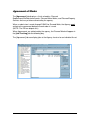
Agreement of Works
The [Agreement] tab displays a list of schedules, Planned
Replacement/Refurbishment works, Planned Minor Works, and Planned Property
Services that are yet to be authorised by the agency.
When a submission is made through FAMIS for Planned Work, the Agency must
authorise the agreement before the work order is issued.
(NOTE: The FM can dispute this)
When Agreements are authorised by the agency, the Planned Work will appear in
the [Job Tracking] tab the following day.
The [Agreement] tab can display jobs at the Agency Level or for an individual Asset.
27
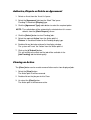
Authorise, Dispute or Delete an Agreement
1. Select an Asset from the ‘Asset List’ pane.
2. Select the [Agreement] tab from the ‘Work Tabs’ pane.
’Pending’ is the default [Display] type.
3. Click the [Agreement Type] radio button to select the required option.
NOTE: The radio button will be automatically selected when this screen
defaults from the [Work Request] screen.
4. Click the [Select] button to view ‘Pending’ jobs.
5. Select the required ‘Action’ from the Action pick list.
’Release’ is the default Action for the Pending display type.
6. Double-click on job to be actioned in the display window.
The system will ‘insert’ the ‘Action’ from the Action pick list.
7. Click on the [
Submit] button.
This will authorise the work and the job will be available in the
[Job Tracking] tab the following day.
Clearing an Action
The [Clear] button can be used to remove Action marks from displayed jobs.
1. Select the [Clear] button.
The Action pick list will be removed.
2. Double-click on the job you wish to Clear.
3. Un-select the [Clear] button.
The Action pick list will become active.
28
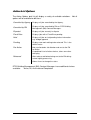
Action List Options
The Action Options pick list will display a variety of available selections. Not all
options will be available for all Users.
Cancelled by Agency
Displays all jobs cancelled by the Agency.
Cancelled by FM
Displays all jobs cancelled by FMs or DTEI Building
Management (BM) Contract Managers.
Disputed
Displays all jobs currently in dispute.
Fixed Price
Displays jobs with a Fixed Price pending.
Held
Displays all jobs on hold pending further information.
e.g.: budget approval
Pending
Displays new work waiting to be released. This is the
default status.
Pre-Active
Not yet allocated a Job Number and sent to the FM
for action.
A combined list of all other choices, takes some time
to display.
Released
After release and before being sent to the FM during
normal nightly processing.
Allows Users to change the status.
DTEI Building Management (BM) Contract Managers have additional choices
available:
Active, All, Archived and Completed.
29
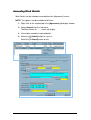
Amending Work Details
Work Details can be viewed or amended from the [Agreement] screen.
NOTE: This option is not be available to all Users
1. Right Click on the required job in the [Agreement] tab display window.
2. Select ‘Amend’ from the sub-menu.
The Work Details for …… screen will display.
3. View and/or amend the required details.
4. Select the [
Submit] button to ‘save’ or
Select the [ X Cancel] button to exit.
30
Job
Tracking
OBJECTIVES
You will be able to:
•
Search for a job using the description.
•
View the status of incomplete jobs.
•
Add a Job note
•
Add an Amendment.
•
Add a Variation.
•
Request a Rework.
•
Add Consultants details.
•
Insert a Fixed Price for a Planned job.
31
Tracking Work in FAMIS
When any unplanned work has been submitted, or any planned work has
been passed at the agreement stage, the work will appear in [Job Tracking].
Users can utilise many features from the [Job Tracking] tab, such as viewing
the status of jobs, submit reworks, variations, consultancies or fixed price
requests on Planned (Replacement/Refurbishment or Minor Work) work.
To view the status of jobs in progress
1. Select the Asset from the ‘Asset List’ pane.
2. Select the [Job Tracking] tab from the Works Tabs pane.
The display window shows all active jobs for the selected asset.
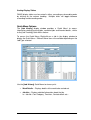
Sorting Display Tables
FAMIS display tables can be sorted in either ascending or descending
order by clicking on the column heading. Multiple clicks will toggle
between ascending and descending order.
32
Quick Menu Functions
The [Job Tracking] display window provides a ‘Quick Menu’ to access a
range of job information, details and actions.
Right-click on a job description to display the Quick Menu.
Different Menu items are available depending on the Job Type selected.
The Quick Menu is organised into three sections:
Search option, Display options, and Actions options.
Description Search
The [Description Search] allows Users to search for jobs by the Job
Description text. The Job Description field can contain up to 160 characters
and the content can be searched using keywords that may not be seen from
the [Job Tracking] display window.
1. Click [Description Search]
a ‘Find Job by Description’ box will be displayed.
2. Enter a keyword and click [
OK]
3. Press [F3] to repeat the search.
33
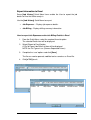
Display Options
Work Details
Displays details of the work to be carried out.
Job Info
Displays detailed information about the job.
i.e.: Job No., Cost Category, Timelines, Contact details etc…
To view or print Work Details or Job Info
1. Right-click on the job description for the required job.
2. Select the required option from the Quick Menu
A display window will show the selected option result.
3. Click [
OK ] to exit
or
[ Print ] to print a copy of the displayed information.
34
Action Options
Job Notes
The Job Description field is limited to 160 characters. Users can use the [Job
Note] field to provide more detailed information or for communication
purposes with other parties regarding the selected job.
The Job Notes screen is not colour-coded but ALL fields are required to be
populated with data. Job Notes are locked once [
Okay] is pressed and the
Note submitted.
To enter a Job Note
1. Right-click on the required job to Access Quick Menu.
2. Select [Job Note]
A Job Notes window will be displayed.
3. Click the [
New ] button.
The Job Note fields will become enabled.
4. Enter the required information.
5. Click [
OK ]
or
Click [ X Cancel] to Exit
or
Click [ Print ] to Print
The Job Note is saved against the Job and referenced by a ‘Y’ in the
Job Note column on the [Job Tracking] screen.
35
Amend
Users can [Amend] agency information for a job in progress.
To Amend Work Details
1. Right-click on the required job to Access Quick Menu.
2. Select [Amend]
The Work Details window will be displayed.
3. Complete the required fields
4. . Click [
Submit ]
or
Click [ X Cancel] to Exit
or
Click [ Print ] to Print
NOTE: Key fields will be greyed out and cannot be amended.
36
Variation
Variations can be added to Planned work (i.e.: Replacement/Refurbishment
works or Minor Works) with a Fixed Price.
Variations are ‘attached’ to the ‘primary’ or ‘main’ Job Number.
The [Job Tracking] screen will display variation details in the lower section of
the Display Window when the associated Job is highlighted in the table. Refer
diagram below.
To Add a Variation
1. Right-click on the required job to Access Quick Menu.
2. Select [Variation]
The Variation Details window will be displayed.
3. Complete the required fields.
Key fields will be greyed out and cannot be amended.
4. Ensure to complete the [Fixed Price] for the variation.
The variation ‘Fixed Price’ will be added to the main job’s Fixed Price to
give a new total ‘Fixed Price’
(The Fixed Price will be provided by the FM)
5. The [Planned Start Date] must be changed before the [
Submit ]
button will become enabled.
6. Click [
Submit ]
or
Click [ X Cancel] to Exit
or
Click [ Print ] to Print
37
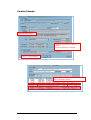
Variation Example:
Enter Variation Details
Ensure the Fixed Price is entered.
and the
Planned Start Date is changed.
Click [ OK] to Submit
[Job Tracking] displays the Original Job and
the associated Variation.
38
Consultancies
Consultancies can only be created and appear on Planned work.
(i.e. Replacement/Refurbishment work or Minor Work)
To Add a Consultancy
1. Right-click on the required job to Access Quick Menu.
2. Select [Consultants]
The Consultant Details window will be displayed.
3. Complete the required fields.
Key fields will be greyed out and cannot be amended.
4. Ensure to complete the [Fixed Price] for the consultancy.
The consultancy ‘Fixed Price’ will be added to the main job’s Fixed
Price to give a new total ‘Fixed Price’
(The Fixed Price will be provided by the FM)
5. The [Planned Start Date] must be changed before the [
Submit ]
button will become enabled.
6. Click [
Submit ]
or
Click [ X Cancel] to Exit
or
Click [ Print ] to Print
39
Rework
The Rework feature is used to have work re-done, only if the work was not
completed satisfactorily. Reworks are used at the Trade level and can be
applied to all classes of jobs.
Reworks will be undertaken by the FM at no cost to the client.
To Add a Rework
1. Right-click on the required job to Access Quick Menu.
2. Select [Rework]
The Rework Details window will be displayed.
3. Complete the required fields.
Key fields will be greyed out and cannot be amended.
4. Click [
Submit ]
or
Click [ X Cancel] to Exit
or
Click [ Print ] to Print
40
Fix Price
Fixed Pricing is only available on Planned work.
(i.e. Planned Replacement/Refurbishment work or Planned Minor Work)
Fixed Pricing is mandatory on all Planned work.
The FM will not be able to make progress claims for work until a Fixed Price is
entered.
To enter Fixed Price Details
1. Right-click on the required job to Access Quick Menu.
2. Select [Fix Price]
The Fix Price Details window will be displayed.
3. Enter the Fixed Price.
4. Click [
Submit ]
or
Click [ X Cancel] to Exit
41
Approvals
OBJECTIVES
You will be able to:
•
Authorise or Dispute Jobs to be Accepted.
•
Authorise or Dispute Jobs to be Approved.
42
Approvals for Payment
The FM makes financial claims during the month for work completed or in progress
through invoices and progress payments. Only claims that have been accepted
and approved by the Agency will be included as a payment to the FM at the end of
the payment period. (i.e.: twice monthly).
When a claim is received by DTEI BM it must be accepted and approved as soon
as possible. The Business Rules associated with the Across Government Facilities
Management Arrangements require Government and DTEI BM to pay all claims to
the Facilities Management Providers within 30 days of lodgement of the job claims
for completed and paid works carried out by the FMs.
DTEI BM has implemented an automatic payment of all claims that have not been
accepted or approved for payment after a 30-day period from when the FM put the
job claim into FAMIS.
It is imperative that Agency representatives at designated locations and Corporate
Agency representatives regularly, each week, access FAMIS to accept and approve
the FMs work claims to ensure a responsible approval environment for the Across
Government Facilities Management Service Agreement.
If a job has been disputed there will not be an automatic payment made. Payment
will be made after the client has settled the matter with the FM. If it is necessary to
dispute a claim from the FM, a valid reason must be given why the dispute has
occurred.
Once a job has been accepted or approved, it will no longer display on that filtered
list.
IMPORTANT:
Acceptance and Approval functions are for financial payment to the FM
for work undertaken at the request of the Designated Location.
It is NOT the authorisation for an Agency to charge the work to a
Designated Location. That is an internal matter between the Agency
and the Designated Location, to be decided internally and must not be
confused with the payment of the FM as a third party.
43
It is important that Designated Locations and/or Agency representatives
regularly Accept and Approve jobs for payment.
In line with the Service Level Agreement, jobs are automatically approved for
payment 30 days after the claim has been received in FAMIS but the auto approval
process is not the preferred method of approval.
DTEI BM will provide monthly reports to Agencies detailing all jobs that have been
automatically approved for payment.
After 20 days a daily countdown will occur to alert Users of pending auto approval.
44
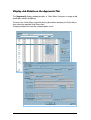
Display Job Details on the Approvals Tab
The [Approvals] display window provides a ‘Quick Menu’ to access a range of job
information, details and billing.
To access the Quick Menu, right-click on the job number to display the Quick Menu
then select the required Quick Menu item.
A display window will show the selected option result.
45
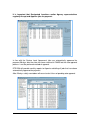
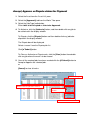
Accept, Approve or Dispute claims for Payment
1. Select the Asset from the ‘Asset List’ pane.
2. Select the [Approvals] tab from the Works Tabs pane.
3. Select the [Job Type] radio button.
Either Jobs to be Accepted or Jobs to be Approved.
4. To Authorise, click the [Authorise] button, and then double-click any job to
be authorised in the display window.
To Dispute, click the [Dispute] button and then double-click any job to be
disputed in the display window.
The Dispute box will be displayed.
Select a ‘reason’ from the Dispute pick list.
Click [
Submit] button.
To Clear an Authorise or Dispute mark, click the [Clear] button then doubleclick any job where the mark is to be cleared.
5. Once all the required jobs have been marked click the [
Submit] button to
Accept or Approve the selected jobs.
or
[Cancel] to clear all marks.
Select Job Type
Double-click the job to be marked
Select the Action
button
Submit or Cancel selections.
46
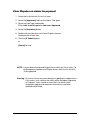
Clear Disputes on claims for payment
1. Select the Asset from the ‘Asset List’ pane.
2. Select the [Approvals] tab from the Works Tabs pane.
3. Select the [Job Type] radio button.
Either Jobs to be Accepted or Jobs to be Approved.
4. Select the [Authorise] button.
5. Double-click any jobs that are to have Disputes cleared.
Displayed with a red X icon.
6. Click the [
Submit] button.
or
[Cancel] to clear.
NOTE: It is possible to Accept and Dispute claims within the list of claims To
Be Accepted, or Approve and Dispute claims within the list of claims
To Be Approved.
Warning: An error or failure may occur during the updating of multiple claims.
If this occurs, only some of the claims will be Accepted, Approved
or Disputed. Users should re-select the list of claims to be
accepted or approved to determine what claims have been
updated and/or failed.
47
Job History
OBJECTIVES
You will be able to:
•
View the status of Jobs.
•
Export information to Excel.
48
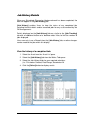
Job History Details
When any Scheduled, Planned or Unplanned work has been completed, the
work will appear in the [Job History] tab.
[Job History] enables Users to view the status of any completed job,
including financial details and/or cancelled jobs for any asset covered by the
FM Arrangements.
Details displayed on the [Job History] tab are similar to the [Job Tracking]
tab with an additional feature of a ‘between dates’ filter, to limit the number of
jobs displayed.
Users can only issue a Rework from the [Job History] tab; no other changes
can be made to the jobs within this display.
View the history of a completed Job
1. Select the Asset from the ‘Asset List’ pane.
2. Select the [Job History] tab from the Works Tabs pane.
3. Select the Job History fields for your required selections.
(i.e.: Finished or Created, Date Range, Standard or All
4. Click the [Select] button to display results.
49
Sorting Display Tables
FAMIS display tables can be sorted in either ascending or descending order
by clicking on the column heading. Multiple clicks will toggle between
ascending and descending order.
Quick Menu Options
The [Job History] display window provides a ‘Quick Menu’ to access
information relating to closed jobs, cancelled jobs and financial details, similar
to the [Job Tracking] Quick Menu feature.
To access the Quick Menu, Right-click on a job in the display window to
display the Quick Menu. Different Menu items are available depending on the
Job Type selected.
Use the [Job History] Quick Menu to view or print:
•
Work Details – Displays details of the work to be carried out.
•
Job Info – Displays detailed information about the job.
i.e.: Job No., Cost Category, Timelines, Contact details etc…
50
Export information to Excel
Some [Job History] Quick Menu items enable the User to export the job
details to Excel for further analysis.
Use the [Job History] Quick Menu to export:
•
Job Expenses – Displays job expense details.
•
Job Billing – Displays billing summary information.
How to export Job Expenses and/or Job Billing Details to Excel
1. From the Quick Menu, select the required financial option.
The selected Details box will be displayed.
2. Select [Export to Excel] button.
A ‘File to Export Job Details to’ box will be displayed.
NOTE the File Type of .csv (Comma Separated Values)
3. Complete the ‘save’ options and click [Save]
The file can now be opened, modified and re-saved as an Excel file.
4. Click [
OK] to exit.
51
Other Available Information from the Quick Menu
Other [Job History] Quick Menu items display various expense and billing
summaries for each completed job.
Use the [Job History] Quick Menu to view and/or print:
•
Expense Summary – Displays details of job expenses.
•
Billing Summary – Displays details of job billings.
•
Account Summary – Displays an overall account summary.
52
Job Billing
OBJECTIVES
You will be able to:
•
View the Billing status of Jobs.
53
Job Billing Details
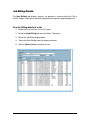
The [Job Billing] tab displays requests for payments, received from the FMs in
various stages, ranging from awaiting acceptance through to completed payment.
View the Billing details of a Job
1. Select the Asset from the ‘Asset List’ pane.
2. Select the [Job Billing] tab from the Works Tabs pane.
3. Select the Job Billing display option.
4. Select the Date Range from the display calendars
5. Click the [Select] button to display results.
54
Invoicing
OBJECTIVES
You will be able to:
•
View Invoices as an Agency.
•
View Invoices as an FM.
55
View Jobs ready for Invoicing
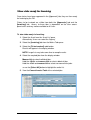
Once claims have been approved in the [Approvals] tab, they are then ready
for Invoicing by the FM.
Claims to be invoiced are visible from both the [Approvals] tab and the
[Invoicing] tab. Access to these tabs is dependant on the User access
permissions and may not be available to all Users.
To view Jobs ready for Invoicing
1. Select the Asset from the ‘Asset List’ pane.
Alternatively, Users can select the ‘Agency’
2. Select the [Invoicing] tab from the Works Tabs pane.
3. Select the [To be invoiced] radio button.
Results will appear in the display window.
NOTE: Large lists may take some time to compile results.
4. Select the required jobs from the display window
Mouse-click to select individual jobs.
Hold the <Shift> and mouse-click to select a block of jobs.
Hold the <Ctrl> and mouse-click to select non-consecutive jobs.
or use the [Select All] button to highlight the entire list.
5. View the Current Invoice Total of the selected jobs.
56
Invoicing Jobs by the FM
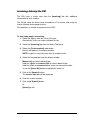
The FMs have a similar view from the [Invoicing] tab with additional
functionality to raise Invoices.
The FM will select the claims to be included on a Tax Invoice and assign an
Invoice Number to the group of claims.
This produces an Invoice for payment to the FMP.
To view Jobs ready for Invoicing
1. Select the Agency from the ‘Asset List’ pane.
Alternatively, Users can select individual Assets.
2. Select the [Invoicing] tab from the Works Tabs pane.
3. Select the [To be invoiced] radio button.
Results will appear in the display window.
NOTE: Large lists may take some time to compile results.
4. Select the required jobs from the display window
Mouse-click to select individual jobs.
Hold the <Shift> and mouse-click to select a block of jobs.
Hold the <Ctrl> and mouse-click to select non-consecutive jobs.
or use the [Select All] button to highlight the entire list.
5. Click on the [Invoice] button.
The Invoice Jobs box will be displayed.
6. Enter the Invoice Number.
7. Click the [
Submit] button.
or
[Cancel] to exit.
57
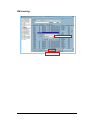
FM Invoicing
Enter the Invoice No.
Invoice Amount
58
Work
Schedules
OBJECTIVES
You will be able to:
•
View the schedules of Preventative Maintenance work.
•
View the schedules of Property Services.
59
Work Schedule Details
At any time, Users can view all schedules for an Asset including past and current
years programs.
The work schedules for Preventative Maintenance work and Property Services, as
identified in the Technical Data Sheets (TDS), shows a break-up of each program
by service discipline.
View a Schedule of Work
1. Select the Asset from the ‘Asset List’ pane.
2. Select the [Schedule] tab from the Works Tabs pane.
3. Open the Schedule list from the display window by clicking on the (+) to
expand the selection.
4. Open the required Schedule Type by clicking on the (+) to expand the
selection.
Each recorded schedule will be displayed.
Schedules are displayed by Specification Id and Description.
60
View Schedule Details
1. Click on a Specification Identification in the display window.
The Schedule content details will be displayed in the lower display pane.
2. Click on the Schedule (+) to display the associated work disciplines.
(Click the (-) to close/hide the selection)
3. Alternatively, Users can double-click the Specification Id to select and
display the associated work disciplines.
4. Click on a Discipline Name in the display window.
The Discipline program details will be displayed in the lower display pane.
5. Click on the Discipline (+) to display the discipline items.
(Click the (-) to close/hide the selection)
Alternatively, Users can double-click the Discipline Name to select and display the
associated discipline items.
61
The available tabs in the lower display pane are dependent on the User access
permissions and will be different for certain Users.
•
Agency User access will display the [Services] and [Jobs] tabs.
•
DTEI BM Contract Managers and Facilities Managers access will display
other Facilities Management related tabs.
62
Budgets
OBJECTIVES
You will be able to:
•
View Budgets by month or year.
63
Budget Details
Users can view Budgets for each type of job and for each month of the year.
Budgets are available for Preventative Maintenance and Property Services and can
also display aggregate budgets by discipline.
View Budgets
1. Select the Asset from the ‘Asset List’ pane.
2. Select the [Budget] tab from the Works Tabs pane.
3. Select the Budget period from the [Period] pick list.
4. Select the view option radio button.
Monthly
or
Yearly
5. Click to select a program Description in the display window.
Results will be displayed in the bottom display window.
64
Troubleshooting
OBJECTIVES
You will be able to:
•
Recognise error messages.
•
View Reported Bugs.
•
Enter a New Bug Report.
•
Display the About Screen.
•
View the New Features text file.
65
Error Messages
Error messages appear when the system cannot complete a task due to incomplete
transactions being present on a previous asset.
Error messages will be displayed in a FAMIS box with a description and/or prompt
to correct the problem.
1. Take note of the action required.
2. Click [
OK] to exit the FAMIS error message box.
3. Navigate and correct the error.
Bugs
With an intended attempt to assist Users with overcoming problems with FAMIS,
Users can view a list of previously reported problems using the system [Bug List].
This list provides a description and resolution for each Bug.
To access the system Bug List
1. Click on the Help Menu.
2. Select [Bug List] from the Help Menu list.
A ‘List of Reported Problems’ box will be displayed.
66
How to enter a new Bug or Problem
1. Click on the File Menu.
2. Select Report Bugs.
3. Select a Reference from the [Reference] pick list.
4. Enter a brief description of the problem in the [Details] box.
Include your name and contact phone number.
5. Click on the [
Submit] button to report the Bug.
View the ‘About’ screen
The About Screen displays information about FAMIS, including the current Version
Release and the FM Contact details.
1. Click on the Help Menu.
2. Select the About option.
67
View the ‘New Features’
This screen displays a list of new features available in the current version of FAMIS.
1. Click on the Help Menu.
2. Select the New Features option.
68
Reports
OBJECTIVES
You will be able to:
•
View the available Reports.
69
Report Details
There is a selection of Reports available from FAMIS with the added feature to
export the results to Excel for analysis or printing.
How to access Reports
1. Click on the Reports Menu.
2. Select [New Jobs] from the Reports Menu.
3. Select the required period from the available selections.
The results will display in a separate display window.
4. Select the [Export to Excel] button.
Follow the system prompts to save and access the Excel file.
or
Select [
OK] to exit.
70
FAMIS Release 2.0.0
Training Guide and User Manual
Department for Transport, Energy and Infrastructure
Version 5 March 2010
End of Document
COPYRIGHT NOTICE
This Training Guide and User Manual is copyrighted and all rights are reserved by the
Department for Transport, Energy and Infrastructure. No part of this publication may be
reproduced, transmitted, transcribed, stored in a retrieval system, or translated into any
language or computer language, in any form or by any means, electronic, mechanical,
magnetic, optical, chemical, manual or otherwise, without the prior written permission of the
Department for Transport, Energy and Infrastructure, Building Management, Level 2, 211
Victoria Square, Adelaide, SA 5000.
71